E-learning toolkit: All about Accessibility


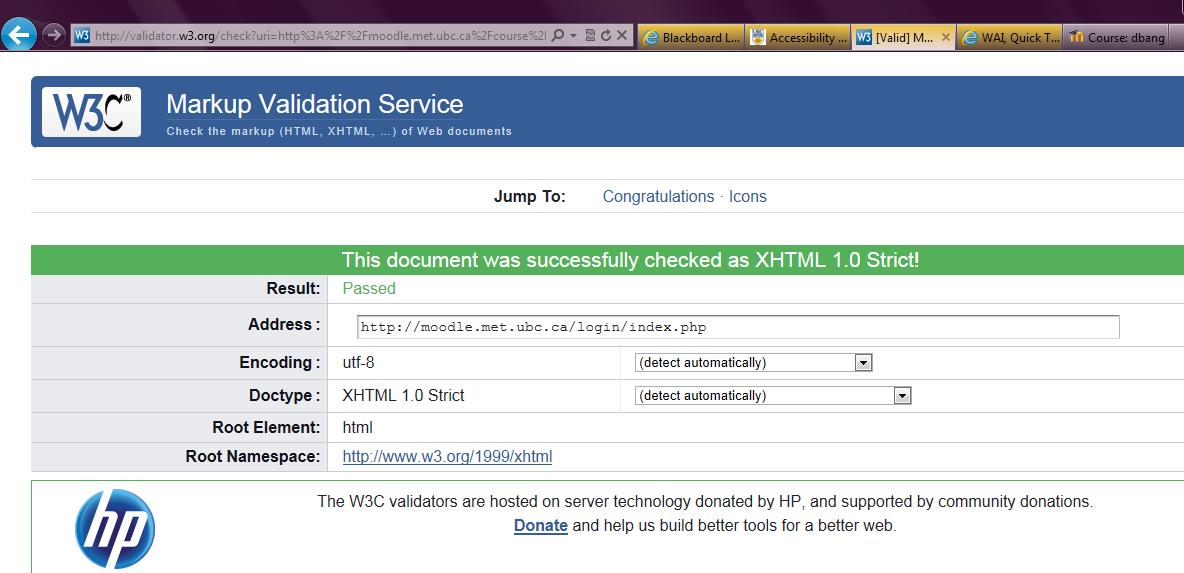
After carefully examining my Moodle LMS site and cross-referencing it with the Quick Tips guide on the Website Accessibility Initiative (WAI), I then checked my LMS site using the Markup Validation Service at: http://validator.w3.org/. I was pleased to see that the following message appeared: “This document was successfully checked as XHTML 1.0 Strict! Result: Passed.” I also noticed that I could put a “valid” icon on my LMS site to show users that I have developed an interoperable Web page. The next step for me now is to add the associated HTML for the “valid” icon on my LMS page. 🙂

Overall, I found this to be a useful exercise and consulting the top 10 list from the W3C site helped provide guidance about the key principles of accessible website design. I’ve included the list below as a reminder:

10 Quick Tips
1. Images & animations: Use the alt attribute to describe the function of each visual.
2. Image maps. Use the client-side map and text for hotspots.
3. Multimedia. Provide captioning and transcripts of audio, and descriptions of video.
4. Hypertext links. Use text that makes sense when read out of context. For example, avoid “click here.”
5. Page organization. Use headings, lists, and consistent structure. Use CSS for layout and style where possible.
6. Graphs & charts. Summarize or use the longdesc attribute.
7. Scripts, applets, & plug-ins. Provide alternative content in case active features are inaccessible or unsupported.
8. Frames. Use the noframes element and meaningful titles.
9. Tables. Make line-by-line reading sensible. Summarize.
10. Check your work.Validate. Use tools, checklist, and guidelines at
http://www.w3.org/TR/WCAG

© W3C (MIT, INRIA, Keio) 2001/01

An exploration of web design principles and storyboarding

Write an entry for your course weblog about your experience here (on your “Home” page and posting a new entry). How labour intensive was the process? What worked well? What was challenging? What surprised you?

I found the e-learning toolkit particularly useful and inspired me to pick up some books on web design and accessibility. For the web design software, I downloaded a 30-day trial version of Adobe Dreamweaver CS5, and open source WYSIWYG editors Amaya and Kompozer (from NVU). Sketching out the basic website layout was the premise of the storyboarding exercise which definitely helps organize and plan the website structure prior to its implementation. I drew a storyboard that was similar to my WordPress blog and used the web design principles I learned from the “web pages that suck” checklist (of what not to do in web design).

Next, I created an account on Bravenet to upload my webpage creation and found the process fairly simple and straightforward. After the initial registration, I chose a template design and then edited the content of my webpages. For now, it’s a pretty basic site which I’m using as my storyboarding practice at: http://etec565storyboarddiana.bravesites.com. I checked the appearance of the site using two different web browsers, IE9 and Opera. Both appeared to be similar and so I moved onto testing my website’s accessibility using the Web Accessibility Evaluation (WAVE) tool at: http://wave.webaim.org/report?url=http%3A%2F%2Fetec565storyboarddiana.bravesites.com&js=2. I “WAVED” my page by entering the url, and got a surprising error message: “Uh oh! WAVE has detected 1 accessibility error. The following are present in the head section or apply to this page in general.” I located where this error was in heading 1- where the WAVE tool outlined with a red icon that there was an empty heading without any content. It was sort of confusing since I did have a heading in there as “Navigating the tumultuous terrain of storyboarding.” Also, in a yellow icon it stated that there was one or more javascript elements present. In any case, this just means that I’ll have to go back to my storyboarding site and try to fix the error(s) that the WAVE tool found. Overall, I found this was a great exercise to practice storyboarding, learn about web design principles, web design software, website accessibility, and HTML authoring. My next step is to try out the web design software I’ve downloaded to determine which one to use for my Moodle site and start developing the content for my e-learning modules.

Spam prevention powered by Akismet