Whenever you start an ArcGIS Pro project you should always ensure that you have established a proper working environment. Most of the parameters that you should check out are found within Options, which is accessed by clicking on Project, and then on Options. Three of the elements that you should pay attention to are the Current Settings tab (Figure 1), the Geoprocessing tab (Figure 2), and the Share and Download tab (Figure 3). You should confirm the paths and Directories, and the options, in each tab in order to know where your files will be stored.
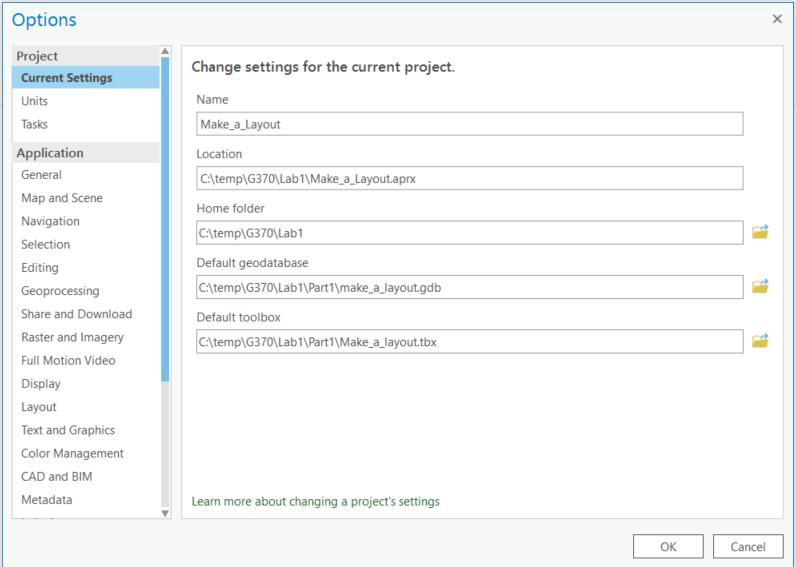
Figure 1: Options: Current Settings
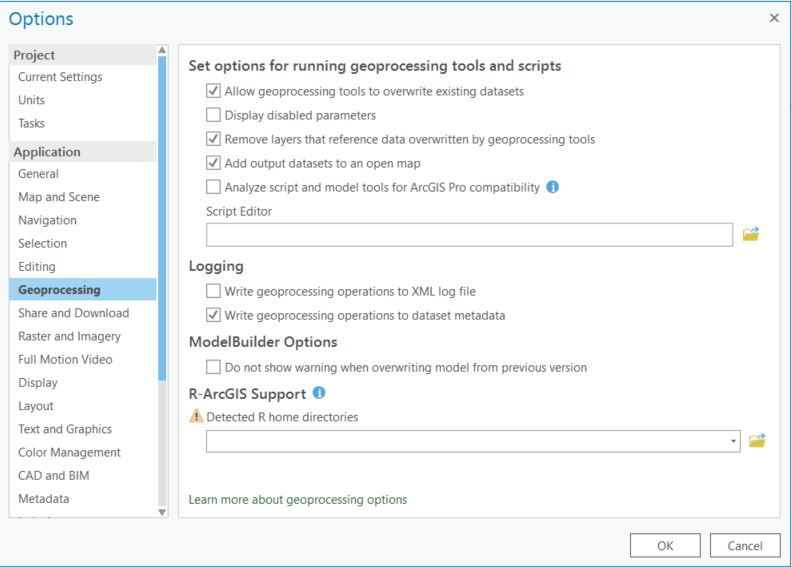
Figure 2: Options: Geoprocessing
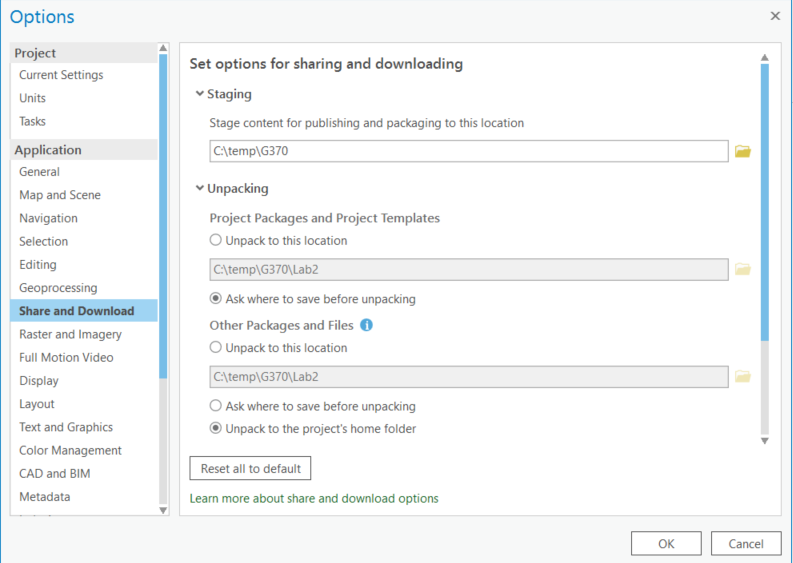
Figure 3: Options: Share and Download
Directory naming conventions
It is also a highly recommended practice to not store / create ArcGIS Pro data or documents in a directory name that contains spaces (that is, it is recommended that you do not store any files in, for example, C:\Documents and Settings\…\My Documents\ even though that is where ESRI indicates that that is where it wants to store the default geodatabase!). You should also not create files with names that begin with numbers (e.g., 123layer.shp). While it is possible to do so, and in most cases it will not create a problem, there are some known issues that arise with some components of ArcGIS Pro (and with add-on programs such as FragStats) if the directory name contains spaces / the filename begins with a number.
Show file extensions by default
It is a good practice to modify Windows Explorer so that, by default, it shows all known file extensions. To do this in Windows 11, open File Explorer, click View, then Show, and tick File name extensions. In Windows 10, click the View tab and tick File name extensions. Doing this will make it much easier to find files.
Work locally
You should always work from the local (C or D) drive. The D: drive is not private: anyone who logs in to that computer can read it (see the Data Management page), so keep anything you would not show a classmate on H: or your own storage, and delete your D: folder when the lab is handed in. We do not recommend working from or saving to the Server (H) drive. You are responsible for storing your lab data and work. Every connection to the Server ‘adds up’ and eventually the system can become very sluggish and, at the extreme, some users may find that they cannot successfully log onto the system. An example of the connections that are established by a single user shows how many connections are required when working across the network. Having too many Folder Connections can also become problematic since ArcGIS Pro will attempt to connect to the folders (even if they don’t exist), which can slow down things.
Bookmarks
Bookmarks are an efficient means of keeping your layouts consistently ‘laid out’. The ArcGIS Pro help file explains how to create and manage bookmarks.