Categories
Creating a Page

Creating a Page

Most of the content on the Learning Commons site is created as Pages rather than Posts. Posts are primarily reserved for Features. Pages are typically used for more static content that won’t be updated daily or weekly. Posts are reserved for content that is more dynamic. We chose posts for Features, since they are updated frequently.

To create/edit a page, go to the “Pages” section of the Dashboard on the left-hand side. Under the “Pages” tab there are 2 links (if you can’t see them, you can expand the “Pages” tab by clicking on its arrow): ‘Edit’ and ‘Add New’.

To add a new page, simply click the ‘Add New’ link; to edit an existing page, either click the ‘Edit’ link or the “Pages” tab, and you will be redirected to a list with all pages where you can click on the page you want to edit, or search for it using the search box (after searching, you still have to click on the page to edit it).

In order to properly create a page on the leap website, you must ensure that:

1) It has a parent. To select a page parent, in the page editing/creating form, select the parent of the page using the “Parent” drop-down list under the “Page Attributes” section on the right-hand side.
2) It is properly tagged. To tag, enter any relevant tags in the list on the right-hand side of the page under “Post Tags.”
3) The template of the page is the “Default Template.”

All Learning Commons pages should normally have a parent page, unless they appear in the main menu on the page (e.g. Home, Get Started, Get Conscious, etc.) or they are in the title bar (Feedback, etc) and are exempt from navigation.

To publish a page, simply click the “Publish” button using on the right menu.
Categories
Creating a Page

Checklist: Creating a Page

Pages are used to create/edit all content on the Learning Commons, except for the home page (uses posts).

1) Write Page Title.
2) Write Page Content.
3) Select Page Parent: all pages that do not appear in the main navigation bar should have parents.
4) Tag the Page.
5) Create Related Links custom field: the default field name is “delicious-links.”
6) Create Author custom field: the default field name is “content-by.”
7) Create License custom field: the default field name is “license.”
8) Create Page Administrator custom field: the default field name is “contact.”
9) Review Steps 1-9.
10) Publish the Page (or save as a Draft).

Categories
Sidebar and Widgets

Sidebars and Widgets


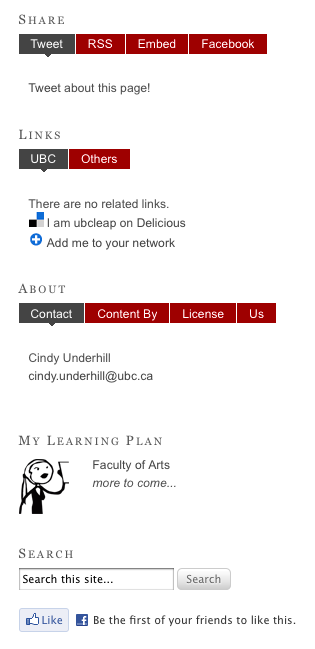
Widgets are any pieces of content that can be included on the sides or on the footer of any page. On the Learning Commons, widgets are primarily on the right side of the page, resembling boxes with a title (e.g. ‘Share,’ ‘Links,’ ‘About,’ ‘My Learning Plan,’ and ‘Search’) and related tabs.

Sidebars (widget areas) are dynamic containers in which widgets are placed. They can appear on any page or series of pages, depending on the way the Learning Commons platform was created, thus making all their contained widgets only appear where the sidebars are present.

Categories
Custom Fields

Custom Fields: Delicious Links

There are two types of custom field widgets:

1)    Learning Commons Custom Fields
Regularly used for any information that should be extracted from the custom fields on each page. This widget directly displays the value of the custom field found on any page (in HTML format).

2)    Learning Commons Delicious Links
Used to display the related links of a page (extracted from Delicious). This widget does not display the content of the custom field used, but it uses tags to call up the right set of links for each content page.

To learn about the tagging structure on Learning Common’s Delicious account and how it relates to the Learning Commons, follow the training prep guidelines posted on Basecamp.

Spam prevention powered by Akismet