Categories
Author vs. Contact

Author vs. Contact

There is a difference between author and contact attached to each page of content.

Page author is the public name (as selected in the User Profile in the back-end) associated with each post/page. It is very important to select an author for each post/page, as this is who will moderate comments on the post/page. When a new comment is posted, the author will get an email notification to the email associated with their User Profile, asking them to approve, delete or moderate the comment. This is why it is important for students to use an email that you regularly check is associated with your user profile.

Each author’s public name should be a nickname that indicates where that author is situated (for example OLT1, sdasst2, etc.). To update your profile to include a name associated with the unit you are working for:

1)    Go to Your Profile under Users on the left navigation bar in the back-end Dashboard.
2)    Under Name, fill out your First Name, Last Name and a Nickname.
3)    Click the Update Profile button at the bottom of the screen.
4)    Now select how you want others to see your name from the drop down menu for Display name publicly as…
5)    Once your nickname is selected, click Update Profile again and you’re done. You will see your nickname reflected in the drop down Author list on the editing screen for each page or post on the site.

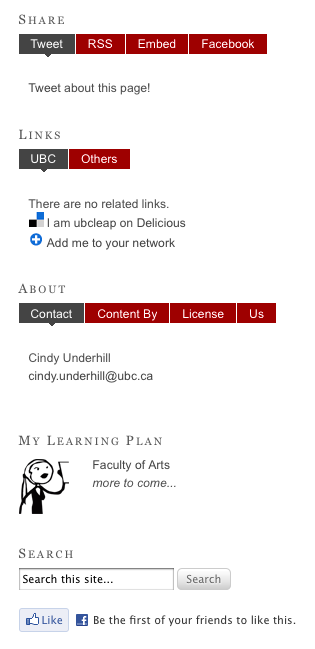
    Contacts are typically staff or faculty members associated with the site. They will respond to any queries about the content of a particular page, including information about projects or services provided. Contacts appear on the top of the left section of each page on the site. Contacts are managed inside something called “widgets”.

    You’ll need to select an appropriate contact or contacts for each page. You’ll decide who to select based on what the page relates to – who developed the content and oversees its’ revision.

    Click here for more info on how to appropriately enter a contact using custom fields.
    Categories
    Parent-Child Pages

    Parent-Child Pages

    All pages on the Learning Commons website have parent pages with the exception of the homepage. Each page is either a Landing Page or a Child Page, depending on the structure of all of its parents.  This structure is important to pay attention to when you are adding new content in order to retain the navigation structure on the site.

    For example:

    • Landing Page 1 – if a page is displayed on the main navigation menu, then it is classified as a Landing Page 1 and has the “Main Page” as a parent (has no regular page as a parent).
    • Landing Page 2 – if a page is a child page of a Landing Page 1, and is displayed when moving the mouse over the links in the main menu, then it is classified as a Landing Page 2 and has a Landing Page 1 as a parent.
    • Child Page 1 – if a page is the child of a Landing Page 2 page, then it is classified as a Child Page 1 and has a Landing Page 2  as a parent
    • Child Page 2 – if a page is the child of a Child Page 1 page, then it is classified as a Child Page 2 and has a Child Page 1  as a parent

    Note: A regular page is any page that can be directly edited using the back end ‘Pages.’ The home page is not classified as a regular page, because its content is extracted from posts.


    Navigation Structure

    • Pages classified as 1st landing pages are directly visible as tabs on the top navigation bar (e.g. ‘Get Started’, ‘Get Ahead’).
    • Pages classified as 2nd landing pages are only visible when moving the mouse over their parent page links (e.g. ‘Chapman Learning Commons’ is only visible when moving the mouse over “About”).

    In the navigation structure, all child (content) pages are visible in the navigation widget on the right, when you are on the corresponding “parent” 2nd landing page.

    Categories
    Drafts

    Viewing Unpublished Drafts

    When a post or page is in progress and you wish to continue at a later time, click on ‘Save Draft’ under “Publish” on the right-hand side. To view a draft page, click on the ‘Preview’ button.’

    Saving it as a Draft ensures that all content and related information is preserved if you choose to log out. This also means that those only with access to the Learning Commons Dashboard will be able to see your work-in-progress.

    Here’s a video that demonstrates the process:

    Categories
    Sidebar and Widgets

    Sidebars and Widgets


    Widgets are any pieces of content that can be included on the sides or on the footer of any page. On the Learning Commons, widgets are primarily on the right side of the page, resembling boxes with a title (e.g. ‘Share,’ ‘Links,’ ‘About,’ ‘My Learning Plan,’ and ‘Search’) and related tabs.

    Sidebars (widget areas) are dynamic containers in which widgets are placed. They can appear on any page or series of pages, depending on the way the Learning Commons platform was created, thus making all their contained widgets only appear where the sidebars are present.

    Spam prevention powered by Akismet