Categories
Tool Kit

My Digital Story

For this activity I chose to do a story about my life outside of work to share with my online students.  I want my students to get a sense of who I am, and I decided a personal glimpse into my life would help to build some connections and trust as we get to know each other at the beginning of the semester.

YouTube Preview Image
Categories
Tool Kit

Creating a Video

Today I made a video of myself for the Moodle course I’m creating.  In my course I ask students to share an experience they have had with a child who has AD/HD.  I wanted to share one of my experiences with my students, and decided to do a video.  Having John post a video earlier in this course, it reminded me just how important seeing a real face is for students!

I don’t have a video camera, but decided to use my built in camera on my laptop to record my video.  I had to learn how to do that first, and quickly decided on using iMovie.  It took me longer than I expected to do the recordings.  I did separate clips for the intro, two main sections, and conclusion…..each of them many times!  The first time, I didn’t like the lighting.  So I adjusted that.  Then I didn’t like the angle of the camera.  Adjusted again.  Then there were the multitudes of outtakes.

Being a tad self-conscious, it was hard at first to even see myself on screen.  I am SO not a camera/video person!  I hide whenever an image capturing device presents itself.  But I do think my online students will really like being able to see me.  I have used nanogong before, just to get my voice recorded, and students response was overwhelmingly positive to that.  It really does help to establish better rapport.

iMovie makes adding title slides and transitions very simple.  I did have some trouble cropping images, but a quick iMovie tutorial fixed that.  Having uploaded a video to Youtube earlier in the course, doing the same with this one was a quick and easy process.

In the online courses I teach (college level), I think I may do my weekly News Forum greeting via video.  Each week I like to make contact with students, discuss a focus for the week, send reminders, or whatever.  Having personalized videos, especially early in the course when relationships are just being established, might really work well!

Here is a link to my forum where the video is posted:

My Experience With a Student With ADHD

Categories
Tool Kit

mLearning Revisited

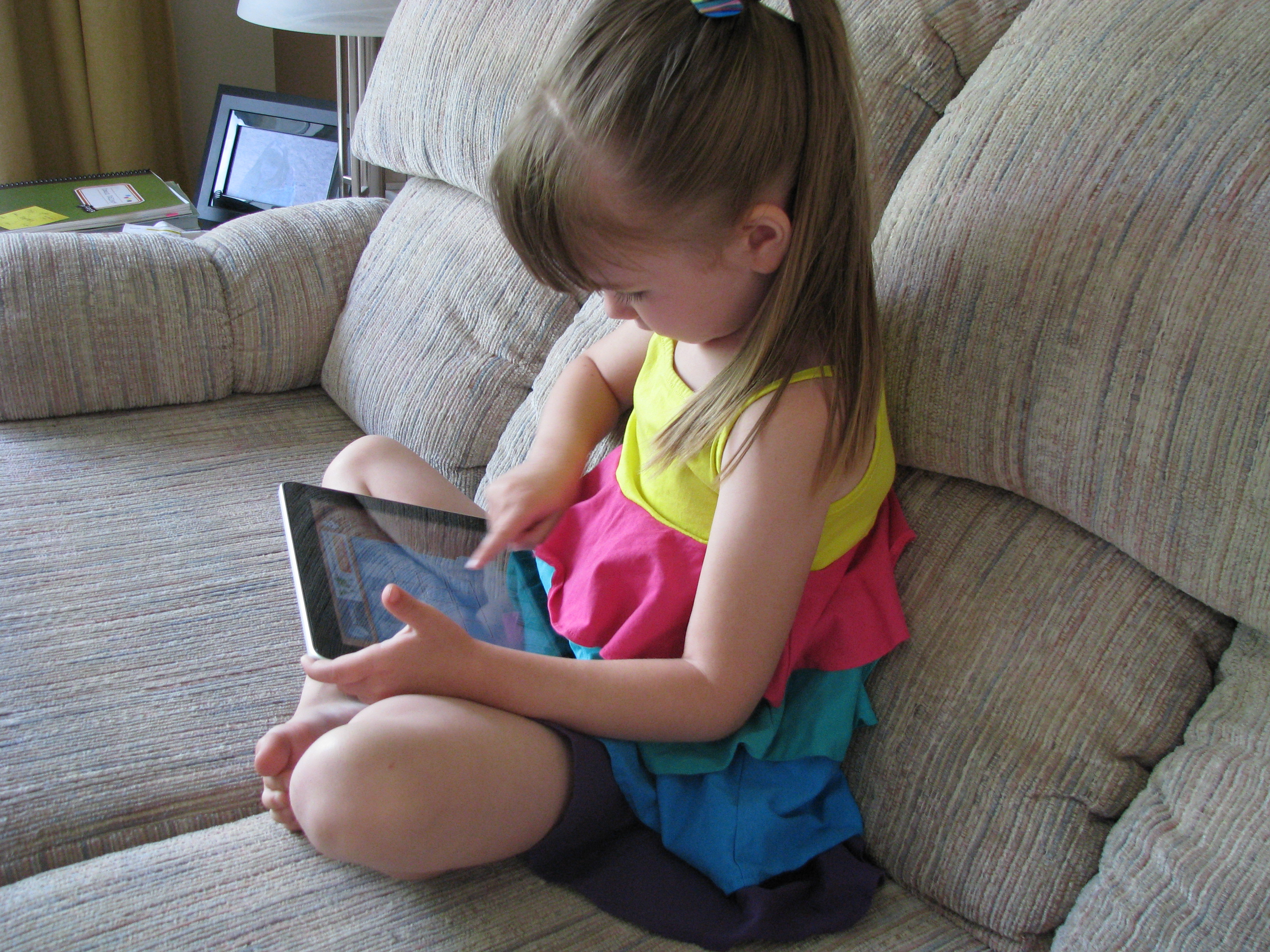
I’ve now had my first real interaction with an iPad.  I have looked at one briefly a couple of times, but I spent several hours “playing” yesterday. My College EdTech specialist has one staff can sign out, so I’ve got it for several weeks.

I had no trouble accessing ETEC565, but I couldn’t get to the Moodle course I’m developing.  It said, “Cannot open page – Safari cannot open the page because the server could not be found”.  I was able to get to the courses in Moodle that I teach for the College of the Rockies though, so did some experimenting there.  It was very easy to access discussion forums and post, and to edit add content.  No problem!  Things loaded very quickly.  I was quite impressed!

However, not having any hand held devices on my own, I found my lack of experience created a lot of frustration.  How many times did I scroll up when I was trying to scroll down?  And typing on the small keypad….so slow.  I had some trouble navigating, but learned several things fairly quickly.  I googled several things (and I have to admit, finally grabbed my laptop so I could google faster!) and that helped.  I figured out how to copy text and images, which once you know what to do, it is a very simple process.

I spent a lot of time trying out various apps that other faculty had downloaded. I even found a Moodle Touch app, but it was for 2.0 so couldn’t try it out. My favourite app was the iBooks.  I could spend hours….but homework beckoned.

I can see how many people would love this.  There is an unending list of apps to explore, and some great resources for both home and work life.  For me, the bulk of what I do I use my laptop for, and the iPad slows me down.  The keyboarding is just painful for me.  I know I could get a keyboard to use with the iPad, but that’s what I have my laptop for!  If I did a lot of travelling, the iPad would be awesome.  It’s small, light, and convenient.  I could maintain contact with my students, update my Moodle courses if needed, and not have to lug around a larger piece of equipment.

My kids now…they vote YES to buying an iPad.  They would spend hours on long road trips keeping very entertained.  If the battery life was longer (10 hours isn’t enough when you’re away from electricity!) it would be a great option.  I’m still weighing the pros and cons.  I’m getting something this summer, be it an iPad or some kind of eReader, but am still not sure.  The iPad does SO much more than an eReader, and I would hate to underestimate my potential usage and buy the wrong thing….especially being so new to this kind of technology.

Decisions, decisions.

Categories
Tool Kit

Dreamweaver

Just contemplating….

At the rate I’m progressing, I may never get a page done for my Moodle course.  This is when I question my love for technology….I do believing it’s waning.  Taking the “not so easy road” may be tougher, but I’m destined to learn more….right?!

Categories
Tool Kit

Audio

Well this sure took a long time….with mixed success in the end.  I downloaded Audacity 1.3.13.  No problem.  I downloaded LAME.  I played around recording several things….well mostly getting my children to record several things.  I saved a file.  No problem.  Then the frustrating part.  I couldn’t export my file as an MP3.  It kept saying it couldn’t find “libmp3lame.dylib to create MP3s”.  I tried everything I could think of….but nothing worked.  I don’t know the difference between an MP3 and an MP2, so I tried exporting it as an MP2 and it worked.  It opened in iTunes and I could hear my girls singing.  But I couldn’t post that file here.  I really want to explore this further, as I’ve been looking for a way to record myself playing the piano so that I could send files to my mom. (My playing is something only a mother could love!)  So I think I’ll make my husband look at this tonight and see if he can find out what I did wrong.

Categories
Tool Kit

Editing Still Images

This afternoon I did the practice activity on still images using Picasa.  Having used iPhoto’s editing before, the cropping was pretty easy to figure out.  I watched the tutorial on resizing in Picasa, and that was pretty simple too.  I enjoyed playing around with several of the other features.  I don’t know much about photography, but it’s something I would love to experiment with more.

Categories
Tool Kit

Accessibility

One of the things that has recently impacted my online teaching practice, is being able to provide accommodations to students who have diverse needs.   It’s made me think much closer about the issues surrounding accessibility in online learning environments.  Now that I’m designing a course in Moodle, I’m discovering it is critical in terms of educational design….right from the base level.  It’s a daunting task in some ways, as it’s my responsibility to make sure my course is accessible to a diverse group of learners who may have countless different needs to accommodate.

When I went through many of the links in the eTool-Kit for accessibility, I was completely lost.  So much of what is there I just don’t understand.  But not understanding did send me on a quest to find information, and I did learn many things.  I still don’t know all I need to, but I’m making headway.

A few of the things I made note of were:

  • Remove any tools not needed in the course
  • Fewer items on the screen speed things up for those using screen readers
  • Don’t leave empty or needless folders viewable
  • Enhance accessibility of content links – link titles, use appropriate clear icons, be consistent
  • Moodle 2.0 has an accessibility block….very cool!
  • Browser setting can be adjusted – font, size, colour, minimum size, etc.
  • The layout, structure, and content of pages are very significant
  • Include both visual and non-visual cues
  • Ensure all controls can be accessed through enter or space keys, and be sure tabbing follows a logical sequence
  • For images, label with alternative text
  • Balance text and images used

One of the things I’ve found in Moodle is that it isn’t easy to make certain accommodations.  This semester I had a student who needed more time on quizzes because of her disability.  This was a challenge in Moodle.  Fortunately, I had support and a way to accommodate my student was found.

Next on my list of things to learn in terms of accessibility, is what is involved when using video.  I’ve googled “flash” to try to get an idea of what it is, but I don’t understand what’s involved as it pertains to developing my moodle course.  Always something to learn….which I guess is a good thing!

Categories
Tool Kit

Web Design

First of all, I just want to say…. I DID IT! Wow.  I’m totally pleased with myself at the moment!  This has been such a HUGE learning curve for me.  I’ve been working on learning basic HTML for the past month, and thanks to a lot of support from John and Robert, I’ve made great inroads on this albeit slow route to learning.  Today I accomplished a few significant tasks.  I used HTML to add text, links, a chart, and an embedded video on my ETEC 510 wiki page.  And it all worked!  (Although please don’t ask me how long it took or how many attempts were undertaken before success was had.)  Then I moved on and designed a very simple personal web page about my children.  It was a challenge, but it feels so great to have lost my HTML phobia….or at least put it on a longer leash.  I still have SO much to learn, and need to look at my notes before doing pretty much anything, but I’m on the road towards success.  Whew!

Categories
Tool Kit

Social Software

Looking into social software has been an interesting undertaking.  I chose to look at Facebook (because I am a user), Twitter (because I just don’t get it), Flicker (because I love photos) and Delicious (because I had never heard of it).

I was quite impressed with Flicker.  Each photo is licensed and that license is attached to its photo. Users can control who have access to view and use their content.  It’s an easy way to share large quantities of photos with family and friends.  It’s a great way to keep digital photos safe…just in case your computer crashes and you haven’t done a recent backup (not that we would ever expect that to happen).  I like that users are required to moderate their content, and that safety is a priority.  Their terms of use and guidelines are easy to read, free of a lot of jargon, and to the point.  I love their statement, “Don’t be creepy.  You know the guy.  Don’t be that guy”.  I can see some great possibilities for using Flicker with students….elementary through post-secondary.  When I taught grade 7 and took my class on field trips, I would have loved to post tons of pictures for students and families to see.  There’s lots to consider in terms of art, research, writing prompts.  The longer I set, the more things I think about.  A definite possibility for students!

Delicious was totally new to me.  What a great concept.  I’ve lost my bookmarks more than once (let’s not even go there!).  To have all my bookmarks available on any computer….gotta love that.  I’m now thinking about how I can use this with my college students next fall.  I’d love to develop an activity for my students to gather and share web-based resources.  Very cool!

Twitter.  To be honest, I just have never got it.  My mom and sister both twitter, and when I look at their twitter pages, it’s a pile of short phrases that pretty much mean nothing to me.  But if I’m trying to keep connected with family and friends throughout the day, this app may have some potential.  Quick updates, comments, notes…I can see that.  I’m not too sure I see a way to use this meaningfully with my college students, but perhaps if I had a professional tweet account I could post reminders, cool links, and updates.  I don’t think I’d want to view all of my students personal tweets (nor them mine!) but if we all had college based tweets, perhaps more exchanges would happen.  It might be interesting for my distance students who don’t run into me in the hallways!

And Facebook.  I am a user of Facebook, but after discovering that I could not delete my account (you can only deactivate it….and can always come back and activate it) I was not impressed.  Yes, there are a lot of privacy settings, but there are so many 3rd party apps and advertising, information sharing runs a the speed of light…or faster!   I do love my facebook, but I’m very vigilant in checking privacy settings and I take what I tell my students to heart…..I never post anything I wouldn’t want to be completely public.  It’s a great communication tool, and I love reading tidbits about my friends.  We have a “guideline” at my college that we cannot accept friend requests from current students.  I could see having two accounts…one personal and one for professional use.  My college does have various facebook accounts for students, but they are not extensively used.

Flicker Facebook Delicious Twitter
What is it? Flicker is a photo management and sharing web-based application Facebook is a web-based “social utility” designed for social networking. Delicious is a web-based application that allows you to save, tag, and share your bookmarks.  The service is provided through Yahoo and is owned by AVOS. Twitter is a social networking and micro-blogging service, utilizing instant messaging, SMS or a web interface.
Who owns materials posted by its members? The individual who took and posted the photo/video Individual users own all the content and information they post. Individual users control their bookmarks and who has access to them.  It is not “content” driven, so ownership is not an issue.  Any trademarks are the property of their respective owners. Users retain the rights to any content they post on Twitter, but by posting you grant the service the right to make your Tweets available for the rest of the world to see.
For what purposes can these materials be used? Members determine their privacy settings.  Photos can be public or private.  Content can be posted to other websites but must contain a link back to flicker.com. Members can share information, photos, links, videos, questions, and more.  They can comment on friends’ posts.  There are personal and professional user pages,  and pages dedicated to causes and individuals. Events can be created with invitations that are both private and public. By posting on Delicious you automatically grant permission to others to access and use it.  You can mark content as private and restrict access to only users whom you grant access. Members post very brief statuses and comments with other members.  Can be used for personal or business exchanges.
Would using the site be appropriate for your students? Members must moderate their content – code it as “safe”, “moderate”, or “restricted” using the provided content filter.  My students are adults, so using Flicker would be appropriate, but any images shared for class purposes would need to be field appropriate. Yes, Facebook would be appropriate for my adult learners.  As a side note, children under the age of 13 are not permitted to create an account. Yes, this app would be appropriate for my adult learners. Yes, this app would be appropriate for my adult learners.
In my opinion, how well are the privacy interests of members represented? Flicker’s “Community Guidelines” clearly and simply state the privacy options for its members.  Security options are clearly outlined.  Each image is licensed.  Members’ privacy and copyright is a high priority. Users can control privacy settings to determine who sees what information. Accounts can be set as inactive, but cannot be deleted.  Policies are updated and changed, so regular monitoring of individual settings is necessary.  Facebook has a lot of third party accessible applications, so users must be cautious about access.  Facebook is designed to share information…so know that this is the intent and be aware of what you post.  Privacy isn’t the driving force behind this app. Personal information and cookies are stored and used for Yahoo research and diagnostic purposes, but are protected from being shared with third parties without user consent.  Accounts can be deleted. User privacy is a moderate priority. On their terms of service they state, “What you say on Twitter may be viewed all around the world instantly.  You are what you Tweet”.  You may own what you post, but it can be shared with anyone.
Categories
Tool Kit

Blogs

Tonight I spent some time in the e-learning toolkit in the weblogs section.  After looking through several blogs posted here, I started to google.  I wanted to find some blogs dedicated to online and hybrid learning.  The number of regular bloggers out there is quite astronomical!  I chose to limit my search to Canadian bloggers (perhaps because I’m feeling rather patriotic right now as I cheer on our mighty Canucks hockey team).  I have to admit, I wasn’t very successful.  I didn’t add anything to my NetNewsWire feed, but I did begin a list of topics that I want to look further into….so there was a happy ending!  And if you have any suggestions, do tell!

Spam prevention powered by Akismet