Categories
Reply

Replying to Comments

If a comment is posted directly from a Learning Commons page, an email notification will be sent to the admins and the page author. However, no email notification will be sent when a comment is replied from the back end of WordPress.

Reply publicly:
On the Dashboard, comments are listed under the “Recent Comments” area. Mouse over to the one you want to reply to and click on “Reply”. Another way to do this is to click on the “Comments” tab on the left sidebar of the Dashboard and select “Reply” on the comment that you want to reply to.

Reply privately:
No options are directly available on WordPress for replying comments privately. Therefore you have to reply via email. To find the email address of the author of a comment, click on the “Comments” tab on the left sidebar of the Dashboard. The email address are right below the author’s name on each comment. After you reply privately, let others know that the comment has been replied. To do this, go into “Edit” of the comment that you’ve replied to, and add the line “Replied privately by (your name goes here)” to the author name field.

Categories
Photos for Features

Selecting Photos for Features

Most photos that are used on the Learning Commons site are downloaded from Flickr—selected from photos available from UBC-related Flickr accounts or searched under the Creative Commons Advanced Search option. Here is a screencast that illustrates how to go about doing this:

YouTube Preview Image

Photos should be 600w x 300h and the most effective ones are evocative, graphic, high resolution and interesting. Only JPGs, GIFs and PNGs file types should be uploaded. If you need to resize a photo you can use Picnik, an online photo editor.

You also need to attribute the original author of the photo. Here is an example of photo size and attribution.

Categories
3. Quality Asssurance

Top 5 Reasons for Page “Warps”

We’ve all had occasion to edit or create a new page only to find that there is some warped weirdness in the way that it looks when it is published.  Here are some of the reasons for this:

  1. Forgetting to close a tag in your HTML.  HTML tags need an opener like < > and a closer like </> . If your page doesn’t display a side bar or looks funky in some way – check for this error in your html view.
  2. Forgetting to select a page parent from the drop down list on the left side of your editing screen called Attributes: Parent. Select the drop down and scroll to choose the page that is one level above yours (the page that yours fits directly under in the navigation).
  3. Including comment code. For example—if there is any “comment code” in your post  <—something like this—>, it can create a problem.  If you see a comment like this, just delete it or ask us to have a look.
  4. Importing heading tags from another source like <h2> </h2>. These heading specifications will be different for our CSS (Cascading Style Sheet) and may display too large and ugly. Just remove them if your text looks weird.
  5. No line breaks <br> </br>. WordPress tends to strip out the line breaks. This can be problematic when you need space between an image and text.  If you are having a problem with this. Please post a message in Basecamp and we’ll come up with a fix.
Categories
Author vs. Contact

Author vs. Contact

There is a difference between author and contact attached to each page of content.

Page author is the public name (as selected in the User Profile in the back-end) associated with each post/page. It is very important to select an author for each post/page, as this is who will moderate comments on the post/page. When a new comment is posted, the author will get an email notification to the email associated with their User Profile, asking them to approve, delete or moderate the comment. This is why it is important for students to use an email that you regularly check is associated with your user profile.

Each author’s public name should be a nickname that indicates where that author is situated (for example OLT1, sdasst2, etc.). To update your profile to include a name associated with the unit you are working for:

1)    Go to Your Profile under Users on the left navigation bar in the back-end Dashboard.
2)    Under Name, fill out your First Name, Last Name and a Nickname.
3)    Click the Update Profile button at the bottom of the screen.
4)    Now select how you want others to see your name from the drop down menu for Display name publicly as…
5)    Once your nickname is selected, click Update Profile again and you’re done. You will see your nickname reflected in the drop down Author list on the editing screen for each page or post on the site.

    Contacts are typically staff or faculty members associated with the site. They will respond to any queries about the content of a particular page, including information about projects or services provided. Contacts appear on the top of the left section of each page on the site. Contacts are managed inside something called “widgets”.

    You’ll need to select an appropriate contact or contacts for each page. You’ll decide who to select based on what the page relates to – who developed the content and oversees its’ revision.

    Click here for more info on how to appropriately enter a contact using custom fields.

    Categories
    Custom Fields

    Custom Fields: Content By, License and Contact

    All these custom fields are used by the same widget: Learning Commons Custom Fields, to store information on the author, license and administrator of a page.

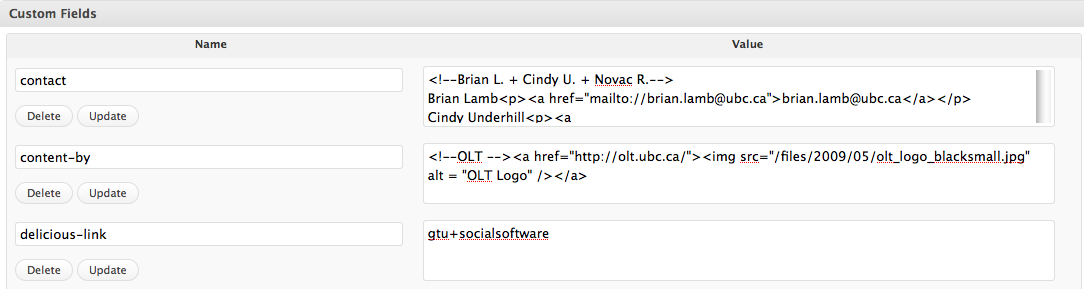
    These custom fields store information for each page: what is the page author, the page license and the page administrator that can be contacted if something is wrong with the content, etc. This information should be entered in HTML format. This means that you can enter links and images in any of the custom fields, and this information will be directly displayed on the page(s) containing the custom fields.

    The widget – role correspondence is as follows:
    1)   The Content By widget displays the author of a page (stored in the author’s custom field on each page)
    2)    The License widget displays the license information of a page
    3)    The Contact widget displays the information of the page administrator, which can be contacted with regard to the page contact.

    When authoring a page, please make sure you include the relevant information for each of these custom fields.

    Add Custom Fields: Content-By and Contact
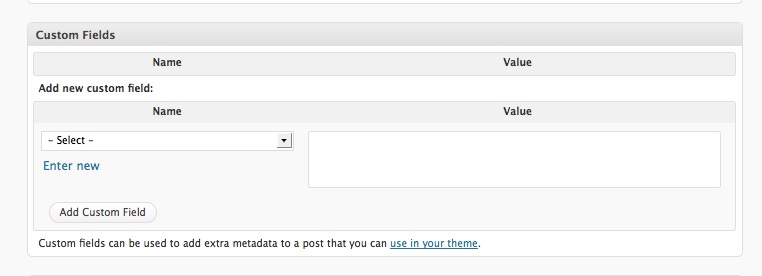
    1) Scroll down your page to Custom Fields.
    2) Click on the drop down menu beside “select” and choose “contact”.

    3) Add the information from the matching page on the current Learning Commons site into the “Value” box and use HTML format. Here is an example of the HTML code for a single Contact (just repeat for two contacts):

    <!–Julie M.–>
    Julie Mitchell<p><a href=mailto://julie.mitchell@ubc.ca”>julie.mitchell@ubc.ca</a></p>

    5) Now go through the same steps to select Content-By. If you don’t have the image you need for the logo, download it to your desktop and follow the process for adding media. Example:

    <!–CLC–><a href=”http://www.library.ubc.ca/clc/”><img src=”http://leap.sites.olt.ubc.ca/files/2009/05/clclogo1.jpg” alt = “CLC Logo” /></a>

    Categories
    Parent-Child Pages

    Parent-Child Pages

    All pages on the Learning Commons website have parent pages with the exception of the homepage. Each page is either a Landing Page or a Child Page, depending on the structure of all of its parents.  This structure is important to pay attention to when you are adding new content in order to retain the navigation structure on the site.

    For example:

    • Landing Page 1 – if a page is displayed on the main navigation menu, then it is classified as a Landing Page 1 and has the “Main Page” as a parent (has no regular page as a parent).
    • Landing Page 2 – if a page is a child page of a Landing Page 1, and is displayed when moving the mouse over the links in the main menu, then it is classified as a Landing Page 2 and has a Landing Page 1 as a parent.
    • Child Page 1 – if a page is the child of a Landing Page 2 page, then it is classified as a Child Page 1 and has a Landing Page 2  as a parent
    • Child Page 2 – if a page is the child of a Child Page 1 page, then it is classified as a Child Page 2 and has a Child Page 1  as a parent

    Note: A regular page is any page that can be directly edited using the back end ‘Pages.’ The home page is not classified as a regular page, because its content is extracted from posts.


    Navigation Structure

    • Pages classified as 1st landing pages are directly visible as tabs on the top navigation bar (e.g. ‘Get Started’, ‘Get Ahead’).
    • Pages classified as 2nd landing pages are only visible when moving the mouse over their parent page links (e.g. ‘Chapman Learning Commons’ is only visible when moving the mouse over “About”).

    In the navigation structure, all child (content) pages are visible in the navigation widget on the right, when you are on the corresponding “parent” 2nd landing page.

    Categories
    Media Library

    Media Library

    Each WordPress blog has a Media Library that stores all the additional files (audio, video, images, etc.) included in the website content. To access the WP Media Library, after logging in, click on the “Media” tab, on the left-hand side of the page. To add new media to the library, simply click the ‘Add New link under the “Media” tab, and then select which files you wish to upload.

    You can also upload photos or other media directly into a post or page from your computer or other sites. Here’s a short “How-To” video about inserting media into your posts or pages.

    Categories
    Drafts

    Viewing Unpublished Drafts

    When a post or page is in progress and you wish to continue at a later time, click on ‘Save Draft’ under “Publish” on the right-hand side. To view a draft page, click on the ‘Preview’ button.’

    Saving it as a Draft ensures that all content and related information is preserved if you choose to log out. This also means that those only with access to the Learning Commons Dashboard will be able to see your work-in-progress.

    Here’s a video that demonstrates the process:

    Categories
    Creating a Post (Feature)

    Creating a Post

    On the Learning Commons website, Posts represent the pieces of content that appear on the front page of the website in the carousel. They can be modified just like Pages, except that instead of accessing the ‘Pages’ tab, you need to click the ‘Posts’ tab to create, publish, edit or delete posts.

    Archived posts are found on the Features RSS page.

    Here’s a short screencast that demonstrates how to add a post:

    Categorizing Posts

    To categorize a post, enter the Edit page for the posts you wish to edit (by selecting the post you wish to edit from Posts->Edit, or by adding a new post using the ‘Add New’ link under the ‘Posts’ tab on the dashboard). On the right hand side there is a section titled “Categories.” This box contains a list of all categories used on the website.

    To finish categorizing the post, simply click the check box corresponding to the category you want to register with the post; if the category does not exist, add a new category. To add a new category, click the ‘Add New Category’ button (the category will be automatically checked for the current post, when added).

    Please make sure you categorize all Feature posts under the ‘Features’ category.

    Categories
    Creating a Post (Feature)

    Checklist: Creating a Post (Feature)

    Posts are only used to post Features on the Learning Commons homepage.

    1) Write Post Title.
    2) Write Post Content: including pictures, etc.
    3) Categorize the Post under ‘Features.’
    4) Add a Feature Image: located on the right-hand side. (more on how to create the image)
    5) Write Post Excerpt: the post excerpt is the summary of the post that will be displayed in the Feature carousel.
    6) Review Step 1-5.
    7) Publish the Post (or save as a Draft).

    Spam prevention powered by Akismet