Are you planning to start your own business someday? Maybe your management professor expects you to know all about Gantt charts, and you haven’t a clue. Perhaps you see many job postings in your field that ask for “project management skills.” Eventually you’ll be applying to those jobs. What does project management mean in the context of your workplace someday, or even now in the context of your life as a digital, networked student?
Have no fear. Project management (PM) can seem to be a big, scary topic, and it’s true that some of the tools out there come with a big pricetag and a scary learning curve. But at its heart, PM is really just a logical way to approach a big project by breaking it down into many smaller projects, each with its own deadline and resources allocated to it. The good news is that you probably already do this, maybe without realizing it, any time you have a big class project to complete! The challenge comes when you have such a big project that even the task of breaking it down into steps seems overwhelming and even paralyzing. Especially in the world of business – where clients must be billed exactly, scarce resources allocated fairly, deadlines met, and employees’ time delegated without being micromanaged – being able to manage a big project effectively can be vital. No wonder employers ask for it in job postings! What better place to learn about it but now, when there’s no pressure from the boss looking over your shoulder? Try one of these for your next multi-step and/or group project for a class.
There are dozens of project management software options – click here for a quick overview and comparison of each one’s capabilities. I’m not going to try to review them all, but I tried a few, and here are some comments on a couple of good introductory ones.
Introduction to PM: Gantter.com
Remember those Gantt charts I mentioned? Basically, they list the steps in a project with horizontal bars show the time needed (across days or weeks) to complete each step. Glorified to-do lists? Maybe so, but with bigger, complex projects with multiple people involved, this is a very helpful visual display of your to-do’s, and they’re worth knowing because they are pretty much standard in any project management settings.
Some Gantt charts are quite simple; some can be very complex, with different shadings to represent parts completed, arrows to indicate dependencies (Z can’t start until X is done and Y is at least 50% done), times and deadlines (A and B have to be done concurrently), links to information on resources (people or materials) to use, etc.
Gantter.com is one of the easiest ways to familiarize yourself with Gantt charts. It’s a web-based tool, no download required. It’s not technically a “networking” tool, since it doesn’t allow sharing in itself, other than that it now allows saving into Google Docs, which does allow sharing.
It will save only as an .xml file, which can be opened with Gantter or most other PM software. A recent addition is integration with Google Docs, so that you can save your project plans into Google Docs, and (presumably) also use the Share function in Docs to send your plan to somebody else. However, it should be noted that the .xml files cannot normally be opened and edited in Docs – to do that requires downloading a special add-on for either Chrome or Firefox, both available here.
As a final note, printing seems a bit finicky: early versions had no print functionality; now it saves the plan as a PDF and you can print from that, but I personally found my brief plan to be laid out very illogically in the PDF view.
Beyond the basics: OpenProj
If you want to advance beyond simple Gantt charts, try something like OpenProj. This is a free and open-source download, available here, although the creators’ homepage and support forum are linked from here. It was created as a free substitution for the more costly (and widely-used) Microsoft Project, and while I haven’t personally used Project, from viewing screenshots the user interface appears quite similar between the two. Here’s a screenshot of OpenProj’s main Task pane: 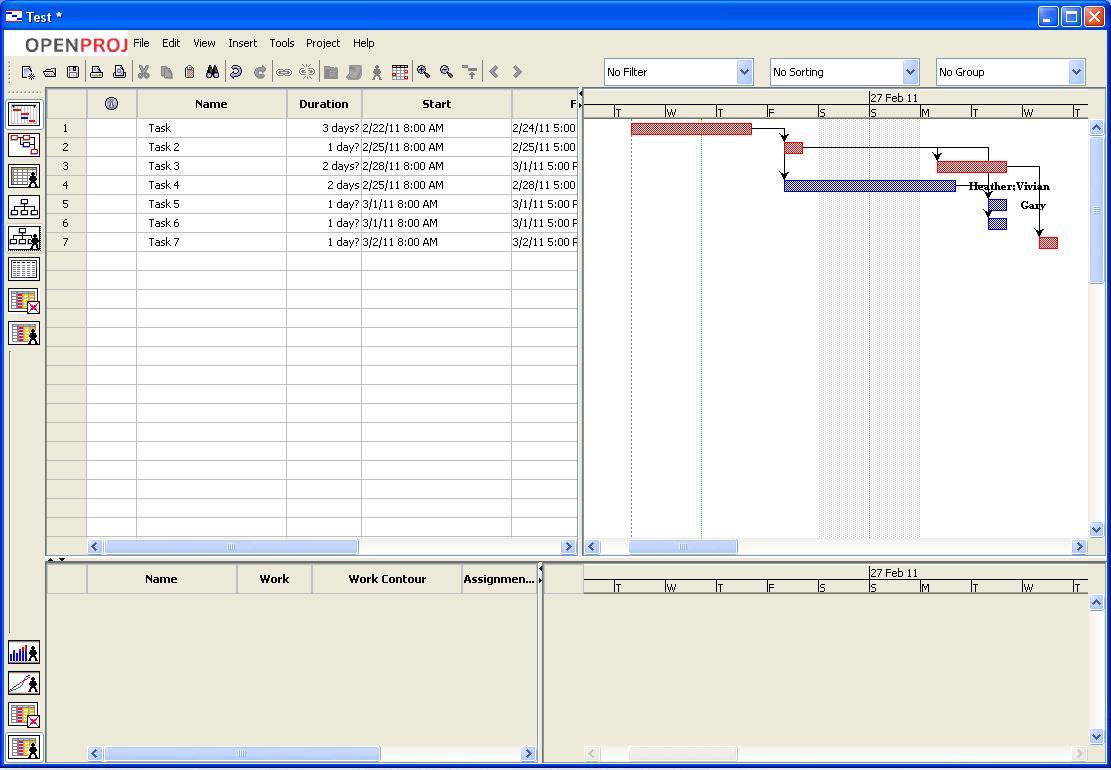
OpenProj proved to be relatively intuitive even for someone (yours truly) who’d never used PM software before, so that’s saying something. Navigational buttons along the left side make it easy to switch between different views and screens, such as Gantt, Network, Resources, Task Usage, Resource Usage, etc. Basic tasks are easy to create in Gantt chart form, and creating dependencies on the Network screen is as simple as dragging a line from one task box to another. As you can see in my sample screenshot above, you can make quite complicated dependencies; when you assign resources (people or physical materials), those also show up on the main screen. Another thing I (and other reviewers too) thought had much potential is the variety of graphs and charts that can be created to analyze your resource usage or task usage – which, to my definitely non-business-oriented mind, means seeing if your material resources are divided equitably, if your employee resources are being used to their full potential or left idle, or where efficiency could be improved by adding more resources, for example.
Oh, another perk? OpenProj can open files created with Microsoft Project, so this could be a definite advantage if you need open somebody else’s Project files.
Verdict? If you want to familiarize yourself with the costly one without paying the cost right away, try this one and see how far it can take you.
So, there is just a brief introduction to a few of the project management programs out there. I’m not going to overload your brain with more in this beginner’s post. Are you inspired to try one of these, or another one? Let us know which one, and what you thought of it, in the comments!
This lesson was created for the Digital Media Project, a joint project of UBC School of Library, Archival and Information Studies and the Irving K Barber Learning Centre.