Blog Archives

Hook, Line, and Sinker- Engaging Students with Multimedia and Visuals

macrochirus-387022_640- From Pixabay, no attribution requiredHooks, or activating strategies, are intended for students to link their prior knowledge to the current concept, lesson, or unit of study. Hooks can also build students’ background knowledge in a particular area. Auseubel (1978) recognizes that the activation of prior knowledge helps to deepen learning by bridging the gap between old and new material. Just like Goldilocks and the Three Bears, it is essential for educators to use the right amount of multimedia and visuals in addition to knowing their audience. Even though the lesson material will vary, there are a number of strategies that work for a variety of audiences. Hooks can include posters, photos, videos, hands-on artifacts, and books.

Good hooks should capture student interest and connect to prior knowledge or experience. As well, hooks should explain what is to be learned and how it will be learned. To grab learners in the digital age, a TEASe (Technology Enhanced Anticipatory Sets) is an excellent option. Combining high interest visuals with sound and even text in a short video or presentation can activate prior knowledge and engender excitement in the audience.

Tips and tricks:

  • Guided Visualization: Have a high quality image or video displayed and engage your students in a guided visualization exercise. For example- Alice stepping through the looking glass… a tornado for that extreme weather unit and you are Dorothy…
  • Try using hook stations in your classroom. They are an active and hands-on form of engagement. Can you think of a tech integration opportunity for one station?
  • This is a good resource of various “activating strategies” from West Virginia StateSouth Carolina, and Delaware.
  • Create cognitive dissonance with some of these image generators.
  • If there’s a Smartboard available in your classroom, try using some of the resources on the Smart Exchange. Remember, you can customize the content to suit your needs.

Sites where you can find some great visuals:


Leave a Comment

by | September 29, 2014 · 9:15 am

iPad possibilities

This week in the Scarfe Sandbox we explored some iPad apps that can support formative assessment (among other things). I frequently offer students the opportunity to share their learning using one of the ‘whiteboard’ style applications such as ‘Explain Everything’ or ‘Showme’.

These apps allow students to create content on the iPad (rather than just ‘consuming’). Students are able to draw, text, upload images and narrate. This can provide the perfect platform for teachers to have the opportunity to recognize understandings and to catch misunderstandings.

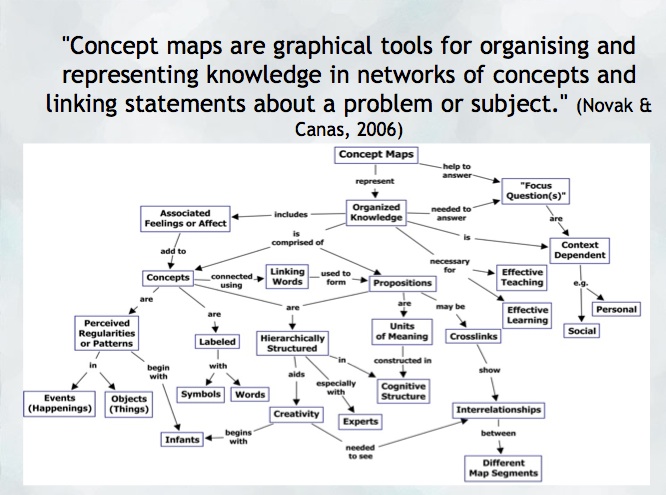
Another opportunity to help a student construct and share their understanding might be a concept map. Mind mapping, or concept mapping, can be a powerful tool where students are encouraged to illustrate the connections between their ideas, concepts or content in meaningful ways.

“A concept map is a type of graphic organizer used to help students organize and represent knowledge of a subject. Concept maps begin with a main idea (or concept) and then branch out to show how that main idea can be broken down into specific topics”.  There are some excellent tutorials on this site and information for teachers about the ‘concept’ of ‘concept mapping’

mindmap
Try: Inspiration or Kidspiration  as iPad apps

*Many schools also have licensing for this application on their computers or laptops.

Digital Storytelling is another excellent use of the iPad for content creation… try Puppet pals, Showme or imovie (among others!)

Leave a Comment

by | September 24, 2014 · 8:43 pm

Powerful presentation tools and Amazing image search tips

There are so many places to go, so many things to see. I realize this sounds a bit like a Dr. Seuss, but it is just so true when it comes to the wealth of available resources on the net to help you author your own multimedia presentations. I’ve compiled only 3 – (trying to stay focussed here!) as well as linked to several excellent sources for Creative Commons Images. You can also search this blog for ‘digital storytelling’, ‘images’, ‘creative commons’ for more…

Let’s start with an image search… we’ll need some images if we want to create a presentation!

It’s always best to take your own photos. I find it makes the presentation more personal and meaningful but… there are some amazing creative commons and public domain images out there you can ‘borrow’ (under various terms… look for ‘with attribution’ or ‘no attribution’).

Creative Commons Image Search  http://search.creativecommons.org/

I also like PixaBay – this site is hosted by shutterstock (they sell images and will show you some terrific ones you can purchase but also have many images and no attribution needed – though they do appreciate a link back!)  http://pixabay.com/en/

Another source is NASA or NOAA (or many other governmental agencies) or you can try http://www.public-domain-image.com/

Check out what I did using a PowToons template and about 15 minutes of my spare time…

Haiku Deck is another favourite and can always be counted on for high impact visuals, clean lines and reduced text

http://www.haikudeck.com/

Prezi provides the opportunity to take your viewers on a journey (or allow them to follow their own path through your presentation).

or Try ‘SlideRoll’ – a free site that let’s you play without signing up!

http://www.slideroll.com/free-slideshow-creator.php

Have you tried ’30 hands? You can upload presentations and even create your own course online. Using their app, you can create simple slideshows with voice over, transitions, text, images and drawing.

http://30hands.30hands.net/members/yvonned/presentations/11447-testing-presentation/details

Consider the following when creating presentations:


  • Ensure you Book and test the presentation equipment in advance.
  • Use visual aids if they serve a clear and important purpose. Visuals should aid quick comprehension and support the main points.
  • Put titles on visuals to reinforce message.
  • Use short quotes vs. long extracts
  • bulleted lists are easy to read (by your audience) and tables reinforce a story.
  • Use the visuals to enhance your presentation, not as a substitute for a verbal presentation. You are the storyteller.
  • Do not read directly from your slides… the slides reinforce the message – ideally in key terms, phrases and images to reinforce.
  • Talk to your audience and not to the screen.
  • Use a remote where possible… this allows you to use the classroom as your stage vs. standing at the front of the room tied to the computer.
  • Use ‘presenter mode’ with some notes you can reference if needed.
  • Coordinate the audio and the visual (if applicable). NB: using audio can enhance aspects of your presentation as can short video clips.
  • Design your visuals with clarity and simplicity in mind. Choose an easy to read font (times new roman, ariel, helvetica are good choice) and watch the animations and transitions for too much distraction.


Leave a Comment

by | September 16, 2014 · 8:25 am

All About Piktochart


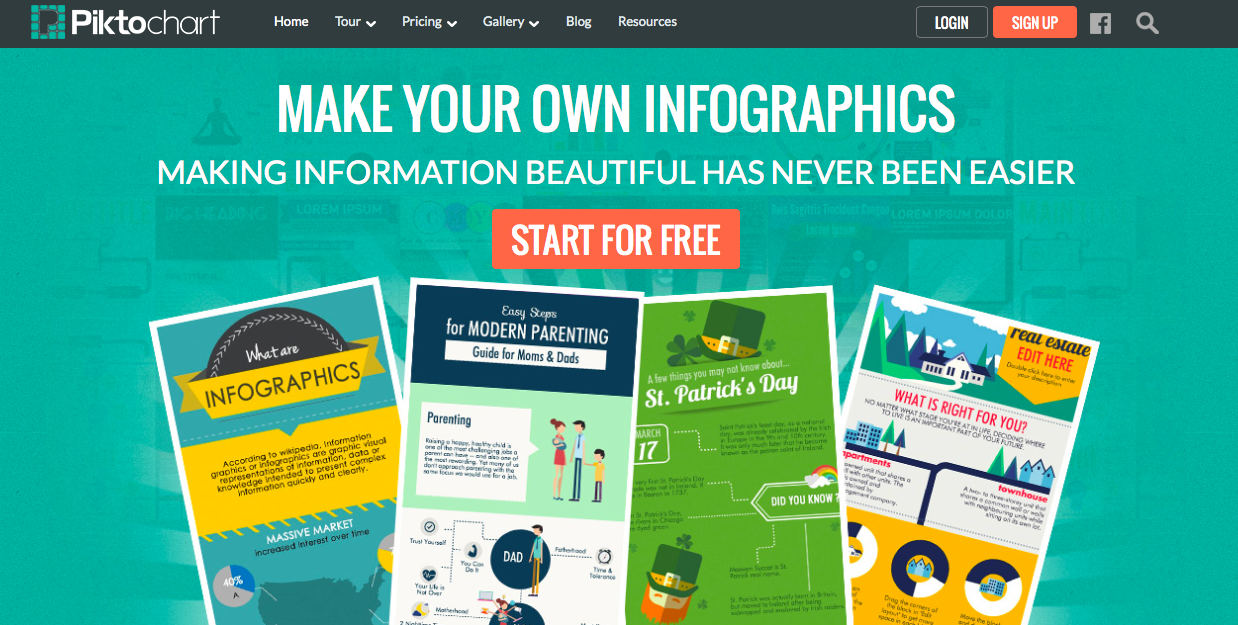
Welcome page of Piktochart

Welcome page of Piktochart

Piktochart is a website in which users can create infographics, banners, reports, and presentation. They offer a wide variety of premade templates that can be customized to suit individual needs. Users can sign up for an account free of charge using their email, Facebook, or Google account. As a registered free user, a selection of templates are available for use. When you arrive at the Pikto templates page, the free templates are located at the top of the site. Once you decide on a template you would like to work with, hover over to reveal the “preview” and “create” options. From there, give your creation a title. You will be redirected to an edit page.

Some benefits of Piktochart:

  • There are thousands of free high quality icons and images that are built in and free to use- no need to search elsewhere for Creative Commons images!
  • All the work is done on the Web, which means you can access the site anywhere without the hassle of apps or desktop programs.
  • The interface is clean and simple to use.
  • Everything within the template can be modified- colours, backgrounds, font, text size, etc.
  • External content, such as YouTube videos, can be embedded into the template.
  • This is a great alternative to using PowerPoint when creating your own presentations.
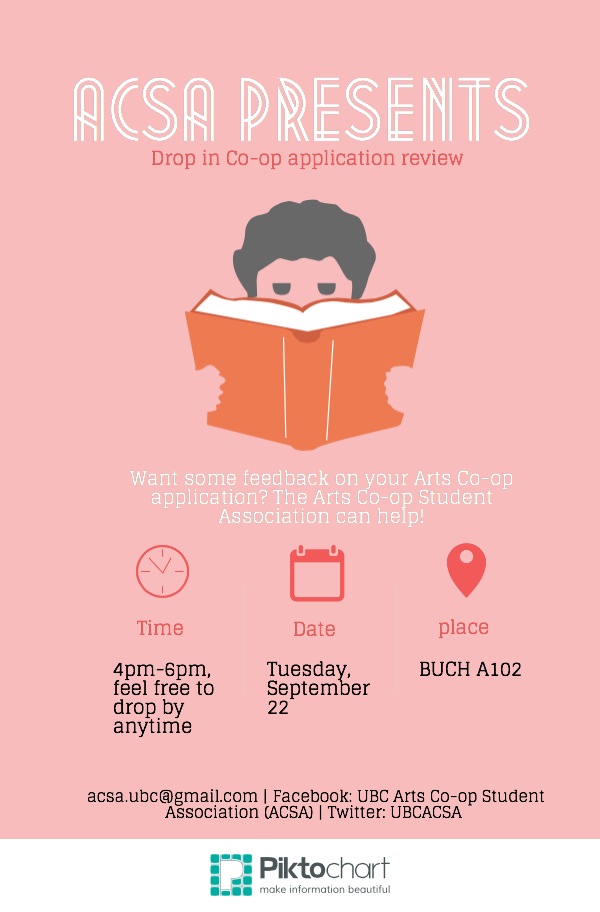
Example piece created on Piktochart

This is a poster I created via Piktochart using one of the free themes.

Piktochart also hosts a subscription-based service, otherwise known as PRO account. The PRO account unlocks all of the different themes, icons, and graphics, contains more functions, removes the watermark, etc.

To check out Piktochart, click here and a new window will open up for you. If you have any questions, feel free to drop by Scarfe 155 every Monday to Friday from 12-1pm for drop-in sessions. I will also be present for the Sandbox Sessions every Tuesday and Thursday from 12-2pm. Otherwise, send your questions my way to jenny.ho@ubc.ca!

Leave a Comment

by | September 15, 2014 · 4:00 pm

Create your own gif’s

A GIF (Graphics Interchange Format) is a file format for both animated and static images. Gif files are well-suited for the web due to the level of ‘compression’ (how small they are and how fast they load). Gif files can be ‘static’ images or animated. Consider how you might ‘perk up’ your presentations using these interactive images… or perhaps challenge a student to create their own (think ‘makerspace!)

The Gif file below was created by Brittney Merriweather (MY-SRL cohort) using http://makeagif.com/  You can use your own images or video to create an animated gif and embed the gif on your blog (as we’ve done here) or use it in your presentations. Brittney used a flikr image  ( _DJ_/Flickr) to create this gif.
Brain Grow on Make A Gif

make animated gifs like this at MakeAGif

Have Photoshop and want to try creating your own gif? View this tutorial: Using Photoshop to create a gif.

 or visit this site for a variety of options.

Leave a Comment

by | September 1, 2014 · 12:24 pm