Blog Archives

Social media: blending the social and the academic worlds

When one thinks of social media, Facebook and Twitter are two platforms that come to mind instantly. Typically, people think of them as forms of entertainment that keep us glued to the screens of our mobile devices. However, it’s time to reinvent the way we think about how social media can be used. Increasingly, aspects of social media are being integrated into the learning experience, ranging from K-12 all the way to post-secondary education. In fact, I created my first Twitter account because of a journalism course I took in my first year as an undergrad. The possibilities are endless, and some will be touched upon later. Social media isn’t solely about Facebook and Twitter, either. It also encompasses platforms such as LinkedIn, Youtube, Flickr, blogs, wikis, and discussion forums.

As an educator, there are many ways that you can incorporate aspects of social media in your own practice and teaching goals. For starters, you are all using UBC Blogs for your ePortfolios! A couple of ideas to get you started:

  • Setting up a classroom blog where students can reflect on discussion questions, key concepts or images. This can serve to extend their learning, share their own ideas, thoughts, and creations creations. Remember, due to the Freedom and Information and Protection of Privacy Act (FIPPA), any student content cannot be uploaded to any sites that are hosted on U.S. servers. For this reason, UBC Blogs is a good platform to use. You can continue to access your existing pages after you graduate and you can create new sites, providing that you remember your CWL!
  • Signing up for a class Twitter account. With a class account, you can moderate what kind of content is being tweeted out. Through the account, some things you can do include reaching out to community members, other classrooms around the world (think: Skype in the classroom), and public figures (authors, astronauts, athletes, you name it).
social-media-54536_640

Before you get started, consider the following. By no means is this an exhaustive list:

  • What is the purpose for your use of social networking technologies?
  • Are you wishing to moderate a discussion?
  • How involved do you want to be?
  • What affordances and level of control do you need or require?
  • How public or private do you wish this space to be?
  • Can you adjust the privacy settings?
  • Will students want or need access to this space after the course is complete?
  • Are you complying with the minimum age requirements of the various platforms?
  • Do you have parent or guardian permission? Are media consent forms signed
  • Copyright: are you using content with author’s permission? Attribution?

However you decide to integrate social media into your own practice and lesson planing, keep this in mind:

The biggest risk is not taking any risk… In a world that changing really quickly, the only strategy that is guaranteed to fail is not taking risks. -Mark Zuckerberg

Resources and reads:

Leave a Comment

by | November 27, 2014 · 9:59 am

Zotero: a valuable research tool

From their website:

Zotero [zoh-TAIR-oh] is a free, easy-to-use tool to help you collect, organize, cite, and share your research sources.

Zotero is particularly useful if you will be using a wide variety of sources to write research papers. It is a Firefox plugin and standalone program that is used alongside Microsoft Word.

Reasons why you should use Zotero:

  • Zotero works as a cloud service, so you can access your bookmarks on multiple computers. As well, Zotero can work offline, meaning you don’t need Internet access to create your citations.
  • You can create your citations in a number of different formats- APA, MLA, Chicago, etc. If you want to change your citations from one style to another, you can do so with the click of a few buttons.
  • You avoid the hassles of formatting. If you struggle with creating hanging indents or don’t know when to use italics in APA, Zotero will take care of all that for you.
  • Zotero will save a copy of the journal article, PDF document, webpage, etc. for you when you add it to your folder. If you lose an existing copy of an article, rest assured that Zotero will always save a backup copy.

To use Zotero:

  • Download the Firefox plugin or the standalone program that is compatible with other browsers. I recommend using Firefox because Zotero is integrated right into the browser.
  • Download the Microsoft Word plugin.
  • Download the PDF plugin right from Zotero. Right click on a PDF  in your library to “Retrieve Metadata For PDF”, and the plugin will install in a matter of seconds.  You can also download the plugins from the Search pane of the Zotero preferences.

For some really helpful tutorials, Zotero has a number of easy to follow screencasts on their website.

Leave a Comment

by | November 20, 2014 · 10:46 am

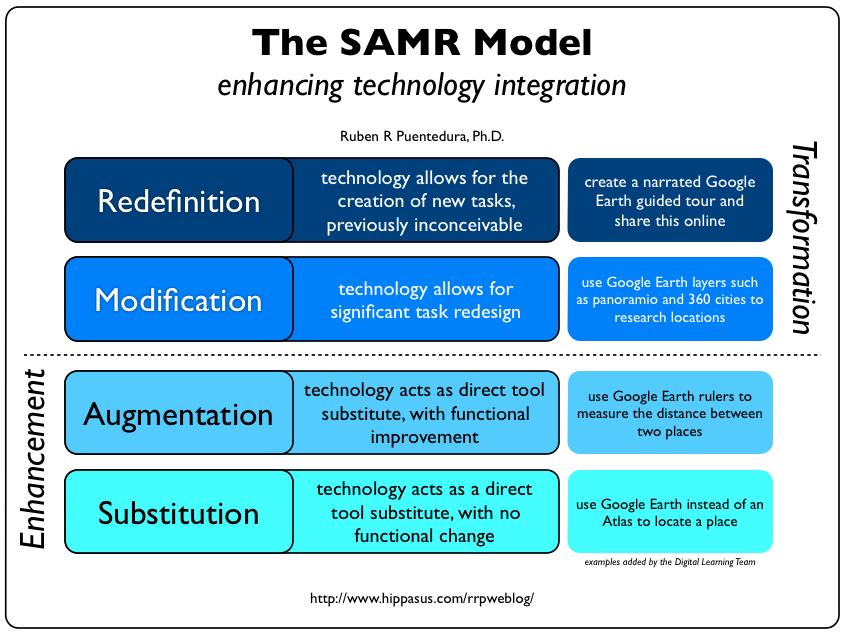
Introduction to the SAMR Model

The SAMR Model was developed by Dr. Ruben Puentedura as a way for teachers to evaluate how they are incorporating technology into their practice. This video on Common Sense Media gives a good overview of the model. SAMR stands for substation, augmentation, modification, and redefinition.  If you attended the workshop but did not receive a handout, click here for a PDF of the wheel poster that incorporates the SAMR Model.
null

Resources:

In our session today, we looked at (and explored) several digital technologies through the SAMR lens. As you select digital technologies for use in your own classroom, remember to apply SAMR.

Apps we explored today:

  • Student Response Systems – we tried Kahoot and looked at polleverywhere (which allows text message response as well as online) and Socrative (allowing individual student accounts). Remember the ‘issues’ around anonymity – you can harness the value but need to be aware of the risks… The other system that incorporates student code cards that I mentioned is called Quiz Socket – I’ll be making a set of cards and testing this one out over the next couple of weeks (so please check back!)
  • Padlet.com a cloud based, cross-compatible space for brainstorming… you can even moderate student responses (using the settings wheel) and adjust the privacy of your wall. Valuable for group brainstorms where you’re asking students to consider the responses of others. Helps in co-constructing kn0wledge.
  • 32 Interesting Ways to use Padlet in the Classroom
  • Concept mapping is a valuable way for students to connect learning – co-construct visual CMaps using Popplet.

Here is a link to the promised google doc with ‘subject specific’ online applications, simulations, games etc to support learning – again, as you select, evaluate using SAMR! NB: I will be adding to this list in consideration of our discussion and the subject areas ‘identified’ in our workshop over the next few days!

As always, please feel free to leave a comment below if you have any questions, comments or requests!

Leave a Comment

by | November 18, 2014 · 11:49 am

Debunking the Myths About Digital Natives and Immigrants

In an article by Marc Prensky, he coins the terms “digital natives” and “digital immigrants”. A few excerpts:

It is now clear that as a result of this ubiquitous environment and the sheer volume of their interaction with it, today’s students think and process information fundamentally differently from their predecessors…

What should we call these “new” students of today? Some refer to them as the N-[for Net]-gen or D-[for digital]-gen. But the most useful designation I have found for them is Digital Natives. Our students today are all “native speakers” of the digital language of computers, video games and the Internet.

Those of us who were not born into the digital world but have, at some later point in our lives, become fascinated by and adopted many or most aspects of the new technology are, and always will be compared to them, Digital Immigrants.

I do find the dichotomy that Prensky propose slightly problematic, as I feel like this distinction doesn’t serve anyone much good. He does have some good points, though.

Since I started my position with the Faculty, one of the things I hear on a regular basis is the concern over a self-perceived lack of technological skill. Many perceive those that have grown up in the era of technology are super tech savvy. Likewise, others that have recently returned to school feel that their skill sets don’t measure up to some of their peers.

There’s also the assumption that students all “digital natives” possess a wealth of knowledge and experiences related to technology. That is definitely not the case at all: some will have had the opportunity to learn bits and pieces, others not so much. If the assumption holds true, then there wouldn’t be students close to my age who come to ask for help. On the job, I learn about different programs, apps, and software on a rolling basis. There’s a lot I don’t know about, and I’m pretty young, too. Anecdotal evidence, but it gets the point across.

When you do integrate technology into the classroom, do highlight to the students that this is a learning process for everyone. Students appreciate it when teachers experiment with new technologies, and are also quite forgiving if something happens that doesn’t go as planned. Often times, you will find students that are eager to help teachers when faced with a tech issue. And this, my friends, is where the learning happens!

So, what does Iron Man have to do with any of this? I like to use this clip to make an analogy. You might feel like a bit like Heather, the first flight attendant that Iron Man saves. Remember that there are others just like you, ones that experience the same fears and concerns. And when you’re out teaching or in your classes, remember that there are many tools and resources available at your fingertips.

Recommended readings

Fear of Classroom Technology Just Doesn’t Compute

Jumping off the Cliff of Comfortability – Classroom Tech Integration

Overcoming Technology Barriers: How to Innovate Without Extra Money or Support

11 Reasons Teachers Aren’t Using Technology

5 Tips and Tools for the Tech Terrified Teacher


Leave a Comment

by | October 23, 2014 · 10:52 am

Create your own gif’s

A GIF (Graphics Interchange Format) is a file format for both animated and static images. Gif files are well-suited for the web due to the level of ‘compression’ (how small they are and how fast they load). Gif files can be ‘static’ images or animated.

The Gif file below was created by Brittney Merriweather (MY-SRL cohort) using http://makeagif.com/  You can use your own images or video to create an animated gif and embed the gif on your blog (as we’ve done here) or use it in your presentations. Brittney used a flikr image to create this gif ( _DJ_/Flickr).
Brain Grow on Make A Gif

make animated gifs like this at MakeAGif

Have Photoshop and want to try creating your own gif? View this tutorial: Using Photoshop to create a gif.

 or visit this site for a variety of options.


Leave a Comment

by | October 21, 2014 · 1:24 pm

Creating Your Own Trailers to use as Hooks

Now that you’ve learned a bit about hooks, you might be interested in creating a TEASe. Also known as a Technology Enhanced Anticipatory Set, the purpose of a TEASe is to introduce and stimulate student interest on a topic. Although you can find a number of TEASes made by other teachers, it can be fun to be a little more involved and hands-on. Regardless of your skill level, there are a number of user-friendly programs available at your fingertips. Remember, budget your time wisely. Consider if the value of the end product is worth the amount of time you spend.

Here are a few note-worthy programs:

  • Animoto (Android and iOS)
  • iMovie (Use the trailers feature)
  • Videolicious (iOS only)
  • Windows Movie Maker

If you would like to use one of these programs but don’t have access to them, you are free to use the computers in both the Mac and Windows labs (Scarfe 1006 and 1007). If you would like access to iPads, let Jenny know and she will provide access.

Resources

Leave a Comment

by | October 16, 2014 · 3:53 pm

Videos in the Classroom

Nowadays, videos are a common part of the classroom experience. Personally speaking, it’s rare for me to be in a class without watching a video presented by a professor or teacher. Unless you’re a seasoned videographer or filmmaker, videos are extremely time consuming to create. It can also be very time consuming to weed through all of them. Here, I’ve cut down some of the work for you. The following are some great sources of educational videos which you can use to introduce or supplement a lesson. I threw in a few personal favourites of mine, too.

macbook-407126_640- From Pixabay, no attribution required

AsapSCIENCE

With over 3 million subscribers on YouTube, AsapSCIENCE is one of my personal favourites. I first discovered this gem while watching the Sochi 2014 Olympic Games on CBC. Using whiteboard animation, the videos feature a variety of topics within science. The language and content is easy to comprehend- there is very little scientific jargon. The Toronto-based channel also has a Twitter page, perfect if you enjoy scientific humour.

Bill Nye the Science Guy

You can’t compile a list of educational videos without Bill Nye! His 30 minute programs focuses on teaching natural science to children. The series and the catchy theme song was a real hit with everyone when I was in elementary and high school. I have always been particularly fond of the parody songs that accompany each episode!

CrashCourse

Run by brothers Hank and John Green (aka the author of The Fault in Our Stars), this channel features videos on a wide variety of topics, such as psychology, literature, biology, and world history.

Khan Academy

Khan Academy is one of the most well-known resources available online. Originally, Khan Academy started up as a YouTube channel. Now, they branched out onto their own website, offering free educational videos for everyone worldwide.

MinuteEarth

Similar to the style of ASAPScience, MinuteEarth features short animated videos about planet earth.

TED Talks

TED Talks are usually the first types of videos that come to mind. For senior students, some of the TED Talks are perfect for this audience.

WatchKnowLearn

WatchKnowLearn is a great website in which teachers can access thousands of videos across a wide variety of subjects and grade levels. The videos are peer rated and sorted into a large directory and categories.

Vsauce

Michael Stevens, the creator of Vsauce, creates videos that pose a number of intriguing questions (think inquiry). For example: why are things cute? Why is yawning contagious?

YouTube Education

The education section of YouTube contains a wide variety of resources that are further divided into grade levels and subject areas. The videos come from a wide variety of channels.

Lastly, here is a website with a very comprehensive list of sites for educational videos.

What are some of your personal favourites? Let us know in the comment section below!

2 Comments

by | October 6, 2014 · 12:40 pm