Do you struggle with organizing your class notes or research papers? Does the thought of writing an outline make your palms sweat? Are you a visual or non-linear learner and want to see the big picture? Then mind mapping may be the answer!
What is Mind Mapping?
Mind mapping is a creative way of brainstorming and creating a visual picture of information in a manner that’s easy to digest. A mind map allows you to create a diagram of ideas that can be arranged to show relationships around a central key term. So what does a mind map look like?
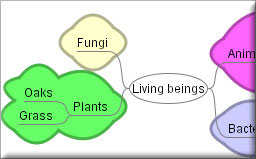
Mind Mapping Software
Okay, so mind mapping looks cool, but you’re not sure if you can make one yourself? Never fear! There are some great mind mapping tools available on the internet that are free and easy-to-use. A good place to start for a newbie is with FreeMind. This downloadable, open source software allows you to create and save mind maps right on your computer. FreeMind software lets you create as many maps as you want and has many cool features. You can export your maps into multiple formats including PDF, JPEG and HTML and you can even insert hyperlinks into your maps! If you need some inspiration, check out
FreeMind’s Mind Map Gallery to see examples of maps others have made!
Maybe you’d rather create maps that you can save online and share or collaborate with your friends. Maybe you want to see what kind of interesting maps other people have made. No problem!
If you use Google Chrome to surf the web, check out the Connected Mind web app from the Chrome Web store. You can import maps from FreeMind, insert images and create super colourful maps online that you can save directly to your Google account! Don’t have a Google account? No worries, there are many other online mind mapping tools available online such as MindMeister and bubbl.us. Not all of these tools are free, but many of them offer free accounts with limited features.
Media Moment
Keep in mind when using online software from the U.S. that your information is being saved to an American server and is subject to U.S. privacy laws which differ from Canadian laws. Always remember this when saving personal information online.
NetworkEducation
- Go to the bubbl.us site.
- If you want to save your map, click ‘allow’. If not, click ‘deny’.
- Now you can start making a map on this site without even registering!
- Click on ‘Start Brainstorming’.
- Click on ‘Start Here’. Choose a topic for your map and type it into the bubble (e.g. Living Beings) This is your parent node.
- Click on the arrow pointing down from your parent node to create a child node and type a subtopic into the bubble (e.g. Plants)
- Click on the arrow pointing down from your child node to create another child node and type in another subtopic (e.g. Grass).
- Click on the arrow pointing next to your last child node to create a sibling node and type in another subtopic (e.g. Oaks).
- Let’s try moving some of the nodes around. Click and drag one of your child nodes to the other side of the map. See how easy it is!
Map of Mind Mapping Software
