Categories
Sharing Online

Banishing the Bibliography Blues

Does the prospect of organizing reference citations leave you suffering from headaches? Does compiling bibliographies for your papers give you the blues? Never fear, for there is a cure for what ails you: reference management software.

What is reference management software?

If you don’t use a reference management tool already, you will want to start as soon as you finish reading this post! These tools will make your life as a student much easier and cure those citation headaches and banish those bibliography blues. Basically reference management tools are software applications that are designed to help you write your papers with ease and style. They will help you to organize your references, format them in any style you desire (e.g. MLA, APA, Chicago) and automatically generate in-text citations and bibliographies. A guaranteed time-saver!

Lots of (smart!) people use RefWorks or Endnote reference management software to organize their citations. As a UBC student, you can create your own profile and use RefWorks for free.  Check it out! Unfortunately RefWorks can be a bit cumbersome to use and Endnote is expensive to buy, but never fear there are many other useful options like Zotero. You may ask “why bother using Zotero?” Well, there are lots of great reasons:

  • Zotero is free! You don’t have to pay a cent for it.
  • It resides right on your Firefox browser and captures information from the Web.
  • The interface is designed with you – the Web surfer – in mind. You can surf the Web and save items at the same time.
  • Zotero allows you to tagwrite notes and attach files to your items, drag and dropmark up pdfs and web pages AND MORE….

The more you know about it, the more you’ll love using it.

What exactly is Zotero?

Zotero is an open source Firefox Add-on which can be easily installed on both your private computers and those in university labs. It enables users to collect, manage and cite research from all types of sources. The citations captured by Zotero can be books from AmazonGoogle Books, and online library catalogs (e.g.WorldCat). It also captures papers from Google Scholar and online subscription databases (e.g. Web of Science or ABI/Inform). It can generate in-text citations and bibliographies automatically in wikis, blogs, Microsoft Word and OpenOffice Writer.

To see what Zotero can do, check out these screencasts.

Don’t use Firefox as your browser?

No worries, there are other free reference management tools out there that work great with Google Chrome and Internet Explorer! Mendeley is a free application that has many of the same features as Zotero and features a downloadable desktop application so you can store and manage your references both online and off. You can also import your library from CiteULike directly into your online Mendeley library with ease.

There are also many other up and coming reference tools that are also worth checking out like Citavi and Qiqqa. You can see a comparison of available reference tools here.

So stop wasting time fretting over your bibliographies and let these great applications get busy and take care of them for you!

This post was originally created for the Digital Media Project, a joint project of UBC School of Library, Archival and Information Studies and the Irving K Barber Learning Centre. It has been modified from its original form.

Categories
Sharing Online

Map Your Thoughts!

Do you struggle with organizing your class notes or research papers? Does the thought of writing an outline make your palms sweat? Are you a visual or non-linear learner and want to see the big picture? Then mind mapping may be the answer!

What is Mind Mapping?

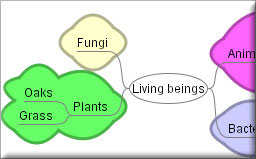
Mind mapping is a creative way of brainstorming and creating a visual picture of information in a manner that’s easy to digest. A mind map allows you to create a diagram of ideas that can be arranged to show relationships around a central key term. So what does a mind map look like?

FreeMind Map

Mind Mapping Software

Okay, so mind mapping looks cool, but you’re not sure if you can make one yourself? Never fear! There are some great mind mapping tools available on the internet that are free and easy-to-use. A good place to start for a newbie is with FreeMind. This downloadable, open source software allows you to create and save mind maps right on your computer. FreeMind software lets you create as many maps as you want and has many cool features. You can export your maps into multiple formats including PDF, JPEG and HTML and you can even insert hyperlinks into your maps! If you need some inspiration, check out

FreeMind’s Mind Map Gallery to see examples of maps others have made!

Maybe you’d rather create maps that you can save online and share or collaborate with your friends. Maybe you want to see what kind of interesting maps other people have made. No problem!

If you use Google Chrome to surf the web, check out the Connected Mind web app from the Chrome Web store. You can import maps from FreeMind, insert images and create super colourful maps online that you can save directly to your Google account! Don’t have a Google account? No worries, there are many other online mind mapping tools available online such as MindMeister and bubbl.us. Not all of these tools are free, but many of them offer free accounts with limited features.

Media Moment

Keep in mind when using online software from the U.S. that your information is being saved to an American server and is subject to U.S. privacy laws which differ from Canadian laws. Always remember this when saving personal information online.

NetworkEducation

  • Go to the bubbl.us site.
  • If you want to save your map, click ‘allow’. If not, click ‘deny’.
  • Now you can start making a map on this site without even registering!
  • Click on ‘Start Brainstorming’.
  • Click on ‘Start Here’. Choose a topic for your map and type it into the bubble (e.g. Living Beings) This is your parent node.
  • Click on the arrow pointing down from your parent node to create a child node and type a subtopic into the bubble (e.g. Plants)
  • Click on the arrow pointing down from your child node to create another child node and type in another subtopic (e.g. Grass).
  • Click on the arrow pointing next to your last child node to create a sibling node and type in another subtopic (e.g. Oaks).
  • Let’s try moving some of the nodes around. Click and drag one of your child nodes to the other side of the map. See how easy it is!

Map of Mind Mapping Software

Mind Mapping Tools

Links

Comparison Chart of Mind Mapping Software

Mind Mapping Software Blog

Categories
Sharing Online

Linkblogging = Pointing at Awesome

So you’ve found something awesome on the internet. Maybe it’s a comic or a LOLcat or an article that completely supports your side of a recent argument about the economic foundations of Prussia. Great. How are you going to tell people about it?

You’ve got a lot of options in the current digital environment. You could email your friends, you can put it on your Facebook (under sharing Links, it’s on the lefthand side of the page), or you can make a linkblog and share it with the world.

Linkblogs are a bit different than regular blogs. While a blog can be a platform for you to write and express yourself, a linkblog is more like a pointer to cool stuff you didn’t make. The benefits of this kind of thing should be easy to see: it isn’t as hard to point people at something cool as it is to create something cool yourself. Remember our post about RSS readers, and how we called them news aggregators? Well, a linkblog is kind of like an attention aggregator. You’re pointing out things you think someone else should pay attention to. The more people who do it, the more will be infected with whichever your favourite meme is.

Tag! You’re it!

You have probably already used tagging – or have been tagged – and may not even know it. Have you ever received an email from Facebook telling you that “You’ve been tagged in a photo”? Or maybe you’re a movie geek and enjoy adding descriptive words to movies on The Internet Movie Database. These are examples of tagging in action!

What exactly is tagging?

Tagging is a common term that refers to adding labels to items (photos, books, movies, webpages, etc.) that are found online. When you’re looking for something online, often you can find it quicker and more easily if there’s a label. With the growing vastness of information available on the Internet, it’s impossible for “professionals” to label everything and computers just don’t have the human touch required to do the job right. But now that the web has gone interactive, we don’t have to rely on pros and ‘bots – anyone can tag! Everyone can collaborate through online tagging to point other web surfers in the right direction to find stuff online.

RSS makes staying up-to-date easy

It’s a crazy, busy world out there. Who has the time to read newspapers, catch up with TV news or regularly visit their favourite news sites, blogs and listings pages? RSS is an ultra-simple way for you to get the kind of news you want delivered to you instead of forcing you to go out searching.

What exactly is RSS?

The idea behind RSS is that you subscribe to customizable streams or feeds of news and information which are sent to your reader or possibly your inbox. Instead of you going out to a pile of websites to find the news, “Really Simple Syndication” means the sources you trust can send you information whenever there’s something new to report. And it’s not limited to news – you can get RSS feeds for events listings, blogs, quotes of the day, job listings, sports scores… whatever tickles your information fancy. If you see this orange RSS symbol on a website, you can subscribe to its RSS feed. Sometimes It’ll just say RSS and sometimes it’ll just say subscribe, but whatever it says it means the same thing; the site will send the new articles to your reader every time new content is published.

Spam prevention powered by Akismet