Tag Archives: organize

Sketchnotes


Sketchnotes are a way to take notes that organizes thoughts and ideas in a visually stimulating way, without requiring artistry skills.


The ability to summarize or synthesize what we have learned is an advanced skill and sketchnotes are one way of teaching and practicing this skill. They allow the listener to focus on what they are hearing so that they can pick out what were the most important things to remember.

Keywords can be bolded, arrows & lines allow eyes to follow sequences, boxes or bubbles can help categorize thoughts that are related but might be thought-tangents, and icons are the visual pieces! None of these require master drawing skills but the more practice occurs, the better your sketchnotes will appear.

Students aren’t always taught how to take good notes which can cause them to write EVERYTHING down. The practice of sketchnoting is really just a way to learn how to paraphrase, summarize, and refocus to what’s really meaningful. The can be used in PD events, taking notes for various classes, and even a way to present information.

Decide on your medium!

– Paper, pens, pencils, highlighters, rulers
– Tablet, digital stylus, sketching app

Popular Digital Tools

– Apps: PaperBy53, Sketchbook, ProCreate, AdobeDraw, and Forge but any drawing app will work (even Explain Everything or Book Creator!).
– Styluses: Apple Pen, PencilBy53, Adonis Jot Pro, Targus, **or find any cheap/free pen with a touch-sensitive tip!

What Can I Sketch??

– Visit sketch50.com and try a different sketch over 50 days – you can view what other’s are sketching too using the hashtag #sketch50
– Check out what other educators have done with their students
– Visit Sylvia Duckworth’s website (A Canadian Teacher) or read this quick visual guide to get started by skethnote-love.com

Practice the Elements & teach them to your students!

Many of these elements are great for teaching basic art skills too!
– Lettering & Fonts
– Bullets
– Frames/Dividers
– Connectors & Arrows
– Shadowing/Bolding/Highlighting – when is it too much or too little?
– People & Icons


Image by By @meacherteacher, Jody Meacher

Leave a Comment

Filed under Not Subject Specific, Resources

Popplet

whatisit.png

Popplet is a digital tool that can be used to capture ideas and then organize them in a mindmap format. It can be accessed freely on an iPad, smartphone, or computer.

Why-is-it-relevant-360x82.png

Popplet is a collaborative mind mapping software. It allows students to manipulate their thoughts more easily than on paper. They can prepare essays, timelines, and other assignments requiring planning with the added ability to move ‘bubbles’ around that can hold text, drawings, or images.

It’s a great tool to help students scaffold their own learning while documenting it at the same time. How? Students preparing for a presentation (pamphlet, poster, slides) can collaboratively put all their ideas down into the popplet, find evidence to support each topic (photos, websites, video links), and then continue to narrow down their ideas until they a refined draft that’s prepared to move to the next prototype – all in real time from different devices. Of course, teachers might also have students working together on one device to create a popplet (with students taking turns recording).

Popplet is also accessible because instead of typing in each thought bubble, the keyboard allows for voice predictive text to record their thoughts. When working in groups, this means every student’s ideas can be represented.

how-to-get-started-360x80.png

Create

  • Choose your device – iPad Lite or Paid version OR online through a web browser
    • Lite doesn’t allow multiple popplets to be created but if you create an account online, you can create a limited number of free popplets (10 at the time of writing). It’s worth trying it out before purchasing.
    • If using popplet collaboratively, you will need to make your own account and student accounts
  • Make a NEW popplet
    • On the blank canvas, you can either double-tap or click to create a new popple (bubble)
    • Choose to write, draw, add an image, or include a vimeo video to the popple
    • Drag your mouse/finger from one of the grey circles on a popple to create a new link to a related popple
  • Browse other popplets
    • View ones that have been made public for inspiration
    • View templates/examples that popplet has created and modify them

Share

  • Tap on the export or share button
  • Choose to invite a collaborator or share a link
    • Search by email address or by username
    • Students would need individual accounts and ANYONE can add ANYONE – this is a great way to introduce the benefits of using an avatar and privacy considerations are essential – ensure appropriate permissions are in place depending on your context
    • Each popple created would have the creator’s name attached to the popple
  • Make it public
    • to embed the popplet in a class website or student blog
    • to share it via link

Additional Settings

  • Export as an image
  • Present – 2 variations of presenting
  • Change permissions (for sharing)
  • Add Content – Vimeo is offered in the free accounts
  • Duplicate your popplets (great for making multiples when working in groups)

videopng-360x61.png

Bellow, Adam (2011) Popplet


Popplet is generally used in higher grades but it can be used in Kindergarten

Robinson, Staci (2015) Popplet in a Kindergarten Classroom

Leave a Comment

Filed under Not Subject Specific, Resources

MeisterTask

MeisterTask Logo


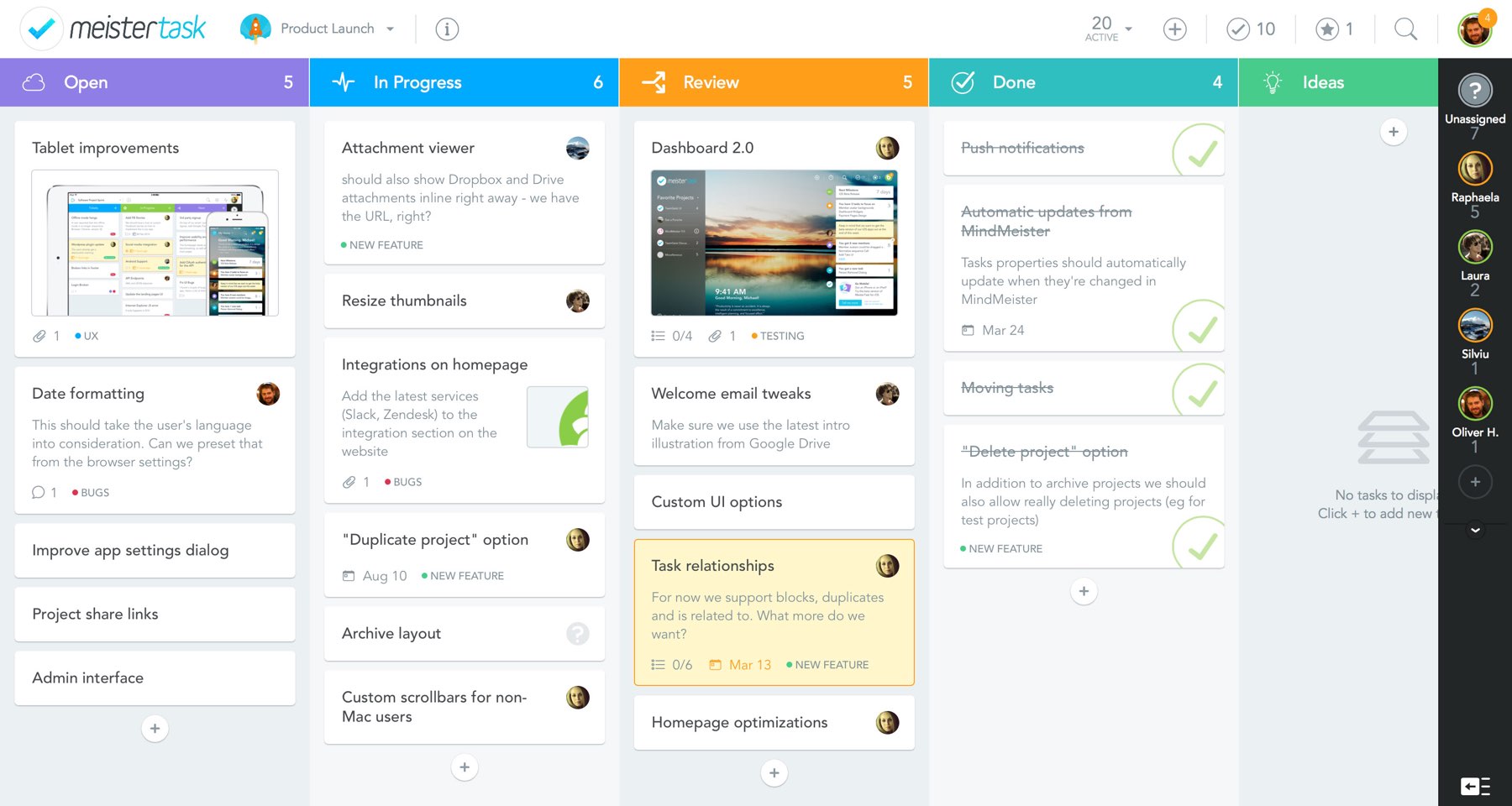
Click above to view an example of a MeisterTask project with four collaborators.


MeisterTask is a project and task management tool that aims to make the process of managing a team project as intuitive as possible. This app allows you to create tasks, organize them into sections and assign them to other team members. Meistertask is not limited to simple task management, as it employs more advanced functions to add complexity to your project. Each task can have sub-tasks, checklist items, due dates, comments , tags to organize your tasks, time spent on the task, and even notes.

The process of creating a project board is made more intuitive than other task management programs by employing drag-and-drop mechanisms and simple, eye-catching icons that direct you on what/where to click. Made by the same company that made MindMeister, MeisterTask integrates it’s task management with a mind-mapping structure created with MindMeister.

Managing projects become less of a hassle with MeisterTask. You can introduce MeisterTask to your students as a way to keep track of group project work. With each task being visually assigned to a student in a group, each student of the group is held accountable to all of the tasks they are assigned. If in a group project there is a group member not doing as much work as the others, you can look at their MeisterTask project board to objectively see how much work they’ve done and help bring them back on track.

Students would also be able to visually identify the necessary steps to be taken toward finishing a project. By having students plan out project board before a project begins, students are able to see how much work they need to get done relative to the due date of a project. This can help students plan more accordingly by prioritizing more urgent tasks over less urgent ones.


[column size=6]

  1. Sign up for a free MeisterTask account at meistertask.com (You can also use your Google account to log in!)
  2. Create a new project and give the project a name.
  3. Invite other people to the project if needed.
  4. Select the project you wish to work on in the projects sidebar.
  5. Add tasks to a section by clicking the + sign underneath the section.
  6. Add sections by clicking the + sign to the right of the sections.
  7. Click on a task to add more details (checklist items, due dates, tags, attachments, description) to the task.
  8. Invite more people to join your project by clicking the invite button to the right of your project sections.

[/column]
[column size=6]

Video: MeisterTask (2015). MeisterTask: Getting Started
[/column]

Watch this video to see an introduction of how MeisterTask works!

https://www.youtube.com/watch?v=-o1aR4OvCrI

Video: MeisterTask (2015). MeisterTask: Online Task Management and Team Collaboration

Leave a Comment

Filed under Not Subject Specific, Resources