Tag Archives: group work

Group Work Strategies for All Classrooms

Teachers can feel overwhelmed trying to support the different needs of their students. A group work activity can be a perfect strategy to encourage students to work together, develop their collaboration skills, build classroom community, and support each other.

What is group work?

Cohen & Lotan (2014) define group work as “students working together in a group small enough so that everyone can participate on a clearly assigned learning task” which should be carried out “without direct and immediate supervision of the teacher” (p. 1). These two characteristics are essential because they allow students not only to develop academic knowledge and competencies but also to learn social skills, such as collaboration and responsibility.

However, designing group work is not easy even in a homogeneous classroom and it becomes a big challenge in a heterogeneous classroom, where students have different cultural and language backgrounds, levels of knowledge, and many other distinct characteristics.

Thinking about the possible challenges of group work, Cohen & Lotan (2014) suggest that the group and the tasks should have some features that may help to minimize inequalities in educational settings.

The status problem

Cohen & Lotan (2014) highlight a serious problem in educational places: a student has a different status in the classroom based on both external or internal factors. For example, students who have a facility for mathematics tend to be granted a high status by their peers and teachers. As another example, students for whom English is their second language tend to have a lower status in school. The idea is that schools tend to value some knowledge and skills more than others and, therefore, students from some groups will not be considered “good students” because their competencies and knowledge are not considered “high status” in school settings.

With these considerations in mind, the authors suggest that group work can help change students’ status and, consequently, improve their learning. However, group work should follow some guidelines related to group composition and the nature of the task:

Tasks

To show that all students have equal importance during the group activity, tasks should be designed to include a variety of competencies and knowledge. Students should not be able to complete the task without the collaboration of all members. In this sense, Cohen & Lotan (2014, p. 85) suggest that a task should:

  • be open-ended, productively uncertain, and require complex problem solving;
  • provide opportunities for students to use multiple intellectual abilities to access the task and to demonstrate intellectual competence;
  • address discipline-based, intellectually important content;
  • require positive interdependence and individual accountability;
  • include clear criteria for the evaluation of the group’s product and of the individual report.


Group composition

Cohen & Lotan (2014) argue that three points should be considered when a teacher plans the composition of a group:

1) Size of groups: groups should not be so small that they do not allow a complex interaction between members, but also not so big that they prevent all members from having meaningful participation.

2) Composing groups: the ideal composition is one that balances different skills, knowledge, and status. The authors recommend randomizing students to avoid any bias in group composition. However, teachers may want to think about specific intentions and try to diminish inequalities in their classroom.

3) Hold individuals and groups accountable: even though students are working in a group, it is important to think of both individual and group assessments. It may help to understand individual progression while also considering the value of group work.

Individual roles

Cohen & Lotan (2014) suggest that each individual in the group should have a different role; roles can help to balance power since all members will be essential to complete the task. In addition, teachers can rotate the roles between students, giving more voice to students who usually do not participate or prompting some students to develop specific skills.

The roles can change, but these are some ideas:

  • Facilitator: Ensures that everyone gets the help he or she needs to do the task. They can be responsible for seeking answers to questions within the group – the teacher is only queried if no one in the group can help.
  • Time Manager: Makes sure that the group is progressing and will conclude the task on time.
  • Materials Manager: Is responsible for getting materials and resources and putting them away properly.
  • Participation Manager: Is responsible for making sure that all members have space to express their ideas.
  • Reporter: Is responsible for organizing a group report and presenting to the class.
    • How to implement group work in the classroom?
    • This post from the University of Waterloo discusses essential steps to consider when teachers design and implement group work in their classrooms.
    • Group work can include drawings, playdough, games, or design challenges to get students thinking, discussing, and working together.
  • Groups At Work: Strategies and Structures for Professional Learning, by Laura Lipton and Bruce Wellman is full of group work strategies and activities. Although these strategies are marketed for professional learning, most of them are perfect for classroom use! The strategies are broken into several categories that makes it easy to select an effective activity for your scenario:
    • Strategies for Activating (consider using these for community & relationship building – links to post in this blog)
    • Strategies for Assessing, Goal Setting & Planning (consider using these for self or peer assessment)
    • Strategies for Dialogue & Discussion (consider using these to get students talking and verbally processing concepts)
    • Strategies for Generating Ideas (consider using these for design thinking and ideation. – links to post in this blog)
    • Strategies for Summarizing & Synthesizing (consider using these to help students clarify their understandings and integrate concepts or information)
    • Strategies for Text & Information Processing (consider using these when students are interacting with texts or new information)


Guest post by Peer Tutor Ariane Faria dos Santos (Ph.D. EDCP), 2021; Updated June, 2024 by Peer Mentor Lindsay Cunningham (Ph.D. student, EDCP)


References:

Cohen, E. G., & Lotan, R. A. (2014). Designing groupwork: strategies for the heterogeneous classroom third edition. Teachers College Press.

Lipton, L., & Wellman, B. (2011). Groups at work: Strategies and structures for professional learning. MiraVia.
 

Leave a Comment

Filed under Active Learning, Blog Posts, Planning, Teaching Strategies

Scrumblr – OpenEd App


A Scrumblr wall from the Vancouver Summer Program 2019

Scrumblr is a visual note board. It is one of a suite of browser based apps available through the Open Ed Project. All apps in this project are open source. The instance of the app we use is within ‘Sandcats’ a Canadian housed server that is part of the Open Ed Project.


All class response via an app like Scrumblr is a great way to share information and collaboratively create content. Consider a classroom brainstorm that often entails students raising their hands and sharing, one at a time, while the teacher or another student records on the board… now think about the possibilities if groups of students or pairs of students have a shared wall open and are all adding and sharing ideas and resources in real time! Once the brainstorming has taken place, the teacher can follow up with a group discussion that might involve evaluating, sorting and classifying responses… something that can be difficult to make time for when the act of brainstorming and recording is lengthy.

  • Visit: https://oet.sandcats.io/
  • Sign up for a free account using your email (You may then be prompted to enter a login code you will receive via email)
  • Go to the ‘Apps’ Market and select the app you want to use (i.e. Scrumblr)
  • Give your Scrumblr board a title. (note: this board now appears in your list of ‘Grains’)
  • You can share the wall with your students via link or by inviting them to the board.
  • Students can add their ideas without having an account.
  • Should you wish to have accounts for students, they may request these… remember, the server is Canadian housed so the use is FIPPA compliant. Whenever having students share online, please ensure they are mindful of protecting their data privacy.

1 Comment

Filed under Not Subject Specific, Open Educational Resources, Resources

Popplet

whatisit.png

Popplet is a digital tool that can be used to capture ideas and then organize them in a mindmap format. It can be accessed freely on an iPad, smartphone, or computer.

Why-is-it-relevant-360x82.png

Popplet is a collaborative mind mapping software. It allows students to manipulate their thoughts more easily than on paper. They can prepare essays, timelines, and other assignments requiring planning with the added ability to move ‘bubbles’ around that can hold text, drawings, or images.

It’s a great tool to help students scaffold their own learning while documenting it at the same time. How? Students preparing for a presentation (pamphlet, poster, slides) can collaboratively put all their ideas down into the popplet, find evidence to support each topic (photos, websites, video links), and then continue to narrow down their ideas until they a refined draft that’s prepared to move to the next prototype – all in real time from different devices. Of course, teachers might also have students working together on one device to create a popplet (with students taking turns recording).

Popplet is also accessible because instead of typing in each thought bubble, the keyboard allows for voice predictive text to record their thoughts. When working in groups, this means every student’s ideas can be represented.

how-to-get-started-360x80.png

Create

  • Choose your device – iPad Lite or Paid version OR online through a web browser
    • Lite doesn’t allow multiple popplets to be created but if you create an account online, you can create a limited number of free popplets (10 at the time of writing). It’s worth trying it out before purchasing.
    • If using popplet collaboratively, you will need to make your own account and student accounts
  • Make a NEW popplet
    • On the blank canvas, you can either double-tap or click to create a new popple (bubble)
    • Choose to write, draw, add an image, or include a vimeo video to the popple
    • Drag your mouse/finger from one of the grey circles on a popple to create a new link to a related popple
  • Browse other popplets
    • View ones that have been made public for inspiration
    • View templates/examples that popplet has created and modify them

Share

  • Tap on the export or share button
  • Choose to invite a collaborator or share a link
    • Search by email address or by username
    • Students would need individual accounts and ANYONE can add ANYONE – this is a great way to introduce the benefits of using an avatar and privacy considerations are essential – ensure appropriate permissions are in place depending on your context
    • Each popple created would have the creator’s name attached to the popple
  • Make it public
    • to embed the popplet in a class website or student blog
    • to share it via link

Additional Settings

  • Export as an image
  • Present – 2 variations of presenting
  • Change permissions (for sharing)
  • Add Content – Vimeo is offered in the free accounts
  • Duplicate your popplets (great for making multiples when working in groups)

videopng-360x61.png

Bellow, Adam (2011) Popplet


Popplet is generally used in higher grades but it can be used in Kindergarten

Robinson, Staci (2015) Popplet in a Kindergarten Classroom

Leave a Comment

Filed under Not Subject Specific, Resources

MeisterTask

MeisterTask Logo


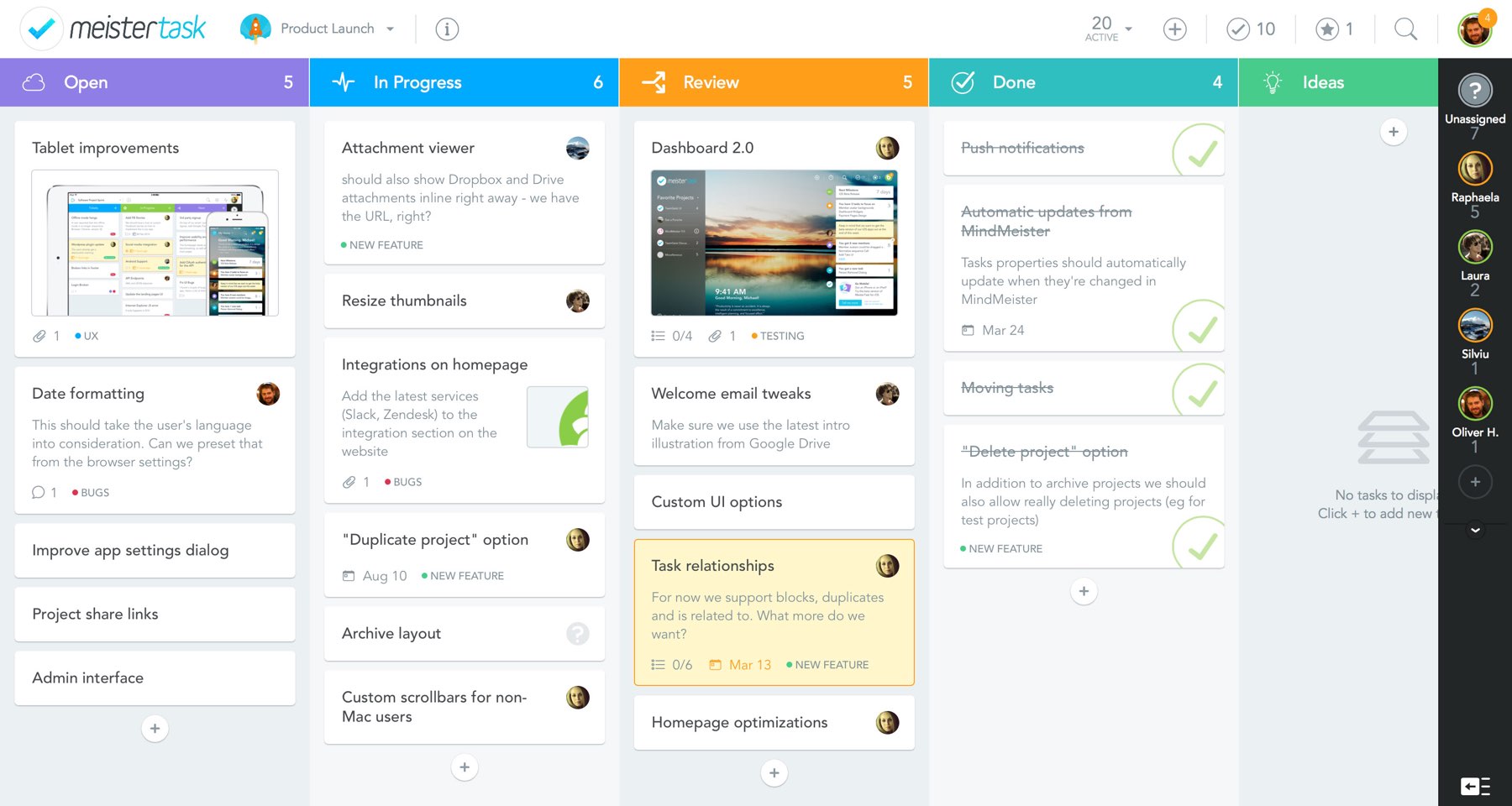
Click above to view an example of a MeisterTask project with four collaborators.


MeisterTask is a project and task management tool that aims to make the process of managing a team project as intuitive as possible. This app allows you to create tasks, organize them into sections and assign them to other team members. Meistertask is not limited to simple task management, as it employs more advanced functions to add complexity to your project. Each task can have sub-tasks, checklist items, due dates, comments , tags to organize your tasks, time spent on the task, and even notes.

The process of creating a project board is made more intuitive than other task management programs by employing drag-and-drop mechanisms and simple, eye-catching icons that direct you on what/where to click. Made by the same company that made MindMeister, MeisterTask integrates it’s task management with a mind-mapping structure created with MindMeister.

Managing projects become less of a hassle with MeisterTask. You can introduce MeisterTask to your students as a way to keep track of group project work. With each task being visually assigned to a student in a group, each student of the group is held accountable to all of the tasks they are assigned. If in a group project there is a group member not doing as much work as the others, you can look at their MeisterTask project board to objectively see how much work they’ve done and help bring them back on track.

Students would also be able to visually identify the necessary steps to be taken toward finishing a project. By having students plan out project board before a project begins, students are able to see how much work they need to get done relative to the due date of a project. This can help students plan more accordingly by prioritizing more urgent tasks over less urgent ones.


[column size=6]

  1. Sign up for a free MeisterTask account at meistertask.com (You can also use your Google account to log in!)
  2. Create a new project and give the project a name.
  3. Invite other people to the project if needed.
  4. Select the project you wish to work on in the projects sidebar.
  5. Add tasks to a section by clicking the + sign underneath the section.
  6. Add sections by clicking the + sign to the right of the sections.
  7. Click on a task to add more details (checklist items, due dates, tags, attachments, description) to the task.
  8. Invite more people to join your project by clicking the invite button to the right of your project sections.

[/column]
[column size=6]

Video: MeisterTask (2015). MeisterTask: Getting Started
[/column]

Watch this video to see an introduction of how MeisterTask works!

https://www.youtube.com/watch?v=-o1aR4OvCrI

Video: MeisterTask (2015). MeisterTask: Online Task Management and Team Collaboration

Leave a Comment

Filed under Not Subject Specific, Resources

Padlet – cloud-based collaboration

UPDATE: As of April 2018, Padlet has changed to a paid subscription model. Free access is now limited to 3 boards. Once you’ve deleted a board, you can create additional boards.

For those interested in exploring Open Educational options, you may wish to try a suite of apps from apps.opened.ca hosted in the ‘Sandstorm’ ecosystem (a Canadian housed space) – you can even host the apps on your own server. Scrumblr and Brainstorm are the closest I’ve found to Padlet. You might also be interested in Etherpad (like a google doc but FIPPA compliant!). For more information, please visit ‘Open ETech: Free Range Ed Tech’.

Visit this blog post for a description of digital whiteboards and a few alternative applications including: Jamboard


Screen Shot 2016-05-13 at 11.40.49 AM

Padlet is an online wall to which anyone with the link can easily add text, audio, video, images, hyperlinks and even make simple sketches! There are templates available including a gps located map.
Users can share their ideas from any device with internet access whether they’re inside or outside the classroom. These virtual sticky notes can then help keep track of and enrich classroom discussions or help when designing a project. Students are even able to comment or react to the posts of others (depending on how the teacher/moderator configures the settings).

A collaborative whiteboard or posting board is a great way to share information and collaboratively create content. Consider a classroom brainstorm that often entails students raising their hands and sharing, one at a time, while the teacher or another student records on the board… now think about the possibilities if groups of students or pairs of students have a shared Padlet wall open and are all adding and sharing ideas and resources in real time! Once the brainstorming has taken place, the teacher can follow up with a group discussion that might involve evaluating, sorting and classifying responses… something that can be difficult to make time for when the act of brainstorming and recording is lengthy.

Using the Mapping template, students might collaboratively create a geo-located map for place based learning activities, response to a novel that involves a journey, sharing information about cultures and places around the world, etc.

Embedding media like videos and images is simple, and Padlet even allows users to record videos or take pictures in real time and places them directly into their documents. Create and share mind-maps, plans, diagrams, portfolios, maps and more. Remember to always consider privacy and copyright permissions when sharing images, video or other content online.

Another valuable affordance of Padlet for teachers is that you can ‘moderate’ your posts using the privacy settings so that you view anything a student posts and approve it before it becomes ‘live’.

Important features and considerations:

  • Accountability: MODERATE your wall using the MODIFY menu (the ‘settings wheel’ in Top right corner) to help provide some accountability for students (‘Modify’ –> Require Approval). In a f2f classroom, the T can also circulate while students work and approve posts (using a mobile device) as T circulates, interacts/prompts/probes. You can also ask students to self-identify using initials or you can have students work in small groups or partners.
  • Privacy: Using the SHARE menu, you can adjust privacy. Consider: is the content sensitive at all? If so, there are also techniques like question boxes to support co-creating ideas/questions around more sensitive issues – the T can then preview the questions and discuss with the class the next day. Will students share their photos? names? what are the school/district norms and expectations or permissions needed? This is NOT a FIPPA compliant space so it is very important that students not be required to login and/or provide any personal or identifying info. (Metadata including things like location services in images provide data so it is important your students are aware of how to protect their own privacy)
  • Accessibility: You can create a custom URL using the ‘SETTINGS wheel’ (top right corner). This is also where you add a title and instructions/description. Consider: Do all of your students have devices? Will this be an individual or small group or partner? Are there visually impaired students? Other learning needs?

Visit https://padlet.com/ and click on “Create a padlet”. Then double-click anywhere to start writing, it is that simple! The URL can be shared with anyone. To explore some of the settings available, please refer to the video demonstration at the end of the post.

Padlet One Page Instructions

Padlet Tips & Tricks


videopng-360x61.png


Save

Leave a Comment

Filed under Not Subject Specific, Resources