Tag Archives: brainstorm

Mind Maps App

section header - what is it?

Mindmaps is a concept mapping app that is open-source, totally free and without advertisements. Moreover, the app allows you to build your concept map in your browser and save it in several formats. This is only one tool for creating mind maps or concept maps. To learn more about high tech, low tech and no tech approaches to mind-mapping, please visit the “Concept Maps for Teaching and Learning” blog post.

section header - why is it relevant


There are many ways to build concept maps, including apps. Unlike this app, however,  many of them require an account or download of the program, or have restrictions in the free version making them less useful to educators. Concept or Mind-mapping is a powerful teaching, learning and organizational strategy that provides a visual means of understanding or representing ideas.

  1. Go to mindmaps.app
  2. Click in Central idea in the red circle and include the main idea of your concept map
  3. Move the red dot that appeared inside your central idea to create sub-ideas.
  4. Add a sub-idea to the new box that appeared.
  5. Use the Navigator on the right side to visualize the whole design of your concept map.
  6. Change the color and style of your words and arrows using the Inspector on the right of the screen.
  7. Click on an object to move it or change its dimensions.
  8. Save or export your project choosing a format (top-right corner).

Video Demonstration

This video is a demonstration of how to build a conceptual map using the features of the Mind Mapping App:


Guest post by Peer Tutor Ariane Faria dos Santos (Ph.D. EDCP), March. 2022.

Leave a Comment

Filed under Curriculum, Digital Tools and Apps, Not Subject Specific, Resources

Concept Maps for teaching and learning

What are concept maps?

“A concept map is a type of graphic organizer used to represent knowledge of a topic, forge connections between ideas and create visual representations of one’s understandings. Concept maps begin with a main idea (or concept) and then branch out to show how that main idea can be broken down into specific topics” (Novak & Canas, 2006).  Visit the Concept Mapping resource post on this blog for a brief overview and links to resources.

Features of concept maps

There are four essential features represented differently in a concept map:

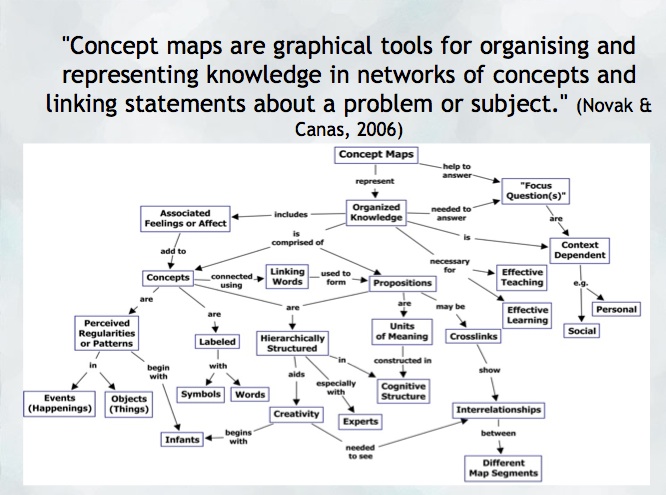
  1. Concepts: are words that try to represent a phenomenon, object, or idea. They may synthesize patterns in events or knowledge produced over time. In concept maps, these are depicted as shapes in the diagram.
  2. Linking words/phrases:  are used to connect two or more concepts and express some kind of relationship between them. They may indicate cause, consequences, conditions. In general, are written using a verb or few words.
  3. Focus concept or question: it is the main goal of a concept map.  It may be a question, an explanation, or a general idea that conducts your thought and organize all ideas around in the concept map. It is highlighted in the concept map, depending on the hierarchy chosen (top, center, etc.).
  4. Hierarchical and structure: it is how you will choose to organize the main concepts and their connections. It can be hierarchical (the main concept in the top), circle (the main concept in the middle), or other shapes appropriated to the idea you want to express.

Read more on  about the ‘concept’ of ‘concept mapping’ in this blog post on the “Inspiration” website and how teachers and their students might use concept maps, mind maps, or outlines to support writing, idea generation, and organization, planning and more. Inspiration is a software commonly found on school district devices.

You can also find a step-by-step construction of a concept map about the solar system in the Lucidchart or in the example below:

When to use concept maps in education?

Concept maps are powerful graphic organizers that can be used in many ways to illustrate and explore connections across ideas. In this sense, concept maps allow students to formulate their understanding in a non-linear way of thinking, showing their process of thinking during understanding a new idea or content.

Teachers can use concept maps to:

  1. Build new knowledge, deepen students’ understanding: designing a concept map provides students and teachers with an opportunity to construct and share their understanding of a topic, theme, concept, area of interest. This Edutopia article provides a good starting point for learning more about the power of concept maps and other strategies to support deeper thinking.
  2. Identify possible misconceptions: during the process of designing a concept map, teachers can understand better the logic used for students to build their knowledge and the origin of misconceptions. Curtis Chandler, a former Kansas teacher of the year shares how concept maps can be used to understand some students’ misconceptions or not use accurate language in a ‘middleweb’ blog post.
  3. Designing lessons: concept maps can even be used by teachers as a format for planning units or lessons of instruction, allowing teachers to visualize the logic used to connect several lessons into a unit plan or make cross-curricular connections.
  4. Assessment: concept maps can help students illustrate the connections between their ideas, concepts, or content in meaningful ways and can be used as formative and summative assessments. The University of Waterloo has some guides about what is important to consider when designing rubrics for assessing concepts maps.
  5. Create study habits: teachers can have students create concept maps summarizing the main ideas of a unit, creating the habit of continuum revision of the knowledge learned.
  6. Encourage collaboration and communication: a mind map might be collaboratively constructed in real time or asynchronously (using appropriate apps) allowing students to negotiate, think critically and communicate their ideas and understandings with others.

How to get started? mindmap
As mentioned, CMaps, concept maps can be analogue or digital. Teachers might consider providing students with a choice in developing their map using high tech or low/no-tech approaches depending on the objectives. If the objective is to widely share the map, then digital may be preferable (of course, students might also take a photo of a map ‘in process’ and one that is ‘completed’ in order to share as part of a portfolio or published work/project).

Some higher-tech options

  • Mindmaps: it is a tool that allows you to create concept maps without the need for an account. It also allows you to save your map in the cloud or download it to your computer.
  • Inspiration or Kidspiration as computer based or iPad apps Highly visual concept mapping software that allows the user to easily insert images from a large media folder. School districts commonly license these applications for use on their devices.
  • Bubbl.us is an online collaborative concept mapping software – each individual with an account can be invited to contribute to a given map being created in the cloud. With a paid educator account, a teacher can invite students using a link to either view or collaborate (students do not need to provide their information or sign up for an account). Paid app with Free trial options for Educator accounts.
  • For schools using ‘Google Classroom’   MindMup or Miro offer collaborative mindmapping (login required)
    • Teachers should always be aware of appropriate permissions in their context/school districts. These might include parental consent, student informed consent or it may not be permitted to have students sign up using gmail or other account information.

No/Low Tech Options

Collaborative or Individual drawing on chart paper or using sticky notes on a whiteboard or a table with a group of students are great options for kinesthetic or non-digital mind mapping. A primary teacher might even have students use kinesthetic, solid objects to create their mind map. Teachers might begin helping students develop their ability to connect ideas by providing a skeleton. This will help scaffold learning and introduce students to different ways to connect ideas.

Freeform Concept maps can be drawn by hand or using some of the available draw applications made for smartphones and tablets!


References:

Novak, J. and Cañas, A (2006): The Theory Underlying Concept Maps and How to Construct Them (Technical Report IHMC CMap Tools 2006-11). Florida Institute for Human and Machine Cognition.


Original post YD 2017 adapted by Peer Tutor Ariane Faria dos Santos (Ph.D. EDCP), Feb. 2022.

Leave a Comment

Filed under Active Learning, Assessment, Blog Posts, Curriculum, Digital Tools and Apps, Inclusive Practices, Inquiry, Not Subject Specific, Planning, Remote teaching & learning, Resources, STEAM

Scrumblr – OpenEd App


A Scrumblr wall from the Vancouver Summer Program 2019

Scrumblr is a visual note board. It is one of a suite of browser based apps available through the Open Ed Project. All apps in this project are open source. The instance of the app we use is within ‘Sandcats’ a Canadian housed server that is part of the Open Ed Project.


All class response via an app like Scrumblr is a great way to share information and collaboratively create content. Consider a classroom brainstorm that often entails students raising their hands and sharing, one at a time, while the teacher or another student records on the board… now think about the possibilities if groups of students or pairs of students have a shared wall open and are all adding and sharing ideas and resources in real time! Once the brainstorming has taken place, the teacher can follow up with a group discussion that might involve evaluating, sorting and classifying responses… something that can be difficult to make time for when the act of brainstorming and recording is lengthy.

  • Visit: https://oet.sandcats.io/
  • Sign up for a free account using your email (You may then be prompted to enter a login code you will receive via email)
  • Go to the ‘Apps’ Market and select the app you want to use (i.e. Scrumblr)
  • Give your Scrumblr board a title. (note: this board now appears in your list of ‘Grains’)
  • You can share the wall with your students via link or by inviting them to the board.
  • Students can add their ideas without having an account.
  • Should you wish to have accounts for students, they may request these… remember, the server is Canadian housed so the use is FIPPA compliant. Whenever having students share online, please ensure they are mindful of protecting their data privacy.

1 Comment

Filed under Not Subject Specific, Open Educational Resources, Resources

Popplet

whatisit.png

Popplet is a digital tool that can be used to capture ideas and then organize them in a mindmap format. It can be accessed freely on an iPad, smartphone, or computer.

Why-is-it-relevant-360x82.png

Popplet is a collaborative mind mapping software. It allows students to manipulate their thoughts more easily than on paper. They can prepare essays, timelines, and other assignments requiring planning with the added ability to move ‘bubbles’ around that can hold text, drawings, or images.

It’s a great tool to help students scaffold their own learning while documenting it at the same time. How? Students preparing for a presentation (pamphlet, poster, slides) can collaboratively put all their ideas down into the popplet, find evidence to support each topic (photos, websites, video links), and then continue to narrow down their ideas until they a refined draft that’s prepared to move to the next prototype – all in real time from different devices. Of course, teachers might also have students working together on one device to create a popplet (with students taking turns recording).

Popplet is also accessible because instead of typing in each thought bubble, the keyboard allows for voice predictive text to record their thoughts. When working in groups, this means every student’s ideas can be represented.

how-to-get-started-360x80.png

Create

  • Choose your device – iPad Lite or Paid version OR online through a web browser
    • Lite doesn’t allow multiple popplets to be created but if you create an account online, you can create a limited number of free popplets (10 at the time of writing). It’s worth trying it out before purchasing.
    • If using popplet collaboratively, you will need to make your own account and student accounts
  • Make a NEW popplet
    • On the blank canvas, you can either double-tap or click to create a new popple (bubble)
    • Choose to write, draw, add an image, or include a vimeo video to the popple
    • Drag your mouse/finger from one of the grey circles on a popple to create a new link to a related popple
  • Browse other popplets
    • View ones that have been made public for inspiration
    • View templates/examples that popplet has created and modify them

Share

  • Tap on the export or share button
  • Choose to invite a collaborator or share a link
    • Search by email address or by username
    • Students would need individual accounts and ANYONE can add ANYONE – this is a great way to introduce the benefits of using an avatar and privacy considerations are essential – ensure appropriate permissions are in place depending on your context
    • Each popple created would have the creator’s name attached to the popple
  • Make it public
    • to embed the popplet in a class website or student blog
    • to share it via link

Additional Settings

  • Export as an image
  • Present – 2 variations of presenting
  • Change permissions (for sharing)
  • Add Content – Vimeo is offered in the free accounts
  • Duplicate your popplets (great for making multiples when working in groups)

videopng-360x61.png

Bellow, Adam (2011) Popplet


Popplet is generally used in higher grades but it can be used in Kindergarten

Robinson, Staci (2015) Popplet in a Kindergarten Classroom

Leave a Comment

Filed under Not Subject Specific, Resources

Digital Whiteboards

whatisit.png

Digital whiteboards are also known as Interactive online whiteboards. They are a blank canvas and depending on the application, you can add images, hyperlinks, draw or annotate them, upload videos, and some allow voice recording. Several allow real-time collaborative co-creation while some are more for individual use with sharing options. There are a plethora of options available today with many proprietary, paid options, a few fully free and some with varying levels. I’ve even found two ‘open educational apps’ FIPPA compliant (data housed in Canada) that are worth a try. See the ‘getting started’ section below for a few options.


Why-is-it-relevant-360x82.png

Digital Whiteboards provide a space for students to document their learning, often in multimodal ways. The blank canvas can include drawings, text, images, video, and voice recordings allowing students to create a raw presentation to be reviewed by the teacher or a polished edited version to share with others. Most whiteboard style applications allow for sharing with others and some have ‘collaboration’ options. Digital whiteboards might be incorporated into student assessment (‘showme’ what you know or understand about…), as brainstorming spaces or individual/group project planning or presentation spaces.

These applications can provide students with choice in how they want to display their learning!


how-to-get-started-360x80.png

  1.  Decide on your learning objective and what you want students to achieve. Digital whiteboards can be used to capture various parts of a students learning journey.
  2. Learn what tools are available on your classroom or district devices because some are free while others have a cost.
  3. Download the application or visit the web tool and allow students to play and learn some of the basic functions before assigning structured tasks.

Here are just a few ideas of how a Digital Whiteboard could be used:

  • Explaining: Explain how they’ve come to a conclusion or answer by providing a visual explanation.
  • Presenting: Transform a powerpoint format into a presentation that features their annotations, explanations, and share it as a video that can be refined before being viewed by others.
    • Advantage: Students can hear their voice and re-record their narration until it sounds correct to them.
  • Collaborating: Work with a partner or in a group and record multiple ideas on the one application. This goes beyond a poster because they can add in videos, overlay them with graphs or additional images, and then record different voices to explain their creation.
  • Documenting: Students can create a portfolio that documents different projects or components on each canvas page.

Below are a few examples of interactive whiteboard apps. Click on one to learn more!

    Digital Whiteboards for online Co-creation:

  • AWW app – web-based with free templates
  • Padlet
  • JamBoard
  • WhiteBoard Chat allows for a teacher to launch student boards.
  • Whiteboard.fi is another free whiteboard application I only recently came across. It’s been developed by Kahoot so is worth a look. Teachers can create a ‘classroom’ and provide join links for students.
  • Miro is another whiteboard application with a variety of templates including mind maps and flow charts. Pin notes, type and free draw. Free access includes 3 whiteboards with unlimited team members collaborating. One thing I like about Miro is the ‘infinity board’ aspect… the board can be VERY large and just keep growing with a neat little map feature so you can see the whole board at a glance.
  • Etherdraw and Draw.io are both Open Source/Open Access Apps that are also FIPPA compliant are available thanks to the wonderful community at OpenETC!

Leave a Comment

Filed under Not Subject Specific, Open Educational Resources, Resources

Concept Mapping – organize and connect ideas

creativity-819371_1280

whatisit.png

“A concept map is a type of graphic organizer used to represent knowledge of a topic, forge connections between ideas and create visual illustrations of their understandings. Concept maps begin with a main idea (or concept) and then branch out to show how that main idea can be broken down into specific topics”. There is some information and tutorials on the ‘Inspiration’ software site, including information for teachers about the ‘concept’ of ‘concept mapping’ and how they/their students might use concept maps, mind maps or outlines to support writing, idea generation and organization, planning and more.


Why-is-it-relevant-360x82.png

Concept maps, or mind maps are powerful graphic organizers that can be used in many ways to illustrate and explore connections across ideas. Creating a Concept Map provides students and teachers with an opportunity to construct and share their understanding of a topic, theme, concept, area of interest – they can even be used by teachers as a format for planning units or lessons of instruction. Mind mapping, or concept mapping, can help students illustrate the connections between their ideas, concepts or content in meaningful ways and can be used as formative and summative assessments.mindmap


how-to-get-started-360x80.png

As mentioned, CMaps, concept maps or mind maps can be analogue or digital. Teachers might consider providing students with choice in developing their map using high tech or low/no tech approaches depending on the objectives. If the objective is to widely share the map, then digital may be preferable (of course, students might also take a photo of a map ‘in process’ and ‘completed’ in order to share as part of a portfolio or published work/project).

For higher tech options, try:

  • Draw.io (Free Range Ed Tech – An Open Access option available on the Sandstorm Server) The teacher will need to create an account (data is Canadian housed) and will then have access to the Sandstorm server. Once there, go to ‘Apps’ and select ‘Draw.io’ and create a new grain/mindmap. The teacher can then share an editable link to the Mindmap with students. Students will not need their own accounts to access and collaborate/edit.  Draw.io is added as an app within the Sandstorm server. *when engaging with apps in the « open » community, please remember that members providing support are volunteers (glitches happen and please be respectful and patient).
  • Inspiration or Kidspiration as iPad apps NB: Many schools have licensing for both applications on their computers, laptops or tablets.
  • Bubbl.us is an online collaborative concept mapping software – each individual with an account is able to be invited to contribute to the map being drawn in the cloud. With a paid educator account, a teacher can invite students using a link to either view or collaborate (students do not need to provide their information or sign up for an account). A 30 day free trial and an Educator/Non-profit discount is offered.
  • For schools using ‘Google Classroom’   MindMup or Miro offer free collaborative mindmapping (login required)
    • Teachers should always be aware of appropriate permissions in their context/school districts. These might include parental consent, student informed consent or it may not be permitted to have students sign up using gmail or other account information.

Examples:

Mind map-Merryweather-Paper53

Miind Map created by a #ubcbed2015 Teacher Candidate using ‘Paper53’, a drawing app.

No/Low Tech Options:

Collaborative or Individual drawing on chart paper or using sticky notes on a whiteboard. The teacher might begin by providing a skeleton to scaffold learning and introduce students to ways to connect ideas.

Freeform Concept maps can be drawn by hand or using some of the available draw applications made for smartphones and tablets. Engage your students and harness the value of BYOD using ‘Paper53’ as Brittney, a UBC TC, did in the example shown here! View a simple ‘how to’ Youtube video tutorial about this app.

Twitter can be a great place to search for examples, research, blogs and new mind mapping tools. There are even a few related hashtags you can follow:


This Edutopia article provides a good starting point for learning more about the power of mind mapping and other strategies to support deeper thinking.


References:

Novak, J. and Cañas, A (2006): The Theory Underlying Concept Maps and How to Construct Them (Technical Report IHMC CMap Tools 2006-11). Florida Institute for Human and Machine Cognition.

!function(d,s,id){var js,fjs=d.getElementsByTagName(s)[0],p=/^http:/.test(d.location)?’http’:’https’;if(!d.getElementById(id)){js=d.createElement(s);js.id=id;js.src=p+”://platform.twitter.com/widgets.js”;fjs.parentNode.insertBefore(js,fjs);}}(document,”script”,”twitter-wjs”);


videopng-360x61.png

Leave a Comment

Filed under Active Learning, Assistive Technology, Blog Posts, Not Subject Specific, Open Educational Resources, Resources

Padlet – cloud-based collaboration

UPDATE: As of April 2018, Padlet has changed to a paid subscription model. Free access is now limited to 3 boards. Once you’ve deleted a board, you can create additional boards.

For those interested in exploring Open Educational options, you may wish to try a suite of apps from apps.opened.ca hosted in the ‘Sandstorm’ ecosystem (a Canadian housed space) – you can even host the apps on your own server. Scrumblr and Brainstorm are the closest I’ve found to Padlet. You might also be interested in Etherpad (like a google doc but FIPPA compliant!). For more information, please visit ‘Open ETech: Free Range Ed Tech’.

Visit this blog post for a description of digital whiteboards and a few alternative applications including: Jamboard


Screen Shot 2016-05-13 at 11.40.49 AM

Padlet is an online wall to which anyone with the link can easily add text, audio, video, images, hyperlinks and even make simple sketches! There are templates available including a gps located map.
Users can share their ideas from any device with internet access whether they’re inside or outside the classroom. These virtual sticky notes can then help keep track of and enrich classroom discussions or help when designing a project. Students are even able to comment or react to the posts of others (depending on how the teacher/moderator configures the settings).

A collaborative whiteboard or posting board is a great way to share information and collaboratively create content. Consider a classroom brainstorm that often entails students raising their hands and sharing, one at a time, while the teacher or another student records on the board… now think about the possibilities if groups of students or pairs of students have a shared Padlet wall open and are all adding and sharing ideas and resources in real time! Once the brainstorming has taken place, the teacher can follow up with a group discussion that might involve evaluating, sorting and classifying responses… something that can be difficult to make time for when the act of brainstorming and recording is lengthy.

Using the Mapping template, students might collaboratively create a geo-located map for place based learning activities, response to a novel that involves a journey, sharing information about cultures and places around the world, etc.

Embedding media like videos and images is simple, and Padlet even allows users to record videos or take pictures in real time and places them directly into their documents. Create and share mind-maps, plans, diagrams, portfolios, maps and more. Remember to always consider privacy and copyright permissions when sharing images, video or other content online.

Another valuable affordance of Padlet for teachers is that you can ‘moderate’ your posts using the privacy settings so that you view anything a student posts and approve it before it becomes ‘live’.

Important features and considerations:

  • Accountability: MODERATE your wall using the MODIFY menu (the ‘settings wheel’ in Top right corner) to help provide some accountability for students (‘Modify’ –> Require Approval). In a f2f classroom, the T can also circulate while students work and approve posts (using a mobile device) as T circulates, interacts/prompts/probes. You can also ask students to self-identify using initials or you can have students work in small groups or partners.
  • Privacy: Using the SHARE menu, you can adjust privacy. Consider: is the content sensitive at all? If so, there are also techniques like question boxes to support co-creating ideas/questions around more sensitive issues – the T can then preview the questions and discuss with the class the next day. Will students share their photos? names? what are the school/district norms and expectations or permissions needed? This is NOT a FIPPA compliant space so it is very important that students not be required to login and/or provide any personal or identifying info. (Metadata including things like location services in images provide data so it is important your students are aware of how to protect their own privacy)
  • Accessibility: You can create a custom URL using the ‘SETTINGS wheel’ (top right corner). This is also where you add a title and instructions/description. Consider: Do all of your students have devices? Will this be an individual or small group or partner? Are there visually impaired students? Other learning needs?

Visit https://padlet.com/ and click on “Create a padlet”. Then double-click anywhere to start writing, it is that simple! The URL can be shared with anyone. To explore some of the settings available, please refer to the video demonstration at the end of the post.

Padlet One Page Instructions

Padlet Tips & Tricks


videopng-360x61.png


Save

Leave a Comment

Filed under Not Subject Specific, Resources