Tag Archives: LLED 360

Multimedia Creation: consider the tool for the task

Creating a multimedia presentation for your coursework at UBC is a great way to learn a new digital technology that you might then bring to your practicum class. Rather than relying on an ‘old standard’, consider this as an opportunity to take a risk and/or select a digital technology that might be of interest to your future students! Be sure, as discussed, to think about your objectives before selecting the appropriate digital technology and, remember, technology for creation in the hands of your students is a very powerful thing!

This interactive genially presentation, created by Tamara, Peer Mentor, 2023, models some effective presentation elements while showcasing multiple tools you might use to create your own presentations. Embedded links and examples included!

BEd Teacher Candidates (TCs) will have opportunities to flex their digital technology muscles by creating presentations for course assignments and by planning ways to engage their own students on practicum in using digital (and other) technologies.

For example, elementary and middle years TCs in many sections of LLED 350 Classroom Discourses  may create a multi-media presentation in response to their “Literacy Autobiography Assignment” and LLED 360 secondary TCs will likely be asked to consider multi-literacies and multimedia as part of their summer coursework. These assignments, and others, afford TCs opportunities to develop digital and technological literacy while also considering ways in which multimedia and multimodal teaching and learning tools and approaches might benefit their students.

Bloom's Taxonomy cc image from Wikimedia Commons

By Xristina la [CC BY-SA 3.0 (https://creativecommons.org/licenses/by-sa/3.0)], from Wikimedia Commons

It is my hope that TCs see this as not simply an opportunity to learn to develop their own skills as students but will see the potential for incorporating this kind of assignment into their own teaching practices to provide their own students with opportunities to CREATE (rather than simply consuming) as a way to achieve higher order thinking (Bloom’s Revised Taxonomy pictured here)

As part of our professional learning, we need to discuss the importance of building digital and media literacy.  Assignments like the one noted above, provide opportunities to do so. Students will likely see a valuable connection between the BC Digital Literacy Framework and the Core Competencies!

Some Considerations

Copyright and media

The use of Creative Commons images by teachers for their presentations models appropriate copyright and digital citizenship for our students. Unsplash and Pixabay are two of my favourite sources of CC images (no attribution required – though they don’t mind if you buy them a coffee once in awhile!)

Tools Choice

In addition to the genially presentation shared at the top of this post, some tools to support multimedia creation are highlighted in the blog post, Digital Storytelling, by a former peer mentor, Janis. As you begin to plan the story you want to tell, you’ll likely consider the affordances of the technologies available to you and how they will enhance your story…

Knitting Literacy by Shania (a clean, simple video slide show with text overlay introducing us to key vocabulary) provides an example of  a video that can be created with pretty well any video editing software or app (iMovie, MovieMaker, Camtasia, Animoto or others)

The Google Slide Deck below offers a few tool suggestions and considerations for choosing the ‘tool for the task and context’ to help you ‘get started’ creating multimedia stories.


A pedagogical note

When working with your own students, you might consider introducing ‘new’ digital technologies to students in an experiential and playful way. Rather than ‘teaching’ whole class ‘how to’ use a particular technology (and risk losing many of your students to boredom or going over their heads), I have always provided my students (of ALL ages from K through secondary) opportunities to play with a given app or tool for a period of time prior to there being an expectation of actually using it for a given purpose. I find this helps lessen anxiety and affords students the opportunity to learn from and teach one another.My ‘general’ process for this:

  1. Show the students a very brief example of the technology ‘in action’
  2. Provide time for the students to play with the technology in  pairs or small groups (with the instruction that they may only ask the teacher to help with tech issues – can’t open, won’t boot, etc – for the first 5 to 15 min depending on the complexity of the tech).
  3. Teacher circulates and invites students to share (or ‘satellite’) their knowledge with others.
    • Once students have had exposure to different ways of representing their learning, I strongly recommend providing them with some choice and agency. Providing the choice of medium, from digital to analogue, helps meet the needs of varied learners and supports a Universal Design for Learning approach to planning and teaching.

In my experience, students can and will teach themselves and each other even more complex applications. I followed the above process with a group of grade 1/2 students using Garage Band to learn to create PodCasts. Within about 1/2 hour, all of the students were able to create a file, add loops, add audio and images. After their initial exploration, students storyboarded and created some very informative podcasts about the salmon in our classroom were ready to share with the school!

As a long time elementary teacher, I always try to provide my students with time to ‘play out’ and experiment with any technology – from math manipulative to science equipment to art supplies to digital technologies. Philosophically, I love being able to incorporate the above approach into my co-teaching in the BEd program and hope TCs are reminded to give their own students such opportunities in order to allow them time to co-construct their knowledge and skills! YD


Leave a Comment

Filed under Blog Posts, Curriculum, Digital & Media Literacy, multimedia creation, Not Subject Specific, Planning, Resources

Mind Maps App

section header - what is it?

Mindmaps is a concept mapping app that is open-source, totally free and without advertisements. Moreover, the app allows you to build your concept map in your browser and save it in several formats. This is only one tool for creating mind maps or concept maps. To learn more about high tech, low tech and no tech approaches to mind-mapping, please visit the “Concept Maps for Teaching and Learning” blog post.

section header - why is it relevant


There are many ways to build concept maps, including apps. Unlike this app, however,  many of them require an account or download of the program, or have restrictions in the free version making them less useful to educators. Concept or Mind-mapping is a powerful teaching, learning and organizational strategy that provides a visual means of understanding or representing ideas.

  1. Go to mindmaps.app
  2. Click in Central idea in the red circle and include the main idea of your concept map
  3. Move the red dot that appeared inside your central idea to create sub-ideas.
  4. Add a sub-idea to the new box that appeared.
  5. Use the Navigator on the right side to visualize the whole design of your concept map.
  6. Change the color and style of your words and arrows using the Inspector on the right of the screen.
  7. Click on an object to move it or change its dimensions.
  8. Save or export your project choosing a format (top-right corner).

Video Demonstration

This video is a demonstration of how to build a conceptual map using the features of the Mind Mapping App:


Guest post by Peer Tutor Ariane Faria dos Santos (Ph.D. EDCP), March. 2022.

Leave a Comment

Filed under Curriculum, Digital Tools and Apps, Not Subject Specific, Resources

Concept Maps for teaching and learning

What are concept maps?

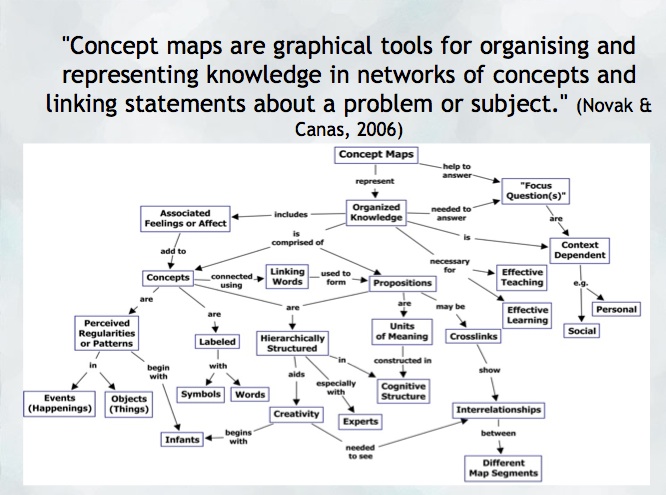
“A concept map is a type of graphic organizer used to represent knowledge of a topic, forge connections between ideas and create visual representations of one’s understandings. Concept maps begin with a main idea (or concept) and then branch out to show how that main idea can be broken down into specific topics” (Novak & Canas, 2006).  Visit the Concept Mapping resource post on this blog for a brief overview and links to resources.

Features of concept maps

There are four essential features represented differently in a concept map:

  1. Concepts: are words that try to represent a phenomenon, object, or idea. They may synthesize patterns in events or knowledge produced over time. In concept maps, these are depicted as shapes in the diagram.
  2. Linking words/phrases:  are used to connect two or more concepts and express some kind of relationship between them. They may indicate cause, consequences, conditions. In general, are written using a verb or few words.
  3. Focus concept or question: it is the main goal of a concept map.  It may be a question, an explanation, or a general idea that conducts your thought and organize all ideas around in the concept map. It is highlighted in the concept map, depending on the hierarchy chosen (top, center, etc.).
  4. Hierarchical and structure: it is how you will choose to organize the main concepts and their connections. It can be hierarchical (the main concept in the top), circle (the main concept in the middle), or other shapes appropriated to the idea you want to express.

Read more on  about the ‘concept’ of ‘concept mapping’ in this blog post on the “Inspiration” website and how teachers and their students might use concept maps, mind maps, or outlines to support writing, idea generation, and organization, planning and more. Inspiration is a software commonly found on school district devices.

You can also find a step-by-step construction of a concept map about the solar system in the Lucidchart or in the example below:

When to use concept maps in education?

Concept maps are powerful graphic organizers that can be used in many ways to illustrate and explore connections across ideas. In this sense, concept maps allow students to formulate their understanding in a non-linear way of thinking, showing their process of thinking during understanding a new idea or content.

Teachers can use concept maps to:

  1. Build new knowledge, deepen students’ understanding: designing a concept map provides students and teachers with an opportunity to construct and share their understanding of a topic, theme, concept, area of interest. This Edutopia article provides a good starting point for learning more about the power of concept maps and other strategies to support deeper thinking.
  2. Identify possible misconceptions: during the process of designing a concept map, teachers can understand better the logic used for students to build their knowledge and the origin of misconceptions. Curtis Chandler, a former Kansas teacher of the year shares how concept maps can be used to understand some students’ misconceptions or not use accurate language in a ‘middleweb’ blog post.
  3. Designing lessons: concept maps can even be used by teachers as a format for planning units or lessons of instruction, allowing teachers to visualize the logic used to connect several lessons into a unit plan or make cross-curricular connections.
  4. Assessment: concept maps can help students illustrate the connections between their ideas, concepts, or content in meaningful ways and can be used as formative and summative assessments. The University of Waterloo has some guides about what is important to consider when designing rubrics for assessing concepts maps.
  5. Create study habits: teachers can have students create concept maps summarizing the main ideas of a unit, creating the habit of continuum revision of the knowledge learned.
  6. Encourage collaboration and communication: a mind map might be collaboratively constructed in real time or asynchronously (using appropriate apps) allowing students to negotiate, think critically and communicate their ideas and understandings with others.

How to get started? mindmap

As mentioned, CMaps, concept maps can be analogue or digital. Teachers might consider providing students with a choice in developing their map using high tech or low/no-tech approaches depending on the objectives. If the objective is to widely share the map, then digital may be preferable (of course, students might also take a photo of a map ‘in process’ and one that is ‘completed’ in order to share as part of a portfolio or published work/project).

Some higher-tech options

  • Mindmaps: it is a tool that allows you to create concept maps without the need for an account. It also allows you to save your map in the cloud or download it to your computer.
  • Inspiration or Kidspiration as computer based or iPad apps Highly visual concept mapping software that allows the user to easily insert images from a large media folder. School districts commonly license these applications for use on their devices.
  • Bubbl.us is an online collaborative concept mapping software – each individual with an account can be invited to contribute to a given map being created in the cloud. With a paid educator account, a teacher can invite students using a link to either view or collaborate (students do not need to provide their information or sign up for an account). Paid app with Free trial options for Educator accounts.
  • For schools using ‘Google Classroom’   MindMup or Miro offer collaborative mindmapping (login required)
    • Teachers should always be aware of appropriate permissions in their context/school districts. These might include parental consent, student informed consent or it may not be permitted to have students sign up using gmail or other account information.

No/Low Tech Options

Collaborative or Individual drawing on chart paper or using sticky notes on a whiteboard or a table with a group of students are great options for kinesthetic or non-digital mind mapping. A primary teacher might even have students use kinesthetic, solid objects to create their mind map. Teachers might begin helping students develop their ability to connect ideas by providing a skeleton. This will help scaffold learning and introduce students to different ways to connect ideas.

Freeform Concept maps can be drawn by hand or using some of the available draw applications made for smartphones and tablets!


References:

Novak, J. and Cañas, A (2006): The Theory Underlying Concept Maps and How to Construct Them (Technical Report IHMC CMap Tools 2006-11). Florida Institute for Human and Machine Cognition.


Original post YD 2017 adapted by Peer Tutor Ariane Faria dos Santos (Ph.D. EDCP), Feb. 2022.

Leave a Comment

Filed under Active Learning, Assessment, Blog Posts, Curriculum, Digital Tools and Apps, Inclusive Practices, Inquiry, Not Subject Specific, Planning, Remote teaching & learning, Resources, STEAM

LLED 360: Meeting the needs of ALL learners

Integrating Digital Technologies in classroom practice is an ongoing ‘project’ or challenge for educators. As someone who has been teaching for over 25 years, I am still ‘on the road’ to mastery and enjoyed the opportunity to share examples and engage in critical dialogue with the teacher candidates in Christine Bridge’s LLED 360 Classroom Discourses and Teaching English Language Learners class. It’s always a pleasure collaborating with Christine to try to meet the needs of the varied learners our secondary teacher education classes!

Students in  LLED 360 are engaging in readings, discourse and interactivities relating to how secondary school students develop as first and second language learners in formal school environments across subject areas. In our session, Secondary Teacher Candidates were asked to consider Backward Design/UDL and effective technology integration models including  SAMR and TECH (a more student-centered model/approach) and were engaged in trying various digital technologies as we considered UDL and approaches to support the needs of ALL learners.

To get us thinking about meeting varied needs using multimodal approaches, TCs engaged in a padlet wall brainstorm where they co-created a list of resources by modality (Remember, when you use this app with your students, moderate your wall and change the access settings when done!)

Made with Padlet


Here is a PDF of the slides from our session: handout LLED360 Nov 2017-1   and links to the different applications and concepts applied:

AR/VR: A post from my blog (June 2017)

MindMup – concept mapping to build connections

Padlet – brainstorm, digital whiteboard/tack board

Plickers – student response system – cards and one mobile device needed (smartphone, ipad)

ShowMe – multimodal response, interactive whiteboard for iOS, android – narrate, annotate, draw, write, import images and share to cloud – “showme what you know about…”

Skype in the Classroom: engage your students by virtually inviting experts (and/or other students!) into your classroom.

UDL/Universal Design for Learning – on the Designing Learning Blog created by Claire Rushton and I to provide links to BC curric, planning info and some potential templates for use as lesson (unique learning experiences) and unit plans (big picture). Many of the templates were created by local school districts so may be of specific interest for planning for practicum and beyond!

In closing, we used an anonymous polling application that autocreates a wordcloud. Note that where an idea was generated more than once by unique individuals, it appears larger in the cloud!  Answer Garden  , like padlet, allows you to moderate and lock responses.


Leave a Comment

Filed under Blog Posts

Concept Mapping – organize and connect ideas

creativity-819371_1280

whatisit.png

“A concept map is a type of graphic organizer used to represent knowledge of a topic, forge connections between ideas and create visual illustrations of their understandings. Concept maps begin with a main idea (or concept) and then branch out to show how that main idea can be broken down into specific topics”. There is some information and tutorials on the ‘Inspiration’ software site, including information for teachers about the ‘concept’ of ‘concept mapping’ and how they/their students might use concept maps, mind maps or outlines to support writing, idea generation and organization, planning and more.


Why-is-it-relevant-360x82.png

Concept maps, or mind maps are powerful graphic organizers that can be used in many ways to illustrate and explore connections across ideas. Creating a Concept Map provides students and teachers with an opportunity to construct and share their understanding of a topic, theme, concept, area of interest – they can even be used by teachers as a format for planning units or lessons of instruction. Mind mapping, or concept mapping, can help students illustrate the connections between their ideas, concepts or content in meaningful ways and can be used as formative and summative assessments.mindmap


how-to-get-started-360x80.png

As mentioned, CMaps, concept maps or mind maps can be analogue or digital. Teachers might consider providing students with choice in developing their map using high tech or low/no tech approaches depending on the objectives. If the objective is to widely share the map, then digital may be preferable (of course, students might also take a photo of a map ‘in process’ and ‘completed’ in order to share as part of a portfolio or published work/project).

For higher tech options, try:

  • Draw.io (Free Range Ed Tech – An Open Access option available on the Sandstorm Server) The teacher will need to create an account (data is Canadian housed) and will then have access to the Sandstorm server. Once there, go to ‘Apps’ and select ‘Draw.io’ and create a new grain/mindmap. The teacher can then share an editable link to the Mindmap with students. Students will not need their own accounts to access and collaborate/edit.  Draw.io is added as an app within the Sandstorm server. *when engaging with apps in the « open » community, please remember that members providing support are volunteers (glitches happen and please be respectful and patient).
  • Inspiration or Kidspiration as iPad apps NB: Many schools have licensing for both applications on their computers, laptops or tablets.
  • Bubbl.us is an online collaborative concept mapping software – each individual with an account is able to be invited to contribute to the map being drawn in the cloud. With a paid educator account, a teacher can invite students using a link to either view or collaborate (students do not need to provide their information or sign up for an account). A 30 day free trial and an Educator/Non-profit discount is offered.
  • For schools using ‘Google Classroom’   MindMup or Miro offer free collaborative mindmapping (login required)
    • Teachers should always be aware of appropriate permissions in their context/school districts. These might include parental consent, student informed consent or it may not be permitted to have students sign up using gmail or other account information.

Examples:

Mind map-Merryweather-Paper53

Miind Map created by a #ubcbed2015 Teacher Candidate using ‘Paper53’, a drawing app.

No/Low Tech Options:

Collaborative or Individual drawing on chart paper or using sticky notes on a whiteboard. The teacher might begin by providing a skeleton to scaffold learning and introduce students to ways to connect ideas.

Freeform Concept maps can be drawn by hand or using some of the available draw applications made for smartphones and tablets. Engage your students and harness the value of BYOD using ‘Paper53’ as Brittney, a UBC TC, did in the example shown here! View a simple ‘how to’ Youtube video tutorial about this app.

Twitter can be a great place to search for examples, research, blogs and new mind mapping tools. There are even a few related hashtags you can follow:


This Edutopia article provides a good starting point for learning more about the power of mind mapping and other strategies to support deeper thinking.


References:

Novak, J. and Cañas, A (2006): The Theory Underlying Concept Maps and How to Construct Them (Technical Report IHMC CMap Tools 2006-11). Florida Institute for Human and Machine Cognition.

!function(d,s,id){var js,fjs=d.getElementsByTagName(s)[0],p=/^http:/.test(d.location)?’http’:’https’;if(!d.getElementById(id)){js=d.createElement(s);js.id=id;js.src=p+”://platform.twitter.com/widgets.js”;fjs.parentNode.insertBefore(js,fjs);}}(document,”script”,”twitter-wjs”);


videopng-360x61.png

Leave a Comment

Filed under Active Learning, Assistive Technology, Blog Posts, Not Subject Specific, Open Educational Resources, Resources

Resources for Language Learning and early literacy

Early literacy typically begins in a child’s first three years. According to this source from OISE, Toronto, literacy development follows several stages (https://www.oise.utoronto.ca/balancedliteracydiet/Stages_of_Literacy_Development.html):

  1. Foundations for Literacy
  2. Beginning Literacy
  3. Consolidation/Fluency
  4. Literacy for Growth

Below are a few online resources to support early literacy:

  1. unit literacyUnite for Literacy is a free open educational, multilingual non-fiction ebook website. Students can select a story and a language they wish to read. The story text is in English and the story can be listened to as a read aloud in one of many different languages (including: Arabic, Russian, German, Italian, French, Cherokee, Tagalog). The story can also be read aloud using the English audio player. The stories are read aloud by ‘real people’ rather than being computer generated text to speech narrations giving a fluent language model in both English and the selected language. Many stories are fairly “primary” in nature but there are some higher interest low vocab stories that might appeal to older language learners. The site creators utilized research to map “book scarcity” and develop stories that met needs and included diverse models and images.
    • free, no registration required
    • cloud based
    • cross-platform (mac/pc computer, mobile, ipad/tablet)
  2. pebblegoPebbleGo was shared by one of our school advisors. It is a fee based site (with free trial and district/site based licenses available) that touts itself as an “emergent reader research solution”. Basically, it is a ‘flash based’ database of leveled ebooks on various topics. Many topics appear ‘Amerocentric’ but they do vary widely in interest and reading level. All are narrated in English and Spanish, allow the reader to ‘highlight’ text and many have audio visual elements. Students are provided with logins and teachers can track usage.
    • fee-based (registration needed to access free trial)
    • cloud based
    • requires flash player 10 (additional requirements)

Leave a Comment

Filed under Blog Posts