Tag Archives: multimodal

Digital Storytelling

Digital Storytelling: a new spin on an old tale. Creating their own stories or telling stories using digital means challenges students to move beyond being the consumer and instead become creators by adding multi-media to their narratives. That same story also becomes accessible to a broader audience by adding videos, graphics, and audio, through web-based platforms or other applications.

We can also recognize that incorporating storytelling in learning environments helps to support the First People’s Principles of Learning and has been shown to support the preservation of cultural knowledge and tradition in some cases.

A digital story is the use of technology to tell a story (Robin, 2015). It is a process of weaving together oral story, images, sound, and music to create a short film (Lambert, 2010). Within the process, traditional aspects of storytelling are integrated with multiple layers. Digital storytelling is increasingly being used for educational purposes (Robin, 2015), leaving legacy (Hausknecht et al., 2019) and as an approach to preserving cultural knowledge (Cunsolo Willox et al., 2013; Iseke & Moore, 2011).

From: Hausknecht, S. (07/2021). Sharing indigenous knowledge through intergenerational digital storytelling: Design of a workshop engaging elders and youth Taylor & Francis. doi:10.1080/03601277.2021.1927484

Digital storytelling is not limited to personal narratives and the range of topics varies from historical timelines, personal reflections on local or global events, and even exploring the community and sharing one or many perspectives. Choosing to create a digital story allows the creator to choose and expand their audience and increases accessibility and interactivity for the ‘readers’ or ‘viewers’. A story can go beyond the page as readers engage with the visual and auditory elements that a digital story provides.

an eight step cycle diagram of creating a digital story from propose an idea to research to storyboard, gather images and create.

from Transform Learning by Samantha Morra https://samanthamorra.com/2013/06/05/edudemic-article-on-digital-storytelling/

Getting started

  1. The first step is recognizing what type of story your students are expected to share. You can follow Samantha Morra’s Process Model or get inspired by her post. Remember, the options for content are virtually limitless. You can expand this topic to include recounting mathematical discoveries, retellings of famous fairytales, or provide explanations of scientific theories. Here are a few slides co-created with a colleague, Sharon, that helps to outline ‘one process’ for this… Once you have an idea of your story and how you want to share it, then you might start thinking about the medium (digital or otherwise)
  2. Choose the tool(s) you want students to use to edit and share their work (or allow students to select a tool with which they are familiar). It is helpful for students to have the opportunity to play with the tool and become more adept and familiar with the program before fusing this with their story. We’ve listed some tools below to help you get started.
  3. Plan! Make sure students have a clear goal they are researching or writing about. This could include scripts, storyboards, comic strips, sequences, or even timeframes. You may also want to scaffold students by having them create a storyboard and then a paperslide video depending on their experience.
  4. Teach about copyright so that your students know where to find and how to cite/attribute appropriate images, sounds, or videos. Access Creative Commons media or record and use your own. For professional images that don’t require attribution visit Unsplash, Pixabay , Pexels. or elementary students might find pics4learning easy to use (with copy/paste attribution). Depending on the device, students can also use Garageband or Audacity to create their own music.
  5. Create the digital story and select the appropriate audience. If it’s going public, remember to get the appropriate permission forms signed that may be district dependent. Be aware of student ages and also where the website or application is based because they will follow different privacy laws.
  6. Provide feedback through peer evaluations, self-evaluations, and even a rubric that students can use throughout the creation process. Visit this link to Kathy Schrock’s Guide to Everything for some sample rubrics and additional resources.

Watch this video to preview a variety of tools being used to create digital stories.

Video: Hans Tullman (2015). Digital Storytelling by Hans Tullman


Or this interactive Genially presentation by Tamara, Peer Mentor 2023, highlighting several different multimedia tools (with examples and hyperlinks).

Leave a Comment

Filed under Curriculum, Digital & Media Literacy, Not Subject Specific, Planning, Resources, STEAM, Storytelling, Technology, The Arts

Multimedia Creation: consider the tool for the task

Creating a multimedia presentation for your coursework at UBC is a great way to learn a new digital technology that you might then bring to your practicum class. Rather than relying on an ‘old standard’, consider this as an opportunity to take a risk and/or select a digital technology that might be of interest to your future students! Be sure, as discussed, to think about your objectives before selecting the appropriate digital technology and, remember, technology for creation in the hands of your students is a very powerful thing!

This interactive genially presentation, created by Tamara, Peer Mentor, 2023, models some effective presentation elements while showcasing multiple tools you might use to create your own presentations. Embedded links and examples included!

BEd Teacher Candidates (TCs) will have opportunities to flex their digital technology muscles by creating presentations for course assignments and by planning ways to engage their own students on practicum in using digital (and other) technologies.

For example, elementary and middle years TCs in many sections of LLED 350 Classroom Discourses  may create a multi-media presentation in response to their “Literacy Autobiography Assignment” and LLED 360 secondary TCs will likely be asked to consider multi-literacies and multimedia as part of their summer coursework. These assignments, and others, afford TCs opportunities to develop digital and technological literacy while also considering ways in which multimedia and multimodal teaching and learning tools and approaches might benefit their students.

Bloom's Taxonomy cc image from Wikimedia Commons

By Xristina la [CC BY-SA 3.0 (https://creativecommons.org/licenses/by-sa/3.0)], from Wikimedia Commons

It is my hope that TCs see this as not simply an opportunity to learn to develop their own skills as students but will see the potential for incorporating this kind of assignment into their own teaching practices to provide their own students with opportunities to CREATE (rather than simply consuming) as a way to achieve higher order thinking (Bloom’s Revised Taxonomy pictured here)

As part of our professional learning, we need to discuss the importance of building digital and media literacy.  Assignments like the one noted above, provide opportunities to do so. Students will likely see a valuable connection between the BC Digital Literacy Framework and the Core Competencies!

Some Considerations

Copyright and media

The use of Creative Commons images by teachers for their presentations models appropriate copyright and digital citizenship for our students. Unsplash and Pixabay are two of my favourite sources of CC images (no attribution required – though they don’t mind if you buy them a coffee once in awhile!)

Tools Choice

In addition to the genially presentation shared at the top of this post, some tools to support multimedia creation are highlighted in the blog post, Digital Storytelling, by a former peer mentor, Janis. As you begin to plan the story you want to tell, you’ll likely consider the affordances of the technologies available to you and how they will enhance your story…

Knitting Literacy by Shania (a clean, simple video slide show with text overlay introducing us to key vocabulary) provides an example of  a video that can be created with pretty well any video editing software or app (iMovie, MovieMaker, Camtasia, Animoto or others)

The Google Slide Deck below offers a few tool suggestions and considerations for choosing the ‘tool for the task and context’ to help you ‘get started’ creating multimedia stories.


A pedagogical note

When working with your own students, you might consider introducing ‘new’ digital technologies to students in an experiential and playful way. Rather than ‘teaching’ whole class ‘how to’ use a particular technology (and risk losing many of your students to boredom or going over their heads), I have always provided my students (of ALL ages from K through secondary) opportunities to play with a given app or tool for a period of time prior to there being an expectation of actually using it for a given purpose. I find this helps lessen anxiety and affords students the opportunity to learn from and teach one another.My ‘general’ process for this:

  1. Show the students a very brief example of the technology ‘in action’
  2. Provide time for the students to play with the technology in  pairs or small groups (with the instruction that they may only ask the teacher to help with tech issues – can’t open, won’t boot, etc – for the first 5 to 15 min depending on the complexity of the tech).
  3. Teacher circulates and invites students to share (or ‘satellite’) their knowledge with others.
    • Once students have had exposure to different ways of representing their learning, I strongly recommend providing them with some choice and agency. Providing the choice of medium, from digital to analogue, helps meet the needs of varied learners and supports a Universal Design for Learning approach to planning and teaching.

In my experience, students can and will teach themselves and each other even more complex applications. I followed the above process with a group of grade 1/2 students using Garage Band to learn to create PodCasts. Within about 1/2 hour, all of the students were able to create a file, add loops, add audio and images. After their initial exploration, students storyboarded and created some very informative podcasts about the salmon in our classroom were ready to share with the school!

As a long time elementary teacher, I always try to provide my students with time to ‘play out’ and experiment with any technology – from math manipulative to science equipment to art supplies to digital technologies. Philosophically, I love being able to incorporate the above approach into my co-teaching in the BEd program and hope TCs are reminded to give their own students such opportunities in order to allow them time to co-construct their knowledge and skills! YD


Leave a Comment

Filed under Blog Posts, Curriculum, Digital & Media Literacy, multimedia creation, Not Subject Specific, Planning, Resources

Setting Our Sights on Virtual Reality

Virtual realities (VR) are computer-created environments in which people can interact with what has been programmed or, when linked to some kind of network or on-line access, with each other.

Typically, users wear some kind of headset or goggles to facilitate their sensory experience, which is primarily visual (sometimes fully 360°) and perhaps aural and/or tactile. Environments might be fictional or non-fictional, and interaction passive or active (Moreno & Mayer, 2007).

Although we might consider any back-and-forth communication between two or more people as inter-activity, only a meaningful connection that helps one or more than one of them learn something is interactive learning (Moreno & Mayer, 2007). Moreno and Mayer (2007) are careful to clarify further that interactivity does not “cause” but rather helps “promote” learning (p. 321) although perhaps their conclusion does not fully account for the effects of the hidden curriculum.

Therefore, when planning lessons, teachers should avoid the temptation to try VR for its own sake, which can produce a more gimmicky effect. Instead, they might consider exactly how interactive learning can help enrich their students’ experiences, not only by appealing directly to students’ senses but by directly confronting their capabilities: “… students’ areas of expertise can become the ‘real’ of real-world applications, and students’ knowledge can successively alter curricular outcomes” (Schneider et al., 2014, p. 562).


Create, Make, Innovate: Getting Hands-on with Learning Design

Recap of the session held in the Scarfe Foyer Fall 2019:

At this week’s Create, Make, Innovate! activity session, on Tuesday, November 19th, 2019, teacher candidates had the chance to learn about creating VR experiences for the classroom using Google Tour Creator.

“Today’s media-savvy students compose and read texts that include alphabetic- and character-based print, still images, video, and sound. They listen to podcasts, watch animations on the Internet, film their own videos, and compose visual arguments on paper and online. These rich, multilayered texts demand multimodal literacy skills of their readers, who must navigate the different, intersecting media.” (Gardner, 2007, p. 93)

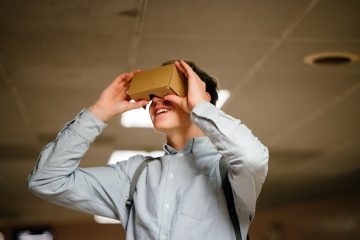
Cardboard Goggles (Image by WikimediaImages from Pixabay)

Google offers a suite of VR apps, branded as Google Cardboard on account of the homemade goggles that you can make yourself. While the goggles are novel and can be fun to try on, they are not necessary in order to use the apps, which range from the amusing to the cinematic.

The Education Library in Scarfe has several sets of goggles available for loan. However, if you do take on making some goggles, as an initial project, they can actually lend a more cozy feel to watching later on since those goggles are thanks to your own hard work!

Resources

Check out the Scarfe Digital Sandbox for other interactive VR apps, such as Discovery VR, and also Merge Cube, which is an Augmented Reality (AR) tool.

“The virtual worlds we have designed have strong visual elements that are historically and culturally related to specific literary texts…. They can incorporate sound and video files to create museum and role-play environments.” (Arver, 2007, p. 37)

Related to VR is MOO, which also functions as a multi-user on-line network but in a text-based rather than a sensory-based format. MOO systems find their origins in the role-playing adventure game, Dungeons & Dragons, in which players adopt roles and interact as protagonists during an imaginary adventure, usually while sitting together around a table. MOO systems take that experience on-line.

Typically, each MOO user is able to contribute to its programming, which affects everyone else’s experience. In the classroom, a teacher might create a VR or MOO experience that corresponds to a novel study, such as Lord of the Flies (Arver, 2007) or Brave New World (Rozema, 2003), and let students “interact as additional characters, discuss and solve problems based on the circumstances of the story, and complete classroom assignments within a virtual environment” (Arver, 2007, p. 37).

“The best way of thinking about a literary MOO, then, may be as an electronic book club that meets within the story world of the book itself and invites all to participate on equal footing.” (Rozema, 2003, p. 38)


Clarify Your Intentions, Justify Your Lessons

Author and scientist, Jaron Lanier, has been credited with creating and even coining the name “virtual reality.” While his original motivation for VR stemmed from empathy, to connect with other people and their perceptions of things, Lanier has since critiqued proponents of VR. A “machine-supremacy approach” to technology in general, he says, has “made the world of information ever more dominant” (Kahn, 2011).

However, he still credits VR for its medical and counselling applications (Adams, 2017). With that said, maybe it’s not a stretch to suggest that the concept of VR – if not the technology per se – has other origins: theatre and dramatic stage performance. After all, theatre has long been appreciated for offering a cathartic effect to its audiences.

Photo by mentatdgt on Pexels

On that basis, VR could be of interest to Arts and Humanities teachers on account of its potential to emphasise literary elements such as setting (time and place) and point-of-view (1st-person, 2nd-person, or 3rd-person). In fact, these two elements of literature undergo a perplexing conflation when considered in light of VR, just as they do for people who find themselves “stuck in the middle of a tale” (Rozema, 2003, p. 33) while reading a novel, and especially for audiences of live theatre performance.

For instance, as we take in a play from our vantage in the audience, we willingly accept the make-believe conceit that the actors on stage portray characters in a drama that unfolds somewhere in or perhaps beyond our own world. What we recognise before the lights dim as a stage, a proscenium, curtains, rigging, PAR lights, and so forth, we readily accept as time-and-place unique to the story being told. VR asks no less of us and simultaneously attempts to challenge our senses more directly since we now occupy the protagonist’s first-person point-of-view. Indeed, there are many works of literature in which setting can be considered a character.

Weighed against Jaron Lanier’s critique, endorsements of classroom VR can seem somewhat rhapsodic (Adams, 2009). Nonetheless, VR makes its own worthwhile case as a way for teachers to create meaningful interactive learning.


Acknowledgement: post author, Scott Robertson; editor, Yvonne Dawydiak

Interdisciplinarity, collaboration, hands-on learning – that’s the spirit of Create, Make, Innovate! We want to promote enthusiasm for sharing and learning across age groups and across subject disciplines.

Make, Create, Innovate sessions took place during the Fall 2019 in the foyer of the Neville B. Scarfe building and were hosted by Scott Robertson, a project assistant on a small TLEF grant with Dr. Lorrie Miller, Dr. Marina-Milner Bolotin and Yvonne Dawydiak, Teacher Education.

If you have an idea or an inspiration for a resource or future session, please let us know! scarfe.sandbox@ubc.ca


References

Adams, M. G. (2009, July). Engaging 21st-century adolescents: Video games in the Reading classroom. The English Journal, 98(6), 56–59.

Adams, T. (2017, November 12). Jaron Lanier: ‘The solution is to double down on being human’. The Guardian. Retrieved from https://www.theguardian.com/technology/2017/nov/12/jaron-lanier-book-dawn-new-everything-interview-virtual-reality

Arver, C. (2007). Are You Willing to Have Your Students Join Ralph, Jack, and Piggy? The English Journal, 97(1), 37–42.

Gardner, T. (2007, July). Bold books for teenagers: Internet literature for media-savvy students. The English Journal, 96(6), 93–96.

Kahn, J. (2011, July 11, 18). The visionary: A digital pioneer questions what technology has wrought. The New Yorker. Retrieved from https://www.newyorker.com/magazine/2011/07/11/the-visionary

Moreno, R. & Mayer, R. (2007). Interactive multimodal learning environments: Special issue on interactive learning environments: Contemporary issues and trends. Educational Psychology Review, 19(3), 309–326.

Rozema, R. A. (2003, September). Falling into story: Teaching reading with the literary MOO. The English Journal, 93(1), 33–38.

Schneider, J. J., Kozdras, D., Wolkenhauer, N., & Arias, L. (2014, March). Environmental e-books and green goals: Changing places, flipping spaces, and real-izing the curriculum. Journal of Adolescent & Adult Literacy, 57(7), 549–564.


Feature Photo Credit: Stella Jacob on Unsplash

Leave a Comment

Filed under AR & VR, Engineering, Technology, The Arts

Multimodal Learning and Multimedia Technologies

Multimodal and multimedia – are they the same?

Multimodalities comprise symbols and our decisions to use them as well as our interpretations of them. For instance, the letters and words of this blog entry represent a visual mode of language that, taken together, present a text to an audience – it’s something we read!

As teachers plan for literacy instruction, we need to keep in mind the visual, textual, kinesthetic and auditory modes of communication. Literacy and the development of the communication competencies are not just about reading and writing!

Multimedia comprises the various types of presentations that we can select to exhibit our chosen symbols – instead of a blog entry or some other print media, it could be an audiobook, which is an aural mode of language, or a video, which is both visual and aural.

Jason Tham from Texas Tech offers a great explanation for differentiating multimodal from multimedia while Claire Lauer (2009) concludes that how we use each word is perhaps better understood contextually.

Just as every square is a rectangle but not every rectangle is a square, so every multimodal project is multimedia but not every multimedia project is multimodal. (Tham, 2015)

Transfer

Alongside multimodal learning is the concept of learning transfer. By relating “past knowledge” to a “current challenge,” we facilitate for ourselves a more general theory, which helps us to transpose or “transfer” something previously learned into new situations (Shepherd, 2018, p. 109). Sometimes, the transfer seems fairly obvious: we understand the words of this blog entry after learning how to read and write.

Other times, though, multimodal learning is not so taken for granted. It can become challenging if it requires more intentional reflection or speculation, such as when students are asked to remember something from last year or imagine how today’s lessons might help in the future.

Multimodal learning might even require students to connect seemingly unrelated experiences, whether literally or metaphorically. For example, Shepherd (2018) likens driving a car to driving a truck, which is fairly obvious, and then to skiing, which requires a more studious comparison. That can be challenging if students don’t readily see any relevance or similarity between these experiences. And the comparisons don’t need to be immediately scholarly. Could reading a meme, posting on Instagram, or playing Guitar Hero count as experience for coursework?

Of course, students will bring more to the classroom than video games and social media. But it’s by helping students, on their own terms, to build upon what they already know that teachers can facilitate multimodal transfer of learning. At the same time, using multimodal and multimedia tools, teachers can expand their own repertoire, maybe even in ways they didn’t know were possible (Savage & Vogel, 1996).


Create, Make, Innovate: Getting Hands-on with Learning Design

Recap of the session in the Scarfe Foyer Fall 2019:

Lights, camera… action! And action. And action. And action!

At this week’s Create, Make, Innovate! activity session, on Tuesday, October 8th, 2019, Teacher Candidates had the chance to take the Director’s chair and make some fun animated movies using a downloadable moviemaking app called Stop Motion Studio.

After just a few minutes of play and experimentation, this app readily offers users plenty of potential for conveying ideas visually to an audience. And, of course, time invested in a more meticulous approach soon demonstrates just how precise that decision-making can become. The results can be spectacular, as seen in this little mashup video put together by Eric Lee to showcase some lovely examples of stop motion video.


Resources

Check out the Scarfe Digital Sandbox for a variety of other multimodal tools, including Explain Everything, ShowMe, and ScribJab, as well as multimedia technologies such as Haiku Deck, Animoto, and Book Creator.

Each of these apps has its own focus, which can help teachers conduct specific assessments and meet particular objectives. By complementing, supplementing, and extending our approaches to teaching and learning, all of these apps can help students learn to express themselves independently in engaging, creative ways.

“To glimpse the promise of multimedia and judge the extent to which we should invest our energies in it, we need to look beyond current applications… [and consider] the potential range of its uses.” (Savage & Vogel, 1996, p. 127)


Acknowledgement: post author, Scott Robertson; editor, Yvonne Dawydiak

Interdisciplinarity, collaboration, hands-on learning – that’s the spirit of Create, Make, Innovate! We want to promote enthusiasm for sharing and learning across age groups and across subject disciplines.

Make, Create, Innovate sessions took place during the Fall 2019 in the foyer of the Neville B. Scarfe building and were hosted by Scott Robertson, a project assistant on a small TLEF grant with Dr. Lorrie Miller, Dr. Marina-Milner Bolotin and Yvonne Dawydiak, Teacher Education.

If you have an idea or an inspiration for a resource or future session, please let us know! scarfe.sandbox@ubc.ca


References

Lauer, C. (2009, December). Contending with terms: “Multimodal” and “Multimedia” in the academic and public spheres. Computers and Composition, 26(4), 225–239. https://doi.org/10.1016/j.compcom.2009.09.001

Savage, T. M. & Vogel, K. E. (1996, Fall). Multimedia: A revolution in higher education? College Teaching, 44(4), 127–131. http://www.jstor.org.ezproxy.library.ubc.ca/stable/27558793

Shepherd, R. P. (2018, June). Digital writing, multimodality, and learning transfer: Crafting connections between composition and online composing. Computers and Composition, 48, 103–114. https://doi.org/10.1016/j.compcom.2018.03.001

Feature Photo Credit: Mohamed Hassan on Stockvault

Leave a Comment

Filed under AppliedDesignSkillsTechnologies, multimedia creation, Not Subject Specific, Technology, The Arts

StoryWeaver

whatisit.png

A digital story platform that hosts numerous multilingual stories so that students can have access to an endless stream of stories in their home language to read and enjoy independently or with others. It is also an Open Educational Resource!

Why-is-it-relevant-360x82.png

Students from multilingual backgrounds deserve to read books in their home language and digital dual language stories are a way to provide access from them. Storyweaver contains stories in 20 different languages so that students can read but also translate stories into their home language, a great opportunity for collaboration with peers or with families.

It also allows students to create stories, similar to Storybird, where students have access to illustrations from artists when writing. It also allows them to write words phonetically which is a benefit for early learners who may not have studied for multiple years in their home language.

how-to-get-started-360x80.png

Visit the Storyweaver website.

Read a few stories and then learn to create and translate!


videopng-360x61.png

Pratham Books (2015) Storyweaver Tutorial: Translate


Pratham Books (2015) Storyweaver English

Leave a Comment

Filed under multimedia creation, Resources

Stop Motion Studio

Stop motion animation can be created in many different ways. Today, there are some helpful apps to make the often time-consuming task more streamlined! You can, however, just set transition between clips in any slide show or movie app to 0 or .5 to create a stop motion effect (similar to a no-tech ‘flip book’ (link to Youtube example))

I have long enjoyed using Stop Motion Studio but recently came across some browser-based apps I’m interested in exploring further including Stop Motion Animator (for Chrome books).

Stop Motion Studio is an app that facilitates the process of creating stop motion animations with clay, cut-outs, LEGO, you name it! It’s a great way to explore storytelling and multimedia. There’s a free and a paid version, and this is what you can do with them:

Some of the features of the ‘free’ version:

  • Adjustable timer
  • Camera settings
  • Auto focus
  • Auto exposure
  • High definition exporting

Although any video editor can do what Stop Motion Studio does, this app narrows down the functionalities to what is relevant in creating stop motion animations and automates parts of the process for efficiency e.g. you can easily adjusts the number of frames for each still shot to suit stop motion better. The app also saves videos in high definition by default.

Creating a stop motion video might reinforce the creative thinking core competency, especially when used in a second language classroom such as French Immersion, Core French, etc. 

Alternatives: You might try using iMovie, QuickTime Pro or Camtasia (free to UBC students) to create stop motion!

It’s really simple to get started with Stop Motion Studio, you just have to download the app and start clicking away. There are a few tips that can make the process of creating an animation run smoother:
  • Use a stand or tripod, or even anything to stabilize the camera and fix the angle
  • Use the timer function, so you don’t have to push the camera buttons, and with that you’ll avoid pushing the camera out of place
  • Play a bit with the auto-focus and auto-exposure settings to see if they’re going to create dramatic differences between frames. You might want to turn it off if they do.
  • Get good lighting, videos love light and good contrast
  • Storyboard, or at least plan ahead what each scene is going to look like. That will save you editing time and make the story more coherent.

Here’s our Quick Start Guide you can share with other Teachers and Students

Stop Motion Studio Instructions One Page Handout

You may also wish to review a resource created by a UBC instructor showing how they incorporate stop motion to share lecture/class material (where they also share some tips and ‘basics’ to help you get started)

‘SlowMation’ is another term you might come across for stop motion. Slowmation.com has a series of PDF tutorials on getting started with various applications to create ‘slowmation movies’.


videopng-360x61.png

Leave a Comment

Filed under multimedia creation, Not Subject Specific, Resources

VR Tours & Literacy

NOTE: As of June 2021, Google Tour Creator is being discontinued (and this post and accompanying video resources will be archived/removed)

Have you considered how 360° video, images, Augmented and Virtual Reality might help spark your students’ creativity and, perhaps, engage them in the ‘place’ or setting of a novel? In the past, such technologies were out of reach for the average individual or school… today, smartphones, ipads and laptop computers afford the capacity to create!

In May 2019, I had the pleasure of collaborating, co-planning, and co-teaching with a Grade 5/6 classroom teacher in Surrey to re-imagine how information learned from novel studies could be shared using Virtual Reality. We had a common goal to push the students’ (and our!) boundaries by rethinking the traditional book report and decided to use Google Tour Creator and Google Expeditions. (For some short ‘how to videos’ and links to VR content, visit this post)

To help guide the students we selected some BIG QUESTIONS for them to consider throughout this project:

  1. How do the author’s choose settings and how does this affect the plot of a story?
  2. How can we SELECT SETTINGS and EXPLAIN how they are significant to the novel we are reading?

Here’s how we wanted students to demonstrate their learning:

    • Use Google Tour Creator to find real-world settings that are close to our imagined settings.
    • Explain the significance of the settings by describing the location we selected and why it matters to the story we/they read.
    • Add additional detail to a setting by overlaying points of interest, relevant images, appropriate sound effects or audio, and include a narration of the scene for individuals who are unable to see it (creating accessibility).

Want to try this?

To help our students get started and to help scaffold their learning process we made video tutorials, provided links to additional resources, and a launch button to always bring them back to their tours.

First, we created a website to host everything students would need for this project. It contains tutorial videos and links to creative common images, sound effects, and music to help set the scenes and make them more immersive. You are welcome to use it! NOTE: due to Tour Creator requiring google login, we set up google accounts for each group of students to use so that they were not providing their own personal information. Further, we shared with students the importance of protecting their data and privacy through ‘just in time’ lessons and information. Fore more on protecting student data privacy, visit this blog post. You may require parent consents and/or specific school admin or district permission depending on your school district’s protocols and privacy policies.

We also have shared our resources from this project so that other educators may use this process with their own students. Below are links to each resource with a brief explanation of how and why it was created.

  • Scenes from a Novel AR-VR Unit Overview
    • This overview was co-created and includes inquiry questions to guide the teachers which differ slightly from the inquiry questions for the students.
  • VR Planning Page
    • This was the planning page used by students to capture what they imagined the scenes would look like. We wanted to help students narrow their focus by selecting valuable scenes and sketching them before heading into the vast virtual world.
  • Core Competencies Predictions
    • Students used this page to predict what core competency they would use the most through this project. They then used the sheet to self-reflect at the end of the project and write comments about whether they agreed or disagreed with their prediction.
  • Single-Point-Rubric-VR Tour
    • These were co-created with the class. The teachers introduced ideas and explained the process of using the rubric so that the class could decide on what merited a “passable” project. We also discussed what moved the project into the “extending” territory.
    • We had rich discussions about considering everyone in the class and that the goal was to create an immersive project so we had to decide on objectives that were within reach of every student. Many things were decided democratically where students voted on topics. For example, we decided on what the appropriate amount of scenes should be in a tour by displaying the number on our fingers.
    • Students then used the rubric to self-assess their project a week before submission. They marked down areas that needed improvement and areas where they went beyond expectations, then used this sheet to keep track of what they needed to work on. In the end, they submitted their project with their rubric.


We presented our learning journey and that of our students’ at the Surrey Teacher Association Professional Development Day in May 2019. You can view the slides below. We also presented at UBC’s Investigating Our Practices Conference, and the BCTESOL Conference.

*parent permission and informed consent provided

*student permission granted

Leave a Comment

Filed under AR & VR, Blog Posts, Digital & Media Literacy, Planning, Resources