Tag Archives: ADST

Coding in Classrooms

What is Coding?

Coding is a set of instructions given to a computer to produce different kinds of output. Learning to code involves a variety of  competencies that can be introduced or developed in K-12 classrooms across the curriculum. The Applied Design Skills and Technologies curriculum includes introducing block or visual programming languages beginning at grade 6. Many teachers incorporate activities using physical and digital ‘block code’ from a much earlier age.These activities can help build the essential competencies leading to build computational thinking (link to SD61).


Why teach coding in your classroom?

Learning Coding Remotely

Coding is included in the Applied Design Skills and Technologies Curriculum (ADST) in BC. Outside of teaching students job-marketable skills,  coding can help your students learn mathematical logic, creative exploration, how to understand systems, and a systemic procedure that exists in common computer programs (automator, video editing, animation, web design.). We might think of this as building computational thinking skills. By building these skills in collaborative and communicative hands-on ways, computational participation helps to link coding with the core competencies in the BC Curriculum and enhances student learning (and enjoyment).


How might you teach coding in your classroom?

Depending on the age, interests and abilities of your learners, (and access to equipment/materials), you can approach coding in many ways. A computer programmer friend of mine pointed out that, while learning to code using visual programming blocks as a language doesn’t necessarily translate to being able to code using Java or Python (two languages used by professionals), the computational thinking skills developed do transfer!

Consider your student interests: are there particular themes or activities you might employ to engage your students? Can you get students moving physically? Can students make something that is motivating to them? Can students work together to create and problem solve?

You might begin with some unplugged coding activities in order to apply a kinesthetic, hands-on approach to build resilience with directionality/commands, critical thinking and trial and error or you might dive right into one of the many programming applications that supports this. I’ve found older students (including me!) are motivating by coding to make something that ‘does something’ in the ‘real world’ (ex. MicroBits, Sphero or Ozobots). That said, many students will enjoy creating stories or games online (ex. Scratch, Twine).

Below are a few examples and links to resources that can support coding in your classroom across K-12.

“Unplugged” Coding

Coding and learning computational thinking can begin with unplugged activities where learners engage in problem-solving, sequencing, and design. Unplugged simply means ‘without a computer’… making this form of ‘coding’ accessible to all classrooms.

Unplugged Coding Activities:

  • Binary Braclets
    • Learn Binary by building bracelets! Students can code their initials using black and white beads which represent the language of coding.
  • Canada Learning Code
    • This Canadian content website includes a searchable database of lesson plans for unplugged and plugged coding activities including activities using popular tools and bots. Try searching by ‘unplugged’.
  • Code.org
    • houses an impressive amount of resources to learn about coding, start coding, and even use unplugged activities inside and outside of the classroom. Each idea includes a video tutorial, lesson plan, and assessment answer key.
  • Kid Bots
    • Kidbots demonstrates cross-curricular advantages of coding by involving numeracy, geometry, and literacy. Students design  a way to rescue an item from a designated location, but a classmate is the programmable “kidbot.”
  • CS Unplugged
    • They house lesson ideas of how to get learners working on core components of computational thinking!
  • Logic games like Sudoku, Mastermind, and Kanoodle can help students work on problem-solving skills that are integral to coding.
  • Lego challenges
    • Teachers can provide a task (like building their dream amusement park). This activity could also be paired with design thinking to help generate ideas or potential solutions to a problem.
    • Students can create a design (without showing their partner), then try to communicate the instructions for their partner to build the same design (without looking!). In coding, it’s important to be able to program specific instructions to get the results you want.

“Plugged” Coding

Also known as coding with a digital device! When we think about “plugged coding”, we might first look at students utilizing visual programming blocks. As a student’s computational thinking skills improve, they might begin to experiment with other programming languages including java and python. In the BC ADST curriculum, visual programming is referred to in Grades 6 through 9.

  • Visual block coding

    • block based coding exampleVisual block coding is an approach to coding that represents instructions in the form of visual blocks rather than programming language syntax. This form of coding is seen to be friendlier to beginners of coding due to not having to memorize syntax due to the drag and drop feature, the “puzzle” piece aspect of the blocks that help you determine which blocks fit with one another, and a predefined list (limited choice of blocks) of functions, variables and objects you can use.
      While visual block coding might seem or feel like playing with logos, this is what coding essentially is at its highest level of abstraction. Once you understand how the functions, variables and object blocks work, you just need to apply language and syntax and that is coding! Visit Code.org or Canada Learning Code for some lesson ideas.

      • BBC Microbits make code block coding language is a visual representation of the JavaSript language. JavaScript is a function-based programming language that is used in web development. The Microbits block UI (user interface) allows you to swap or toggle between JavaScript and visual blocks to learn how the addition or subtraction of blocks affects your code in JavaScript.
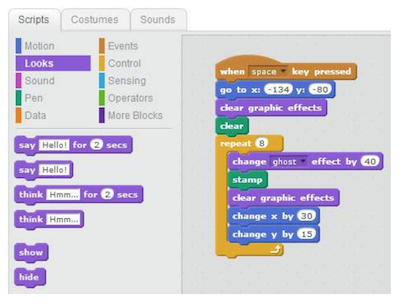
        • Scratch is a block coding language developed by MIT that does not represent any other language (whereas with Microbits, the blocks represent Java). The actual code that is used is the blocks themselves. MET hosts a free cloud-based app and community where users can create stories, games, simulations, animations, and more. Scratch Jr. is a simple mobile app allowing students to drag simple block instructions to create actions on their iPad or tablet.

“Real” or Pro Coding


(The information below was provided by my programmer friend and former worklearn student, Eric):

Don’t be scared to start coding in “real” coding languages! Apply what you’ve learned in visual block coding and learn the language and the syntax and you’ll do fine! The first question one might ask themselves when they first decide to learn to code is: which language should I start with? Both Java and Python are good languages to begin learning to code. Both present high levels of abstraction in their language (code is more reminiscent of human language – visual coding is often thought to be very high levels of abstraction.) They are also both very commonly used and have plenty of resources for you to begin learning or if you have questions. Most people also find that once they learn one language, learning new languages becomes much easier.

Resources

  • Codecademy
    • Guides you through a suitable set of activities that are structured to help you understand the basics of coding. Once you first sign up, you are given a 7-day free trial to their premium program which allows you to explore all exercises. Once the trial is over, you will be relegated to practice on their free exercises; albeit, not as complete but still very helpful.
  • freeCodeCamp
    • Very similar to Codecademy, with a different set of exercises. As opposed to Codecademy, all exercises are free! However, the interface is not as easy to use as Codecademy and there is not as much guidance in completing exercises. If you progress further in freeCodeCamp, you might find it helpful to Google hints on how to do things and/or ask questions on Stack Overflow (a question and answer platform for computer programming.)
  • CodinGame
    • Directed towards more advanced coders to write and debug(fix problems) code in the form of a game. As opposed to Codecademy and freeCodeCamp, the exercises often involve multiple objectives and can take over an hour to solve. Despite its difficulty, CodinGame allows you to swap between 25 different languages. This tool is very helpful if you already know one language and you want to learn another! Don’t give up if you’re finding CodinGame hard – read the instructions very carefully and use the hints!
      YouTube videos
  • Hour of Code – Global Coding
    • Get globally connected by participating in the HOUR OF CODE. This initiative began to introduce all ages, and especially students, to the concept of coding…. in less than an hour! Hour of Code provides multiple plugged and unplugged activities so that classes around the world can begin coding. Anyone anywhere can organize an Hour of Code event – NO EXPERIENCE NECESSARY!

Robotics

There are many robots out there that can be used with specific branded apps or open coding apps like Tickle. Some that we have played with during our Sandbox Session were the following: DashSphero, and Ozobots and K-8 powered by microbits. These robots are also available to borrow from the Education Library!


Leave a Comment

Filed under AppliedDesignSkillsTechnologies, Blog Posts, Curriculum, Digital & Media Literacy, Digital Tools and Apps, Engineering, Math, Planning, Resources, Science, STEAM, Technology, The Arts

Design Thinking & ADST

Design Thinking is a series of steps that can help people understand the nature of a problem, then consider and test solutions. These steps are part of a cyclical process: the proposed solution may not solve the problem, and then participants will have to go back to earlier steps and work their way through again. Although Design Thinking can be easily embedded in any Applied Design Skills and Technologies (ADST) project, from start to finish, it can be used as a way to think about problem-solving in any subject or classroom.

BC’s newest K-9 curriculum is Applied Design Skills and Technologies. It is interesting to consider the opportunities for teachers to integrate “STEAM” (Science, Technology, Engineering, Arts and Math), Makerspace, computational thinking (including coding) and entrepreneurship in their teaching, and Design Thinking  fits perfectly with inquiry-based projects and hand-on learning. To learn more about the ADST curriculum, please visit the related post on our Scarfe Sandbox Blog.


The Steps

To get students thinking about the entire design process for ADST, from beginning to end, teachers can implement a Design Thinking framework. Design Thinking is a human-centered approach to problem-solving and solution creation. It’s used widely by companies to promote innovation and develop new products. There are 5 standard steps:

  1. Emphasize – try to understand the need
  2. Define – clarify the problem
  3. Ideate – generate lots of ideas
  4. Prototype – build the solution you think might work
  5. Test – see if the prototype solves the problem

For more information, you can check out Stanford University’s Introduction to Design Thinking: Process Guide

Reverse Ideation

Teachers can also encourage students to try Reverse Ideation, which can help to stimulate creative thinking and get students generating ideas from a fresh approach. In Reverse Ideation, students will try to make the problem worse. This approach can take the pressure off of students from having to find the perfect solution and can get ideas flowing (it can also be a fun way to break the ice and get students talking and connecting with each other). Once the worst ideas are out, that can free students to think about possible solutions, using the worst ideas as a starting point. Check out this blog post for an example of what Reverse Ideation can look like in practice.

whiteboard showing multi coloured responses to the question "How to prepare for practicum"

Reverse Ideation in Action! “How to prepare for practicum: worst ideas only”

At a recent Scarfe Foyer session, teacher candidates had the chance to try out Reverse Ideation to help them prepare for their upcoming short practicum.

We set up a white board with our question: “How to Prepare for Practicum? Worst Ideas Only!” We provided white board markers, as well as post-it notes, and asked TC’s to generate ideas. This is a set-up that’s easily replicable in a classroom using whatever materials are on hand, such as chart paper, white/black boards, post-it notes on desks, etc. The unconventional approach to this topic, preparing for practicum, generated a lot of interest and discussion.

Greta, Lindsay and Nashwa host a Scarfe foyer session about reverse ideation and design thinking. Greta writes an idea on the whiteboard.

A Scarfe foyer session highlighting design thinking.


Edited by Peer Mentor Lindsay Cunningham (Ph.D. student, EDCP), October 2023

Leave a Comment

Filed under AppliedDesignSkillsTechnologies, Blog Posts, Curriculum, Engineering, Not Subject Specific, STEAM

Makerspace:

What is it?

Known also as fab labs, tinkering areas, or hackerspaces, makerspaces are generally areas where people can gather to make, create, and experiment with a variety of materials and tools.

As the name suggests, makerspaces are spaces where people can make stuff. While these creations are often physical things, digital productions can also be included. Varying in size, equipment, budget, location, and audience, makerspaces generally have one thing in common; they are places for people to gather to collaborate in the act of creating.

The term makerspace can be used to describe a whole range of spaces that vary from entire buildings and rooms to dedicated room corners, carts, and tubs. Makerspaces can be found in schools, libraries, classrooms, museums, community spaces, and even trucks and buses. The materials within a makerspace also vary quite drastically from inexpensive or free materials like recycled cardboard, to more costly tools such as 3-d printers.

Why is it Relevant?

In schools, Makerspaces can be located in libraries, dedicated rooms or spaces, and in individual classrooms. If there is not enough space for a permanent Makerspace, flexible alternatives such as carts or tubs can help alleviate challenges such as these. While Makerspaces aren’t necessarily new in schools, their popularity is growing greatly as 21st century skills becoming increasingly important in education.

Makerspaces are significant for education because when they are used to their full potential, they can help students develop critical 21 century skills such as collaboration, problem-solving skills, perseverance, and creating thinking. Makerspaces are environments that can foster meaningful and authentic learning through the implementation of STEAM pedagogical approaches.

Drawing on constructivist and constructionist theories of learning, makerspaces allow for hands-on active learning through the creation of things. Both Jean Piaget’s Constructivism and Seymour Papert’s Constuctionism emphasize learning through active construction and interaction with objects. By allowing students to experiment and play with materials in the Makerspaces, teachers can leverage these theories to encourage deep and meaningful learning.

Makerspaces offer a wide array of opportunities for creating so they can easily support valuable pedagogical approaches such as student centered and project-based learning. Additionally, a well-designed makerspace is likely to have low floors, high ceilings, and wide walls. The concept of low floors and high ceilings was originated by Papert. “For a technology to be effective, he said, it should provide easy ways for novices to get started (low floor) but also ways for them to work on increasingly sophisticated projects over time (high ceiling)” (Resnick, 2020). Resnick (2020) has suggested the addition of a third dimension to the metaphor, wide walls which enable a large variety of work to be explored and created. In terms of makerspaces, it is important that they include a variety of low or no tech materials as well as high tech materials. This will ensure the makerspace is accessible for a variety of users while also allowing for a breadth of projects.

Getting Started

  • Visit a local makerspace to get inspired. Reach out to other schools that have makerspaces to learn from them or visit a makerspace in your city. While these community spaces often charge a membership, you may be able to schedule a brief visit for free. Locate a makerspace near you
  • Start small – dedicate a table or corner in the classroom to a makerspace, if this is too much, consider a cart or tub that can be easily moved around.
  • John Spencer recommends starting with a temporary makerspace like creating a mobile makerspace with a cart or starting with a single maker project. Listen to him here https://www.cultofpedagogy.com/makerspace/
  • Your makerspace doesn’t need to be finished for you and your students to start using it. You can continue to add to your makerspace as you learn more about the needs and interests of your students. Additionally, having students involved in the design of the makerspace can help them take ownership of the space and be responsible for its maintenance.
  • Create rules and routines for using the makerspace and be sure your students know them. Some important elements to include are safely using the tools and responsibility for tidying the materials.
  • Allow your students time to play with the materials especially when you first introduce the makerspace. This is also a good chance to reinforce rules and routines.
  • You don’t need a lot of money, collect donations of materials, use recycled materials, use what is already in your school
  • If you are asking for donations from families, be sure to specify that items should be empty and clean. You don’t want old yogurt stink in your classroom!
  • Below are lists of various supplies that are commonly used in makerspaces. The following do not represent exhaustive lists, nor do they reflect the need to acquire all of these materials to run a successful makerspace. Use these lists as inspiration but do not feel limited to the materials here.

No Tech Makerspace materials

  • Cardboard (recycled from food boxes, shipping boxes, or other packaging)
  • Cardboard tubes
  • Paper, cardstock
  • Newspapers
  • Styrofoam packaging
  • String
  • Yarn
  • Thread
  • Ribbon
  • Tape (packaging tape, masking tape, duct tape)
  • Glue (white glue, hot glue, glue sticks)
  • Fabric scraps
  • Felt
  • Buttons
  • Balloons
  • Magazines
  • Bottle caps
  • Cans, bottles, and/or food storage containers
  • Milk/juice cartons
  • Egg cartons
  • Popsicle/craft sticks
  • Old cds
  • Paper bags
  • Old toys
  • Scrap wood
  • Nature items (pinecones, sticks, leaves, stones)
  • Drawing supplies
  • Paint
  • Scissors
  • Rulers & measuring tapes
  • Needles (sewing, knitting, crochet hooks)
  • Looms

Low & High Tech Makerspace Materials

  • Makey Makey
  • Micro:bit
  • Green Screen
  • Microphone
  • 3-d printer
  • Printer
  • Paper circuit materials (LEDs, copper tape, coin cell batteries)
  • Squishy circuits
  • iPads, tablets,
  • Laptops or computers
  • Cricut
  • Ozobot
  • Sphero
  • Dash & Dot
  • Lego
  • K’Nex
  • Bloxels

References

Resnick, M. (2020). Designing for wide walls. Medium. https://mres.medium.com/designing-for-wide-walls-323bdb4e7277

Credit:
Guest post by UBC MET student, Lexie Tucker. Peer Mentor 2021-23
Video by Janis Sawatzky, UBC BEd 2014, Tech Integration Facilitator, 2019

Leave a Comment

Filed under Active Learning, AppliedDesignSkillsTechnologies, Blog Posts, Curriculum, Engineering, Inclusive Practices, Math, Not Subject Specific, Planning, Science, STEAM, Technology, The Arts

Desmos Graphing Calculator

Most secondary math classes require the use of a Ti-84 graphing calculator.  However, nowadays there are other online options to produce elegant graphing and math simulations. One of the free,  yet still powerful, options is Desmos.


  • Desmos is a free online tool that can make the affordances of a graphing calculator more accessible. It is essential to give options to students whose families may not have the resources to pay for other more expensive tools.
  • Desmos is not only a graphing calculator but also a matrix calculator and a geometry tool. Thus, teachers can use it to develop other mathematic content and competencies, such as patterns in a table, proportion, and relationships, linear equations, inequality, etc.
  • Desmos allows you to insert images to be used in theirmath tools, which support teachers when integrating hands-on activities and complex math concepts. For example, the Burnaby School District has a wonderful example of integrating First Peoples Principles of Mathematical Teaching through weaving and Desmos tools.
  • Desmos also offers a section with suggestions for activities and lessons teachers can adapt for their class/teaching needs.

Getting Started with Desmos

  1. Go to the Desmos homepage
  2. You can choose to use Desmos as a teacher or a student
  3. As a teacher, you can browse the activities available or sign up to be able to assign activities to your students through a code.
  4. Desmos has a couple of videos demonstrating how to use their several tools in different math content and competencies. If you want to learn how to use Desmos on a specific topic you can go to these links:
    1. Derivatives
    2. Integrals
    3. Functions
    4. Graphics
    5. Tables
    6. Parametric equations
    7. Regressions
    8. Statistics
    9. Trigonometry
  5. Or you can start creating your first graphic and exploring the basic functions of Desmos Graphic Calculator in the video below:


Guest post by Peer Mentor Ariane Faria dos Santos (Ph.D. EDCP), April. 2022.

Leave a Comment

Filed under AppliedDesignSkillsTechnologies, Curriculum, Digital Tools and Apps, Math, Resources, Science, STEAM, Technology, The Arts

Applied Design, Skills and Technologies (ADST) in the British Columbia Curriculum

What is ADST in the British Columbia Curriculum?

The British Columbia Curriculum presents an area called “Applied Design, Skills and Technologies” or “ADST” which has a group of content and skills from traditional and First Peoples practice, existing disciplines of Business Education, Home Economics and Culinary Arts, Information and Communications Technology, Engineering and Technology Education, and new and emerging fields.

In this sense, this area of the curriculum was not designed to be developed as a separate subject matter, but the content and skills should be incorporated by teachers from all subject areas throughout all years of K-12.


The BC curriculum understands that teachers can use the “doing” part of the curriculum as shown in the side picture to incorporate ADST skills and content aligned with the “knowing” and “understanding” from their own subject matter.

What are the features of ADST in the BC curriculum?

The ADST competencies were designed to gradually improve students’ skills and abilities with respect to design thinking and coding across the subject areas. The K-9 curriculum is more foundational and grades 10-12 are more linked to specialized interests and subject area applications:

  • K-5 ADST was thought to develop foundations competencies related to practical, creative, and real-life skills. However, it was designed as a more exploratory and purposeful play through designing and making activities.
  • 6-9, ADST competencies are related to explorations of specific areas, including some curriculum choices, such as Computational Thinking, Digital Literacy, Metalwork, and Food Studies.
  • 10-12, students are invited to choose a specific area of interest or continue to pursue a general interest. In this sense, students can choose subject matter and personalize their learning through courses such as Business Education, Home Economics and Culinary Arts, Information and Communications Technology, and Technology Education.

For more details about the big ideas and competencies of ADST consult the BC Ministry of Education’s introduction to ADST.

Where can I find ideas of how to integrate ADST into the BC curriculum?

On this blog are a variety of posts related to ADST and tools to support ADST learning. You can sort the blog using the category or tag: ADST


Guest post by Peer Tutor Ariane Faria dos Santos (Ph.D. EDCP), Dec. 2021

Leave a Comment

Filed under AppliedDesignSkillsTechnologies, Blog Posts, Curriculum, STEAM

ADST Woodworking Basics Resources

Woodworking is an activity that can support life long skill development and the ADST curriculum across grade levels. With careful planning and consideration for safety (as well as appropriate school permission!) even very young children can learn to use hammers, saws, screwdrivers and other woodworking tools. In my own elementary school teaching, I had the opportunity to work with students using wood and the associated tools to ‘make’. One project, where students designed and built their own bird feeder based on the feeding characteristics and needs of a particular bird (think animal adaptations!) was particularly successful. Leading up to this kind of design project, I provided students with plenty of center time/playtime where they learned to use tools with no major product or project in mind.

Time spent hammering nails (to add to a class peg board, geoboard or piece of ‘art’) or screwing in some screws using different types of bits provided many hours of engagement and skill development. Through this play, students can develop their competence and were able to then recognize what kinds of structures they might be able to build using the skills they’d developed.

Recently, I connected with the wonderful educators at the Construction Foundation of British Columbia. This amazing group supports teachers (and their students) with learning woodworking and other building skills. In the Winter of 2020, I welcomed Randy Grey & Jordan Perrault to Scarfe where we got busy with the tools of their trade (and some pizza!) alongside 50 teacher candidates over two days!

Here is a booklet from the Construction Foundation that includes the Lesson Plan for our ‘phone/tablet stand’ and other simple projects: https://skillsready.ca/wp-content/uploads/2020/01/21323-Wood-First-Carpentry-Project-Workbook-_web-2.pdf

Below are additional RESOURCES from Randy Grey and the Construction Foundation

Taking_Making_into_Classrooms BC

ADST Woodwork makerspace practices

Design Placement Student Final

Design Placement Teacher Guide Final

Desing thinking mindset ILC

Elementary-heads-up-for-safety

Handbook

ILC Design Thinking sheet

iphone holder drilled 2

iphone holder nailed 2

Ministry adst_learning_standards_elab

Primary Partner Template a

Primary Partner Template TEACHER GUIDE

 
Please feel free to check in with any questions. ALSO – be sure to look at the other ‘STEAM’ resources we’ve developed here @scarfesandbox!
Skills Ready
Construction Foundation of BC

Leave a Comment

Filed under AppliedDesignSkillsTechnologies, Engineering, Math, Technology

Circuitry Explorations: Tech Ed Stations

Play-based, hands-on learning activities appeal to our creativity and our curiosity. When combined with specific prompts and tasks, they encourage children by providing greater success and a more rewarding experiences (McLean & Harlow, 2017) as they learn about the world around them.

When you combine a 9V battery with a handful of playdough and a few strategically placed mini-LED bulbs, anyone can safely learn the basics of circuitry. Before long, those same people might just take the lead, and soon enough they’re speaking knowledgeably about current, polarity, and conductivity and asking great questions of their own! More advanced students can extend their learning by co-constructing their understandings of series and parallel circuits, switches and more. Design challenges can support students creating toys and electrical devices or imagine the learning that might happen when high school chemistry students are challenged to create new recipes to increase conductivity or resistence and improve the texture, colour or consistency of the dough (McLean & Harlow, p. 128).

This week with the Technology Education Secondary cohort, we played as students and considered as teachers, how stations and play based learning might help to activate the students’ prior knowledge, engage students in constructing their understandings and provide an engaging hook and scaffolded learning opportunity for developing more complex understandings of circuits.

Using inexpensive familiar materials, teachers can prepare simple, fun, yet challenging hands-on activities for their students that can also provide a footing for learning down the road. By using the squishy circuits first, students play with concepts using materials that can be re-used multiple times. Following this play, they might then design and build a circuit using a given length of copper tape thus using design thinking skills, electrical know-how and mathematics.

In our session, we explored five stations. TCs were encouraged to consider how and what they were learning and relate this learning to curriculum including core competencies.

  1. Squishy Circuits (1 set available for loan from Ed Library – all you really need is playdough, batteries and LEDs – and a battery tester to provide students opportunity to troubleshoot)
  2. Makey Makey (1 available for loan from Ed Library)
  3. Paper Circuits
  4. Micro:Bits (2 kits of 10 available for loan from the Ed library)
  5. K-8 Robot (6 available for loan from Ed Library… remember to also borrow the microbits kit!)

Slides from our session:

https://prezi.com/view/OiwUhUMmhcS2gB7yyanU/

Honey, M. & Kanter, D. (2013). Introduction. In M. Honey & D. Kanter (Eds.), Design, make, play (pp. 1–6). New York, NY: Routledge, https://doi.org/10.4324/9780203108352.

McLean, M., & Harlow, D. (2017, June). Designing inclusive STEM activities: A comparison of playful interactive experiences across gender. In Proceedings of the 2017 Conference on Interaction Design and Children (pp. 567–574). New York, NY: ACM, https://dl.acm.org/citation.cfm?id=3084326

Leave a Comment

Filed under AppliedDesignSkillsTechnologies, Blog Posts, Science, Technology