Tag Archives: coding

Coding in Classrooms

What is Coding?

Coding is a set of instructions given to a computer to produce different kinds of output. Learning to code involves a variety of  competencies that can be introduced or developed in K-12 classrooms across the curriculum. The Applied Design Skills and Technologies curriculum includes introducing block or visual programming languages beginning at grade 6. Many teachers incorporate activities using physical and digital ‘block code’ from a much earlier age.These activities can help build the essential competencies leading to build computational thinking (link to SD61).


Why teach coding in your classroom?

Learning Coding Remotely

Coding is included in the Applied Design Skills and Technologies Curriculum (ADST) in BC. Outside of teaching students job-marketable skills,  coding can help your students learn mathematical logic, creative exploration, how to understand systems, and a systemic procedure that exists in common computer programs (automator, video editing, animation, web design.). We might think of this as building computational thinking skills. By building these skills in collaborative and communicative hands-on ways, computational participation helps to link coding with the core competencies in the BC Curriculum and enhances student learning (and enjoyment).


How might you teach coding in your classroom?

Depending on the age, interests and abilities of your learners, (and access to equipment/materials), you can approach coding in many ways. A computer programmer friend of mine pointed out that, while learning to code using visual programming blocks as a language doesn’t necessarily translate to being able to code using Java or Python (two languages used by professionals), the computational thinking skills developed do transfer!

Consider your student interests: are there particular themes or activities you might employ to engage your students? Can you get students moving physically? Can students make something that is motivating to them? Can students work together to create and problem solve?

You might begin with some unplugged coding activities in order to apply a kinesthetic, hands-on approach to build resilience with directionality/commands, critical thinking and trial and error or you might dive right into one of the many programming applications that supports this. I’ve found older students (including me!) are motivating by coding to make something that ‘does something’ in the ‘real world’ (ex. MicroBits, Sphero or Ozobots). That said, many students will enjoy creating stories or games online (ex. Scratch, Twine).

Below are a few examples and links to resources that can support coding in your classroom across K-12.

“Unplugged” Coding

Coding and learning computational thinking can begin with unplugged activities where learners engage in problem-solving, sequencing, and design. Unplugged simply means ‘without a computer’… making this form of ‘coding’ accessible to all classrooms.

Unplugged Coding Activities:

  • Binary Braclets
    • Learn Binary by building bracelets! Students can code their initials using black and white beads which represent the language of coding.
  • Canada Learning Code
    • This Canadian content website includes a searchable database of lesson plans for unplugged and plugged coding activities including activities using popular tools and bots. Try searching by ‘unplugged’.
  • Code.org
    • houses an impressive amount of resources to learn about coding, start coding, and even use unplugged activities inside and outside of the classroom. Each idea includes a video tutorial, lesson plan, and assessment answer key.
  • Kid Bots
    • Kidbots demonstrates cross-curricular advantages of coding by involving numeracy, geometry, and literacy. Students design  a way to rescue an item from a designated location, but a classmate is the programmable “kidbot.”
  • CS Unplugged
    • They house lesson ideas of how to get learners working on core components of computational thinking!
  • Logic games like Sudoku, Mastermind, and Kanoodle can help students work on problem-solving skills that are integral to coding.
  • Lego challenges
    • Teachers can provide a task (like building their dream amusement park). This activity could also be paired with design thinking to help generate ideas or potential solutions to a problem.
    • Students can create a design (without showing their partner), then try to communicate the instructions for their partner to build the same design (without looking!). In coding, it’s important to be able to program specific instructions to get the results you want.

“Plugged” Coding

Also known as coding with a digital device! When we think about “plugged coding”, we might first look at students utilizing visual programming blocks. As a student’s computational thinking skills improve, they might begin to experiment with other programming languages including java and python. In the BC ADST curriculum, visual programming is referred to in Grades 6 through 9.

  • Visual block coding

    • block based coding exampleVisual block coding is an approach to coding that represents instructions in the form of visual blocks rather than programming language syntax. This form of coding is seen to be friendlier to beginners of coding due to not having to memorize syntax due to the drag and drop feature, the “puzzle” piece aspect of the blocks that help you determine which blocks fit with one another, and a predefined list (limited choice of blocks) of functions, variables and objects you can use.
      While visual block coding might seem or feel like playing with logos, this is what coding essentially is at its highest level of abstraction. Once you understand how the functions, variables and object blocks work, you just need to apply language and syntax and that is coding! Visit Code.org or Canada Learning Code for some lesson ideas.

      • BBC Microbits make code block coding language is a visual representation of the JavaSript language. JavaScript is a function-based programming language that is used in web development. The Microbits block UI (user interface) allows you to swap or toggle between JavaScript and visual blocks to learn how the addition or subtraction of blocks affects your code in JavaScript.
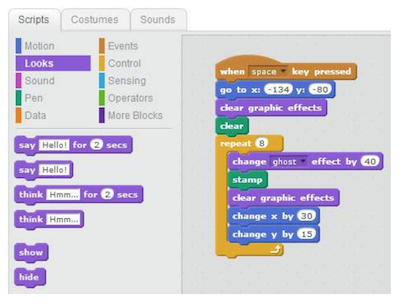
        • Scratch is a block coding language developed by MIT that does not represent any other language (whereas with Microbits, the blocks represent Java). The actual code that is used is the blocks themselves. MET hosts a free cloud-based app and community where users can create stories, games, simulations, animations, and more. Scratch Jr. is a simple mobile app allowing students to drag simple block instructions to create actions on their iPad or tablet.

“Real” or Pro Coding


(The information below was provided by my programmer friend and former worklearn student, Eric):

Don’t be scared to start coding in “real” coding languages! Apply what you’ve learned in visual block coding and learn the language and the syntax and you’ll do fine! The first question one might ask themselves when they first decide to learn to code is: which language should I start with? Both Java and Python are good languages to begin learning to code. Both present high levels of abstraction in their language (code is more reminiscent of human language – visual coding is often thought to be very high levels of abstraction.) They are also both very commonly used and have plenty of resources for you to begin learning or if you have questions. Most people also find that once they learn one language, learning new languages becomes much easier.

Resources

  • Codecademy
    • Guides you through a suitable set of activities that are structured to help you understand the basics of coding. Once you first sign up, you are given a 7-day free trial to their premium program which allows you to explore all exercises. Once the trial is over, you will be relegated to practice on their free exercises; albeit, not as complete but still very helpful.
  • freeCodeCamp
    • Very similar to Codecademy, with a different set of exercises. As opposed to Codecademy, all exercises are free! However, the interface is not as easy to use as Codecademy and there is not as much guidance in completing exercises. If you progress further in freeCodeCamp, you might find it helpful to Google hints on how to do things and/or ask questions on Stack Overflow (a question and answer platform for computer programming.)
  • CodinGame
    • Directed towards more advanced coders to write and debug(fix problems) code in the form of a game. As opposed to Codecademy and freeCodeCamp, the exercises often involve multiple objectives and can take over an hour to solve. Despite its difficulty, CodinGame allows you to swap between 25 different languages. This tool is very helpful if you already know one language and you want to learn another! Don’t give up if you’re finding CodinGame hard – read the instructions very carefully and use the hints!
      YouTube videos
  • Hour of Code – Global Coding
    • Get globally connected by participating in the HOUR OF CODE. This initiative began to introduce all ages, and especially students, to the concept of coding…. in less than an hour! Hour of Code provides multiple plugged and unplugged activities so that classes around the world can begin coding. Anyone anywhere can organize an Hour of Code event – NO EXPERIENCE NECESSARY!

Robotics

There are many robots out there that can be used with specific branded apps or open coding apps like Tickle. Some that we have played with during our Sandbox Session were the following: DashSphero, and Ozobots and K-8 powered by microbits. These robots are also available to borrow from the Education Library!


Leave a Comment

Filed under AppliedDesignSkillsTechnologies, Blog Posts, Curriculum, Digital & Media Literacy, Digital Tools and Apps, Engineering, Math, Planning, Resources, Science, STEAM, Technology, The Arts

Gaming & Storytelling

“What we can conceive of intellectually and what we’re able to speak about verbally,we may not have the print power for yet” – Angela Stockman

Bringing Stories to Life

Allow students to apply their understanding of story elements (characters, setting, problem, etc.) in a way that can better meet their interests and needs. Through the integration of coding with storytelling, using platforms such as MakeCode, Scratch, and Twine, students can program their stories to come to life, using text and their voice to help tell the story!

Why blend coding with storytelling?

Research conducted in the United States has shown that: (if we could find Canadian statistics, that would be more relevant)

  • Only 27% of 8th and 12th-grade students can write at a proficient level.
  • 40% of college applicants (grade 12) could not write at a college level.
  • Female students scored higher on writing than males at most grade levels.

(SOURCE: U.S. Department of Education, Institute of Education Sciences, National Center for Education Statistics, National Assessment of Educational Progress (NAEP), 2011 Writing Assessment).

Programming is a new form of literacy. Coding and gaming are part of this tradition of blending more traditional literacy practices (text, reading, and narrative) with new digital literacies (hypertext, coding, interaction).

Studies show various benefits:

  • Increased confidence and motivation to write.
  • Media literacy and creative production are necessary for learners to meaningfully engage in our culture today. Encourages students to become producers, rather than simply consumers of content.
  • Women are severely underrepresented in STEM fields. Using coding/ gaming platforms in the Language Arts classroom is a great way to promote engagement and interest among girls.

Getting Started

  1. The first step is to introduce students to the connection between games and stories through mentor texts and read-aloud. Discuss and bring awareness to students, of the story narratives behind the games they already play and are familiar with. Ask them to share the backstories of the video games they play.
  2. Use story mapping and storylines to help students plan their story to be told through video games. Using a storyline, story map, or graphic organizer can break up the writing into manageable steps and help students organize their ideas visually. The more you use story maps (or storylines) as a class, the more students will effectively use them independently. Practice using these organizers after a class read-aloud, showing and discussing the different parts of a story and how they come together. There are a variety of templates online to choose from: Example 1 & Example 2
  3. Choose the tool and introduce students to the coding/ gaming platform they will be using to create their story. There are a variety of free online platforms to choose from as well as the option to use codable robotics whereby students have the robots moving from ‘setting’ to ‘setting’ as they orally narrate the story.                            Examples include:

Some tips for teachers

  1. Allow students plenty of time to practice using the tool and getting used to the platform before they use it to tell their story. If students have a basic proficiency and familiarity with the platform, they will be more effectively able.
  2. Now comes the time for students to share and celebrate their stories! Have the class try out and play some of their peers’ games and/ or have them demonstrate their game to the class.

Slide Resource

Check out these slides for more information:

Gaming & Storytelling


Guest post by Peer Tutor Tamara Jabboour and Ariane Faria dos Santos, October 2023.


Leave a Comment

Filed under AppliedDesignSkillsTechnologies, Curriculum, Interactivity, Language & Lit Learning, multimedia creation, Not Subject Specific, Planning, Resources, STEAM, Technology, The Arts

Programmation glisser-poser : Scratch

What is it

Scratch est un langage de programmation glisser-poser pour les enfants de tous âges pour apprendre les bases du codage. C’est gratuit et disponible comme application de web ou de bureau. ScratchJr pour les enfants de 5 à 7 ans est disponible sur les tablettes Android et iOS. Scratch vous permet de créer tout ce que vous voulez : des animations, des narrations et des jeux sur lesquels des matériaux informatiques (comme MakeyMakey) peuvent être branchés.

Fonctionnalités du dernier logiciel Scratch 2.0 2.0 Scratch version:

  • Comptes pour les profs et pour les élèves
  • Données dans le cloud
  • Blocs de codage glisser-poser
  • Télécharger des fichiers de votre propre ordinateur
  • Dessiner vos propres éléments
  • Blocs customisés
  • Programmes d’éditeur – Vector, Bitmap, Paint
  • Éditeur de son
  • Enregistrement des vidéos pour les projets
  • Partage de projets

Why is it relevant
Scratch est une façon simple et amusante pour aider les enfants à apprendre les bases de la programmation et du codage. On peut créer une suite d’événements en utilisant des blocs customisés qu’on peut glisser et poser – on code les actions qu’un certain élément réalisera. On peut ajouter des éléments du base de données de Scratch, télécharger des éléments de son propre ordinateur ou dessiner ses propres. ScratchJr permet aux enfants dès 5 ans d’apprendre à coder ! La programmation visuelle qu’emploie Scratch est pertinente par rapport au programme d’études de la C.-B. revisé – en particulier le programme de CCPT.

ScratchEd fournit aux profs un endroit en ligne où ils.elles peuvent voir des ressources pédagogiques pour Scratch, collaborer avec des autres éducateurs.trices et partager leurs propres histoires. Les profs peuvent y trouver des exemples de comment ils.elles peuvent employer Scratch pour engager un sujet avec leurs élèves, et de comment s’inspirer.

Regardez ce guide Co-Creative Activities for the 21st Century Kids (disponible en anglais seulement) pour explorer des idées de comment les activités de codage (avec et sans Scratch) peuvent s’intégrer dans un cours.

Regardez aussi le guide Creative Computing (disponible en anglais seulement), créé par un membre de l’équipe de recherche ScratchEd à Harvard.


How to get started

1. Allez au site Scratch, ou téléchargez le programme de bureau.

  • Si vous allez au site web, vous pouvez l’essayer (mais rien de ce que vous faites ne sera sauvegardé) ou vous pouvez vous inscrire sur le site et puis créer quelque chose (il sera possible donc de sauvegarder et partager vos projets).

Pour vous inscrire, cliquez sur le bouton « Rejoindre Scratch » (en haut de la page) et remplir les infos requises. Vous devrez aussi confirmer votre adresse e-mail.

Après vous êtes connecté.e, cliquez sur « Créer » (dans la barre d’outils en haut de la page) pour commencer un nouveau projet ou « Explorer » si vous voulez d’abord trouver de l’inspiration.

  • Si vous décidez de télécharger le logiciel sur votre ordinateur, cliquez ici et puis choisissez votre plateforme.

Ouvrez le fichier que vous venez de télécharger et installez-le.


2. Les interfaces de l’appli web et de celle de bureau sont pareilles.

  • Glissez des blocs de codage du menu « Code » (entouré en rouge) et posez-les sur l’espace à la droite. Faites se toucher les blocs pour définir une série d’actions.
  • Ajoutez un arrière-plan et des nouveaux personnages/objets (appelés « sprites », entourés en orange) du base donnée Scratch, téléchargez-en de votre propre ordinateur ou dessinez vos propres.
  • En créent des nouveaux sprites, cliquez-les pour programmer leurs actions.
  • Regardez votre projet sur l’écran d’affiche (entouré en bleu). Cliquez sur le drapeau vert pour activer votre projet et le signe rouge pour l’arrêter.

Leave a Comment

Filed under AppliedDesignSkillsTechnologies, Blog Posts, Curriculum, en francais, Resources, STEAM

Blocky-Games: Programmer en jouent

blocky-games

What is it

Blocky-Games est une série de jeux éducatifs pour enseigner le codage.  C’est fait pour les enfants qui n’ont jamais eu d’expérience en informatique.  A la suite de ces jeux, les joueurs pourront utiliser la base de texte pour programmer.

Blocky-Games est conçu pour des élèves plus jeunes dans l’école primaire (de la maternelle à la 3ème année).  Ce site est gratuit. On peut changer la langue facilement en haut de la page.

C’est un site auquel les élèves peuvent accéder pendant les cours quand ils/elles ont fini leur travail, ou le site peut faire partie des centres pédagogique pendant les petit groupes.


Why is it relevant

Blocky-Games, comme Coding.org, est unique car des élèves partout dans le monde peuvent apprendre comment coder.  Dans la classe des élèves de l’immersion française, ou français de base, peuvent utiliser ce réseau dans la langue enseignée.  A la maison, les élèves peuvent continuer dans la langue française ou ils.elles peuvent changer vers la langue maternelle. Cela peut devenir un lien entre la classe et la maison.


How to get started

On suggère d’aller explorer Blocky-Games.  Le site est gratuit et facile à naviguer.  Il n’y a pas besoin de s’enregistrer pour les exercices.


Les activités sont simples.  On place des blocs comme un puzzle pour créer des codes d’information.  A la fin, on nous explique à quoi cela correspond en langue de programmation – JavaScript


Leave a Comment

Filed under Blog Posts, en francais, Resources, STEAM, Technology

Code.org (FR)

What is it

Code․org est une organisation non lucrative qui veut que toutes les écoles aient accès à l’informatique de la même manière que pour les maths et les sciences.  La formation des cours suit les pédagogies les plus communes au primaire et au secondaire. Un cours de Code Studio dure environ 20 hrs et des personnes de tous les âges peuvent y participer.  S’il n’y a pas de temps pour un cours complet de Code Studio il y a des tutoriels d’une heure qui sont disponibles.

Le site offre plusieurs langues pour faire les activités de codage.  Il faut simplement aller en bas de la page pour changer la langue.

Coding.org est gratuit et fait partie des ressources éducatives libres (REL).


Why is it relevant

Ce site est gratuit et en ligne.  Il n’y a pas besoin de télécharger une application sur des tablettes ou le téléphone.  Tout le monde a accès sous condition d’avoir l’Internet.

Coding.org est unique car les élèves partout dans le monde peuvent apprendre à coder.  A l’école, dans la classe des élèves de l’immersion française, ou français de base, peuvent utiliser ce réseau dans la langue enseignée.  A la maison les élèves peuvent continuer dans la langue française ou changer vers la langue maternelle. Cela peut devenir un lien entre la classe et la maison.


How to get started

On suggère d’aller explorer Coding.org.  Pour participer aux cours il faut créer un compte.  Pour les tutoriels on a accès direct.


Quand ils commencent à jouer, les débutants voient le code en bloc et aussi en JavaScript.


Video demonstration

Leave a Comment

Filed under Blog Posts, en francais, Resources, Technology

BBC micro:bit

micro:bit logo


whatisit.png

A micro:bit is a micro-controller designed by BBC for the use of computer education. It’s basically a mini-computer! The micro:bit can be programmed and makes use of multiple sensors including an accelerometer, a magnetometer, Bluetooth, a 25 LED display and two mechanical push-buttons (the V2 MBit also has a microphone, speaker and touch sensor). The function of the micro:bit is in the open hands of the user’s creativity which can include: games, tools, toys, science experiments, etc.

The micro:bit can be programmed using the ‘official’ code editor which supports block coding (by Microsoft MakeCode), Python and JavaScript. The Micro:bit can also be programmed using a Scratch block coding plugin. 


Why-is-it-relevant-360x82.png

Coding has become a very valuable skill and is recognized as part of the ADST (applied design skills and technologies) curriculum. Outside of teaching your students job-marketable skills, the act of coding helps to teach your students mathematical logic, creative exploration, how to understand systems, and a systemic procedure that exists in common computer programs (automator, video editing, animation, web design.)

By coding a micro:controller, you are also providing students with a more kinesthetic experience. They are coding to ‘make something do something’!

The micro:bit can be used as an entry point for beginners but can also level up to allow more intermediate users (including secondary students and beyond) to code and make.  One of the biggest barriers to teaching coding to a new audience is how complicated and detailed text-based programming languages can seem off first glance. The official micro:bit block code editor attempts to circumvent this barrier by representing functional code bits in terms of visual blocks. This makes coding seem more like joining puzzle pieces together rather than typing out complex functions. To further allow the ‘levelling up’, you can toggle in the make code editor between the visual programming blocks and the javascript editor!


how-to-get-started-360x80.png

  1. Go to microbit.org
  2. Click Let’s Code
  3. Select between the JavaScript Visual Blocks Editor (more guidance, comes with the block editor, tutorials, and projects) or the Python Editor (less guidance) and click Let’s Code under your respective choice. You can also select Micro:bit Classroom to share and manage coding sessions for your classroom.
  4. Start building your code!
  5. Once you are finished building your code, download your code into the form of a .hex file, connect your micro:bit to your computer and upload the .hex file into the micro:bit’s drive
  6. Test it out, revise your code, and have fun!

micro:bit extras

Click above to view a sample of micro:bits’ tutorials and games section.

micro:bit step-by-step tutorials and games

If you are new to coding, and you would like a smooth introduction into how to use your micro:bit, I would suggest starting with micro:bit’s tutorials and sample games. In the official micro:bit MakeCode code editor, you can find micro:bit’s tutorials as well as pre-made sample games in the MakeCode dashboard. The sample games and tutorials will guide you through building a project step-by-step with an explanation of how the code is working.

Block coding to text coding

While block coding is a very effective way to expose students to coding, block coding is not typically used outside of educational contexts. We might see block coding as providing some foundational skills, including computational thinking, as a stepping stone towards learning text coding such as Java, JavaScript, Python etc.

The official micro:bit MakeCode block editor provides a button that allows you to swap between JavaScript and block code. In conjunction with building a program with blocks, a student can flip back and forth between JavaScript and block code to see how the two translate into one another. Furthermore, once a student feels comfortable building with block code, introducing text coding to a student would seem much less daunting. The structural component of block coding remains in text code; the student would only need to learn the syntax of a text coding language to get a fair grasp of the language.

More resources


Check out our blog post about coding in classrooms!
BBC Microbits has a Lesson bank for Micro:bit that is searchable by theme and subject area.

Canada Learning Code MicroBit Challenge connected to UN Global goals.

Pinnguaq is a Canadian NGO working with and within northern, Indigenous and other communities on STEAM, ADST and digital tech competencies and has developed many resources related to MBits and more.

videopng-360x61.png

*post updated July, 2023

Leave a Comment

Filed under AppliedDesignSkillsTechnologies, Resources

Dash & Dot Robots

Dash and Dot are programmable robots that interact with each other and use various sensors to detect obstacles and motions.

Students will get a chance to plan their code, test it, evaluate if it works and problem-solve if it doesn’t! This is the next step beyond block coding online because there is an interactive component by the robot immediately responding to code.


[column size=6]

  1. Locate or purchase a Dash Robot & have access to a Bluetooth-enabled device.
  2. Choose which app will work best for your students (available on Apple, Google Play, & Amazon Appstore)
    • Tickle – This app is for advanced learners who understand block coding already. It can control multiple robots, not just Dash or Dot. Only available on iOS devices.
    • Swift Playgrounds – Created by Apple and used by IOS to create popular apps. This App can now power Dash.
    • Wonder – Houses a controller, free-play, and Quests which are similar to self-guided tutorials. It is also used for the Wonder League – a Global Competition.
    • Go – Allows users to control the direction of Dash with basic controls. This app is also a portal to online content and more activities.
    • Path – Control Dash’s direction by drawing where it should travel.
    • Blockly – Program Dash or Dot by using visual block coding
    • Xylo – Create your own music using. Requires the Xylophone component.
  3. Determine if additional components would be useful (for an extra cost)
    • lego blocks, launcher, sketch, xylophone
  4. Get inspired!
    • Browse what other students and teachers have done


**Note: Wonder has released another robot, “Cuebot” which can also be coded using javascript

[/column]
[column size=6]

[/column]

Video: Wonder Workshop (2015). Getting Started with Dash & Dot for Teachers

Leave a Comment

Filed under AppliedDesignSkillsTechnologies, Not Subject Specific, Resources