Tag Archives: interactive

Setting Our Sights on Virtual Reality

Virtual realities (VR) are computer-created environments in which people can interact with what has been programmed or, when linked to some kind of network or on-line access, with each other.

Typically, users wear some kind of headset or goggles to facilitate their sensory experience, which is primarily visual (sometimes fully 360°) and perhaps aural and/or tactile. Environments might be fictional or non-fictional, and interaction passive or active (Moreno & Mayer, 2007).

Although we might consider any back-and-forth communication between two or more people as inter-activity, only a meaningful connection that helps one or more than one of them learn something is interactive learning (Moreno & Mayer, 2007). Moreno and Mayer (2007) are careful to clarify further that interactivity does not “cause” but rather helps “promote” learning (p. 321) although perhaps their conclusion does not fully account for the effects of the hidden curriculum.

Therefore, when planning lessons, teachers should avoid the temptation to try VR for its own sake, which can produce a more gimmicky effect. Instead, they might consider exactly how interactive learning can help enrich their students’ experiences, not only by appealing directly to students’ senses but by directly confronting their capabilities: “… students’ areas of expertise can become the ‘real’ of real-world applications, and students’ knowledge can successively alter curricular outcomes” (Schneider et al., 2014, p. 562).


Create, Make, Innovate: Getting Hands-on with Learning Design

Recap of the session held in the Scarfe Foyer Fall 2019:

At this week’s Create, Make, Innovate! activity session, on Tuesday, November 19th, 2019, teacher candidates had the chance to learn about creating VR experiences for the classroom using Google Tour Creator.

“Today’s media-savvy students compose and read texts that include alphabetic- and character-based print, still images, video, and sound. They listen to podcasts, watch animations on the Internet, film their own videos, and compose visual arguments on paper and online. These rich, multilayered texts demand multimodal literacy skills of their readers, who must navigate the different, intersecting media.” (Gardner, 2007, p. 93)

Cardboard Goggles (Image by WikimediaImages from Pixabay)

Google offers a suite of VR apps, branded as Google Cardboard on account of the homemade goggles that you can make yourself. While the goggles are novel and can be fun to try on, they are not necessary in order to use the apps, which range from the amusing to the cinematic.

The Education Library in Scarfe has several sets of goggles available for loan. However, if you do take on making some goggles, as an initial project, they can actually lend a more cozy feel to watching later on since those goggles are thanks to your own hard work!

Resources

Check out the Scarfe Digital Sandbox for other interactive VR apps, such as Discovery VR, and also Merge Cube, which is an Augmented Reality (AR) tool.

“The virtual worlds we have designed have strong visual elements that are historically and culturally related to specific literary texts…. They can incorporate sound and video files to create museum and role-play environments.” (Arver, 2007, p. 37)

Related to VR is MOO, which also functions as a multi-user on-line network but in a text-based rather than a sensory-based format. MOO systems find their origins in the role-playing adventure game, Dungeons & Dragons, in which players adopt roles and interact as protagonists during an imaginary adventure, usually while sitting together around a table. MOO systems take that experience on-line.

Typically, each MOO user is able to contribute to its programming, which affects everyone else’s experience. In the classroom, a teacher might create a VR or MOO experience that corresponds to a novel study, such as Lord of the Flies (Arver, 2007) or Brave New World (Rozema, 2003), and let students “interact as additional characters, discuss and solve problems based on the circumstances of the story, and complete classroom assignments within a virtual environment” (Arver, 2007, p. 37).

“The best way of thinking about a literary MOO, then, may be as an electronic book club that meets within the story world of the book itself and invites all to participate on equal footing.” (Rozema, 2003, p. 38)


Clarify Your Intentions, Justify Your Lessons

Author and scientist, Jaron Lanier, has been credited with creating and even coining the name “virtual reality.” While his original motivation for VR stemmed from empathy, to connect with other people and their perceptions of things, Lanier has since critiqued proponents of VR. A “machine-supremacy approach” to technology in general, he says, has “made the world of information ever more dominant” (Kahn, 2011).

However, he still credits VR for its medical and counselling applications (Adams, 2017). With that said, maybe it’s not a stretch to suggest that the concept of VR – if not the technology per se – has other origins: theatre and dramatic stage performance. After all, theatre has long been appreciated for offering a cathartic effect to its audiences.
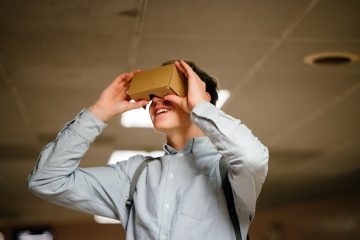
Photo by mentatdgt on Pexels

On that basis, VR could be of interest to Arts and Humanities teachers on account of its potential to emphasise literary elements such as setting (time and place) and point-of-view (1st-person, 2nd-person, or 3rd-person). In fact, these two elements of literature undergo a perplexing conflation when considered in light of VR, just as they do for people who find themselves “stuck in the middle of a tale” (Rozema, 2003, p. 33) while reading a novel, and especially for audiences of live theatre performance.

For instance, as we take in a play from our vantage in the audience, we willingly accept the make-believe conceit that the actors on stage portray characters in a drama that unfolds somewhere in or perhaps beyond our own world. What we recognise before the lights dim as a stage, a proscenium, curtains, rigging, PAR lights, and so forth, we readily accept as time-and-place unique to the story being told. VR asks no less of us and simultaneously attempts to challenge our senses more directly since we now occupy the protagonist’s first-person point-of-view. Indeed, there are many works of literature in which setting can be considered a character.

Weighed against Jaron Lanier’s critique, endorsements of classroom VR can seem somewhat rhapsodic (Adams, 2009). Nonetheless, VR makes its own worthwhile case as a way for teachers to create meaningful interactive learning.


Acknowledgement: post author, Scott Robertson; editor, Yvonne Dawydiak

Interdisciplinarity, collaboration, hands-on learning – that’s the spirit of Create, Make, Innovate! We want to promote enthusiasm for sharing and learning across age groups and across subject disciplines.

Make, Create, Innovate sessions took place during the Fall 2019 in the foyer of the Neville B. Scarfe building and were hosted by Scott Robertson, a project assistant on a small TLEF grant with Dr. Lorrie Miller, Dr. Marina-Milner Bolotin and Yvonne Dawydiak, Teacher Education.

If you have an idea or an inspiration for a resource or future session, please let us know! scarfe.sandbox@ubc.ca


References

Adams, M. G. (2009, July). Engaging 21st-century adolescents: Video games in the Reading classroom. The English Journal, 98(6), 56–59.

Adams, T. (2017, November 12). Jaron Lanier: ‘The solution is to double down on being human’. The Guardian. Retrieved from https://www.theguardian.com/technology/2017/nov/12/jaron-lanier-book-dawn-new-everything-interview-virtual-reality

Arver, C. (2007). Are You Willing to Have Your Students Join Ralph, Jack, and Piggy? The English Journal, 97(1), 37–42.

Gardner, T. (2007, July). Bold books for teenagers: Internet literature for media-savvy students. The English Journal, 96(6), 93–96.

Kahn, J. (2011, July 11, 18). The visionary: A digital pioneer questions what technology has wrought. The New Yorker. Retrieved from https://www.newyorker.com/magazine/2011/07/11/the-visionary

Moreno, R. & Mayer, R. (2007). Interactive multimodal learning environments: Special issue on interactive learning environments: Contemporary issues and trends. Educational Psychology Review, 19(3), 309–326.

Rozema, R. A. (2003, September). Falling into story: Teaching reading with the literary MOO. The English Journal, 93(1), 33–38.

Schneider, J. J., Kozdras, D., Wolkenhauer, N., & Arias, L. (2014, March). Environmental e-books and green goals: Changing places, flipping spaces, and real-izing the curriculum. Journal of Adolescent & Adult Literacy, 57(7), 549–564.


Feature Photo Credit: Stella Jacob on Unsplash

Leave a Comment

Filed under AR & VR, Engineering, Technology, The Arts

Star Viewing Apps

These are apps that provide an immersive and augmented viewing of the stars, planets, and sometimes even space stations or satellites!

They allow students to recognize and experience the locations of various stars in relation to themselves. It’s a powerful tool that promotes questioning, deeper understanding, and engagement because students can rotate their devices to view constellations and more. These apps are a way to help students recognize that the stars and planets never “disappear” and that their locations move throughout out the day and year!

You will find that once students are “viewing the stars”, they will come up with their own questions which is a perfect and natural inquiry opportunity and way to personalize your teaching for students.

Some questions we often hear are, What is a pulsating star? How can I tell the difference between a planet and star without this [app]? Who named the constellations and why are they important?

  1. Choose which app would work best with your students!
    • Skyview or SkyGuide
      • Uses the camera and overlays it with the Milky Way galaxy. Includes descriptions of star types, constellations, planets, the International Space Station, and the Hubble space telescope. Great for using outdoors and in the evenings.
    • Starwalk
      • Uses an evening themes background with the stars, constellations, and more over top. Features Real-time celestial bodies tracking, the ability to travel in time with “Time machine,” and anastronomical calendar with various celestial events.
  2. Download and open the app.
  3. Decide how you will engage students with the app.
    • Free exploration
    • Scavenger Hunt
    • Question generator – have students write as many questions as they can.
    • Galactic Explorer – write from the perspective as a 22nd Century Galatic Explorer. This could be compared to Explorers from history. They could also plot a course based on a chosen destination.
    • Storytelling – How do constellations tell a story? Be inspired by this app and then read various stories about the constellations before having students create their own (oral stories or written). You could also compare historical narratives from different cultures to build multiple perspectives of the stars.

Below is a scavenger hunt we use with Teacher Candidates but you can also borrow and personalize it for your own students. We use it to encourage engagement and exploration of the tool but leave room for TCs to create and record their own questions as they explore.


Leave a Comment

Filed under AR & VR, Not Subject Specific, Resources

AWW App

whatisit.png

AWW stands for A Web Whiteboard, which is exactly what it is. An online digital whiteboard that can be curated by a single or multiple users.

Why-is-it-relevant-360x82.png

This digital whiteboard is device-responsive, web-based, and FREE which means it’s quick to access for multiple users. A teacher can pre-create a board and invite students to brainstorm on it or students can create their own board to be shared. On the digital canvas you can draw, add text, and upload images.

You can also use this app to transform your projector into a “smart board” by using the AWW app on your tablet, connecting it to your projector, and then displaying your interactions.

how-to-get-started-360x80.png

  1. Visit the website awwapp.com and it automatically will present you with a blank board.
  2. Use a blank page or create an account so it can be saved and revisited.
  3. Pre-create a board for students to use OR have students create their own boards.
    1. You can use templates! Find the title of your board, click the black drop-down arrow, click on “Create from Templates”
  4. Save the board & export it to a PDF.
  5. Share the board with others or keep it private.

Some Features (as of October 2018):

  • add text, shapes (circle or rectangle), drawings
  • upload pictures
  • add additional pages
  • share – through email, the automatically generated QR code or URL link, or embed it into a class website
  • choose from pre-created templates
  • FREE CHAT BOX **when logged in with an account**
    • people viewing a whiteboard can leave their questions and comments – great for providing feedback or distance collaboration – which the creator can answer


videopng-360x61.png

Jackson, Holly (2018). Getting Started with “Aww App” Tutorial

Leave a Comment

Filed under Not Subject Specific, Physical and Health Education, Resources

Digital Whiteboards

whatisit.png

Digital whiteboards are also known as Interactive online whiteboards. They are a blank canvas and depending on the application, you can add images, hyperlinks, draw or annotate them, upload videos, and some allow voice recording. Several allow real-time collaborative co-creation while some are more for individual use with sharing options. There are a plethora of options available today with many proprietary, paid options, a few fully free and some with varying levels. I’ve even found two ‘open educational apps’ FIPPA compliant (data housed in Canada) that are worth a try. See the ‘getting started’ section below for a few options.


Why-is-it-relevant-360x82.png

Digital Whiteboards provide a space for students to document their learning, often in multimodal ways. The blank canvas can include drawings, text, images, video, and voice recordings allowing students to create a raw presentation to be reviewed by the teacher or a polished edited version to share with others. Most whiteboard style applications allow for sharing with others and some have ‘collaboration’ options. Digital whiteboards might be incorporated into student assessment (‘showme’ what you know or understand about…), as brainstorming spaces or individual/group project planning or presentation spaces.

These applications can provide students with choice in how they want to display their learning!


how-to-get-started-360x80.png

  1.  Decide on your learning objective and what you want students to achieve. Digital whiteboards can be used to capture various parts of a students learning journey.
  2. Learn what tools are available on your classroom or district devices because some are free while others have a cost.
  3. Download the application or visit the web tool and allow students to play and learn some of the basic functions before assigning structured tasks.

Here are just a few ideas of how a Digital Whiteboard could be used:

  • Explaining: Explain how they’ve come to a conclusion or answer by providing a visual explanation.
  • Presenting: Transform a powerpoint format into a presentation that features their annotations, explanations, and share it as a video that can be refined before being viewed by others.
    • Advantage: Students can hear their voice and re-record their narration until it sounds correct to them.
  • Collaborating: Work with a partner or in a group and record multiple ideas on the one application. This goes beyond a poster because they can add in videos, overlay them with graphs or additional images, and then record different voices to explain their creation.
  • Documenting: Students can create a portfolio that documents different projects or components on each canvas page.

Below are a few examples of interactive whiteboard apps. Click on one to learn more!

    Digital Whiteboards for online Co-creation:

  • AWW app – web-based with free templates
  • Padlet
  • JamBoard
  • WhiteBoard Chat allows for a teacher to launch student boards.
  • Whiteboard.fi is another free whiteboard application I only recently came across. It’s been developed by Kahoot so is worth a look. Teachers can create a ‘classroom’ and provide join links for students.
  • Miro is another whiteboard application with a variety of templates including mind maps and flow charts. Pin notes, type and free draw. Free access includes 3 whiteboards with unlimited team members collaborating. One thing I like about Miro is the ‘infinity board’ aspect… the board can be VERY large and just keep growing with a neat little map feature so you can see the whole board at a glance.
  • Etherdraw and Draw.io are both Open Source/Open Access Apps that are also FIPPA compliant are available thanks to the wonderful community at OpenETC!

Leave a Comment

Filed under Not Subject Specific, Open Educational Resources, Resources

Universe Sandbox

Universe Sandbox is a physics-based Virtual Reality (VR) platform that offers users access to various advanced simulations. Using this software, you will be able to explore what happens if two galaxies collide or an asteroid crashes into earth with great detail and accuracy and you have the option of viewing this on VR headsets.

EDUCATOR PRICE: $16.74 (Original price is $ 24.99)

FEATURES:

  • Climate simulation
  • Advanced collision simulation
  • Stellar evolution and supernovae
  • Terraforming
  • Light-warping black holes
  • Dark matter
  • Procedural surfaces and planets
  • Original soundtrack by Macoubre (available for purchase in the future)
  • VR support (currently only HTC Vive/SteamVR)

Universe Sandbox is an advanced simulator and a fascinating tool to use in your physics classes. For younger students (grades k- 7), it could be an engaging way to introduce the solar system and examine the effects of gravity. For older students (grade 8-12), Universe Sandbox could be used to explore more complicated issues such as the greenhouse phenomena and climate change.

Using Universe Sandbox, you and your students can create and destroy planets on an unimaginable scale whether on a large screen or through VR headsets.

  1. Sign up for a teacher gaming account here and wait for them to validate your account (you will receive a 33% discount).
  2. After the purchase, you can access Universe Sandbox and explore the possibilities in your physics classes!

Leave a Comment

Filed under AR & VR, Resources

Explain Everything: Collaborative Interactive Whiteboard App

Explain Everything is a “whiteboard style” presentation app you can use to create tutorials and presentations. It is also a powerful storytelling and learning tool that allows your students to work on the same project collaboratively. Using Explain Everything, you and your students can design, screen cast and create multimedia content with video, audio, imported or drawn images, text, etc.

Explain Everything is available for iOS, Chrome OS, Android, and Windows.

Paid app with some free trial features (varies depending on platform and license)

  • iOS, Chromebook, Android and Windows
  • Interactive screen-casting whiteboard
  • real-time collaboration
  • cloud content and link-based sharing

PS. Schools can get a special EDU plan by contacting the Explain Everything Team .


There are many whiteboard style apps available on the market, each with their own particular strengths and weaknesses. This class of app allows teachers to create fairly high-quality, attractive tutorials and present information in a visually and engaging way. These apps can also be used by students to create presentations, lessons, tutorials, and more. Another application in a similar class is ‘VideoScribe‘ – it is powerful, proprietary software that UBC students, staff and faculty have access to through our LMS – learning management system.

An excellent purpose for whiteboard apps is in a formative or summative assessment. Rather than focusing on polished content for publication, students can be encouraged to ‘explain everything’ about a particular topic or ‘showme’ what you know (perhaps using ShowMe – a free white board style app).

This resource is great to use in a second language classroom such as French Immersion, Core French, etc.  It allows for students to creatively engage in language learning.


Read our Explain Everything Quick Start & Task sheet, then print & share it with your students if it’s their first time!

You can also read Explain Everything’s Comprehensive Guide HERE.

It only takes a few steps and a little practice to start using Explain Everything:

  1. First, go to the Explain Everything to download the app. You can also download it from the app store on the specific device that you’re going to use (eg. iTunes for iPad, Google Play for Android tablets, etc. )
  2. Next, sign up with your e-mail address and select which version you’re going to purchase.
  3. Then, click on the “+” button at the right top corner to create a new project. There are templates you can begin with and modify to meet your needs or you can start from scratch.
  4. Now it’s time to draw your elements and work on your animations and voice-overs!
  5. Want to use Explain Everything in your classroom? Here is a handout  Explain Everything BrittneyMerryweather that you can have a look!

Here is a video tutorial that will explain the most-used features of Explain Everything and help you to get started:

Leave a Comment

Filed under Assistive Technology, Not Subject Specific, Resources

Thinkmap Visual Thesaurus

Thinkmap Visual Thesaurus is a web-based, visualization tool that will present a word map of your selected word and its related vocabularies (both synonyms and antonyms). Using Visual Thesaurus, you can find the most appropriate word to use in a few seconds.

Visual Thesaurus can also be used as a dictionary with pronunciations and definitions for terms in English and many other languages, including French, Germany, Spanish, etc.

You can try it for free or  sign up  to purchase one of several different subscription types.


Thinkmap Visual Thesaurus is a great language learning resource for students from grade 4 to 12 and the post-secondary level.  With its interactive and intuitive platform, students can listen to pronunciation, view definitions, and see connections between words to help expand their vocabulary. There are even a few language options.


    • In your browser, go to ThinkMap and just try it by typing in a word (or sign up and get your subscription).
    • Input the central word that you want to explore into the search box, and click on “Look it up”.
    • Change the settings depending on your requirements: you may choose Language > French/Germany if you want to expand your vocabulary in a different language. You can even select ‘levels’ of language (helpful for ELL, younger students or those with less developed reading skills or vocabulary knowledge.
    • Share or print out the word cloud image.


videopng-360x61.png


Reference:

Thinkmap Inc. (2006). VISUAL THESAURUS LESSON PLANS TEACHER‘S GUIDE. Retrieved March 21, 2017, from http://www.thinkmap.com/download/vtpresskit/08_lesson_plans/teachers_guide.pdf

Leave a Comment

Filed under Assistive Technology, Resources
