Tag Archives: Simulations

Phenomenal Physics & Astronomy… At Home!

whatisit.png

Throughout the summer, the UBC Physics and Astronomy Outreach team will be introducing physics and astronomy activities that can be easily done at home and adapted for online teaching & learning. Accompanied with extensive tutorials and detailed instruction guides, the Phenomenal Physics & Astronomy at Home program is an ideal resource for teacher candidates to explore and potentially incorporate into curriculum planning. This blog post will provide an overview of this exciting outreach initiative and highlight two specific challenges that have been shared so far.

Some physics and astronomy concepts you can expect to encounter in the activities:

  • Conversion of potential energy into kinetic energy
  • How to build momentum
  • Transmission of vibrational energy in sound waves
  • Structure of the solar system (e.g., the Sun, planets, comets)
  • Gravitational force

Where science meets technology… digital technologies featured in these activities include:

  • Scratch
  • Science Journal (resource post coming soon)
  • And many more


Why-is-it-relevant-360x82.png

While many classes and summer camps may not be held in-person at this moment, the commitment to providing high-quality education does not waver. Evolving with the current situation, the UBC Physics and Astronomy Outreach program provides an excellent array of ideas for teacher candidates to facilitate experiential and play-based learning. Given that so much teaching is conducted across a screen, more than ever can students benefit from applying learned concepts to hands-on activities. For more information about play-based learning and the integration of digital technologies, check this blog post written by Yvonne Dawydiak, Learning Design Manager in the UBC Faculty of Education.

In addition, the Phenomenal Physics & Astronomy at Home program engages students in challenge-based learning. Known for its interdisciplinary approach, challenge-based learning promotes collaboration between teachers and students and invites learners of all levels to tackle real-life problems through designing, articulating, and implementing their own solutions. Rather than focusing on whether their work meets certain standards, students can unleash their creativity and build connections across different subject areas — something that’s not always inherently evident in content-specific learning. Not only can students deepen their understanding of the course content and develop problem-solving skills, they also have the opportunity to showcase their work! The UBC Physics and Astronomy Outreach Team loves to hear from participants and regularly features project submissions on their website and social media platforms.


how-to-get-started-360x80.png

  1. Check out Phenomenal Physics & Astronomy at Home
  2. Select a challenge that you are interested in.
  3. Browse through the selection of Youtube videos and online interactive activities for inspiration!
  4. For teacher candidates, the “build your own” section might be of special interest as it outlines specific physics and astronomy concepts related to the activity.
  5. If you have any questions, please feel free to contact the outreach team! Your questions will be answered by a team of dedicated physicists and astronomers.


Activity Spotlight: Build a “Rube Goldberg Machine”

This fun activity allows students to integrate different physics concepts (e.g., levers, pulley, momentum) and design a unique machine! Yes, that’s right – a unique machine. From a dog treat dispenser to a complex machine serving cake, the possibilities are endless.

Suitable for all grade levels, this activity invites students above grade 8 to complete independently, students in grades 3-7 to seek some guidance from the activity worksheet, and those under grade 3 to coollaborate with parents/teachers.

For more information, please visit the “Build a Rube Goldberg Machine” activity page. Here is a video of Alex showing how his dog treat dispenser works!

Activity Spotlight: Build your own solar system

It’s time to build your own solar system! While we love using those colorful fruits to represent Mars and Venus, we are also excited to share with you how to create a virtual simulation of the solar system. For teacher candidates, this activity can be a wonderful opportunity to introduce students to the basics of coding. Scratch is a simple programming language that enables students to design their own projects and experiment with different features. From adding a few comets to altering each planets’ orbital period, each student can create a unique solar system.

Similar to the challenge above, the Physics and Astronomy Outreach team has prepared activity worksheets accomodating various age levels.

For more information, please visit the “Build you own solar system” activity page. Below is a video demonstration of setting up a solar system on Scratch. Details on how to get started with Scratch can be found here.

Leave a Comment

Filed under Resources, Science, Technology

Merge Cube

Merge Cube is an Augmented Reality square that applies realistic graphics and 3D models with which users can engage (available on iOS or Android) using both free and paid apps on a mobile device. Merge Cube, along with available apps, allows users to apply a different interface to their experience.
Some apps are simple viewers while others are “gamified” and/or more interactive.

You can even print and make your own paper merge cube or make a giant sized ‘class’ cube (I’d recommend using a slightly heavier card or print on paper and glue to cardstock). For full instructions, a video and printable template, visit the Merge Cube Website Support page via the link here.

Galactic Explorer

The opportunity to hold an object in your hands, rotate it, make choices about how you interact with it can lead to a a richer learning experience and deeper engagement. The merge cube allows you and your students to have a somewhat more authentic experience than holding a static model ever could! Imagine students in a biology class holding the beating human heart in your hands, moving it to see how it looks from various angles and even looking deep inside the heart to see the vessels. Students in Math can create and view geometric models. Physics students might create models of molecules or elements, Bio students might design strings of DNA!

In Merge, you can also upload your own 3D models! We know that moving from simple consumption through to creation has learning value. The trend to prototyping and 3D printing in classrooms and libraries as had me thinking a lot about the waste involved in 3D printing and prototyping. I think there is value in creating using Tinkercad or other 3D modelling software, uploading the model to Merge and carefully viewing all dimensions of your model BEFORE or even INSTEAD of Printing. That way, we’re only printing what is ‘needed’, useful or has value.

The following have some free access (for others, you’ll need a Merge EDU paid account.)

  • Object Viewer 
      • If you have students build their own 3d model, they can use this app to hold it and view them from any angle. You’ll need both a free TinkerCad account and a Merge Edu Account (free allows 5 uploads).
      • CREATE!!!
        • Create a 3D object at TinkerCad (you can also use Sketchup or CoSpaces)
        • In Tinkercad, select the “Send to” button on the top right
        • Select “MergeEdu” (you can also share to a Thingaverse account)
        • MergeEdu will open in a new tab. Follow on-screen instructions.

        1. Launch a Merge App
        2. Allow camera and photo access
        3. Enter your model code  if needed **first time only**
        4. Engage with the Merge Cube

    MERGE. Getting Started (2017).

    MERGE. Math with the Merge Cube (2018).

Leave a Comment

Filed under AR & VR, Engineering, Math, Not Subject Specific, Resources, Science, Technology, The Arts

Tech Integration: Possibilities for Secondary Chemistry

It was a pleasure to once again work with Leslie Johnstone and her Chem Methods Class to review and test some digital technology integration possibilities in a Secondary Chemistry Class. Leslie and I co-planned and facilitated a session that included a brief introductory Prezi, a Demo and some stations to allow student movement and choice.

Following our brief introduction in Prezi to the themes of technology integration we’d decided upon, Leslie provided a Titration Demonstration where we were able to view the titration curve calculated & displayed in real time. For more on titration, visit this section of LibreTexts, an open access Science Resource. I also recently found an interesting resource sharing how titration experiments could be set up using a BBC Micro:bit!

After some lively discussion, students had 15 minute opportunities to dip their toes into each theme at facilitated and self-directed stations.

Our station themes:

  1. Our station themes:
    1. Annotated Video: Being able to create their own video tutorials can aid students in retaining the understandings they’ve developed through experimentation and lab work.
      • Camtasia is powerful proprietary software (UBC Students, staff and faculty can download it free of charge through ‘Canvas’
      • You (or your students!) might use one of the available ‘whiteboard style’ apps such as ShowMe (a free mobile app for iOS and Android allowing multimodal student response) or AWW (a free browser based app/online digital whiteboard).
    2. Video and Simulations in Chemistry – as enhancements to the lab can afford the opportunity for students to try experiments that might be otherwise impossible or, perhaps, just inaccurate if done hands-on. Sims and video can also support varied learners including ELLs in pre-playing or re-playing hands-on experiments. In addition to PHET, open access sims, we worked with Annenberg Learner video and sims and ACS – the American Chem Society Virtual Chem and Sims.  All highly recommended by Leslie.
    3. Collaborative Tools – enable co-creation by your students and support knowledge co-c0nstruction. Try out one of the techniques already explored in class:
      • Padlet – a digital wall to share words, images, video, links and audio
      • Concept maps – you’ve tried ‘analogue’ CMapping in class, consider incorporating a tool like MindMup to allow your students to co-create mindmaps online (in real time and asynchronously)
    4. Emerging Technologies: Students explored how emerging technologies might increase learning through rich media experiences and ‘hands’-on access to otherwise inaccessible objects or media. We played with:
      1. Theodore Gray’s Elements – interact with the periodic tables on a handheld device (this one is a paid app but very powerful and worth chatting with your school librarian about!)
      2. Science 360 – an app and website that houses a large database of science videos and content
      3. MEL Science – AR/VR Chem Lessons that integrate with the merge cube
        • I’ve recently been experimenting with ways students and teachers can create their own chemistry drawings for AR. For example, I’ve discovered that if you can create a 3D image (say, of the molecular structure of an element), you can then upload this to be viewed in AR or VR. I think it would add an exciting element for students to be able to virtually create their models in 3D and then view, share and interact with them. I’m still ‘playing’ with this but would love to hear from you if you’re interested!
        • MolView is a free Open Source online molecular modeling tool that seems to have potential!

A word on class groupings for stations: I would advise creating groupings in advance of class. The groupings might be homogeneous or heterogeneous and based on any number of factors including ability or interest depending on the objectives of the teacher and the needs of the students. Sometimes, randomized groupings can be used and have the added benefit of introducing students to opportunities to interact with many different members of the class. There are many online options. GroupMind, a lovely little App developed by Louai Rahal an Education PHD student & instructor I met a few years ago, is free and open for you to use with no sign up required. For more on groupings, this article by Beatrice A. Ward (1987) is worth a read.

As someone who doesn’t specialize in (or even have much background in) this particular area, it’s always a pleasure working with Chemists! If you’d like to explore anything related to teaching, learning and digital technology further, please be in touch or click the ‘Ask a Question’ link in this blog. Look for Eric in the foyer on Wednesdays or visit Janis or Yvonne in a drop in or workshop sometime this winter! Schedule here.

Leave a Comment

Filed under Blog Posts, Science, Technology

Tech Integration for Secondary Science (EDCP 467 – Junior Science)

Walking away from this afternoon’s session working with Secondary Jr. Science Methods TCs and their instructor Leslie Johnstone, I realized I hadn’t taken a single photo to help capture the engagement in the classroom. Ah, well, the moment will live in my brain at least ;D. Below are some promised links and notes about our session. 

We utilized one of the Scarfe Teaching and Learning Studios (Scarfe 1007) to provide a stations based approach allowing some student movement and choice (and to be sure students know that these ‘student priority’ spaces are available for them to use!). After a brief introduction in Prezi to five themes of technology integration, students had 10 minute opportunities to dip their toes into each theme at facilitated and self-directed stations.

Remember, in a Secondary Science classroom, especially if students are new to cooperative learning, I would advise creating groupings in advance of class. The groupings might be homogeneous or heterogeneous and based on any number of factors including ability or interest  depending on the objectives of the teacher and the needs of the students. Sometimes, randomized groupings can be used and have the added benefit of introducing students to opportunities to interact with many different members of the class. There are many online options. GroupMind, a lovely little App developed by Louai Rahal an Education PHD student & instructor I met a few years ago, is free and open for you to use with no sign up required. For more on groupings, this article by Beatrice A. Ward (1987) is worth a read.

Our themes:

  1. Whole class student response – We discussed the value of incorporating approaches including digital technologies that move beyond ‘teacher asks question’, ‘students raise hands and respond one at a time’. Students had the opportunity to put their ‘teaching hats on’ and explore Padlet or Kahoot. Some might have seen this station as a wee bit off task as students became pretty engaged in playing ‘Halloween’ Kahoot… Still, with a little prompting, students were also considering issues including
    • Student privacy (Kahoot and Padlet do not require students to login or give personal info!)
    • What constitutes an effective question?
    • How might gaming and competition impact student learning and how might it be leveraged or tempered…?
  2.  Video and Simulations in the Science classroom – afford the opportunity for students to try experiments that might be otherwise impossible or, perhaps, just inaccurate if done hands-on. Sims and video can also support varied learners including ELLs in pre-playing or re-playing hands-on experiments. Check out PHET for some free, open access sims.  For some amazing video experiments, see: Olympian vs. Toaster and Evolution of Bacteria on a Megaplate
  3. Google Tour Creator – Sharon Hu, Learning Design Strategist, shared the possibilities of creating a 360° VR environment that offers an immersive experience learners can explore on their own. Students found out how to use existing templates (ranging from human anatomy to the solar system) and how a group of learners can customize and annotate the template and use it as a collaborative storytelling tool.
  4. Teachers and students can create their own videos, digital stories and multimedia presentations using a variety of freely available tools including (but not limited to) Viva Video and Sway. *As UBC students, faculty and staff, we have access to some robust proprietary applications including:
    • Camtasia (we’ll look at this one in another workshop!)
    • VideoScribe (the animated hand we tried out today)<
    • UBC Students, staff and faculty can download these and other applications either through ‘Canvas’ (click on Help  and select ‘Software Distribution’) or through UBContheHub.

  5. Augmented Reality – How might this emerging technology increase learning through rich media experiences and ‘hands’-on access to otherwise unaccessible objects or media? Does it go beyond toy?
    1. Theodore Gray’s Elements – interact with the periodic tables on a handheld device (this one is a paid app but very powerful and worth chatting with your school librarian about!)
    2. Science 360 – an app and website that houses a large database of science videos and content
    3. Leslie had fun sharing Curioscope Virtual-i-tee – a very cool AR T-shirt & accompanying App that allows students to peer inside the human body
    4. Merge Cube  this $15 AR spongy cube & accompanying free apps allow students to hold the the beating human heart, lungs, the earth and even the entire solar system in their hands! The ‘hologram’ that appears in your VR headset, ipad or smartphone is interactive to an extent (you can see different sides of an object by turning the cube or with a swipe or tap, adjust the view, see annotations, or even look inside of the object)
    5. StarWalk – allows you to see the night sky ‘in real time’ at any given place or time. Hold it up to view the horizon or sky above you; hold it down to the floor and see through to the southern hemisphere. This app is transformative in that without such an app, students really have a difficult time visualizing the movement of the celestial sphere (and we definitely can’t show them this during the school day!).

It was a pleasure working with the group of soon to become Educators! If you’d like to explore anything related to teaching, learning and digital technology further, please be in touch or click the ‘Ask a Question’ link in this blog. Look for Eric in the foyer on Wednesdays or visit Janis or Yvonne in a drop in or workshop sometime this winter! Schedule here.

Cheers!

Yvonne


Leave a Comment

Filed under AR & VR, Blog Posts, Resources

PhET Interactive Simulations

whatisit.png

PhET Interactive Simulations are research-based interactive tools that you can use to teach and learn physics, chemistry, math, biology and other sciences. As a teacher, you can select from the current simulation collections based on your subject and, using this free, open source technology, you can design your own simulation or modify the current ones to better meet your course requirements. With these simulations, students can explore the animated and interactive environment.

  • Sims have been translated into multiple languages including French
  • free, open resources

Here are a few features that PhET has:

  1. Virtual Laboratories: students can use PhET virtual laboratories to build circuits and observe how things work together in a chemistry experiment without having to worry about making a mess or breaking things.
  2. Visualizing the invisible: students can use PhET to observe the invisible elements in an experiment, such as atoms and wave interference and thus get a better understanding of complex concepts.
  3. Embedded games and challenges: PhET also provides many games and activities that teachers can use to inspire and engage students in their classes.

Click here to check out the What is PhET article for more information.


Why-is-it-relevant-360x82.png

As a science teacher, you may find it difficult to engage your students and ensure that everyone understands the concepts you’re talking about. With PhET, you can give your students a chance to explore the real steps involved in a science experiment using PhET simulations. These simulations can provide them with a better understanding about specific concepts. Additionally, it’s intuitive, entertaining, and engaging!


how-to-get-started-360x80.png

It only takes a few steps to get started:

  1. First, choose the platform that you want to work on. Currently, PhET has a free web-based version that you can use on your computers, a mobile version from the apple store and an Android version.
  2. Register as a teacher here.
  3. Conduct a search on the website, or use the filters to find what you are looking for.
  4. Once you have selected what you wish to explore, you can read the descriptions and download the teacher tips. You can also download the simulation or choose to embed it in your own blog or website. All the simulations available on the website are open educational resources that allow free reuse and remix, without redistribution or use for commercial purposes.

videopng-360x61.png

Leave a Comment

Filed under Open Educational Resources, Resources

AR Flashcards: A new way to engage your students


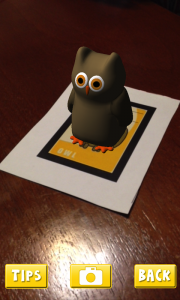
AR Flashcard – Animal Alphabet

AR Flashcards are a series of Augmented Reality apps used to teach your students words and concepts based on different categories such as animals, shapes, colors and planets. By using 3D animation, AR Flashcards bring print outs of animals and planets to life.

Some main features include:

  • colorful renditions of animals, dinosaurs and the solar system
  • sound effects
  • screenshot button which allows you to save your pictures

Click here for more information…


AR Flashcards are great tools for early childhood educators and English as an additional language (EAL) instructors. AR Flashcards create an entertaining way to introduce different vocabulary words to young children. According to testimonials, students have engaged with the app and have enjoyed the learning process:

“It’s definitely unique and a very clever way to get children involved in learning the alphabet and animal names.”

“Love how the animals pop up! My son gets a huge smile on his face when the animals appear. The new graphics are great and being able to take pics is cool.” (Augmented Reality Flashcards).


  1. Download and print out the cards from here . (Tip: print out flashcards in color and use cardstock paper)
  2. Download and install AR Flashcards to your mobile devices (the Alphabet and color have free versions where as the rest are paid apps) .
  3. Double tap the screen to bring up the focus button onto the flashcard so that you can adjust your device’s camera to bring the cards to life.

videopng-360x61.png

Leave a Comment

Filed under AR & VR, Math, Not Subject Specific, Resources

Google Street View: Explore natural wonders and world landmarks

whatisit.png

Google Street View is a fun way to create your own 360 panoramic pictures and to engage in a 360 experience of places shared by others.


Below is a live example:


Why-is-it-relevant-360x82.png

Google Street View can help students visualize and understand the world around them. By using Google Street view, students have the opportunity to explore, collaborate and share images around the world. Google Street View can be used by teachers to engage students during their geographic, historical or social science lectures. In addition, it can also be used as a unique way to tell a story.

Content is continually being added to Street View and may require some ‘sifting through’ for quality. Students can also be creators and work together to create their own 360° pictures and share them with the world. They can even add notes about their images. NOTE: as a google product, privacy and permissions are important considerations. See this blog post about FIPPA.


how-to-get-started-360x80.png

To view:

  • Download the Google Street View app on your mobile device (your mobile phone, your iPad, or your Android tablet).
  • Log in with your Google account.
  • Click on “Explore” and search for the place you’re interested in. (You can expand the “results” at the bottom of the screen to see a full list of places available.)
  • Select the place.
  • Click on the panoramic icon (compass) to go into 360° view.
  • Click on the Google Cardboard icon and use your VR headset to view the image.

To share and contribute:

  • Click on the camera at the bottom right to create your image.
  • Choose the type of device you are using. Click on the last option, “camera,” if you’re using your phone/iPad camera.
  • To line up, make sure that the orange dot is inside of the white circle.
  • Turn around to take a 360 image.
  • Click on the “check mark” to save your image.
  • To publish your image, here are the steps:
    • Under “Private,” tap Select.
    • Choose a photo to publish.
    • If you have applied blurring, choose if you want to apply the blur to your published photo. Tap More More and then Apply blurring or Remove blurring .
    • Tap Upload .
    • Tap Publish. You’ll see your photo under “Profile”.
  • Now you can view your image on your own device or with the Google Cardboard/ VR headset, and also share your 360 image with your students/friends!

Feel free to use our lesson brief to introduce Google Street View to your students (click Google Streetview Lesson to download).

Follow the steps in this video to upload your 360 images:


videopng-360x61.png

Leave a Comment

Filed under AR & VR, Not Subject Specific, Resources