Tag Archives: physics

Phenomenal Physics & Astronomy… At Home!

whatisit.png

Throughout the summer, the UBC Physics and Astronomy Outreach team will be introducing physics and astronomy activities that can be easily done at home and adapted for online teaching & learning. Accompanied with extensive tutorials and detailed instruction guides, the Phenomenal Physics & Astronomy at Home program is an ideal resource for teacher candidates to explore and potentially incorporate into curriculum planning. This blog post will provide an overview of this exciting outreach initiative and highlight two specific challenges that have been shared so far.

Some physics and astronomy concepts you can expect to encounter in the activities:

  • Conversion of potential energy into kinetic energy
  • How to build momentum
  • Transmission of vibrational energy in sound waves
  • Structure of the solar system (e.g., the Sun, planets, comets)
  • Gravitational force

Where science meets technology… digital technologies featured in these activities include:

  • Scratch
  • Science Journal (resource post coming soon)
  • And many more


Why-is-it-relevant-360x82.png

While many classes and summer camps may not be held in-person at this moment, the commitment to providing high-quality education does not waver. Evolving with the current situation, the UBC Physics and Astronomy Outreach program provides an excellent array of ideas for teacher candidates to facilitate experiential and play-based learning. Given that so much teaching is conducted across a screen, more than ever can students benefit from applying learned concepts to hands-on activities. For more information about play-based learning and the integration of digital technologies, check this blog post written by Yvonne Dawydiak, Learning Design Manager in the UBC Faculty of Education.

In addition, the Phenomenal Physics & Astronomy at Home program engages students in challenge-based learning. Known for its interdisciplinary approach, challenge-based learning promotes collaboration between teachers and students and invites learners of all levels to tackle real-life problems through designing, articulating, and implementing their own solutions. Rather than focusing on whether their work meets certain standards, students can unleash their creativity and build connections across different subject areas — something that’s not always inherently evident in content-specific learning. Not only can students deepen their understanding of the course content and develop problem-solving skills, they also have the opportunity to showcase their work! The UBC Physics and Astronomy Outreach Team loves to hear from participants and regularly features project submissions on their website and social media platforms.


how-to-get-started-360x80.png

  1. Check out Phenomenal Physics & Astronomy at Home
  2. Select a challenge that you are interested in.
  3. Browse through the selection of Youtube videos and online interactive activities for inspiration!
  4. For teacher candidates, the “build your own” section might be of special interest as it outlines specific physics and astronomy concepts related to the activity.
  5. If you have any questions, please feel free to contact the outreach team! Your questions will be answered by a team of dedicated physicists and astronomers.


Activity Spotlight: Build a “Rube Goldberg Machine”

This fun activity allows students to integrate different physics concepts (e.g., levers, pulley, momentum) and design a unique machine! Yes, that’s right – a unique machine. From a dog treat dispenser to a complex machine serving cake, the possibilities are endless.

Suitable for all grade levels, this activity invites students above grade 8 to complete independently, students in grades 3-7 to seek some guidance from the activity worksheet, and those under grade 3 to coollaborate with parents/teachers.

For more information, please visit the “Build a Rube Goldberg Machine” activity page. Here is a video of Alex showing how his dog treat dispenser works!

Activity Spotlight: Build your own solar system

It’s time to build your own solar system! While we love using those colorful fruits to represent Mars and Venus, we are also excited to share with you how to create a virtual simulation of the solar system. For teacher candidates, this activity can be a wonderful opportunity to introduce students to the basics of coding. Scratch is a simple programming language that enables students to design their own projects and experiment with different features. From adding a few comets to altering each planets’ orbital period, each student can create a unique solar system.

Similar to the challenge above, the Physics and Astronomy Outreach team has prepared activity worksheets accomodating various age levels.

For more information, please visit the “Build you own solar system” activity page. Below is a video demonstration of setting up a solar system on Scratch. Details on how to get started with Scratch can be found here.

Leave a Comment

Filed under Resources, Science, Technology

TLEF 2016-2017: Faculty Project Partner Testimonials

We are very grateful for the partnership of several Faculty members and their students during and beyond this project!

Reflections of Marina Milner-Bolotin, Assistant Professor, EDCP 357:

The Camtasia video projects her students created with the help of our project team are available as open resources via her STEM Videos For All website and Youtube channel. We were extremely fortunate to be able to work with her in support of our project and found that the assignment developed collaboratively with Marina built naturally upon work she began as part of an earlier TLEF project she was awarded. “Making a big difference with very little: Creating a community resource for hands-on math and science activities on a “shoestring budget”

Summary of reflections from Christine Bridge, Sessional Instructor, LLED 361:

“I try to infuse technology into my own practice and very much value and appreciate how open Yvonne has been in being able to connect, bounce around ideas, and walk through new tools — not to mention all the support she offers students outside of class time” (Christine Bridge, testimonial)

In addition, Christine informed us that the feedback she received from her teacher candidates was always very positive, and she only wished her students had a longer amount of time to interact and engage with technology.She enjoyed our sessions so much that she repeatedly sought Yvonne’s guidance and support and felt that our engagement with the teacher candidates was so important that she would invite us again to her LLED classes for the following reasons:

  • To help TC’s gain awareness of an array of technologies that might be implemented into their future practice
  • To provide them with the opportunity to ‘test-drive’ new tools
  • To highlight effective practice modelled in a comfortable setting, to brainstorm possibilities in a variety of subject areas, and to ask questions
  • To engage in meaningful discussions about issues such as copyright, privacy, permissions, moderation, etc. that otherwise might not occur
  • To facilitate pedagogical discussions surrounding the use of technology in educational settings

Reflections of Wendy Traas, Reference Librarian, Education Library UBC:

One important session we conducted during this project concerned Open Educational Resources (OER). For this topic, we held various workshops and collaborated with Jo-Anne Naslund and Wendy Traas, librarians in the Education library. Together we exposed teacher candidates to new technologies and resources available online and within the library promoting practical teaching practices and discussing ethical obligations as digital citizens. Reflecting back on her experience with this partnership and TLEF project, Wendy Traas found that she had grown as an educator and attained new pedagogical skills:

As a teaching librarian, these sessions have given me valuable opportunities to explore emerging conversations and tools around digital literacy and links to pedagogy. As a result of this project, I am more aware of tools such as makerspace kits, student response systems, open education repositories, and virtual and augmented reality. The project has inspired me to incorporate many of these into my branch to support student learning.  (Wendy Traas, testimonial)

In addition, Wendy found that our project provided students with a means to develop their digital literacy and pedagogical approaches:

Digital literacy is an important topic for new teachers, requiring them to consider their own practices in addition to modelling them in the classroom with students. Given the rapid change of digital technologies, this project is a timely opportunity for students to learn new skills and develop critical thinking skills about the many pedagogical applications. By working within specific courses, the project allowed students to explore tools and strategies in an authentic and meaningful way. (Wendy Traas, testimonial)

Leave a Comment

Filed under Blog Posts

Camtasia EDCP Assignment – Marina Milner-Bolotin

Slide1


From EDCP website

chalk-fonts

For this assignment you will be using Camtasia software available for free to all UBC students through CONNECT to create educational videos through editing available raw science teaching videos. Videos will be housed on the STEM Education For All Youtube Channel.

For your video please follow the assignment checklist:

  • UBC signature video in the beginning of video.
  • Project signature slide followed by filled out video topic slide (exported as images from the PPT template).
  • Acknowledgements slide at the end of the video.
  • Use the “Fade” transition between slides and video.
  • Use the soundtrack provided as background music for the slides (audio was downloaded from PremiumBeat.com and does not require attribution).
  • Annotate (using callouts, arrows and lines) the raw video to emphasize key terms, concepts or elements.

chalk-fonts


There are many outstanding educational STEM videos available on YouTube and other online sites. These videos are great teaching resources for you and your students. They are especially valuable for flipped classrooms that are becoming more and more common in British Columbia and around the world. As a 21st century teacher you will want to create your own videos that address the needs of your students. A teacher who knows how to create his or her own educational videos using a video editing software, such as Camtasia, has a very useful skill under their sleeve. The goal of this workshop is to introduce you to Camtasia so you can become such a teacher.

chalk-fonts
    1. For this project many of you will be using lab computers, but you can replicate this process on your personal device.
    2. Locate your movie file (if you are using a file created by Marina, select one from folder “Camtasia Workshop Dec. 2016” on the desktop of the lab computer and open the file “Camtasia Movie List”.

      1. Choose the topic you will be working on and locate the associated video file in the folder “Raw Videos for Camtasia Movie List”.
        • Prior to starting your presentation, view the raw video and make note of important vocabulary (consider ELLs as you do this).

      1. Additional files needed for producing the video can be found in the folder “Files for Camtasia Production”. These include the UBC video Brand Tail, PPT template and music file.
        • Open the STEM Video template and customize it for your video / topic (insert images/video screenshots into image placeholders).

      • Export your PPT slides as images in .png format

      1. Change project screen dimensions to 720p HD (1280×720)

      1. Import all your media (video, audio and images) into Camtasia.

      1. Add media to timeline. Note: keep different media file types on separate timelines for ease of editing.

      1. Annotate your video using callouts, arrows and lines.

      1. Save your final work.

    1. Click on the SHARE button to Export your file as a video in .mp4 format.
    • Name your file (see example on whiteboard for naming protocol)

chalk-fonts

Leave a Comment

Filed under AppliedDesignSkillsTechnologies, Video & Video Tutorials

Reflection in a Plane Mirror – Physics Video Tutorial

tutorial-overview-360x67.png

How can students differentiate distinctly the angle of incidence from the angle of reflection? Where can they locate the normal line? Important key concepts on how mirror reflects light are clearly explained in this video.

created by Teacher Candidates in EDCP 357 using Camtasia software in December 2016 as part of an in-class assignment supported by Dr. Marina Milner-Bolotin along with her GAAs (Solmaz & Gerald) and our TLEF coop student (Katya)

Leave a Comment

Filed under Resources, Video & Video Tutorials

Universe Sandbox

Universe Sandbox is a physics-based Virtual Reality (VR) platform that offers users access to various advanced simulations. Using this software, you will be able to explore what happens if two galaxies collide or an asteroid crashes into earth with great detail and accuracy and you have the option of viewing this on VR headsets.

EDUCATOR PRICE: $16.74 (Original price is $ 24.99)

FEATURES:

  • Climate simulation
  • Advanced collision simulation
  • Stellar evolution and supernovae
  • Terraforming
  • Light-warping black holes
  • Dark matter
  • Procedural surfaces and planets
  • Original soundtrack by Macoubre (available for purchase in the future)
  • VR support (currently only HTC Vive/SteamVR)

Universe Sandbox is an advanced simulator and a fascinating tool to use in your physics classes. For younger students (grades k- 7), it could be an engaging way to introduce the solar system and examine the effects of gravity. For older students (grade 8-12), Universe Sandbox could be used to explore more complicated issues such as the greenhouse phenomena and climate change.

Using Universe Sandbox, you and your students can create and destroy planets on an unimaginable scale whether on a large screen or through VR headsets.

  1. Sign up for a teacher gaming account here and wait for them to validate your account (you will receive a 33% discount).
  2. After the purchase, you can access Universe Sandbox and explore the possibilities in your physics classes!

Leave a Comment

Filed under AR & VR, Resources

Arduino

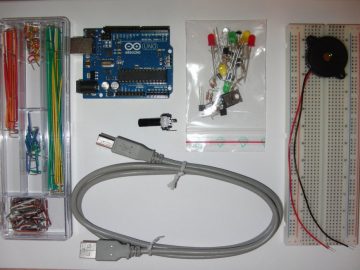
Arduino-UNO-kit


Creative Commons licensed image courtesy of redcctshirt Flickr

whatisit.png

Arduino is a small open-source electronics platform that integrates hardware and software. The Arduino board can either be purchased online or borrowed from the UBC Woodward library. The software is available for free online for Windows, Mac and Linux.

Features include:

  • Hardware is inexpensive (between $5 and $40 depending on brand and where you purchase)
  • Software can run on 3 different operating systems
  • Relatively simple programming, good for beginners
  • Open-source software and hardware

Why-is-it-relevant-360x82.png

Arduino is a very useful tool for creating various interactive projects or just exploring programming and electronics. It is an excellent application to help students develop the core competencies of critical thinking and problem solving. With Arduino hardware an instructor can create various sensing equipment for a lab activity, like a sonar sensor, light sensor or even a humidity sensor and then use the software to run the equipment and show outputs. Using this technology would be a cost efficient and novel way of running a lab where students would be able to learn even more hands on things. Students could use the hardware to create a robot that they can then control by programming commands into the software. The process of assembling the hardware teaches many things at once: circuitry,  design and troubleshooting skills. Also working with the Arduino software is fairly straight forward and therefore perfect for learning how to code. There are an endless number of projects that can be created using the Arduino hardware and software, check some of them out by clicking here.


how-to-get-started-360x80.png

1. Download and the Arduino software.

  • Choose the platform that your device runs on, Arduino is available for Windows, Mac and Linux.

  • Click on “Just Download” to download for free (or you can contribute by clicking “Contribute & Download”).

2. Then install the software.

2. Plug in your Arduino board using the USB cable.

Creative Commons image courtesy of Jens Ohlig flickr

Creative Commons image courtesy of Jens Ohlig flickr

3. Open the software and select the port to which your Arduino board is connected.

  • If you have trouble locating the port, watch a quick tutorial video here.

4. Set up an LED light following the image below.

  • For the next three steps you can find a more detailed tutorial here.

5. In the Arduino software select Tools -> Examples -> Basics -> Blink.

6. Upload the code from the software to the board and watch the LED blink.

For more information on how to use Arduino, click here to watch tutorials by Jeremy Blum.


videopng-360x61.png

Leave a Comment

Filed under Resources

Law of reflection: the distance between a mirror and a virtual image – Physics Video Tutorial

tutorial-overview-360x67.png

Is there an experiment that can help convince our students that the distance between a virtual object to a plane mirror is exactly the same as the distance between the object and the mirror? Students can directly observe how a virtual image is positioned in relation to the actual object in this brief and concise video tutorial using just two candles and a piece of plastic.

created by Teacher Candidates in EDCP 357 using Camtasia software in December 2016 as part of an in-class assignment supported by Dr. Marina Milner-Bolotin along with her GAAs (Solmaz & Gerald) and our TLEF coop student (Katya).

Leave a Comment

Filed under Resources, Video & Video Tutorials