
Tag Archives: content creation

Camtasia EDCP Assignment – Marina Milner-Bolotin

Slide1


From EDCP website

chalk-fonts

For this assignment you will be using Camtasia software available for free to all UBC students through CONNECT to create educational videos through editing available raw science teaching videos. Videos will be housed on the STEM Education For All Youtube Channel.

For your video please follow the assignment checklist:

  • UBC signature video in the beginning of video.
  • Project signature slide followed by filled out video topic slide (exported as images from the PPT template).
  • Acknowledgements slide at the end of the video.
  • Use the “Fade” transition between slides and video.
  • Use the soundtrack provided as background music for the slides (audio was downloaded from PremiumBeat.com and does not require attribution).
  • Annotate (using callouts, arrows and lines) the raw video to emphasize key terms, concepts or elements.

chalk-fonts


There are many outstanding educational STEM videos available on YouTube and other online sites. These videos are great teaching resources for you and your students. They are especially valuable for flipped classrooms that are becoming more and more common in British Columbia and around the world. As a 21st century teacher you will want to create your own videos that address the needs of your students. A teacher who knows how to create his or her own educational videos using a video editing software, such as Camtasia, has a very useful skill under their sleeve. The goal of this workshop is to introduce you to Camtasia so you can become such a teacher.

chalk-fonts
    1. For this project many of you will be using lab computers, but you can replicate this process on your personal device.
    2. Locate your movie file (if you are using a file created by Marina, select one from folder “Camtasia Workshop Dec. 2016” on the desktop of the lab computer and open the file “Camtasia Movie List”.

      1. Choose the topic you will be working on and locate the associated video file in the folder “Raw Videos for Camtasia Movie List”.
        • Prior to starting your presentation, view the raw video and make note of important vocabulary (consider ELLs as you do this).

      1. Additional files needed for producing the video can be found in the folder “Files for Camtasia Production”. These include the UBC video Brand Tail, PPT template and music file.
        • Open the STEM Video template and customize it for your video / topic (insert images/video screenshots into image placeholders).

      • Export your PPT slides as images in .png format

      1. Change project screen dimensions to 720p HD (1280×720)

      1. Import all your media (video, audio and images) into Camtasia.

      1. Add media to timeline. Note: keep different media file types on separate timelines for ease of editing.

      1. Annotate your video using callouts, arrows and lines.

      1. Save your final work.

    1. Click on the SHARE button to Export your file as a video in .mp4 format.
    • Name your file (see example on whiteboard for naming protocol)

chalk-fonts

Leave a Comment

Filed under AppliedDesignSkillsTechnologies, Video & Video Tutorials

Content creation and curation

create


cc flikr stream: suttonhoo22

whatisit.png

Content creation for educational purposes differs from our usual understanding of content creation for the web. We have to take into consideration that the audience is no longer a faceless public, but rather a classroom of learners and parents. So although we are creating shareable and editable videos, images, text, presentations and so forth, you might not want to use the same software used for a primarily web audience. The resources presented here have been selected for their educational value.


Why-is-it-relevant-360x82.png

There has been an increasing shift over the past decade in the use of digital devices and media towards creation, storage and sharing and away from simple consumption. Given the many user-friendly digital tools now widely available, so-called amateurs are now in a position to unleash their creative genes and produce content like never before.We are “now able to create, capture and store an ever-increasing amount of digital information about or for themselves, including emails, documents, portfolios of work, digital images, and audio and video recordings, and can edit, share, and distribute them easily over the net via blogs, personal webpages, peer to peer networks, or shared services”.

As a result of this phenomenon, there are now a proliferation of on-line spaces where individuals and groups can create, co-create, save, store and share their work; a few of which I will share here today.


how-to-get-started-360x80.png

Of course, here at UBC, students and faculty have free access to UBC Blogs and UBC Wiki for content creation and storage but there are many more spaces ‘out there’. Take a moment to check these and others out out. Find a space that works for you or share your own favourite space by commenting! *while all of the applications listed below have some kind of free access, these are not all ‘open’ resources.

  • Interested in digital storytelling? Find some cool tools and share your stories at 50Ways to tell a story.
  • Self-publish your own digital children’s books for FREE ePubBud
  • Store and share your own teaching resource ‘binders’ (basic membership free) at LiveBinders
    *Visit this pbworks wiki page for an introduction to livebinders.
  • TeachAde is an online community for educators that allows lesson storage, sharing and discussion – a potential commmunity of practice
  • Pinterest is a space where you can store and save images for inspiration or use.
  • Teachertube allows users to upload educational video content – this site tends to be ‘free’ of the type of ads found on other popular ‘tube’ sites (IMHO, a ‘safer’ bet for housing and displaying content for students!)
  • While Edutopia doesn’t afford the ability to archive your own material readily, you can access a variety of resources, blogposts, articles and even join the conversation in their blog space.
  • TeachersNet allows you to share your own ideas, learn from others and participate in dialogue through chatboards.
  • Participate in the co-creation of knowledge on Wikieducator which also allows you to save ‘books’ of content
  • See this list of Top 10 Social Network sites for teachers… more on this later when we explore Personal Learning Networks!
  • iTunes U houses free educational/academic content. You can even create and share your own course! See this tutorial.
  • Feeling really brave? Try creating or co-creating your own course – MOOC – see this guide for a  how to on mobile moocs.

*Please note that most spaces (with the exception of UBC blogs/wikis) are housed on American servers and, in accordance with FIPPA, you may not upload and share student content or images without explicit permissions.

**Always check copyright and attribute where needed before sharing content you didn’t create yourself!


videopng-360x61.png

Leave a Comment

Filed under Not Subject Specific, Open Educational Resources, Resources

Stockvault: Free Stock Photos and Graphics

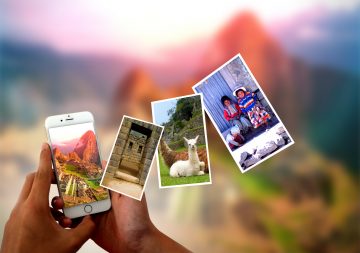
Photo sharing from the smartphone - Instant pictures concept

whatisit.png

Looking for free stock photos to enhance your classroom lectures, presentations, and student projects? Stockvault is an online collection of user submitted material available for use in non-commercial purposes. Featured images range from photos and pencil sketches to computer generated graphics such as textures and illustrations. With over 50,000 categorized and tagged images in their database, you should be able to find that image that illustrates your idea quickly, easily, and for free.


Why-is-it-relevant-360x82.png

Visual content is proving to be a valuable resource as a more engaging tool than plain text. Coupled with video, a multimedia presentation with interesting visuals brings out more conversations and responses from the audience, and the content is better retained. The value of visual content for educational purposes is definitely positive! Because it is so simple to gather free images from Stockvault, with little effort, there can be great engagement. The website also provides tutorials on content creation and photo editing. You may find these tips useful when preparing your material. This section can be found as a link in their top menu.


how-to-get-started-360x80.png

  1. Visit their website through the following link: http://www.stockvault.net/
  2. Use the Search function with keywords such as “animals”, “flags”, etc. Alternatively, you can browse through the categories listed on the left-hand side of the front page.
  3. Images that require payment will be loaded first, followed by the free images.
  4. Choose an image under “Free Stock Photos” and click on it.
  5. A new page with the image will open up with a download button on the left.

videopng-360x61.png

Leave a Comment

Filed under Not Subject Specific, Resources

App Smashing & Digital Storytelling

I’ve recently been exploring the world of App Smashing as a way to create digital stories with students. The use of several apps, rather than relying on a single app to ‘do everything’, more closely mirrors real world applications. Ask any multi-media developer, film-maker or videographer and they will likely report the use a suite of applications to get the job done. By engaging our students in a more authentic process and by utilizing the distinct and  various affordances of mobile technologies, we are helping to redefine learning opportunities.

In an earlier post, I discussed the SAMR ladder – Ruben Puentedura’s suggestion for evaluating the learning value of various technologies.  According to Puentadura, at the lowest levels of the ladder (substitution and augmentation), little increased learning occurs. It is only at the highest levels (modification and redefinition), that we see significant gains in student learning. I see huge potential with App Smashing for climbing the SAMR ladder! View this site for a ‘quick guide’ to SAMR for teachers.

The following are some resources by Greg Kulowiec, who, I believe, coined the term ‘App Smashing’. Check them out. Learn to engage your students in creating their own content using various apps. Try out a few different applications (ipad, tablet, smartphone and cloud) and see what you can create!

What is an App Smash? –  Greg Kulowiec shares the term in this blog post to describe the use of several different apps to allow students to create an enhanced multi-media project – in this case, a timeline for a social studies project. Often, App Smashing is used in terms of collaborative content co-creation – a powerful approach! Imagine, students can each be creating parts of a production on their ipads, share to their camera roles, share via email or the cloud and then co-create a single project (or several complimentary projects perhaps!).

In general, you can follow these steps to ‘smash’ ‘Greg-style’:

  1. Create content with one app
  2. Create content with another app
  3. Merge the content together
  4. Publish the content to the web

In this post, Greg models a more complex app smash to create and share student created multimedia on a blog (he uses blogger, but you can easily do the same in WordPress).

Try this: In our sandbox session, we tested out an app smash using Explain Everything (a robust whiteboard style app), Tellagami (to create your own speaking avatar) and iMovie to smash it all together!

Other Resources:

Greg’s slides introducing App Smashing

The Definitive App Smashing Guide

How have you Smashed? Seek and Share ideas using #ettipad

//

Leave a Comment

Filed under Blog Posts

Content creation and curation

There has been an increasing shift over the past decade in the use of digital devices and media towards creation, storage and sharing and away from simple consumption. Given the many user-friendly digital tools now widely available, so-called amateurs are now in a position to unleash their creative genes and produce content like never before.

cc flikr stream: suttonhoo22

We are “now able to create, capture and store an ever-increasing amount of digital information about or for themselves, including emails, documents, portfolios of work, digital images, and audio and video recordings, and can edit, share, and distribute them easily over the net via blogs, personal webpages, peer to peer networks, or shared services”.

As a result of this phenomenon, there are now a proliferation of on-line spaces where individuals and groups can create, co-create, save, store and share their work; a few of which I will share here today.

Of course, here at UBC, students and faculty have free access to UBC Blogs and UBC Wiki for content creation and storage but there are many more spaces ‘out there’. Take a moment to check these and others out out. Find a space that works for you or share your own favourite space by commenting!

  • Interested in digital storytelling? Find some cool tools and share your stories at 50Ways to tell a story.
  • Self-publish your own digital children’s books for FREE ePubBud
  • Store and share your own teaching resource ‘binders’ (basic membership free) at LiveBinders
    *Visit this pbworks wiki page for an introduction to livebinders.
  • TeachAde is an online community for educators that allows lesson storage, sharing and discussion – a potential commmunity of practice
  • Pinterest is a space where you can store and save images for inspiration or use.
  • Teachertube allows users to upload educational video content – this site tends to be ‘free’ of the type of ads found on other popular ‘tube’ sites (IMHO, a ‘safer’ bet for housing and displaying content for students!)
  • While Edutopia doesn’t afford the ability to archive your own material readily, you can access a variety of resources, blogposts, articles and even join the conversation in their blog space.
  • TeachersNet allows you to share your own ideas, learn from others and participate in dialogue through chatboards.
  • Participate in the co-creation of knowledge on Wikieducator which also allows you to save ‘books’ of content
  • See this list of Top 10 Social Network sites for teachers… more on this later when we explore Personal Learning Networks!
  • iTunes U houses free educational/academic content. You can even create and share your own course! See this tutorial.
  • Feeling really brave? Try creating or co-creating your own course – MOOC – see this guide for a  how to on mobile moocs.

*Please note that most spaces (with the exception of UBC blogs/wikis) are housed on American servers and, in accordance with FIPPA, you may not upload and share student content or images without explicit permissions.

**Always check copyright and attribute where needed before sharing content you didn’t create yourself!

Leave a Comment

Filed under Storytelling