Tag Archives: slideshow

Prezi Presentation Tips: Dos and Don’ts

Untitgfgfled


by leonor brilha

whatisit.png

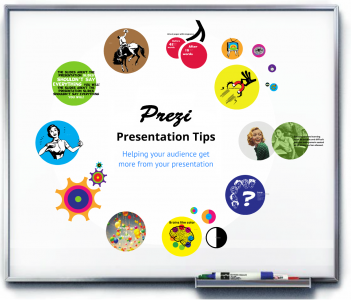
Prezi is a visually based presentation software that supports a non-linear storytelling approach to presentations. With many affordances, including the ability for the audience or presenter to zoom in and zoom out of the screen, Prezis can be powerful but they can also be problematic.

You may have used or seen a Prezi presentation. In case you’re not sure, Prezi is a presentation tool, that instead of following a linear format (slide after slide), it uses zoom and pan to connect the frames, changing not only the dynamics of a presentation, but also changing the way the audience makes connections between the ideas presented. Or at least, that’s what’s supposed to be the main advantage of using Prezi over other tools. However, as you may have seen, the zooms and pans are used by presenters only as fancy transitions between frames, with a lot of us in the audience left wondering, “What’s the point in all of this? All of this coming in and out of the screen, it’s so confusing. Should’ve just stuck to the good old slides.”

Below are some tips to support creating effective Prezi Presentation.


Why-is-it-relevant-360x82.png

What many presenters don’t realize is that, when choosing one presentation tool over another one, you have to make the most of what it has to offer. Prezi’s strength is in its non-linearity, but that doesn’t mean that the frames should be displayed randomly on the screen. The non-linear flow allows for seemingly unrelated concepts to come together by making new meaningful connections between them. Meaning through visual metaphors can be created by significant (hierarchical for example) spatial positioning on the screen and differentiation or similarity of concepts can be achieved by exploring design elements (colors and shapes). The biggest lesson is to use less text and bullet points, and let the visuals and transitions tie in the concepts of your presentation.


how-to-get-started-360x80.png

Before starting work on Prezi:

  • Think about what are the main goals of the presentation and what’s a good visual metaphor to represent it. This will be your main layout, which can be a path, map, tree, etc.
  • Also take into consideration what kinds of connections are there between your ideas and design the frames in relation to the layout. Where on the layout does it make the most sense to place each frame? How does it connect with the frame immediately before and after it, and how does it connect in general with the other frames?
  • Think about your presentation with a view of the whole in your mind, because at many times the audience will be able to see all the frames, and you want to draw the eye towards focus points.
  • Think about what visual/temporal patterns you’re creating with your presentation and how that’s going to influence the pattern of thoughts and learning process in the audience.

For a visual summary of these ideas and more tips for Prezi (made with Prezi!), please refer to this Prezi and video below it that walks through it.



videopng-360x61.png

Leave a Comment

Filed under multimedia creation, Not Subject Specific, Resources

Haiku Deck

D


“The Wanderer’s Eye Photography”

whatisit.png

Haiku Deck is a presentation tool that simplifies the task of preparing a slideshow. It comes in two flavors: mobile app and web version, both of which create slideshows that can be viewed instantly on screen, or shared with a link. Like most presentation creators out there, it allows the user to add text, images, graphs, and public or private annotations. Here’s a comparison of the free and paid versions

[column size=3]

Free version:

  • Limited to 3 decks
  • Decks must be public
  • Themes
  • Uploading own images

[/column][column size=3]

Paid version:

  • Unlimited decks
  • Downloadable decks
  • Video
  • Private Decks

[/column]


Why-is-it-relevant-360x82.png

The great thing about Haiku Deck is its simplicity and how intuitive it is. Users can just click on anything to figure out what to add to the slideshow. Furthermore, with its embedded image search capability (Haiku Deck even suggests a few keywords pulled from your text to use!), users can easily add Creative Commons licensed images into the presentation, without having to worry about copyright issues. The attribution is added to the presentation automatically. Graphs can also be created in-app with all the necessary labels and values. In summary, it allows the presenter to focus on creating the content, rather than spending valuable time with preparing visuals.


how-to-get-started-360x80.png

Check out this example made with the web version, then watch the video below for a walk through:

Haiku deck – Created with Haiku Deck, presentation software that inspires


videopng-360x61.png

Leave a Comment

Filed under Not Subject Specific, Resources

Stockvault: Free Stock Photos and Graphics

Photo sharing from the smartphone - Instant pictures concept

whatisit.png

Looking for free stock photos to enhance your classroom lectures, presentations, and student projects? Stockvault is an online collection of user submitted material available for use in non-commercial purposes. Featured images range from photos and pencil sketches to computer generated graphics such as textures and illustrations. With over 50,000 categorized and tagged images in their database, you should be able to find that image that illustrates your idea quickly, easily, and for free.


Why-is-it-relevant-360x82.png

Visual content is proving to be a valuable resource as a more engaging tool than plain text. Coupled with video, a multimedia presentation with interesting visuals brings out more conversations and responses from the audience, and the content is better retained. The value of visual content for educational purposes is definitely positive! Because it is so simple to gather free images from Stockvault, with little effort, there can be great engagement. The website also provides tutorials on content creation and photo editing. You may find these tips useful when preparing your material. This section can be found as a link in their top menu.


how-to-get-started-360x80.png

  1. Visit their website through the following link: http://www.stockvault.net/
  2. Use the Search function with keywords such as “animals”, “flags”, etc. Alternatively, you can browse through the categories listed on the left-hand side of the front page.
  3. Images that require payment will be loaded first, followed by the free images.
  4. Choose an image under “Free Stock Photos” and click on it.
  5. A new page with the image will open up with a download button on the left.

videopng-360x61.png

Leave a Comment

Filed under Not Subject Specific, Resources