Tag Archives: multimedia

A brief history… Timelines

Global logistics concept with industry icons

I came across TimeToast awhile ago and was just reminded of it this morning as a tool for creating interactive digital timelines. There are many digital tools available for timeline creation – I’ve listed several in the ‘how to get started’ section below including a few open educational resources. There are also, many ways to create timelines as ‘no or low tech’ projects in a classroom using sticky notes, cards and string.

For Timetoast, a free account allows photos to be uploaded, annotations and live links. I love the ‘timespan’ option, allowing a span of time to be highlighted and annotated. This adds some depth and interest to the typical timeline.

Public timelines can be viewed and shared ‘as is’; your own Timelines can be saved and made private or public. When public, you can share via Facebook, Twitter or by grabbing embed code. Teachers can easily upload the timeline to the class website or blog for home viewing.

As I messed about with it again, I considered a variety of uses; both personal and professional. As a teaching tool, timelines have so many possibilities. Here are a few that come to mind:

  • A classroom calendar embedded on the class blog or website – the initial timeline can house calendared events over the year and can also be added to over time either by student request due to personal milestones (lost tooth chart anyone?!) or as the class wishes to share learning events and activities with the world.
  • Social Studies units could be greatly enhanced by students creating their own timelines of historic events, life and times of… or the class can co-create a timeline as they explore a specific person, place or time.
  • Tracking growth and change in a Science experiment using both photos and text is a unique way to share.
  • A unique way to create an  ‘About Me‘ or ‘About my Family‘ or ‘History of my Community‘. A recent teacher candidate created a beaded timeline with her students to help students learn more about the Indigenous presence in her school community!
  • Create a digital story – fiction or non-fiction
  • A way of sharing Inquiry learning; a timeline might help highlight the ‘process’

Timelines can be valuable in a second language classroom such as French Immersion, Core French, etc; allowing  students to creatively engage in language learning.

What uses come to your mind? Comment to share!


There are several free timeline programs (and plenty of ways to create timelines using other programs – PPT or Padlet or a mindmap come to mind). Here are a few programs with specific timeline features:


Leave a Comment

Filed under Curriculum, Inquiry, Interactivity, Not Subject Specific, Planning, Resources, Science, Social Studies, STEAM, Technology

Digital Storytelling

Digital Storytelling: a new spin on an old tale. Creating their own stories or telling stories using digital means challenges students to move beyond being the consumer and instead become creators by adding multi-media to their narratives. That same story also becomes accessible to a broader audience by adding videos, graphics, and audio, through web-based platforms or other applications.

We can also recognize that incorporating storytelling in learning environments helps to support the First People’s Principles of Learning and has been shown to support the preservation of cultural knowledge and tradition in some cases.

A digital story is the use of technology to tell a story (Robin, 2015). It is a process of weaving together oral story, images, sound, and music to create a short film (Lambert, 2010). Within the process, traditional aspects of storytelling are integrated with multiple layers. Digital storytelling is increasingly being used for educational purposes (Robin, 2015), leaving legacy (Hausknecht et al., 2019) and as an approach to preserving cultural knowledge (Cunsolo Willox et al., 2013; Iseke & Moore, 2011).

From: Hausknecht, S. (07/2021). Sharing indigenous knowledge through intergenerational digital storytelling: Design of a workshop engaging elders and youth Taylor & Francis. doi:10.1080/03601277.2021.1927484

Digital storytelling is not limited to personal narratives and the range of topics varies from historical timelines, personal reflections on local or global events, and even exploring the community and sharing one or many perspectives. Choosing to create a digital story allows the creator to choose and expand their audience and increases accessibility and interactivity for the ‘readers’ or ‘viewers’. A story can go beyond the page as readers engage with the visual and auditory elements that a digital story provides.

an eight step cycle diagram of creating a digital story from propose an idea to research to storyboard, gather images and create.

from Transform Learning by Samantha Morra https://samanthamorra.com/2013/06/05/edudemic-article-on-digital-storytelling/

Getting started

  1. The first step is recognizing what type of story your students are expected to share. You can follow Samantha Morra’s Process Model or get inspired by her post. Remember, the options for content are virtually limitless. You can expand this topic to include recounting mathematical discoveries, retellings of famous fairytales, or provide explanations of scientific theories. Here are a few slides co-created with a colleague, Sharon, that helps to outline ‘one process’ for this… Once you have an idea of your story and how you want to share it, then you might start thinking about the medium (digital or otherwise)
  2. Choose the tool(s) you want students to use to edit and share their work (or allow students to select a tool with which they are familiar). It is helpful for students to have the opportunity to play with the tool and become more adept and familiar with the program before fusing this with their story. We’ve listed some tools below to help you get started.
  3. Plan! Make sure students have a clear goal they are researching or writing about. This could include scripts, storyboards, comic strips, sequences, or even timeframes. You may also want to scaffold students by having them create a storyboard and then a paperslide video depending on their experience.
  4. Teach about copyright so that your students know where to find and how to cite/attribute appropriate images, sounds, or videos. Access Creative Commons media or record and use your own. For professional images that don’t require attribution visit Unsplash, Pixabay , Pexels. or elementary students might find pics4learning easy to use (with copy/paste attribution). Depending on the device, students can also use Garageband or Audacity to create their own music.
  5. Create the digital story and select the appropriate audience. If it’s going public, remember to get the appropriate permission forms signed that may be district dependent. Be aware of student ages and also where the website or application is based because they will follow different privacy laws.
  6. Provide feedback through peer evaluations, self-evaluations, and even a rubric that students can use throughout the creation process. Visit this link to Kathy Schrock’s Guide to Everything for some sample rubrics and additional resources.

Watch this video to preview a variety of tools being used to create digital stories.

Video: Hans Tullman (2015). Digital Storytelling by Hans Tullman


Or this interactive Genially presentation by Tamara, Peer Mentor 2023, highlighting several different multimedia tools (with examples and hyperlinks).

Leave a Comment

Filed under Curriculum, Digital & Media Literacy, Not Subject Specific, Planning, Resources, STEAM, Storytelling, Technology, The Arts

Multimedia Creation: consider the tool for the task

Creating a multimedia presentation for your coursework at UBC is a great way to learn a new digital technology that you might then bring to your practicum class. Rather than relying on an ‘old standard’, consider this as an opportunity to take a risk and/or select a digital technology that might be of interest to your future students! Be sure, as discussed, to think about your objectives before selecting the appropriate digital technology and, remember, technology for creation in the hands of your students is a very powerful thing!

This interactive genially presentation, created by Tamara, Peer Mentor, 2023, models some effective presentation elements while showcasing multiple tools you might use to create your own presentations. Embedded links and examples included!

BEd Teacher Candidates (TCs) will have opportunities to flex their digital technology muscles by creating presentations for course assignments and by planning ways to engage their own students on practicum in using digital (and other) technologies.

For example, elementary and middle years TCs in many sections of LLED 350 Classroom Discourses  may create a multi-media presentation in response to their “Literacy Autobiography Assignment” and LLED 360 secondary TCs will likely be asked to consider multi-literacies and multimedia as part of their summer coursework. These assignments, and others, afford TCs opportunities to develop digital and technological literacy while also considering ways in which multimedia and multimodal teaching and learning tools and approaches might benefit their students.

Bloom's Taxonomy cc image from Wikimedia Commons

By Xristina la [CC BY-SA 3.0 (https://creativecommons.org/licenses/by-sa/3.0)], from Wikimedia Commons

It is my hope that TCs see this as not simply an opportunity to learn to develop their own skills as students but will see the potential for incorporating this kind of assignment into their own teaching practices to provide their own students with opportunities to CREATE (rather than simply consuming) as a way to achieve higher order thinking (Bloom’s Revised Taxonomy pictured here)

As part of our professional learning, we need to discuss the importance of building digital and media literacy.  Assignments like the one noted above, provide opportunities to do so. Students will likely see a valuable connection between the BC Digital Literacy Framework and the Core Competencies!

Some Considerations

Copyright and media

The use of Creative Commons images by teachers for their presentations models appropriate copyright and digital citizenship for our students. Unsplash and Pixabay are two of my favourite sources of CC images (no attribution required – though they don’t mind if you buy them a coffee once in awhile!)

Tools Choice

In addition to the genially presentation shared at the top of this post, some tools to support multimedia creation are highlighted in the blog post, Digital Storytelling, by a former peer mentor, Janis. As you begin to plan the story you want to tell, you’ll likely consider the affordances of the technologies available to you and how they will enhance your story…

Knitting Literacy by Shania (a clean, simple video slide show with text overlay introducing us to key vocabulary) provides an example of  a video that can be created with pretty well any video editing software or app (iMovie, MovieMaker, Camtasia, Animoto or others)

The Google Slide Deck below offers a few tool suggestions and considerations for choosing the ‘tool for the task and context’ to help you ‘get started’ creating multimedia stories.


A pedagogical note

When working with your own students, you might consider introducing ‘new’ digital technologies to students in an experiential and playful way. Rather than ‘teaching’ whole class ‘how to’ use a particular technology (and risk losing many of your students to boredom or going over their heads), I have always provided my students (of ALL ages from K through secondary) opportunities to play with a given app or tool for a period of time prior to there being an expectation of actually using it for a given purpose. I find this helps lessen anxiety and affords students the opportunity to learn from and teach one another.My ‘general’ process for this:

  1. Show the students a very brief example of the technology ‘in action’
  2. Provide time for the students to play with the technology in  pairs or small groups (with the instruction that they may only ask the teacher to help with tech issues – can’t open, won’t boot, etc – for the first 5 to 15 min depending on the complexity of the tech).
  3. Teacher circulates and invites students to share (or ‘satellite’) their knowledge with others.
    • Once students have had exposure to different ways of representing their learning, I strongly recommend providing them with some choice and agency. Providing the choice of medium, from digital to analogue, helps meet the needs of varied learners and supports a Universal Design for Learning approach to planning and teaching.

In my experience, students can and will teach themselves and each other even more complex applications. I followed the above process with a group of grade 1/2 students using Garage Band to learn to create PodCasts. Within about 1/2 hour, all of the students were able to create a file, add loops, add audio and images. After their initial exploration, students storyboarded and created some very informative podcasts about the salmon in our classroom were ready to share with the school!

As a long time elementary teacher, I always try to provide my students with time to ‘play out’ and experiment with any technology – from math manipulative to science equipment to art supplies to digital technologies. Philosophically, I love being able to incorporate the above approach into my co-teaching in the BEd program and hope TCs are reminded to give their own students such opportunities in order to allow them time to co-construct their knowledge and skills! YD


Leave a Comment

Filed under Blog Posts, Curriculum, Digital & Media Literacy, multimedia creation, Not Subject Specific, Planning, Resources

Mind Maps App

section header - what is it?

Mindmaps is a concept mapping app that is open-source, totally free and without advertisements. Moreover, the app allows you to build your concept map in your browser and save it in several formats. This is only one tool for creating mind maps or concept maps. To learn more about high tech, low tech and no tech approaches to mind-mapping, please visit the “Concept Maps for Teaching and Learning” blog post.

section header - why is it relevant


There are many ways to build concept maps, including apps. Unlike this app, however,  many of them require an account or download of the program, or have restrictions in the free version making them less useful to educators. Concept or Mind-mapping is a powerful teaching, learning and organizational strategy that provides a visual means of understanding or representing ideas.

  1. Go to mindmaps.app
  2. Click in Central idea in the red circle and include the main idea of your concept map
  3. Move the red dot that appeared inside your central idea to create sub-ideas.
  4. Add a sub-idea to the new box that appeared.
  5. Use the Navigator on the right side to visualize the whole design of your concept map.
  6. Change the color and style of your words and arrows using the Inspector on the right of the screen.
  7. Click on an object to move it or change its dimensions.
  8. Save or export your project choosing a format (top-right corner).

Video Demonstration

This video is a demonstration of how to build a conceptual map using the features of the Mind Mapping App:


Guest post by Peer Tutor Ariane Faria dos Santos (Ph.D. EDCP), March. 2022.

Leave a Comment

Filed under Curriculum, Digital Tools and Apps, Not Subject Specific, Resources

Concept Maps for teaching and learning

What are concept maps?

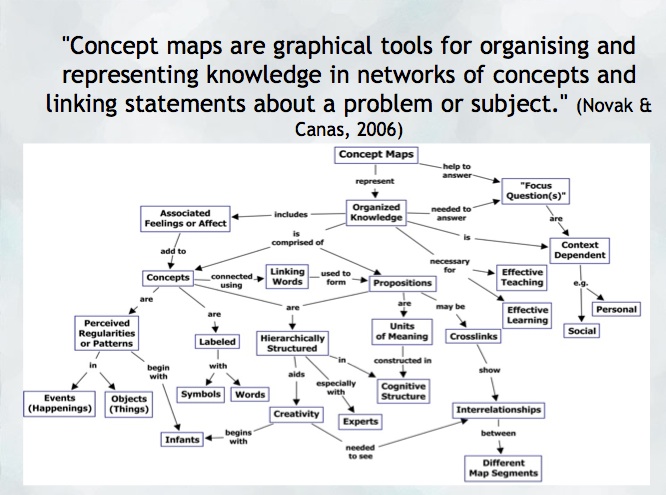
“A concept map is a type of graphic organizer used to represent knowledge of a topic, forge connections between ideas and create visual representations of one’s understandings. Concept maps begin with a main idea (or concept) and then branch out to show how that main idea can be broken down into specific topics” (Novak & Canas, 2006).  Visit the Concept Mapping resource post on this blog for a brief overview and links to resources.

Features of concept maps

There are four essential features represented differently in a concept map:

  1. Concepts: are words that try to represent a phenomenon, object, or idea. They may synthesize patterns in events or knowledge produced over time. In concept maps, these are depicted as shapes in the diagram.
  2. Linking words/phrases:  are used to connect two or more concepts and express some kind of relationship between them. They may indicate cause, consequences, conditions. In general, are written using a verb or few words.
  3. Focus concept or question: it is the main goal of a concept map.  It may be a question, an explanation, or a general idea that conducts your thought and organize all ideas around in the concept map. It is highlighted in the concept map, depending on the hierarchy chosen (top, center, etc.).
  4. Hierarchical and structure: it is how you will choose to organize the main concepts and their connections. It can be hierarchical (the main concept in the top), circle (the main concept in the middle), or other shapes appropriated to the idea you want to express.

Read more on  about the ‘concept’ of ‘concept mapping’ in this blog post on the “Inspiration” website and how teachers and their students might use concept maps, mind maps, or outlines to support writing, idea generation, and organization, planning and more. Inspiration is a software commonly found on school district devices.

You can also find a step-by-step construction of a concept map about the solar system in the Lucidchart or in the example below:

When to use concept maps in education?

Concept maps are powerful graphic organizers that can be used in many ways to illustrate and explore connections across ideas. In this sense, concept maps allow students to formulate their understanding in a non-linear way of thinking, showing their process of thinking during understanding a new idea or content.

Teachers can use concept maps to:

  1. Build new knowledge, deepen students’ understanding: designing a concept map provides students and teachers with an opportunity to construct and share their understanding of a topic, theme, concept, area of interest. This Edutopia article provides a good starting point for learning more about the power of concept maps and other strategies to support deeper thinking.
  2. Identify possible misconceptions: during the process of designing a concept map, teachers can understand better the logic used for students to build their knowledge and the origin of misconceptions. Curtis Chandler, a former Kansas teacher of the year shares how concept maps can be used to understand some students’ misconceptions or not use accurate language in a ‘middleweb’ blog post.
  3. Designing lessons: concept maps can even be used by teachers as a format for planning units or lessons of instruction, allowing teachers to visualize the logic used to connect several lessons into a unit plan or make cross-curricular connections.
  4. Assessment: concept maps can help students illustrate the connections between their ideas, concepts, or content in meaningful ways and can be used as formative and summative assessments. The University of Waterloo has some guides about what is important to consider when designing rubrics for assessing concepts maps.
  5. Create study habits: teachers can have students create concept maps summarizing the main ideas of a unit, creating the habit of continuum revision of the knowledge learned.
  6. Encourage collaboration and communication: a mind map might be collaboratively constructed in real time or asynchronously (using appropriate apps) allowing students to negotiate, think critically and communicate their ideas and understandings with others.

How to get started? mindmap

As mentioned, CMaps, concept maps can be analogue or digital. Teachers might consider providing students with a choice in developing their map using high tech or low/no-tech approaches depending on the objectives. If the objective is to widely share the map, then digital may be preferable (of course, students might also take a photo of a map ‘in process’ and one that is ‘completed’ in order to share as part of a portfolio or published work/project).

Some higher-tech options

  • Mindmaps: it is a tool that allows you to create concept maps without the need for an account. It also allows you to save your map in the cloud or download it to your computer.
  • Inspiration or Kidspiration as computer based or iPad apps Highly visual concept mapping software that allows the user to easily insert images from a large media folder. School districts commonly license these applications for use on their devices.
  • Bubbl.us is an online collaborative concept mapping software – each individual with an account can be invited to contribute to a given map being created in the cloud. With a paid educator account, a teacher can invite students using a link to either view or collaborate (students do not need to provide their information or sign up for an account). Paid app with Free trial options for Educator accounts.
  • For schools using ‘Google Classroom’   MindMup or Miro offer collaborative mindmapping (login required)
    • Teachers should always be aware of appropriate permissions in their context/school districts. These might include parental consent, student informed consent or it may not be permitted to have students sign up using gmail or other account information.

No/Low Tech Options

Collaborative or Individual drawing on chart paper or using sticky notes on a whiteboard or a table with a group of students are great options for kinesthetic or non-digital mind mapping. A primary teacher might even have students use kinesthetic, solid objects to create their mind map. Teachers might begin helping students develop their ability to connect ideas by providing a skeleton. This will help scaffold learning and introduce students to different ways to connect ideas.

Freeform Concept maps can be drawn by hand or using some of the available draw applications made for smartphones and tablets!


References:

Novak, J. and Cañas, A (2006): The Theory Underlying Concept Maps and How to Construct Them (Technical Report IHMC CMap Tools 2006-11). Florida Institute for Human and Machine Cognition.


Original post YD 2017 adapted by Peer Tutor Ariane Faria dos Santos (Ph.D. EDCP), Feb. 2022.

Leave a Comment

Filed under Active Learning, Assessment, Blog Posts, Curriculum, Digital Tools and Apps, Inclusive Practices, Inquiry, Not Subject Specific, Planning, Remote teaching & learning, Resources, STEAM

CBC Curio.ca


CBC Curio.ca images are provided for download by CBC

Curio·ca is CBC’s educational streaming subscription service. Available on the site are stories from the English television news broadcast, The National, and its French counterpart, Le téléjournal, as well as segments from national and local radio news and feature episodes from regular television broadcasts. Curio.ca also hosts arts and entertainment programming, including performances from the Stratford Festival, CBC/Radio-Canada drama and comedy programs, and a range of children’s programming.

UBC students, faculty & staff Library users have access to Curio.ca’s thousands of television shows, radio programs, teacher guides, and K–12 curriculum connections. Available in both English and French, they cover a wide range of topics suitable for all ages. Although UBC doesn’t currently have access to the BBC and National Geographic content, Curio.ca remains a super resource for complementing and extending lesson activities and assignments.


As teachers, we are all aware of thinkers such as John Dewey and Jean Piaget, who advocated for approaches to learning that address what today we call “real-world problems” and “experiential learning.” Even though Curio.ca, itself, is not a hands-on activity per se, it does provide a diverse selection of supplementary programming resources – including news and feature reports on current events – that help contextualise, extend, and inspire lessons and assignments that teachers and students work with each day.

Not only can Curio.ca’s resources provide alternative ways to digest and appreciate information, they can also help to motivate students and teachers to approach education in ways that more readily pertain to or resonate with the world beyond the four walls of the classroom.


The best way to learn more about Curio.ca, especially as a new user, is to jump in and search through the diverse selection of archived programming. As it happens, navigating the Curio.ca site is similar to searching the Scarfe Digital Sandbox.

  • For UBC students, staff and faculty, visit curio via the Education Library for full access.
  • Search by Provincial Curriculum via the Ed Library CWL login. Here you can further filter the search by subject area, language (French or English) and more.
  • Searches are possible by age group, language (English or French), or curricular subject, and also by those resources most recently added.
  • The site’s toolbar headings and sub-headings arrange various “collections” of programming and resources into different “categories.” These identifiers overlap, which makes for more thorough searches that turn up specific results each time. Although this means that search results eventually repeat, the Curio catalogue goes back a long way – English content dates back to the 1960s and French back to the 1940s, which is nearly back to the beginning of CBC/Radio-Canada. The overlapping search results also help to highlight interdisciplinary connections between different programs.

For a look into our country’s cultural and media history, and for some rich lesson planning ideas, check out Canada’s on-line public news resource, CBC Curio.ca!


No
Chalk Fonts

@

var $j = jQuery.noConflict(); $j(document).ready(function(){removeAttribution(); removeTwitter();}); function removeAttribution(){var x=document.getElementsByClassName(“attributeBoolean”)[0].innerHTML; var y=document.getElementsByClassName(“postAttribution”)[0]; if (x == “No”){y.style.display=”none”;}} function removeTwitter(){var x=document.getElementsByClassName(“twitterBoolean”)[0].innerHTML; var y=document.getElementsByClassName(“twitterAttribution”)[0]; if (x == “”){y.style.display=”none”;}}

Leave a Comment

Filed under Not Subject Specific, Resources, Video & Video Tutorials

CBC Curio.ca

A Virtual Third Place: The Canadian Broadcasting Corporation / Société Radio-Canada.

On November 2, 1936, Canada’s federal government under Prime Minister Richard Bennett created the Canadian Broadcasting Corporation / Société Radio-Canada, a Crown-owned media corporation.

The CBC commenced radio broadcasts later that year, followed by television broadcasts in 1952. The decision to institute a public broadcasting service was twofold: firstly, to counter the influence of American broadcasts, a motive that remains to this day, and secondly, to help Canadians stay informed and in touch across the country’s vast geography. By way of transmission on radio waves accessible to Canadians using electrical devices, this country established a technological public space, something we would call in today’s vernacular a “virtual” third place – read more about “the third place” below.

L’évolution de l’identité visuelle de CBC / ICI Radio-Canada de 1940 à nos jours.
Photo: Radio-Canada

Since its inception, CBC/Radio-Canada has been a leading provider of national and international news and cultural, educational, and informational programming, including long-running series such as The Nature of Things, Quirks and Quarks, Ideas, Marketplace, and the fifth estate. In recent years, as new technologies have influenced the way people access programming, changes to formatting and delivery have been necessary to maintain the CBC’s audience numbers (McGuire, 2009). Those changes include the addition of a web-based resource called CBC Curio.ca.

Curio.ca is CBC’s educational streaming subscription service. Available on the site are stories from the English television news broadcast, The National, and its French counterpart, Le téléjournal, as well as segments from national and local radio news and feature episodes from regular television broadcasts. Curio.ca also hosts arts and entertainment programming, including performances from the Stratford Festival, CBC/Radio-Canada drama and comedy programs, and a range of children’s programming.

UBC students, faculty, staff, and on-site Library users have access to Curio.ca’s thousands of television shows and radio programs as well as teacher guides and K–12 curriculum connections. Available in both English and French, the programs and teacher guides cover a wide range of topics suitable for all ages. Although UBC doesn’t currently have access to the BBC and National Geographic content, Curio.ca remains a superb resource for complementing and extending lesson activities and assignments.

“Information flows freely and rapidly across borders, creating instant access to international news events. For global literacy to become integral to the [school] experience, [educators] must discover ways to make it relevant in the classroom.” (Petrausch, 2005, p. 5)


Create, Make, Innovate: Getting Hands-on with Learning Design

Recap of the session in the Scarfe Foyer in the Fall of 2019:

At this week’s Create, Make, Innovate! activity session, on Tuesday, October 15th, 2019, teacher candidates (TCs) explored the on-line planning resource, CBC Curio.ca.

Thanks to some interactive facilitation by Graduate Academic Assistant, Jennifer Abel, and Education Librarian, Wendy Traas, TCs were led through some guided browsing of the Curio.ca collection. Using the site’s quick navigation search tool, they were able to see and assess for themselves the various programming resources and curricular guides that are available. These guides make use of existing provincial curricula, making them more immediately applicable than a more generic teacher guide might be.

Downloadable image available from https://www.cbc.ca/curiopromokit/creative-assets

Navigating through the Curio.ca resources is similar to searching the Scarfe Digital Sandbox. A diverse selection of programming can be searched by category, age group, language (English or French), or subject. Toolbar headings and sub-headings arrange various “collections” of programming and resources into different “categories.” These identifiers overlap, which makes for more thorough searches that turn up specific results each time. Although this means that search results eventually grow repetitive, the Curio catalogue goes back a long way – English content dates back to the 1960s and French back to the 1940s, which is nearly back to the beginning of CBC/Radio-Canada!

“Curio.ca gives teachers and students streaming access to the best in educational video and audio from CBC and Radio-Canada. You’ll find documentaries from television and radio, news reports, and more…”

– from CBC Curio.ca

Resources

One issue-driven collection in the Curio.ca resources is called “Fake News and Misinformation,” which offers a series of sub-topics, e.g. Bias and Reliability, Disinformation and Lies, Safeguarding Social Media, each with its own catalogue of short, informative video features and news reports. By selecting several videos, perhaps in concert with an historical article from The New York Review of Books, an international study on addressing the spread of misinformation, and a report from the Pew Research Center, a Secondary teacher or a group of teachers could have the makings of a robust unit plan, addressing concerns as well as responses to the issue of fake news.

In a related story, there’s potential for an interdisciplinary investigation by “combining the expertise of both the social sciences and computer science” into an automated analysis that can help “news aggregators to detect and visualize the occurrence of potential media bias in real time” (Hamborg, Donnay, & Gipp, 2018).

Finally, based on Wilhite’s (2015) fascinating interdisciplinary study of how reporting style itself influences news audiences, students and teachers might even decide to practise applying their evaluative skills while using the Curio.ca site, itself.

For a look into our country’s cultural and media history, or for some rich lesson planning ideas, check out Canada’s very own trustworthy on-line public news resource, CBC Curio.ca.


More about “The Third Place”

Have you ever heard of Ray Oldenburg and the Third Place?

No, it’s not a music venue or public house although you’re on the right track.

Oldenburg was an American sociologist who proposed the idea that we spend our lives in cultural “places,” the “first” being home, the “second” being work, and the “third” – no less significant – comprising various public venues where we come together and share company. Today, these might be plazas and high streets, where cafés, pubs, markets, salons, and all variety of hangouts and community centres line the sidewalks. According to Oldenburg, this third place and its togetherness are vital to sustaining a healthy democracy.

Cultural practice of the Third Place concept traces a long, absorbing history. In Ancient Greece, the agora was a city-state’s literal “gathering place,” where spiritual, cultural, political, and even military circles conjoined. Much later, in the 15th century, Islamic culture introduced a smaller but equally potent space, the coffee-house, which spread from the Arabian peninsula to Istanbul and beyond, to places as far away as Venice, Oxford, and London. Among its many social functions, the coffee-house became an interdisciplinary centre, a hub for cultural debates, news reports, and the general exchange of information between people from uncommon walks of life and status, all taking place in an atmosphere far less formal than a university, trade centre, or government house (White, 2018).

“A Coffee House in the Time of Charles II
From a wood cut of 1674” (Ukers, 1922, p. 60)

Today, a common comparison of the coffee-house is made to social media. The analogy is apt: Pew Research Center recently reported that “those who use social media… are more regularly exposed to people who have different backgrounds and more connected with friends they don’t see in person.” Pew also reported that, at the outset of the 21st century, “digital platforms [played] a larger role in news consumption, and… [seemed] to be more than making up for modest declines in the audience for traditional [primarily physical print] platforms” (p. 1). Furthermore, the influence of social media and search engines had made peoples’ news gathering and consumption habits more intermittent.

Certainly, apps and platforms like Instagram, Twitter, Snapchat, and Facebook play with Oldenburg’s concept of the Third Place in ways that denizens of the coffee-house might have appreciated today yet could not have imagined in their time. For its dearth of in-person contact, arguably its fundamental feature, social media’s once-removed stance is also critiqued as an insidious pitfall. Where a coffee-houser had as much assurance as we do that what they learned might be true, they were linked neither instantaneously nor indiscriminately to all other coffee-housers simultaneously but sat face to face across from only those with whom they spoke. Such is the potential of the Third Place on-line today, that our interaction with social media might actually serve to undermine us, unless we take active and careful precaution.

Read more from Royal Roads University about how young people engage with politics via social media, and about the role that social media plays in politics within smaller communities.


Acknowledgement: post author, Scott Robertson; editor, Yvonne Dawydiak

Interdisciplinarity, collaboration, hands-on learning – that’s the spirit of Create, Make, Innovate! We want to promote enthusiasm for sharing and learning across age groups and across subject disciplines.

Make, Create, Innovate sessions took place during the Fall 2019 in the foyer of the Neville B. Scarfe building and were hosted by Scott Robertson, a project assistant on a small TLEF grant with Dr. Lorrie Miller, Dr. Marina-Milner Bolotin and Yvonne Dawydiak, Teacher Education.

If you have an idea or an inspiration for a resource or future session, please let us know! scarfe.sandbox@ubc.ca


References

Hamborg, F., Donnay, K., & Gipp, B. (2018, November). Automated identification of media bias in news articles: An interdisciplinary literature review. International Journal on Digital Libraries, 1–25. https://doi.org/10.1007/s00799-018-0261-y

McGuire, Jennifer. (2009). “Biggest change in history of CBC News: What it means to you”. Cbc.ca. Last updated October 26, 2009. Retrieved October 2, 2019 from https://www.cbc.ca/news/canada/biggest-change-in-history-of-cbc-news-what-it-means-to-you-1.864143

Petrausch, R. J. (2005). Five strategic imperatives for interdisciplinary study in mass communications / media studies in the U.S. and U.K. International College Teaching Methods & Styles Journal, 1(3), 1–10.

Ukers, W. H. (1922). All about coffee. New York, NY: The Tea and Coffee Trade Journal Company. https://archive.org/stream/allaboutcoffee00ukeruoft#mode/1up

White, M. (2018, June 21). Newspapers, gossip, and coffee-house culture. Retrieved from https://www.bl.uk/restoration-18th-century-literature/articles/newspapers-gossip-and-coffee-house-culture

Wilhite, C. J. (2015). Mass news media and American culture: An interdisciplinary approach. Behavior and Social Issues, 24, 88–110. doi: 10.5210/bsi.v.24i0.5004

Many thanks to Jennifer Abel for helping contribute to this week’s blog entry as well as facilitating the activity session!

Leave a Comment

Filed under Not Subject Specific