Tag Archives: image search

Creative Commons Search: Find media you can use, share and remix!

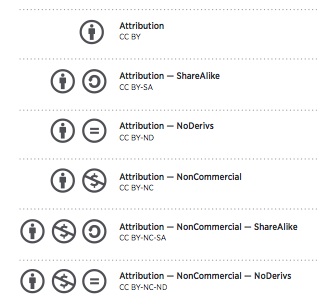
CC Search is an engine where you to find Creative Commons content that you can share, use and remix for educational and other purposes. Using CC Search, you can search for a variety of media types. Remember, though, you still need to attribute/cite sources with most CC content. Some public domain sources do not require attribution (though link backs and credit are always appreciated!)

All resources have individual licensing within the creative commons. As you develop your own resources, you can even apply your own CC license to your content online. For more about how to determine the licensing you want, visit: https://creativecommons.org/choose/

Knowing how you plan to use the media can help in your search. In the CC search, you can select or deselect “resources you can modify or adapt” and “use for commercial purposes” depending upon your intent and context.

Below are some direct links to sources of Creative Commons Images:


As a teacher, you will want to find multimedia resources to use in your slides, presentations, handouts, on your professional blog or class website. You will also want to share with your students how and where they can find copyright appropriate images and media for their own multimedia projects. It is a common misunderstanding that « educational fair use » allows teachers and students to use works/images for their own work published online. Our Ed library has a comprehensive resource detailing image use.
Taking and editing your own photographs or videos has great value but may not always be possible. CC search helps you gather resources that you can feel free to use, as long as you are aware of licensing requirements and generally attribute the work to the author. ALWAYS read and learn before you use!
Often I will create a set of resources or slides for use in my own classroom and then wish to share these with students, colleagues or parents online. Beginning with creative commons media as a starting point ensures my work can be freely shared! This can also open the door to more widely sharing with the educational community through open education repositories such as Teach BC or even the Scarfe Sandbox ;D

  1. Go to https://search.creativecommons.org/
  2. Select “Use for Commercial Purposes” if you are going to sell or share ‘for profit’, and check the box for “modify, adapt or build on” if you plan to remix or change the media in some way. You can leave both boxes unchecked if you’re looking for educational media to us ‘as is’. This will garner more images.
  3. Scroll through the media presented, Select one you like.
    1. You will see the attribution and license link below the image. Copy this so that you can cite the image in your presentation.
    2. To Save/Download the image: Right click (control click on a mac) to Save the image to your computer or click ‘share’ to share via social media or Pinterest.

For a more targeted search of specific media through several different repositories, CC Search has an alternative and somewhat more complicated interface via their ‘old search’ portal. Here, you select the repository you’d like to search:

For Images:

  • Pixabay – allows immediate sharing to various social network sites including Facebook and Twitter. Some high interest and high quality images. Free with no attribution required. This site also links to high quality stock photos you can pay to use.
  • Open ClipArt
  • Google Image (using CC search, you are automatically doing an advanced image search for copyright appropriate/cc images)
  • Flicker
  • Unsplash ( free photo sharing community)

For Media:  Europeana, Wikimedia Commons, and SpinXpress

For videos and music:  Youtube, ccMixter or Soundcloud

To get started with using the ‘old search’ tool:

  • Go to the old CC Search website.
  • Be sure to unclick the “Use for Commercial Purposes” if you are going to use the content for education, and check/uncheck the box for “modify, adapt or build on” depending on your needs.
  • Choose the source website you are going to search from, input your keywords, and click on the Green Search Button.
  • Finally, choose the appropriate size (smaller for fast loading on web; larger for large display) and download the resource you want to use. Don’t forget to read the author rights and give credit to the author while using his/her work! While some sources do not require attribution, most do.
  • You can also watch this 1-minute video that shows you how to get started.

Leave a Comment

Filed under Not Subject Specific, Open Educational Resources, Resources

Creative Commons Image Search

Taking and editing your own photographs can be a challenging, yet rewarding way to enhance your web spaces. Further, this virtually eliminates copyright issues! Still, if you are looking for web content you can use, here are a few places to look:

Creative Commons Image Search NB: you still need to be aware of licensing requirements and generally attribute the work to the author. ALWAYS read and learn before you use!

Public Domain Image Search *always check the image sources and ensure the image is in the public domain.

  • Wikipedia Public Domain listing – fairly comprehensive
  • Pixabay – allows immediate sharing to various social network sites including Facebook and Twitter. Some high interest and high quality images. Many are free with no attribution required. This site also links to high quality stock photos you can pay to use.
  • UnSplash – high resolution photos, free to use (even commercially) no attribution required (always appreciated though)
  • Burning Well
  • freefoto.com  is one I like to use with younger students when developing digital stories or web-based projects
  • http://www.public-domain-image.com/
  • Various governmental sites offer high quality images – always attribute source and note any special licensing requirements in their FAQ or About pages. These can be particularly helpful for Science and Social Studies!: NOAA photo library (National Oceanic and Atmospheric Administration) ; US Library of Congress ; NASA ; Archives Canada ;
  • Open ClipArt
  • PDPhoto.org  – free public domain images

videopng-360x61.png

Leave a Comment

Filed under Blog Posts, Not Subject Specific, Open Educational Resources, Resources

Understanding Copyright

from: wiki.creativecommons.org/images/6/6d/6licenses-flat.pdf

wiki.creativecommons.org/images/6/6d/6licenses-flat.pdf

whatisit.png

Copyright laws exist to ensure creators of original content to receive compensation (monetary or not) for their work and also that the general public is granted access to these resources and creations. The creator owns the rights to reproduce, distribute, perform, and display the work. Just like any physical object, like a car or house, the owner has to allow someone else to use it. By violating copyright laws, legal action may ensue.


Why-is-it-relevant-360x82.png

You need to understand copyright if you are planning to upload content of any kind to a website. While an idea is not copyrighted, the medium in which it is expressed, be it text, image, music, video, etc., is. Therefore, before grabbing content off the Internet for presentations or lessons, make sure that you have the appropriate permission.

If you’re not sure, it’s just best to find another source. Visit: copyright.ubc.ca for more information or drop in to see them and ask specific questions. They regularly offer workshops and drop in sessions to help keep you informed.


how-to-get-started-360x80.png

As a rule of thumb: Use creative commons or public domain images. When you search for images online use ‘creative commons image search’ and specify your needs. If you do not need the content for ‘commercial purposes’ be sure to deselect this option as your choice of images will ‘open up’ considerably. From the CC image search browser, you can search using several popular sources such as google images, flickr, wikimedia commons and youtube.

Please note that this search will then ‘filter’ the content and attempt to show only those with a CC license – it is still up to you to ensure the content does not contain other licensing restrictions. Licensing restrictions and requirements are generally clearly stated on the image source page. If this page states this is under CC license with attribution, then you need to attribute  the work to its author (cite it). There are often guidelines on how to do this within the page. In general, I always ‘attribute’ whether this is required or not.

Two of my favourite sources of high quality images, clipart and video are: pixabay and unsplash. The material on these two sites is CC licensed with NO attribution required – many of the images on the Scarfe Sandbox website are from these two sources. One reason that such high quality content is free of charge is that the authors of these ‘gifted’ images also sell via the sites’ affiliated stock photo galleries.

For more information and links to other creative commons image/media sources and to learn more about how to use them in your classroom, please visit this blog Post.


videopng-360x61.png

Leave a Comment

Filed under Not Subject Specific, Open Educational Resources, Resources

Stockvault: Free Stock Photos and Graphics

Photo sharing from the smartphone - Instant pictures concept

whatisit.png

Looking for free stock photos to enhance your classroom lectures, presentations, and student projects? Stockvault is an online collection of user submitted material available for use in non-commercial purposes. Featured images range from photos and pencil sketches to computer generated graphics such as textures and illustrations. With over 50,000 categorized and tagged images in their database, you should be able to find that image that illustrates your idea quickly, easily, and for free.


Why-is-it-relevant-360x82.png

Visual content is proving to be a valuable resource as a more engaging tool than plain text. Coupled with video, a multimedia presentation with interesting visuals brings out more conversations and responses from the audience, and the content is better retained. The value of visual content for educational purposes is definitely positive! Because it is so simple to gather free images from Stockvault, with little effort, there can be great engagement. The website also provides tutorials on content creation and photo editing. You may find these tips useful when preparing your material. This section can be found as a link in their top menu.


how-to-get-started-360x80.png

  1. Visit their website through the following link: http://www.stockvault.net/
  2. Use the Search function with keywords such as “animals”, “flags”, etc. Alternatively, you can browse through the categories listed on the left-hand side of the front page.
  3. Images that require payment will be loaded first, followed by the free images.
  4. Choose an image under “Free Stock Photos” and click on it.
  5. A new page with the image will open up with a download button on the left.

videopng-360x61.png

Leave a Comment

Filed under Not Subject Specific, Resources

Canva : creating free infographics

Canva is a web-based and IOS application that you can use to create attractive infographics such as logos, blog banners and invitations. It allows users to use its drag-and-drop feature with professional layouts to design their own creative graphics. With their Free version, you can use templates and invite people to collaborate and share their work. NOTE: Canva is not Canadian housed. Visit this post to learn more about protecting student privacy.

Here is an example of what a Canva infographic might look like:


The application is designed in a way that encourages its users to keep their content simple and attractive. Canva is all about highlighting the key ideas without cluttering your information, which can often be unattractive or overwhelming to viewers. In addition, Canva offers many free photos and templates that you can use in your class presentations, conference posters, reports, etc.

As a teacher, you can use Canva to design your posters and infographics to use in your classes and, depending on permissions and access, your students might use Canva to create and share their own visuals.


  1. Go to the Canva website and click “Start for Free” on the front page.
  2. Enter your information, and confirm your email address.
  3. Log in to Canva with your newly created account and get creating.


Leave a Comment

Filed under Not Subject Specific, Resources