Tag Archives: ETS

Webcams and Virtual Field trips: engagement and real-world connections!

“Incorporating webcam images into a curriculum expands the tools educators have to help explain ideas and concepts to students. Webcams can be used as a teaching tool, with images and data from the webcam sites incorporated into a teaching module, emphasizing a concept or point. Webcams can also be used in an exercise, where students find webcams from different parts of the world that fulfill a set of criteria set by the educator.”

(Sawyer, Butler & Curtis, 2010)

There has been a great deal of research on the value of connecting students to the natural world. The BCEd plan advocates experiential learning and many publications expound the impact of time spent in nature on the health and well-being of both children and adults. While taking students outdoors as often as possible is inarguably the most valuable form of field experience, webcams and Virtual Field Experiences can provide an alternative when this is not possible. Webcams can also be used to supplement an ‘actual’ field trip and support ‘real time’ data collection in the classroom prior to, following or in lieu of a field experience; to pre-play or re-play the opportunity.

For many teachers, taking students outside of the immediate local environment is difficult if not impossible. While many recognize the value in even accessing natural areas if they exist within walking distance of the school, field experiences (even a walk down the block) can pose barriers to teachers (geography, safety, scheduling, financial issues, permissions and district or school policies to name a few). Virtual experiences like webcams (or interaction with experts via web conferencing as a virtual field trip or even via social media), can eliminate these barriers and the instantaneous, multi-modal nature of the interaction helps to make the experience particularly relevant to learners today (Prensky, 2001).

Having students interact with natural environments and people via webcam allows students to see beyond the school walls even when they are confined by those walls. Real-world experiences, even those mediated by digital technologies such as web-cams, increase student motivation, engagement and learning at all grade levels (NREL, 2005). Further, while being immersed in natural environments is superior, simply viewing nature in images or video can improve mood and lessen anxiety (Louv, 2008).

While the concept of viewing nature videos or participating in virtual field trips is not new to teachers, the increase in number and quality of live streaming webcams combined with increased access to technology in schools, make the potential for this sort of observation more accessible.


There are so many potential uses for Webcams & virtual tours in the classroom. From geography to science to critical thinking, storytelling, problem solving and observation. From whole class engagement, to small group, to individual and even ‘passive’ observation where the ‘cam’ is left live on the projector for students to observe as desired or as needed. Webcams can be part of a learning center or approach along with hands-on manipulatives, magnifiers, measuring tools, books, writing and drawing materials.

See this link for a list of some of our favourite Streaming WebCams for elementary and secondary students.

Download a Sandbox_WebCams_handout

In this edutopia Article, learn how Webcams can “bring lessons to life”

http://www.educationworld.com/a_tech/tech/tech100.shtml


star-fish-242886_1920A favourite experience with my own students was a unit exploring extreme environments. We connected with Ocean Networks Canada, http://www.oceannetworks.ca/, viewed their webcams, collected data and then participated in a ship to shore Skype with an educator aboard a research vessel 100’s of KM off the coast of BC. The students were highly engaged, developed excellent questions for inquiry and did some very creative problem solving – areas each of the core competencies were easily explored in this one unit! Communication, Thinking and Personal Social.

The Vancouver Aquarium has a variety of webcams and teaching resources at vanaqua.org. They also offer Virtual Field Trips (Free in the pilot year with a fee of approx. $60 per class of any size beginning in Sept. 2019) Contact: https://www.vanaqua.org/education/school-programs/virtual-aquaclass (and let  them know you heard about these experiences via UBC’s Faculty of Education Scarfe Sandbox)


A few Tips

  • Know your objectives!
  • Pre-view and pre-test the webcam
  • Have a back up plan – what will you do if the webcam isn’t active or internet is too slow (have students engage in something related – having a ‘sketch journal’ can support effective use of downtime!)
  • Ensure your display is clear and large enough – is there sound?
  • Have students develop questions prior to watching, while they watch or after watching. Can we ‘answer’ our questions (i.e. research) by observing?

Additional Resources:


References:

Butler, D., Curtis, M., & Sawyer, C. (2010). Using webcams to show change and movement in the physical environment. Journal of Geography, 109(6), 251-263. doi:10.1080/00221341.2010.506924

Louv, R. (2008). Last child in the woods : Saving our children from nature-deficit disorder. Chapel Hill, N.C: Algonquin Books of Chapel Hill.

Northwest Regional Educational Laboratory, (2005) Focus on Effectiveness. Retrieved from http://www.netc.org/focus/challenges/student.php

Prensky, M. (2001). “Digital Natives, Digital Immigrants”. On the Horizon 9 (5). Lincoln: NCB University Press.

Leave a Comment

Filed under Blog Posts, Not Subject Specific

Blogs and Social Media – Blending social & academic worlds

Businessman | Hand drawing social network

whatisit.png

Social Networking, defined by Gunawardena et al (2009) as the “practice of expanding knowledge by making connections with individuals of similar interests” is a potentially powerful tool for both Post-Secondary Faculty and the K-12 classroom teacher. Through this networking, students are afforded the opportunity to co-create knowledge within a Community of Practice (Wenger et al, 2002). Further, a recent study conducted by Junco et al (2013) found that “the design of teaching strategies and practices related to virtual engagement and collaboration is instrumental to achieving positive educational outcomes (when using Twitter)” (p.285) and that instructor participation was one key to successful implementation and an increase in student engagement.


Why-is-it-relevant-360x82.png

Considering Blogging or other Social Networking to enhance teaching and learning? Learn more by downloading the handout. You might also visit this Resource Blog I’ve set up with tutorials and tips for teacher and professional blogging using WordPress/UBC Blogs.

Sandbox_Blogs_Nov2013

Questions to consider:

  • What is the purpose for your use of social networking technologies?
  • Do you wish to moderate a discussion?
  • Do you plan to infuse it into various aspects of class?
  • Student sharing of their insights, reflections
  • Co-creation of content or ideas?
  • Sharing of links to content, references, resources
  • Connection with the greater community? Experts?
  • How involved do you wish to be?
  • What affordances and level of control do you need or require?
  • How public or private do you wish this space to be?
  • Can you adjust privacy settings of your chosen digital technology?
  • Will students want or need access to this space after the course is complete?

how-to-get-started-360x80.png

Some places to start:

Blog: Consider setting up a classroom blog where students can reflect on discussion questions, key concepts or images. Consider providing students with their own blog space within the classroom space where they can extend their learning, upload assignments, share their own ideas, thoughts, creations.

UBC Blogs – WordPress

kidblog.org a simple site for student blogs; teacher can set up accounts; no identifying student info or emails required!

Wiki

  • Online encyclopedia
  • Crowd-sourced information and content co-creation
  • Constant evolution/revision
  • May have ‘editors’ to verify content

UBC Wiki

Curriwiki

Wikipedia

Discussion Forum

  • Group discussion forum
  • Often ‘closed’ or invite only
  • Threaded discussion on a topic(s)

Test out the Discussion feature of your LMS – Connect

Micro-blog

  • Traditionally shorter entries than a typical blog
  • Most micro-blogging platforms have word count or character limits
  • Often sharing quick snapshot, link or image

Twitter


videopng-360x61.png

Leave a Comment

Filed under Not Subject Specific, Resources

Content creation and curation

create


cc flikr stream: suttonhoo22

whatisit.png

Content creation for educational purposes differs from our usual understanding of content creation for the web. We have to take into consideration that the audience is no longer a faceless public, but rather a classroom of learners and parents. So although we are creating shareable and editable videos, images, text, presentations and so forth, you might not want to use the same software used for a primarily web audience. The resources presented here have been selected for their educational value.


Why-is-it-relevant-360x82.png

There has been an increasing shift over the past decade in the use of digital devices and media towards creation, storage and sharing and away from simple consumption. Given the many user-friendly digital tools now widely available, so-called amateurs are now in a position to unleash their creative genes and produce content like never before.We are “now able to create, capture and store an ever-increasing amount of digital information about or for themselves, including emails, documents, portfolios of work, digital images, and audio and video recordings, and can edit, share, and distribute them easily over the net via blogs, personal webpages, peer to peer networks, or shared services”.

As a result of this phenomenon, there are now a proliferation of on-line spaces where individuals and groups can create, co-create, save, store and share their work; a few of which I will share here today.


how-to-get-started-360x80.png

Of course, here at UBC, students and faculty have free access to UBC Blogs and UBC Wiki for content creation and storage but there are many more spaces ‘out there’. Take a moment to check these and others out out. Find a space that works for you or share your own favourite space by commenting! *while all of the applications listed below have some kind of free access, these are not all ‘open’ resources.

  • Interested in digital storytelling? Find some cool tools and share your stories at 50Ways to tell a story.
  • Self-publish your own digital children’s books for FREE ePubBud
  • Store and share your own teaching resource ‘binders’ (basic membership free) at LiveBinders
    *Visit this pbworks wiki page for an introduction to livebinders.
  • TeachAde is an online community for educators that allows lesson storage, sharing and discussion – a potential commmunity of practice
  • Pinterest is a space where you can store and save images for inspiration or use.
  • Teachertube allows users to upload educational video content – this site tends to be ‘free’ of the type of ads found on other popular ‘tube’ sites (IMHO, a ‘safer’ bet for housing and displaying content for students!)
  • While Edutopia doesn’t afford the ability to archive your own material readily, you can access a variety of resources, blogposts, articles and even join the conversation in their blog space.
  • TeachersNet allows you to share your own ideas, learn from others and participate in dialogue through chatboards.
  • Participate in the co-creation of knowledge on Wikieducator which also allows you to save ‘books’ of content
  • See this list of Top 10 Social Network sites for teachers… more on this later when we explore Personal Learning Networks!
  • iTunes U houses free educational/academic content. You can even create and share your own course! See this tutorial.
  • Feeling really brave? Try creating or co-creating your own course – MOOC – see this guide for a  how to on mobile moocs.

*Please note that most spaces (with the exception of UBC blogs/wikis) are housed on American servers and, in accordance with FIPPA, you may not upload and share student content or images without explicit permissions.

**Always check copyright and attribute where needed before sharing content you didn’t create yourself!


videopng-360x61.png

Leave a Comment

Filed under Not Subject Specific, Open Educational Resources, Resources

Creative Commons Image Search

Taking and editing your own photographs can be a challenging, yet rewarding way to enhance your web spaces. Further, this virtually eliminates copyright issues! Still, if you are looking for web content you can use, here are a few places to look:

Creative Commons Image Search NB: you still need to be aware of licensing requirements and generally attribute the work to the author. ALWAYS read and learn before you use!

Public Domain Image Search *always check the image sources and ensure the image is in the public domain.

  • Wikipedia Public Domain listing – fairly comprehensive
  • Pixabay – allows immediate sharing to various social network sites including Facebook and Twitter. Some high interest and high quality images. Many are free with no attribution required. This site also links to high quality stock photos you can pay to use.
  • UnSplash – high resolution photos, free to use (even commercially) no attribution required (always appreciated though)
  • Burning Well
  • freefoto.com  is one I like to use with younger students when developing digital stories or web-based projects
  • http://www.public-domain-image.com/
  • Various governmental sites offer high quality images – always attribute source and note any special licensing requirements in their FAQ or About pages. These can be particularly helpful for Science and Social Studies!: NOAA photo library (National Oceanic and Atmospheric Administration) ; US Library of Congress ; NASA ; Archives Canada ;
  • Open ClipArt
  • PDPhoto.org  – free public domain images

videopng-360x61.png

Leave a Comment

Filed under Blog Posts, Not Subject Specific, Open Educational Resources, Resources

iPad possibilities – preparing for practicum!

UBCSandbox

Technology use for technology’s sake is not what we are striving for in education today. Transforming learning by providing opportunities that would not otherwise be afforded is a goal that, with emerging technologies and increased access, may be achievable. This transformation can be as simple as allowing for as-needed differentiation, as is the case when providing a student with the option to audio record, video record or ‘screen capture’ record his/her ideas or can include such opportunities as sharing their ideas and creations with a larger audience online.

Explore some ways to connect with students and provide for interactivity – my top 5 apps for student engagement and expression (including some that are cross platform!). Download the Handout for more information (links to research and practice)

Sandbox_iPad Possibilities_Oct 2015

Always explore with a critical eye and ask yourself key questions such as:
• Is it intuitive?
• Is it interactive? Does it support content creation and collaboration?
• Can you edit once you’ve started?
• Can work be easily exported?


‘Whiteboard style’ applications are terrific for formative assessment, project work and digital storytelling (among other things). I like to offer students the opportunity to share their learning using ‘Explain Everything’ or ‘Showme’. Providing multimodal opportunities for expression and representation of learning supports Universal Design for Learning – remember to consider offering choice!

These apps allow students to create content on the iPad (rather than just ‘consuming’). Students are able to draw, text, upload images and narrate. This can provide the perfect platform for teachers to have the opportunity to recognize understandings and to catch misunderstandings. Using devices to support students creating (or co-creating) stories, presentations & projects moves the learning up the SAMR ladder!


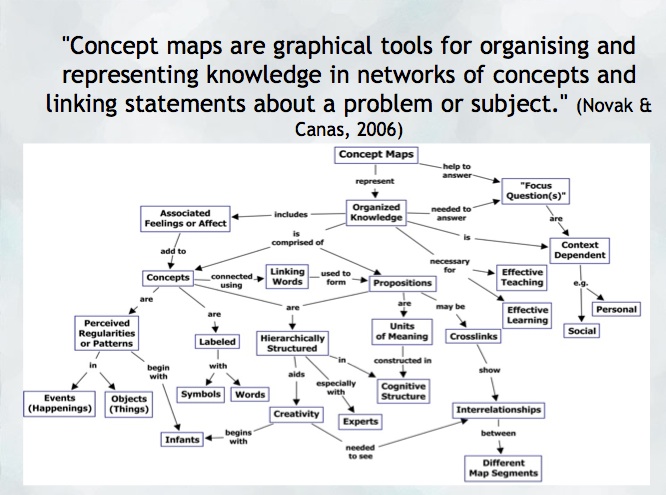
Another opportunity to help a student construct and share their understanding might be a concept map. Mind mapping, or concept mapping, can be a powerful tool where students are encouraged to illustrate the connections between their ideas, concepts or content in meaningful ways.

“A concept map is a type of graphic organizer used to help students organize and represent knowledge of a subject. Concept maps begin with a main idea (or concept) and then branch out to show how that main idea can be broken down into specific topics”.  There are some excellent tutorials on this site and information for teachers about the ‘concept’ of ‘concept mapping’

mindmap
Try: Inspiration or Kidspiration  as iPad apps

*Many schools also have licensing for this application on their computers or laptops.

Digital Storytelling is another excellent use of the iPad for content creation… try Puppet pals, Showme or imovie (among others!)


Sketchnoting and Digital Storytelling offer many opportunities mobile content creation… try Puppet pals, Showme or imovie (among others!)

Feeling ambitious?? Consider this ‘App Smash’ sequence:

  • Storyboard your ideas using Kidspiration (or, better yet, markers and paper!).
  • Create a talking avatar (or narrator) using either Chatterpix (making an avatar with an image of your own) or Telegami (talking, moving avatars) and save the video to your camera roll. *Save a screen shot of the character if you want to embed it into your story at some point!
  • Draw a background using ‘Paper53’ and save it to your camera roll.
  • Now, create a story using either ‘PuppetPals’ or ‘Explain Everything’ (import your background and character into this app)
  • Finally, you can merge it all together using ‘iMovie’! You now have a personally constructed digital story!

Leave a Comment

Filed under Not Subject Specific, Resources

Just Moodling around

stockvault-students113094

whatisit.png

I was recently asked about Moodle and how to go about using it… I’m definitely not an expert in this Learning Management System but I have enjoyed messing about with it to create a course or two during my own Masters Program.

What is Moodle?  “Moodle is a Course Management System (CMS), also known as a Learning Management System (LMS) or a Virtual Learning Environment (VLE). It is a Free web application that educators can use to create effective online learning sites.” from https://moodle.org/

I’ve never personally come across Moodle courses in an elementary school setting. It is, however, commonly used at the secondary and post-secondary level to create online course material. Other LMS’s include: Blackboard, Desire2Learn, Joomla


Why-is-it-relevant-360x82.png

Moodle has a simple interface, with drag-and-drop features, and is highly customizable. It is also free and open source, meaning that anyone with programming skills can adapt Moodle to the particular needs of a school or course.


how-to-get-started-360x80.png

Visit Moodle’s website and try out their online Sandbox – you can practice building a course using the login information provided… note that login times out after about an hour and your work is not saved. You can also take a tour of their ‘demo site’ at the fictitious Mount Orange School. At this fictitious school site, you’re even able to login as a student, teacher, parent or manager to test out features. Take a ‘video tour’ of Moodle and learn more.

Finally, there are many blogs out there where you can learn Moodle tips and tricks (including, of course, the Moodle forums which I’d recommend you join!). Visit Michael Penney’s blog for some very clear and concise tutorials.


videopng-360x61.png

Leave a Comment

Filed under Resources

Hook ‘em – Using Visuals and Multimedia to Engage Students

hook-243684_1280

whatisit.png

A hook or activating strategy is intended to engage students and help them access and apply prior knowledge to the current concept, lesson or unit of study. Auseubel (1978), recognizes that the activation of prior knowledge helps to deepen learning by bridging between what was known and new material.

Creating just the right motivator or anticipatory set for your classroom is essential to engaging your particular audience. While the content of this section of your ‘lesson plan’ or sequence will vary, there are a number of strategies that work for a variety of audiences!


Why-is-it-relevant-360x82.png

 Teachers who employ a variety of strategies, modes and mediums – especially those that contain multi-media content – are more likely to engage and hold the attention of today’s ‘Digital Natives’ (Prensky, 2007). For this reason, Digital Storytelling and the use of high interest graphics are recommended for use as hooks in lesson plans (Bernard, 2006). In particular, to grab learners in the digital age, a ‘TEASe’ (Technology Enhanced Anticipatory Sets) is an excellent option. Combining high interest visuals with sound and even text in a short video or presentation can activate prior knowledge and engender excitement in your audience. Slideshare presentation: When teasing is a good thing!

Read this interesting article about the inclusion of Hooks in a Secondary Science Classroom to help transform learning and engage students or this ASCD article about the value of a well designed ‘TEASe’

Download this handout for a short description of the theory and practice around hooks:  SandboxHooks_rev 2019


how-to-get-started-360x80.png

Good Hooks should capture student interest; connect to prior knowledge or experience and might introduce or explain what is to be learned (learning targets) and how it will be learned. There are so many different strategies for hooks and each individual teacher has his/her own favourites:

  • Download this pdf file of various ‘activating strategies’ for the classroom.
  • Use WORLD MAPPER to view simulations (a map that morphs from geographic to ‘thematic’ and shows population and relative size…).
  • Have you seen the live tweets of the world map? Tweetping shows live tweets ‘as they happen’ while ‘OneMillionTweets’ shows worldwide activity clusters – you can even filter by hashtags – where in the world are people tweeting about a specific current event? an earthquake? etc. Consider how you might garner interest in an issue or current event through a live feed of some sort on display – pick a hashtag and show the feed to your students in real time.
  • Guided Visualization: Have a high quality image or video displayed and engage your students in a guided visualization exercise – Alice stepping through the looking glass… a tornado for that extreme weather unit and you are Dorothy…
  • Hook Stations are an active and hands-on form of engagement, can you think of a tech integration opportunity for one station?
  • Create cognitive discord with your own mashup or present discrepant events (a demonstration that taps into common misconceptions)
  • Create an infographic to share some key ideas, images or questions. Try:  http://visual.ly/ or http://piktochart.com/

Display an image and engage your students in a guided visualization or discussion. Searching for images:


References:

Ausubel, D. P. (1978). In defense of advance organizers: A reply to the critics. Review of Educational

Research, 48, 251-257.

Bernard, R. (2006). The Educational Uses of Digital Storytelling. Society for Information Technology & Teacher Education International Conference 2006, 2006(1), 709–716.

Brupbacher, L., & Wilson, D. (2007). Enhancing the Power of Anticipatory Sets Using Multimedia. In R. Carlsen, K. McFerrin, J. Price, R. Weber, & D. A. Willis (Eds.), Society for Information Technology & Teacher Education International Conference 2007 (pp. 1922– 1925). San Antonio, Texas, USA: AACE. Retrieved from http://www.editlib.org/p/24858

Prensky, M. (2001). “Digital Natives, Digital Immigrants”. On the Horizon 9 (5). Lincoln: NCB University Press.


videopng-360x61.png

https://www.youtube.com/watch?v=o9L98X1I944

Leave a Comment

Filed under Not Subject Specific, Resources