Tag Archives: iPad

Verbally: Text-to-Speech

whatisit.png

Verbally is a convenient, Augmentative and Alternative Communication (AAC), text-to-speech app that can be used to help your students with challenges in communication. Currently (August 2017) it is only available for iPad and iPhone. With Verbally, your students can either choose from the word clouds provided to create sentences or they can type in a sentence. After the sentence has been inputted, the app will read it out loud.

Free features include:

  • Core Words Grid – contains 50 essential words to save you time when inputting your sentences
  • Core Phrases Grid – offers common phrases to enable faster and easier conversation
  • Text Prediction – the app learns the words you use and makes self-expression easier
  • Choice of male or female voice.
  • Steady Hands feature – if your students have limited motor abilities, this feature makes it easier to type

Premium Features (paid):

  • 3 new voices to choose from (1 male, 1 female, and 1 child’s voice)
  • Customize your own phrases and save them as your favourite
  • Personalize your predictions
  • Find what you want to say from past phrases spoken
  • Connect through email and compose your email with Verbally

For more information, check out the Verbally website.


Why-is-it-relevant-360x82.png

As a teacher, it is important that you can ensure that your students with different learning styles and disabilities such as selective mutism or autism spectrum disorder (ASD) have the opportunity to communicate with you and their classmates. With Verbally, they can easily communicate and engage in the classroom.


how-to-get-started-360x80.png

  1. Download the app on your iPad or iPhone from the iTunes store.
  2. Go to “Settings”, and set up important components such as the voice, keyboard, and predictions you would like to use.
  3. Test out the app by choosing words from the word collection or type in the sentence that you would like it to say.
  4. Click on “Speak”.

videopng-360x61.png

Leave a Comment

Filed under Assistive Technology, Not Subject Specific, Resources

AR Flashcards: A new way to engage your students


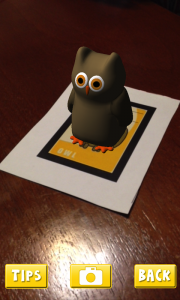
AR Flashcard – Animal Alphabet

AR Flashcards are a series of Augmented Reality apps used to teach your students words and concepts based on different categories such as animals, shapes, colors and planets. By using 3D animation, AR Flashcards bring print outs of animals and planets to life.

Some main features include:

  • colorful renditions of animals, dinosaurs and the solar system
  • sound effects
  • screenshot button which allows you to save your pictures

Click here for more information…


AR Flashcards are great tools for early childhood educators and English as an additional language (EAL) instructors. AR Flashcards create an entertaining way to introduce different vocabulary words to young children. According to testimonials, students have engaged with the app and have enjoyed the learning process:

“It’s definitely unique and a very clever way to get children involved in learning the alphabet and animal names.”

“Love how the animals pop up! My son gets a huge smile on his face when the animals appear. The new graphics are great and being able to take pics is cool.” (Augmented Reality Flashcards).


  1. Download and print out the cards from here . (Tip: print out flashcards in color and use cardstock paper)
  2. Download and install AR Flashcards to your mobile devices (the Alphabet and color have free versions where as the rest are paid apps) .
  3. Double tap the screen to bring up the focus button onto the flashcard so that you can adjust your device’s camera to bring the cards to life.

videopng-360x61.png

Leave a Comment

Filed under AR & VR, Math, Not Subject Specific, Resources

Kahoot! : Free Tool for Creating Learning Games !

whatisit.png

Kahoot! is a platform for teachers to create fun, engaging learning games with little technological knowledge/skill needed.

In Kahoot, you can create a series of questions combining with images, videos, diagrams, etc. The number and type of questions fully depend on your needs, and your students can get access to your learning game by simply go to kahoot.it and input a 4-digit number comes with your game.

There are four different types of Kahoots you can create, include:

  1. Quiz: you can use quiz Kahoots to introduce a topic, review what you’ve been teaching in a class, or use the quiz results to offer rewards to some of your students.
  2. Jumble: it’s a type of brand new game that allows students to rearrange the sentences, sorting algebraic equations, or putting historic events in order, etc. To learn more about Jumble Kahoot, click here for more information.
  3. Discussion: you can create Discussion Kahoots to initiate and facilitate a debate
  4. Survey: use this kind of Kahoot to gather opinions, insights or students’ feedback on a specific subject, a special event, workshop, or a class.

Why-is-it-relevant-360x82.png

Teachers need different forms of assessing their student learning and Kahoot! offers a “gamified” version of getting student feedback. It can be used to gather student background knowledge, assess midway through a unit to see if Students are getting the “big idea,” or used as a review.

With Kahoot, students can answer questions on their own devices, while games are displayed on a shared screen. As a teacher, you can pick from the existing games that other teachers have uploaded and even contribute your own games to the community.

Teachers should think carefully about their objectives and utilize the appropriate kinds of questions to help meet those objectives, elicit student understanding and propel learning. Consider varying questions between selection and supply and access the different areas of Bloom’s Taxonomy. This graphic, shared on Flickr by Enokson helps connect Bloom’s with question frames for assessment.

CC image Enokson Flickr Stream

Students might also create their own kahoots to deepen their understanding of the class content.

Kahoot allows you to connect and play in real time with other players in other places (synchronous learning across space!)

*at the time of writing, Kahoot does not seem to allow you to track student responses. If you are interested in trackingindividual responses, consider Plickers or another student response system.


how-to-get-started-360x80.png

  1. Create a teacher account on kahoot.com
    • There are several video tutorials on the site to help you out.
  2. Create a new Kahoot by selecting the type of interactivity you want to create.
  3. Title your Kahoot, add a description, and set up the visibility, language and audience type. Feel free to add a cover image to customize your Kahoot and invite engagement.
  4. Now you can start to work on your questions.

Let’s take Quiz Kahoot as an example, first, input the question to the “Question” area (here, we recommend you to prepare with the questions in another document, that will fasten your Kahoot creation process. Then, set up the time limit for the question, and feel free to add awards points to the question if you are doing a quiz. After this, input the answers and click on the checkmark next to the correct answer(s). Remember to give credit to the resources that you have used/ referred to in your questions.

  1. Now it’s time to save and share your Kahoot!

How to get access:

  1. Go to a web browser
  2. Go to kahoot.it
  3. Enter the game pin that showed on the shared screen
  4. Enter a nickname and start to answer the questions

Kahoot Instructions One Page Handout


videopng-360x61.png


1 Comment

Filed under Not Subject Specific, Resources

Google Expeditions Pioneer Program

Google-Expeditions-08


cc Chris Betcher

whatisit.png

Imagine being able to take students on a field trip without leaving the classroom. With the Expeditions Pioneer Program, teachers lead a guided virtual reality tour of a range of places such as museums, wonders of the world, and even some otherwise inaccessible places like the deep sea or the surface of Mars!

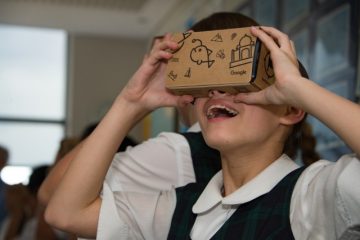
With the following equipment, students can have an immersive learning experience with 360 video that enriches the day’s lesson. In a Google Expedition virtual tour, onscreen annotations help to provoke questions, point out details and provide further background information about the location/content.

  • Teacher tablet,
  • Google Cardboard or other VR goggles,
  • Smartphones  compatible with cardboard
  • *You may also need an inexpensive router to create a local area network within your school’s secure network so that students can connect their phones to your tablet. We’ve used the Aptus router with some success for small groups but more powerful routers may provide even better results!

Even without the formalized ‘expeditions’ provided by google, a a teacher could also easily ‘bring’ students to a relevant 360 video or  image and engage them in a tour/exploration with some guiding questions or prompts. Students can also interact with 360 videos or images using an ipad or by scrolling in their browser, although the experience is less immersive than with the goggles.


Why-is-it-relevant-360x82.png

Expeditions can be an engaging and interactive experience for students as they explore 360º space. The possibility of taking a virtual tour of faraway places in the blink of an eye can augment classroom learning in a way that wasn’t possible prior to the development of accessible digital technologies. While Virtual Reality should not replace real-life experiences, it can enhance and help uncover aspects of curricular studies through a ‘virtual’ place-based and experiential approach. Some places would be literally inaccessible without this kind of technology and, often, funding, logistical and transportation barriers can get in the way of students leaving the school grounds as frequently as we might like.

As with any digital technology, always keep in mind the value of the teacher as facilitator. Consider your purpose for exposing students to particular content and experiences. Be sure , also, that these virtual experiences don’t replace opportunities for students to engage in real world, f2f experiences by getting outdoors, in the school yard, the local community and even further afield. Such real world experiences nurture students in a way that digital tech cannot.

Further reading (articles available online in UBC Ed Lib):
Dutton, L. (2016). Google Expeditions. School Librarian, 64(3), 147.
Lamb, A. & Johnson, L. (2010).Virtual Expeditions: Google Earth, GIS, and Geovisualization Technologies in Teaching and Learning
 Teacher Librarian; Feb 2010; 37, 3; Canadian Business & Current Affairs Database

how-to-get-started-360x80.png

  • Download Google Expeditions and install the app on your student devices. Android from the Play Store or get the app on iOS from the Apple Store.   Install IPAd, IPOD, Android or IOS phone devices.
  • Sign onto the same WIFI network. Must be one that allows peer to peer networking.
    Or you can also use a router. In most schools, you will need to set up a local network since the secure wifi network will not allow you to do peer to peer networking – you can do this with an inexpensive router. We have used low cost Aptus routers successfully in our workshop sessions but there are likely other possibilities.
  • Select an expedition and download the expedition. Each expedition consists of a series of scenes.
    On the teacher device, the teacher will select Leader and the students on their devices will select Follow.
  •  When on a tour, look for the smiley face icons on your teacher device. These show you where your students are.
  • Points of Interest. Each tour has a teacher script which is not something you just want to read aloud.  Read ahead of time and pick out the things that you think would be the most relevant for your students. When you select the script an arrow will appear for your students and it will point them to this target symbol.   Be prepared for questions from the explorers about things they see that are not on your script. Have your key questions about the Expedition ready.  Take time to let the students experience the Expedition before you dive in with additional information.
  • Google Expeditions kits are available in Canada through Best Buy. They include student devices, virtual reality viewers, a rapid charger, teacher device, router, case.  They come in kits for 10, 20 or 30 students, however, Google Cardboard can be cut out and assembled as a making project and there is some excellent open access content available online.

Learn more about Expeditions here: https://www.google.com/edu/expeditions/


videopng-360x61.png

Leave a Comment

Filed under AR & VR, Not Subject Specific, Resources

Poll Everywhere: engage your class in real time

whatisit.png

Poll Everywhere is a web-based and mobile app that you can use to engage your audience and to support classroom assessment. You can use your mobile device or log in with a web-based version to start a question and your audience can respond to your question with their own device by scanning your QR code, texting or finding you via the shared URL. Once students respond, you can see their real-time responses and present the results in your PowerPoint, Google slides, keynote, or on your website.

Depending on your needs, you can choose from a free educator plan or various paid plans. The K-12 Basic plan is Free (teacher account/sign-up needed; no student account or login required) and you get:

  • Responses per poll: 40 (explain)
  • Allows to present via Powerpoint, Full-screen web presentations, Many question types, Live word clouds, Text walls, Customize look & styles
  • Support: FAQ online

Why-is-it-relevant-360x82.png

Using Poll Everywhere in your classroom, you will be able to collect students’ answers and feedback in the moment. It can also be used as a great tool to engage your students and probe their understanding in a certain concept as an activity strategy or closure. This formative feedback can support teachers in planning and scaffolding instruction.


how-to-get-started-360x80.png

To get started with Poll Everywhere, there are a few steps:

1. Teacher signs up/Login to Poll Everywhere

2. Create your questions on your laptop/desktop in the browser.

Using Poll Everywhere, you can choose from a large variety of poll activities, including multiple choice, open response, live word clouds, clickable images, up- and down-voting for Q&A, and rank order. Plus, you can write your questions in different languages as well!

3. Invite your students to respond.

They can go to a customizable web address on their mobile devices or computers (by scanning your QR code or inputting the address into their browsers ) or send a text message to participate. As a teacher, you’re encouraged to use a premium moderation feature, that will allow you to filter the response before they are presented on the shared screen.

3. Collect the results and share with your students.

You can simply use a live chart to present the results, and also change the color, font or images as you want. To display it, you can use a web browser or embed your results in your Powerpoint or Google Slides as well.


videopng-360x61.png

3 Comments

Filed under Not Subject Specific, Resources

VivaVideo: Free Video Editing Software for Mobile

hands-1167614_640

whatisit.png

VivaVideo is a free app available for both Android and iOS that allows even the most inexperienced of users to combine and edit audio and visual content on the go. While its interface is rather simple it boasts a wide range of features, form effects, transitions, and filters to live subtitles and dubbing.

Free version:

  • Powerful video editing
  • Creative camera lenses
  • Photo slideshow maker
  • Viedo collage maker
  • Export and sharing

Pro version:

  • all the above +
  • Watermark-free videos
  • Unlimited video length

Why-is-it-relevant-360x82.png

Video has become a central part of media as we know it today. It is a powerful supplement, and sometimes replacement, for writing as it is often more informative and engaging. As such it is becoming increasingly important that children learn about video production and tools like VivaVideo as part of their academic experience. The value in VivaVideo lies in the fact one can use it to edit media without moving the content to another device, speeding up and simplifying the production process. Students can use this software to create anything from short documentaries to amateur films or video presentations. Not only does this bolster student engagement but it also allows students to express themselves and communicate in a manner rather different to the run-of-the-mill essay, poster, or short-answer quiz. After all, the purpose of education is not only to inform but, perhaps more importantly, to create and inspire.


how-to-get-started-360x80.png

Using the device on which you wish to install VivaVideo go to the app on the Google Play Store or the Apple App Store (depending on your device) and click install. Once you have installed the software check out some of the easy tutorials and start making!


videopng-360x61.png

Leave a Comment

Filed under AppliedDesignSkillsTechnologies, multimedia creation, Not Subject Specific, Resources, Video & Video Tutorials

iPad possibilities – preparing for practicum!

UBCSandbox

Technology use for technology’s sake is not what we are striving for in education today. Transforming learning by providing opportunities that would not otherwise be afforded is a goal that, with emerging technologies and increased access, may be achievable. This transformation can be as simple as allowing for as-needed differentiation, as is the case when providing a student with the option to audio record, video record or ‘screen capture’ record his/her ideas or can include such opportunities as sharing their ideas and creations with a larger audience online.

Explore some ways to connect with students and provide for interactivity – my top 5 apps for student engagement and expression (including some that are cross platform!). Download the Handout for more information (links to research and practice)

Sandbox_iPad Possibilities_Oct 2015

Always explore with a critical eye and ask yourself key questions such as:
• Is it intuitive?
• Is it interactive? Does it support content creation and collaboration?
• Can you edit once you’ve started?
• Can work be easily exported?


‘Whiteboard style’ applications are terrific for formative assessment, project work and digital storytelling (among other things). I like to offer students the opportunity to share their learning using ‘Explain Everything’ or ‘Showme’. Providing multimodal opportunities for expression and representation of learning supports Universal Design for Learning – remember to consider offering choice!

These apps allow students to create content on the iPad (rather than just ‘consuming’). Students are able to draw, text, upload images and narrate. This can provide the perfect platform for teachers to have the opportunity to recognize understandings and to catch misunderstandings. Using devices to support students creating (or co-creating) stories, presentations & projects moves the learning up the SAMR ladder!


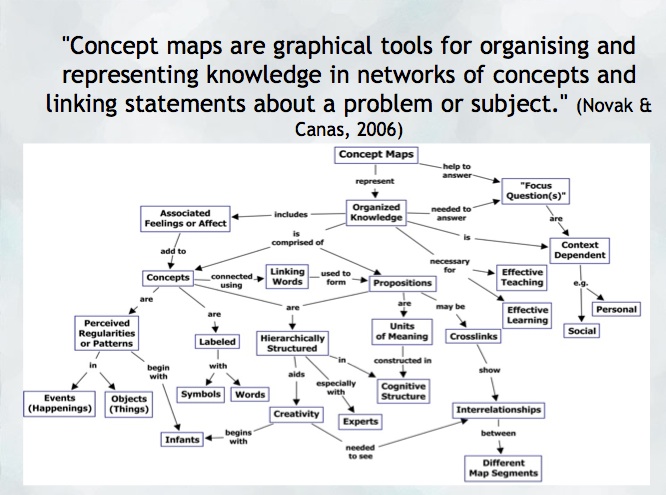
Another opportunity to help a student construct and share their understanding might be a concept map. Mind mapping, or concept mapping, can be a powerful tool where students are encouraged to illustrate the connections between their ideas, concepts or content in meaningful ways.

“A concept map is a type of graphic organizer used to help students organize and represent knowledge of a subject. Concept maps begin with a main idea (or concept) and then branch out to show how that main idea can be broken down into specific topics”.  There are some excellent tutorials on this site and information for teachers about the ‘concept’ of ‘concept mapping’

mindmap
Try: Inspiration or Kidspiration  as iPad apps

*Many schools also have licensing for this application on their computers or laptops.

Digital Storytelling is another excellent use of the iPad for content creation… try Puppet pals, Showme or imovie (among others!)


Sketchnoting and Digital Storytelling offer many opportunities mobile content creation… try Puppet pals, Showme or imovie (among others!)

Feeling ambitious?? Consider this ‘App Smash’ sequence:

  • Storyboard your ideas using Kidspiration (or, better yet, markers and paper!).
  • Create a talking avatar (or narrator) using either Chatterpix (making an avatar with an image of your own) or Telegami (talking, moving avatars) and save the video to your camera roll. *Save a screen shot of the character if you want to embed it into your story at some point!
  • Draw a background using ‘Paper53’ and save it to your camera roll.
  • Now, create a story using either ‘PuppetPals’ or ‘Explain Everything’ (import your background and character into this app)
  • Finally, you can merge it all together using ‘iMovie’! You now have a personally constructed digital story!

Leave a Comment

Filed under Not Subject Specific, Resources