

“A concept map is a type of graphic organizer used to represent knowledge of a topic, forge connections between ideas and create visual illustrations of their understandings. Concept maps begin with a main idea (or concept) and then branch out to show how that main idea can be broken down into specific topics”. There is some information and tutorials on the ‘Inspiration’ software site, including information for teachers about the ‘concept’ of ‘concept mapping’ and how they/their students might use concept maps, mind maps or outlines to support writing, idea generation and organization, planning and more.
Concept maps, or mind maps are powerful graphic organizers that can be used in many ways to illustrate and explore connections across ideas. Creating a Concept Map provides students and teachers with an opportunity to construct and share their understanding of a topic, theme, concept, area of interest – they can even be used by teachers as a format for planning units or lessons of instruction. Mind mapping, or concept mapping, can help students illustrate the connections between their ideas, concepts or content in meaningful ways and can be used as formative and summative assessments.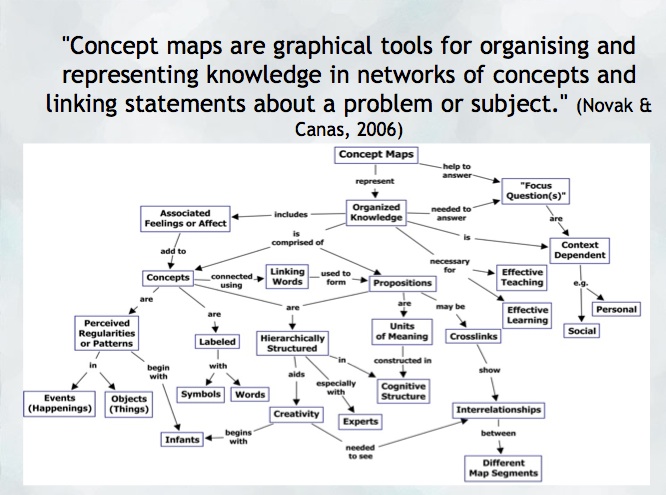
As mentioned, CMaps, concept maps or mind maps can be analogue or digital. Teachers might consider providing students with choice in developing their map using high tech or low/no tech approaches depending on the objectives. If the objective is to widely share the map, then digital may be preferable (of course, students might also take a photo of a map ‘in process’ and ‘completed’ in order to share as part of a portfolio or published work/project).
For higher tech options, try:
- Draw.io (Free Range Ed Tech – An Open Access option available on the Sandstorm Server) The teacher will need to create an account (data is Canadian housed) and will then have access to the Sandstorm server. Once there, go to ‘Apps’ and select ‘Draw.io’ and create a new grain/mindmap. The teacher can then share an editable link to the Mindmap with students. Students will not need their own accounts to access and collaborate/edit. Draw.io is added as an app within the Sandstorm server. *when engaging with apps in the « open » community, please remember that members providing support are volunteers (glitches happen and please be respectful and patient).
- Inspiration or Kidspiration as iPad apps NB: Many schools have licensing for both applications on their computers, laptops or tablets.
- Bubbl.us is an online collaborative concept mapping software – each individual with an account is able to be invited to contribute to the map being drawn in the cloud. With a paid educator account, a teacher can invite students using a link to either view or collaborate (students do not need to provide their information or sign up for an account). A 30 day free trial and an Educator/Non-profit discount is offered.
- For schools using ‘Google Classroom’ MindMup or Miro offer free collaborative mindmapping (login required)
- Teachers should always be aware of appropriate permissions in their context/school districts. These might include parental consent, student informed consent or it may not be permitted to have students sign up using gmail or other account information.
Examples:

Miind Map created by a #ubcbed2015 Teacher Candidate using ‘Paper53’, a drawing app.
No/Low Tech Options:
Collaborative or Individual drawing on chart paper or using sticky notes on a whiteboard. The teacher might begin by providing a skeleton to scaffold learning and introduce students to ways to connect ideas.
Freeform Concept maps can be drawn by hand or using some of the available draw applications made for smartphones and tablets. Engage your students and harness the value of BYOD using ‘Paper53’ as Brittney, a UBC TC, did in the example shown here! View a simple ‘how to’ Youtube video tutorial about this app.
Twitter can be a great place to search for examples, research, blogs and new mind mapping tools. There are even a few related hashtags you can follow:
Tweets about imindmap
This Edutopia article provides a good starting point for learning more about the power of mind mapping and other strategies to support deeper thinking.
References:
Novak, J. and Cañas, A (2006): The Theory Underlying Concept Maps and How to Construct Them (Technical Report IHMC CMap Tools 2006-11). Florida Institute for Human and Machine Cognition.
!function(d,s,id){var js,fjs=d.getElementsByTagName(s)[0],p=/^http:/.test(d.location)?’http’:’https’;if(!d.getElementById(id)){js=d.createElement(s);js.id=id;js.src=p+”://platform.twitter.com/widgets.js”;fjs.parentNode.insertBefore(js,fjs);}}(document,”script”,”twitter-wjs”);


