Category Archives: Uncategorized

Creating Your Own Trailers to use as Hooks

Now that you’ve learned a bit about hooks, you might be interested in creating a TEASe. Also known as a Technology Enhanced Anticipatory Set, the purpose of a TEASe is to introduce and stimulate student interest on a topic. Although you can find a number of TEASes made by other teachers, it can be fun to be a little more involved and hands-on. Regardless of your skill level, there are a number of user-friendly programs available at your fingertips. Remember, budget your time wisely. Consider if the value of the end product is worth the amount of time you spend.

Here are a few note-worthy programs:

  • Animoto (Android and iOS)
  • iMovie (Use the trailers feature)
  • Videolicious (iOS only)
  • Windows Movie Maker

If you would like to use one of these programs but don’t have access to them, you are free to use the computers in both the Mac and Windows labs (Scarfe 1006 and 1007). If you would like access to iPads, let Jenny know and she will provide access.

Resources

Leave a Comment

by | October 16, 2014 · 3:53 pm

Videos in the Classroom

Nowadays, videos are a common part of the classroom experience. Personally speaking, it’s rare for me to be in a class without watching a video presented by a professor or teacher. Unless you’re a seasoned videographer or filmmaker, videos are extremely time consuming to create. It can also be very time consuming to weed through all of them. Here, I’ve cut down some of the work for you. The following are some great sources of educational videos which you can use to introduce or supplement a lesson. I threw in a few personal favourites of mine, too.

macbook-407126_640- From Pixabay, no attribution required

AsapSCIENCE

With over 3 million subscribers on YouTube, AsapSCIENCE is one of my personal favourites. I first discovered this gem while watching the Sochi 2014 Olympic Games on CBC. Using whiteboard animation, the videos feature a variety of topics within science. The language and content is easy to comprehend- there is very little scientific jargon. The Toronto-based channel also has a Twitter page, perfect if you enjoy scientific humour.

Bill Nye the Science Guy

You can’t compile a list of educational videos without Bill Nye! His 30 minute programs focuses on teaching natural science to children. The series and the catchy theme song was a real hit with everyone when I was in elementary and high school. I have always been particularly fond of the parody songs that accompany each episode!

CrashCourse

Run by brothers Hank and John Green (aka the author of The Fault in Our Stars), this channel features videos on a wide variety of topics, such as psychology, literature, biology, and world history.

Khan Academy

Khan Academy is one of the most well-known resources available online. Originally, Khan Academy started up as a YouTube channel. Now, they branched out onto their own website, offering free educational videos for everyone worldwide.

MinuteEarth

Similar to the style of ASAPScience, MinuteEarth features short animated videos about planet earth.

TED Talks

TED Talks are usually the first types of videos that come to mind. For senior students, some of the TED Talks are perfect for this audience.

WatchKnowLearn

WatchKnowLearn is a great website in which teachers can access thousands of videos across a wide variety of subjects and grade levels. The videos are peer rated and sorted into a large directory and categories.

Vsauce

Michael Stevens, the creator of Vsauce, creates videos that pose a number of intriguing questions (think inquiry). For example: why are things cute? Why is yawning contagious?

YouTube Education

The education section of YouTube contains a wide variety of resources that are further divided into grade levels and subject areas. The videos come from a wide variety of channels.

Lastly, here is a website with a very comprehensive list of sites for educational videos.

What are some of your personal favourites? Let us know in the comment section below!

2 Comments

by | October 6, 2014 · 12:40 pm

Powerful presentation tools and Amazing image search tips

There are so many places to go, so many things to see. I realize this sounds a bit like a Dr. Seuss, but it is just so true when it comes to the wealth of available resources on the net to help you author your own multimedia presentations. I’ve compiled only 3 – (trying to stay focussed here!) as well as linked to several excellent sources for Creative Commons Images. You can also search this blog for ‘digital storytelling’, ‘images’, ‘creative commons’ for more…

Let’s start with an image search… we’ll need some images if we want to create a presentation!

It’s always best to take your own photos. I find it makes the presentation more personal and meaningful but… there are some amazing creative commons and public domain images out there you can ‘borrow’ (under various terms… look for ‘with attribution’ or ‘no attribution’).

Creative Commons Image Search  http://search.creativecommons.org/

I also like PixaBay – this site is hosted by shutterstock (they sell images and will show you some terrific ones you can purchase but also have many images and no attribution needed – though they do appreciate a link back!)  http://pixabay.com/en/

Another source is NASA or NOAA (or many other governmental agencies) or you can try http://www.public-domain-image.com/

Check out what I did using a PowToons template and about 15 minutes of my spare time…

Haiku Deck is another favourite and can always be counted on for high impact visuals, clean lines and reduced text

http://www.haikudeck.com/

Prezi provides the opportunity to take your viewers on a journey (or allow them to follow their own path through your presentation).

or Try ‘SlideRoll’ – a free site that let’s you play without signing up!

http://www.slideroll.com/free-slideshow-creator.php

Have you tried ’30 hands? You can upload presentations and even create your own course online. Using their app, you can create simple slideshows with voice over, transitions, text, images and drawing.

http://30hands.30hands.net/members/yvonned/presentations/11447-testing-presentation/details

Consider the following when creating presentations:


  • Ensure you Book and test the presentation equipment in advance.
  • Use visual aids if they serve a clear and important purpose. Visuals should aid quick comprehension and support the main points.
  • Put titles on visuals to reinforce message.
  • Use short quotes vs. long extracts
  • bulleted lists are easy to read (by your audience) and tables reinforce a story.
  • Use the visuals to enhance your presentation, not as a substitute for a verbal presentation. You are the storyteller.
  • Do not read directly from your slides… the slides reinforce the message – ideally in key terms, phrases and images to reinforce.
  • Talk to your audience and not to the screen.
  • Use a remote where possible… this allows you to use the classroom as your stage vs. standing at the front of the room tied to the computer.
  • Use ‘presenter mode’ with some notes you can reference if needed.
  • Coordinate the audio and the visual (if applicable). NB: using audio can enhance aspects of your presentation as can short video clips.
  • Design your visuals with clarity and simplicity in mind. Choose an easy to read font (times new roman, ariel, helvetica are good choice) and watch the animations and transitions for too much distraction.


Leave a Comment

by | September 16, 2014 · 8:25 am

All About Piktochart


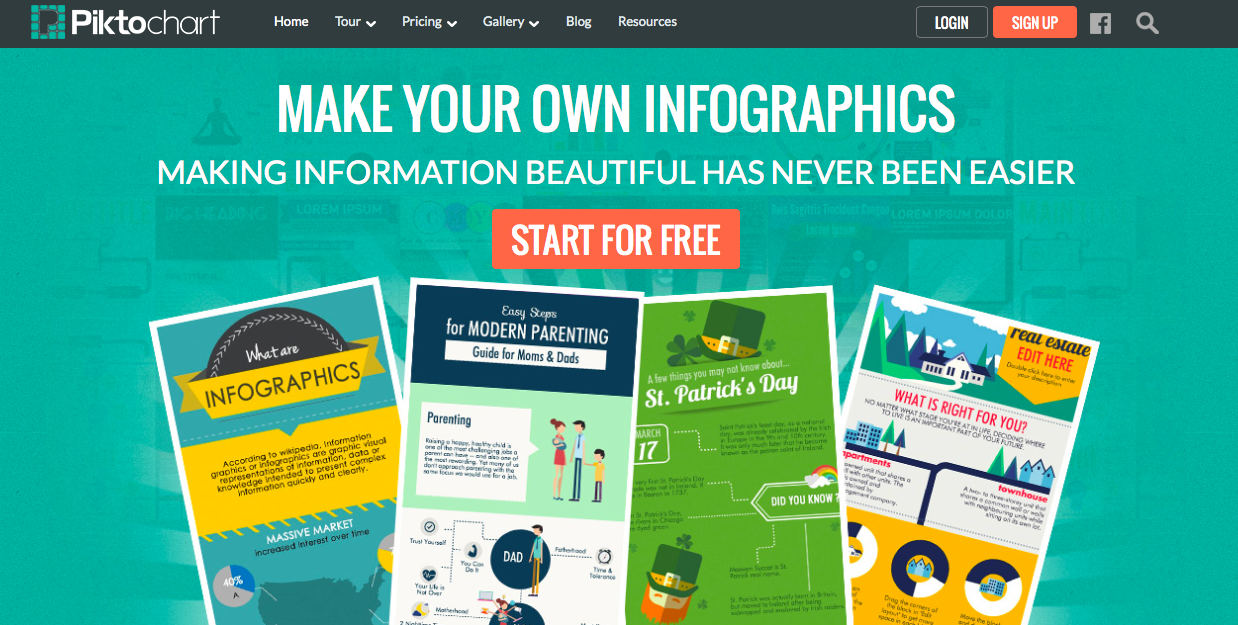
Welcome page of Piktochart

Welcome page of Piktochart

Piktochart is a website in which users can create infographics, banners, reports, and presentation. They offer a wide variety of premade templates that can be customized to suit individual needs. Users can sign up for an account free of charge using their email, Facebook, or Google account. As a registered free user, a selection of templates are available for use. When you arrive at the Pikto templates page, the free templates are located at the top of the site. Once you decide on a template you would like to work with, hover over to reveal the “preview” and “create” options. From there, give your creation a title. You will be redirected to an edit page.

Some benefits of Piktochart:

  • There are thousands of free high quality icons and images that are built in and free to use- no need to search elsewhere for Creative Commons images!
  • All the work is done on the Web, which means you can access the site anywhere without the hassle of apps or desktop programs.
  • The interface is clean and simple to use.
  • Everything within the template can be modified- colours, backgrounds, font, text size, etc.
  • External content, such as YouTube videos, can be embedded into the template.
  • This is a great alternative to using PowerPoint when creating your own presentations.
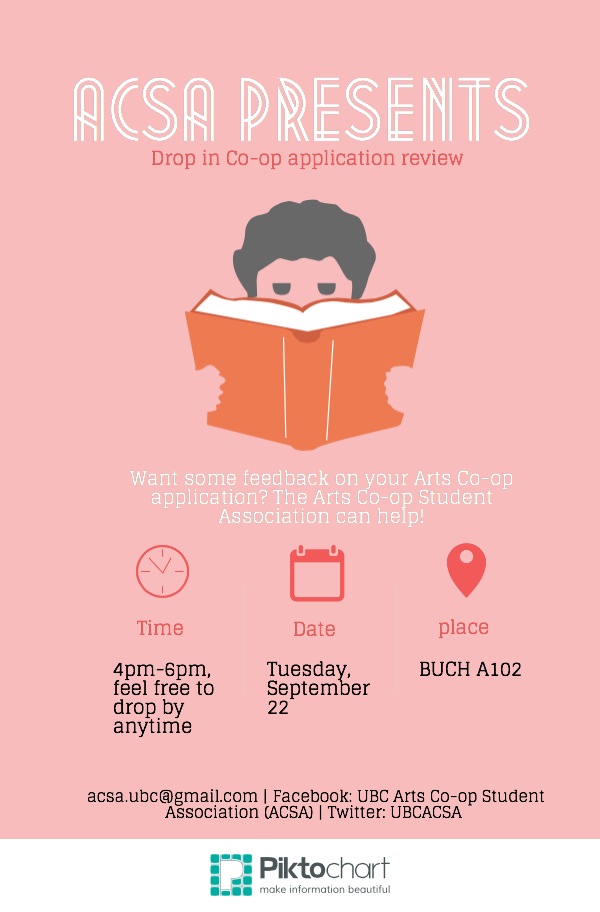
Example piece created on Piktochart

This is a poster I created via Piktochart using one of the free themes.

Piktochart also hosts a subscription-based service, otherwise known as PRO account. The PRO account unlocks all of the different themes, icons, and graphics, contains more functions, removes the watermark, etc.

To check out Piktochart, click here and a new window will open up for you. If you have any questions, feel free to drop by Scarfe 155 every Monday to Friday from 12-1pm for drop-in sessions. I will also be present for the Sandbox Sessions every Tuesday and Thursday from 12-2pm. Otherwise, send your questions my way to jenny.ho@ubc.ca!

Leave a Comment

by | September 15, 2014 · 4:00 pm

Creative Commons Image Search

Taking and editing your own photographs can be a challenging, yet rewarding way to enhance your web spaces. Further, this virtually eliminates copyright issues! Still, if you are looking for web content you can use, here are a few places to look:

Creative Commons Image Search NB: you still need to be aware of licensing requirements and generally attribute the work to the author. ALWAYS read and learn before you use!

Public Domain Image Search *always check the image sources and ensure the image is in the public domain.

  • Wikipedia Public Domain listing – fairly comprehensive
  • Pixabay – allows immediate sharing to various social network sites including Facebook and Twitter. Some high interest and high quality images. Many are free with no attribution required. This site also links to high quality stock photos you can pay to use.
  • Burning Well
  • freefoto.com  is one I like to use with younger students when developing digital stories or web-based projects
  • http://www.public-domain-image.com/
  • Various governmental sites offer high quality images – always attribute source and note any special licensing requirements in their FAQ or About pages. These can be particularly helpful for Science and Social Studies!: NOAA photo library (National Oceanic and Atmospheric Administration) ; US Library of Congress ; NASA ; Archives Canada ;
  • Open ClipArt
  • PDPhoto.org  – free public domain images

A Youttube ‘how to’ video on searching for images

Drop by the Sandbox this week (December 11 or 13)  to learn more about when and how to use images in your teaching!

Leave a Comment

Filed under Storytelling, Uncategorized

Just Moodling around

I was recently asked about Moodle and how to go about using it… I’m definitely not an expert in this Learning Management System but I have enjoyed messing about with it to create a course or two during my own Masters Program.

What is Moodle?  “Moodle is a Course Management System (CMS), also known as a Learning Management System (LMS) or a Virtual Learning Environment (VLE). It is a Free web application that educators can use to create effective online learning sites.” from https://moodle.org/

I’ve never personally come across Moodle courses in an elementary school setting. It is, however, commonly used at the secondary and post-secondary level to create online course material. Other LMS’s include: Blackboard, Desire2Learn, Joomla

Visit Moodle’s website and try out their online Sandbox – you can practice building a course using the login information provided… note that login times out after about an hour and your work is not saved. You can also take a tour of their ‘demo site’ at the fictitious Mount Orange School . At this fictitious school site, you’re even able to login as a student, teacher, parent or manager to test out features. Take a ‘video tour’ of Moodle and learn more.

Finally, there are many blogs out there where you can learn Moodle tips and tricks (including, of course, the Moodle forums which I’d recommend you join!). Visit Michael Penney’s blog for some very clear and concise tutorials.

Leave a Comment

Filed under Interactivity, Uncategorized

Interactive Classrooms – iClickers for active learning

Did you know that there are two class sets of iClickers (and controllers) available on loan through the Scarfe Education Library for instructors? All you need is the clicker set (which includes a ‘base station’) and a computer hooked up to projection.  iClickers can support interaction, formative and summative assessment in any classroom – regardless of age level or size – and are relatively simple for teachers and students to use.

See the iClicker Sandbox handout for more information, research and ideas:

Sandbox  iClickerQuickStart guide

Sandbox_iClicker_Nov2013

Visit: http://elearning.ubc.ca/toolkit/clickers/ for FAQ, step by step setup and more!

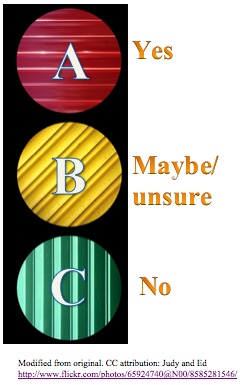
Idea – for some ‘proactive’ classroom management, hang or display signs showing the ‘choices’ related to the letters on the clickers.

Continue reading

Leave a Comment

Filed under Assessment, Interactivity, Uncategorized