Tag Archives: app

Thinkmap Visual Thesaurus

Thinkmap Visual Thesaurus is a web-based, visualization tool that will present a word map of your selected word and its related vocabularies (both synonyms and antonyms). Using Visual Thesaurus, you can find the most appropriate word to use in a few seconds.

Visual Thesaurus can also be used as a dictionary with pronunciations and definitions for terms in English and many other languages, including French, Germany, Spanish, etc.

You can try it for free or  sign up  to purchase one of several different subscription types.


Thinkmap Visual Thesaurus is a great language learning resource for students from grade 4 to 12 and the post-secondary level.  With its interactive and intuitive platform, students can listen to pronunciation, view definitions, and see connections between words to help expand their vocabulary. There are even a few language options.


    • In your browser, go to ThinkMap and just try it by typing in a word (or sign up and get your subscription).
    • Input the central word that you want to explore into the search box, and click on “Look it up”.
    • Change the settings depending on your requirements: you may choose Language > French/Germany if you want to expand your vocabulary in a different language. You can even select ‘levels’ of language (helpful for ELL, younger students or those with less developed reading skills or vocabulary knowledge.
    • Share or print out the word cloud image.


videopng-360x61.png


Reference:

Thinkmap Inc. (2006). VISUAL THESAURUS LESSON PLANS TEACHER‘S GUIDE. Retrieved March 21, 2017, from http://www.thinkmap.com/download/vtpresskit/08_lesson_plans/teachers_guide.pdf

Leave a Comment

Filed under Assistive Technology, Resources

Emaze

whatisit.png

Emaze is a web based tool (and Chrome extension) for creating presentations and describes itself as the next generation of presentation tools. You need to sign up for an account and then continue as a free account user. With this you will not have full functionality as you can’t download presentations as pdf files but you can share the presentations via email as a link.


Why-is-it-relevant-360x82.png

Emaze is another presentation application and it allows students to explore the potential and limitations of templates.  There are Education templates that are very interesting; Breaking News, Gallery 3D, and School Science.  Keep in mind that Emaze hasn’t been designed with kids’ use in mind, and some of the templates are definitely more useful for business presentations. For students to use on their own would recommend for intermediate students Gr. 5 and up.  The School Science template could be used by the teacher with primary students if they worked on a presentation with buddies.

Examples of Emaze presentations


how-to-get-started-360x80.png

  • View Basics of Using Emaze
  • Go to https://app.emaze.com/mypresentations#/home
  • Register and then continue as a free account user.
  • Click the NEW box upper right corner. Create a new “presentation”.
  • Scroll to templates for Education. Select either Gallery 3D, or Breaking News, or School, or one of your choice.
  • Then edit the template adding your own content.
  • Share the presentation via email.

videopng-360x61.png

Leave a Comment

Filed under Not Subject Specific, Resources

Just Moodling around

stockvault-students113094

whatisit.png

I was recently asked about Moodle and how to go about using it… I’m definitely not an expert in this Learning Management System but I have enjoyed messing about with it to create a course or two during my own Masters Program.

What is Moodle?  “Moodle is a Course Management System (CMS), also known as a Learning Management System (LMS) or a Virtual Learning Environment (VLE). It is a Free web application that educators can use to create effective online learning sites.” from https://moodle.org/

I’ve never personally come across Moodle courses in an elementary school setting. It is, however, commonly used at the secondary and post-secondary level to create online course material. Other LMS’s include: Blackboard, Desire2Learn, Joomla


Why-is-it-relevant-360x82.png

Moodle has a simple interface, with drag-and-drop features, and is highly customizable. It is also free and open source, meaning that anyone with programming skills can adapt Moodle to the particular needs of a school or course.


how-to-get-started-360x80.png

Visit Moodle’s website and try out their online Sandbox – you can practice building a course using the login information provided… note that login times out after about an hour and your work is not saved. You can also take a tour of their ‘demo site’ at the fictitious Mount Orange School. At this fictitious school site, you’re even able to login as a student, teacher, parent or manager to test out features. Take a ‘video tour’ of Moodle and learn more.

Finally, there are many blogs out there where you can learn Moodle tips and tricks (including, of course, the Moodle forums which I’d recommend you join!). Visit Michael Penney’s blog for some very clear and concise tutorials.


videopng-360x61.png

Leave a Comment

Filed under Resources

ShowMe Interactive Whiteboard

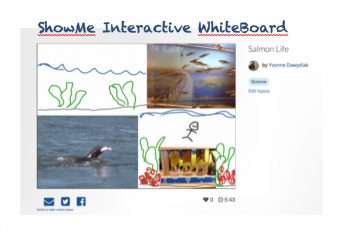
ShowMe Interactive whiteboard app is a mobile application that allows teachers and students of any age to create presentations called ShowMe’s that can be shared via the device or online privately or to a community audience. The user can record and create engaging voice over presentations of their chosen topic by using some of the many tools such as adding text, drawings, photos and images.

You can also access teacher and student created ‘ShowMe’ content covering a vast selection of academic subject matter as well as non academic topics on their website and you can subscribe to a premium service that provides a number of extra features such as private postings options, advanced tools, more storage and specified group sharing. The ShowMe interactive whiteboard app is a tool with great potential for both teaching and learning.

FEATURES

– Voice-record
– Multiple brush colors
– Enter text
– Pause and erase
– Import pictures from your photo library, built-in camera, or web image search
– Import documents as pictures from dropbox, or google drive
– Create video from any document
– Unlimited lesson length
– Free to upload and share your recordings with friends
– Easy embedding for sharing anywhere
– Manage students with Groups

As flipped classrooms become more popular, teachers are interested in creating their own tutorial videos for their students. ShowMe is a straightforward tool that would help you create attractive screen casts. Other applications to try for this purpose include: Camtasia, VideoScribe, Explain Everything or Shadow Puppet.

Given it’s relatively straightforward user interface, ShowMe makes an excellent formative assessment tool for teachers. Students can be encouraged to “ShowMe” what you know about a particular concept or topic. The app will allow them to share photos, drawing, video and audio – showing and telling the story of their learning in a way some children are unable to do effectively on pencil and paper.

Recently, ShowMe has also come out with a ‘Markup App’ that allows teachers to annotate student work on their ipads.

Leave a Comment

Filed under Assistive Technology, Not Subject Specific, Resources

Twine

whatisit.png

Twine is an open-source tool for telling interactive nonlinear stories. Allows for the author to create a choose your own adventure style story or non-fiction narrative. Twine allows individuals to create what are referred to as “text-based” games. Aside from being free, it’s really not programming at all — if you can write a story, you can make a Twine game.  Examples: When Sneezles Attack,

You can also find a variety of Twine examples and templates on itch.io
There is an interesting Gr. 6 lesson plan for Twine found at Teacherslearningcode.

You can find a scholarly application of Twine here.


Why-is-it-relevant-360x82.png

This open source software is considered a text based gaming software and employs coding offering students an opportunity to write and share non-linear stories.  The benefits are that they will use language—beautiful language to engage a player and capture the hearts and minds of their characters and consider how story design can be built around verbs and objects to make players feel like empowered participants in a story.

This resource is great to use in a second language classroom such as French Immersion, Core French, etc.  It allows for students to creatively engage in language learning.


how-to-get-started-360x80.png

View this excellent tutorial on Twine and visit the twinery.org cookbook for step by step instructions!

There are a few things you should know before you get started. Your work is saved only in your browser.  That means you don’t need to create an account to use Twine 2, and everything you create isn’t stored on a server somewhere else — it stays right in your browser. Use Chrome or Fire Fox. Do not use Safari.

Two very important things to remember. Since your work is saved only in your browser, if you clear its saved data, then you’ll lose your work! Use the Archive button often and publish individual stories to files using the menu on each story choose publish then save as an html file. When you go to work on your story again you will need to import the saved story file into Twine.   Secondly, anyone who can use this browser can see and make changes to your work.

  • Go to http://twinery.org/ Go to: Use it Online.
  • After Hi you can read the Tell Me More or just go to Skip.
  • On the right handside you will see in green +Story, click this.
  • Now name your story and +Add.
  • In the middle of a gridded screen see Untitled Passage which has a Rocket Icon by its title. This means this is the starting passage of your story.  The Bug Icon is used to test the story.
  • Harlowe is the default story format. You may also want to try story format—Sugar Cube. To get to the story formats go to the triangle drop down by the title of your story on the lower left side of the screen.
  • Important Commands
    Use square brackets to create a link to another passage [[ name of passage ]]
    Other commands that may be useful **Bold**, \Italics\
  • In Twine 2 you cannot embed any images or sound at this time.
  • When you are finished changing your story, publish it and save as an .html file.
  • When you go to continue working on your story go back to Twine and then upload your file.

videopng-360x61.png


4 Comments

Filed under Resources

Book Creator – free publishing!

Book Creator is a relatively straightforward publishing application (I might even say easy!). It is widely used in many lower mainland schools. Students and teachers can publish a story using various multimedia elements including sound, images, hyperlinks, drawing and text in moments.There are even comic book templates available in version 4.0.

There is a brief tutorial when you first launch the program that walks you through all of the basics.

Features:


NB: Some features differ across platforms.


Teachers are often looking for ways to provide their students with authentic learning experiences. By allowing children to publish their books to iBooks or Google Play where others can read them, writing becomes a real world experience. The relatively easy to use interface makes this application appropriate for even primary school aged children and the robust ability, including the ability to export ‘professional’ looking books to iTunes U courses, makes it of value for older students.

This resource is great to use in a second language classroom such as French Immersion, Core French, etc.  It allows for students to creatively engage in language learning.

Learn about collaborative opportunities, such as Global iBook project, for you and your students on Book Creator’s Education pages . You might even consider starting your own collaborative publishing project.

Join the Twitter chats to share ideas and tips with fellow educators.

#BookCreator on Twitter
Follow @BookCreatorApp

Read this review from CommonSense Media.


We have made Book Creator Instructions that you can read, share, and use with students.

Book Creator offers free training for teachers via webinars and Twitter Chat:


Leave a Comment

Filed under Not Subject Specific, Resources

Layar – Augmented Reality Platform

whatisit.png

Layar is an augmented reality platform accessible via the web and mobile devices (iPads,iPhone, Android Tablets, and Android phones, etc.)

With Layar, you can upload “trigger” images and then add overlays like images, video, 3D animations and sounds to them either through the web application or on your own mobile devices. After creating your campaigns, you can make them public so that everyone with the app can easily get access to your campaigns.

With the Layar Creator, you can enhance flyers, postcards, packaging or any other item with interactive content, including video messages, websites, social links, music clips and much more.


Why-is-it-relevant-360x82.png

As virtual and augmented reality software and applications like Pokémon GO become more advanced and accessible to the average user, educators must ask themselves how this might benefit the educational community. The value in Layar is that it brings static content to life, turning an observational learning environment into a more interactive one.

So how could you use Layar in your classroom? The most popular way would be to add explanations with text and images. In this way, students can get more information in a more engaging way. In addition, Layar is a great tool to create educational posters with video, images or text.

Using Layar (or other similar AR tools), you will be able to grow student engagement with more interactions; in addition, with Layar, students can get access to updated educational materials without being in the classroom, which means they can study by themselves at home or via long-distance education!


how-to-get-started-360x80.png

  • Download the Layar app from the Apple App Store or the Google Play Store depending on your device.
  • Sign up with your email, and create a username and password.
  • Take a picture of an object to act as a trigger. Layar works best with flatter triggers like pictures, posters, or patterns. The more detail in the image the better.
  • Upload the image either from your device or through the Layar Creator page. Create your first Campaign:

  • Add overlay content. When the trigger image is scanned the overlay content will be displayed. If you are creating the Campaign on your device you are limited to the default overlays that come with the application. Creating Campaigns through the web application allows you to upload 3D animations, sounds, images, videos, and links to each to make them interactive.

  • Make your campaign public to your audience.


Reference
Lens-FitzGerald, M., & Damyanov, N. (2014). Layar in Education . Retrieved May 15, 2017, from http://static.layar.com/website/Layar-Edu-Overview.pdf

Leave a Comment

Filed under AR & VR, Not Subject Specific, Resources